Documentsdefault-player-passwords-and-how-to-change-them
Default player passwords and how to change them
Raspberry Pi and Linux players ship with pi / pi. Change both from Settings.
Default credentials
Raspberry Pi and Linux players come with two defaults.
| Used for | Username | Password |
|---|---|---|
| SSH login | pi |
pi |
Download and player web page at http://player-ip:8000 |
pi |
pi |
Android and Amazon Signage Stick players have no SSH login. Content downloads are protected by the download username and password.
Change the passwords
You can change them for all the players in your account in one go.
- Go to Settings and open Authorization Settings.
- Enter the Username for download access and Password for download access.
- Enter the SSH Password for system access. Please avoid the "$" character in this password.
- Click Save Authorization Settings.
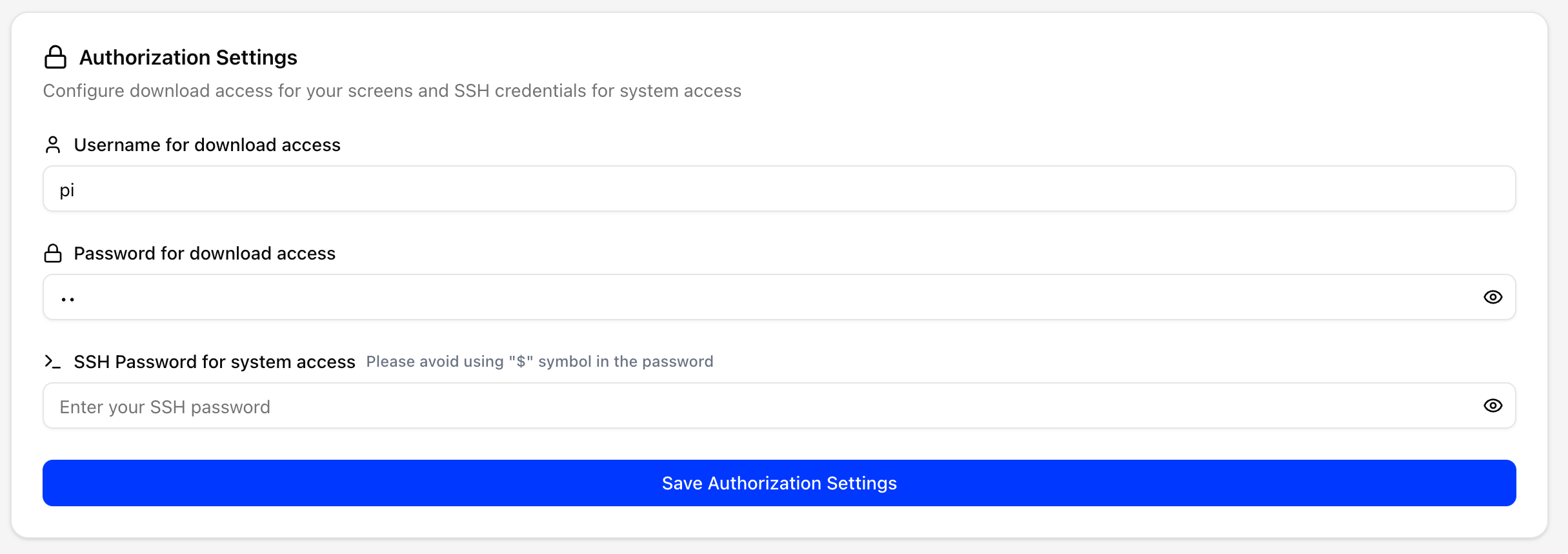
- Deploy your groups. Players apply the change on their next report to the server.
All three fields are required. See Settings for more.
In the legacy UI, go to Settings and set "Set Username and Password for Download Access" and "Set SSH Password for Player".
Going further
For more steps to lock down your players, read PiSignage Player Hardening and Security Best Practices.