Documentsquick-start---sync-playback-across-players
Quick start - Sync playback across players
Keep every screen in a group showing the same thing at the same moment with one switch and a deploy.
You need PiSignage player 5.6.0 or later, and internet time (NTP) on each player. For requirements, content types, how it works and troubleshooting see Synchronized playback across players (PiSignage 5.6.0).
Steps
- Update the players to 5.6.0. On the Screens page, check the version chip under each player. Update any older player and wait for it to come back online.
- Put the players in one group. Open Groups, then open or create the group. Confirm the players appear on the group's Screens tab.
- Build a playlist with fixed durations. Images, videos, web pages and widgets are fine. Do not add RSS feed rows or cloud folder rows, either one turns sync off for the whole playlist.
- Turn on the switch. On the group's Playback tab, under Playback Options, turn on Sync playback across players. On the Settings tab, leave Time to stop video at 0. Click Save Changes.
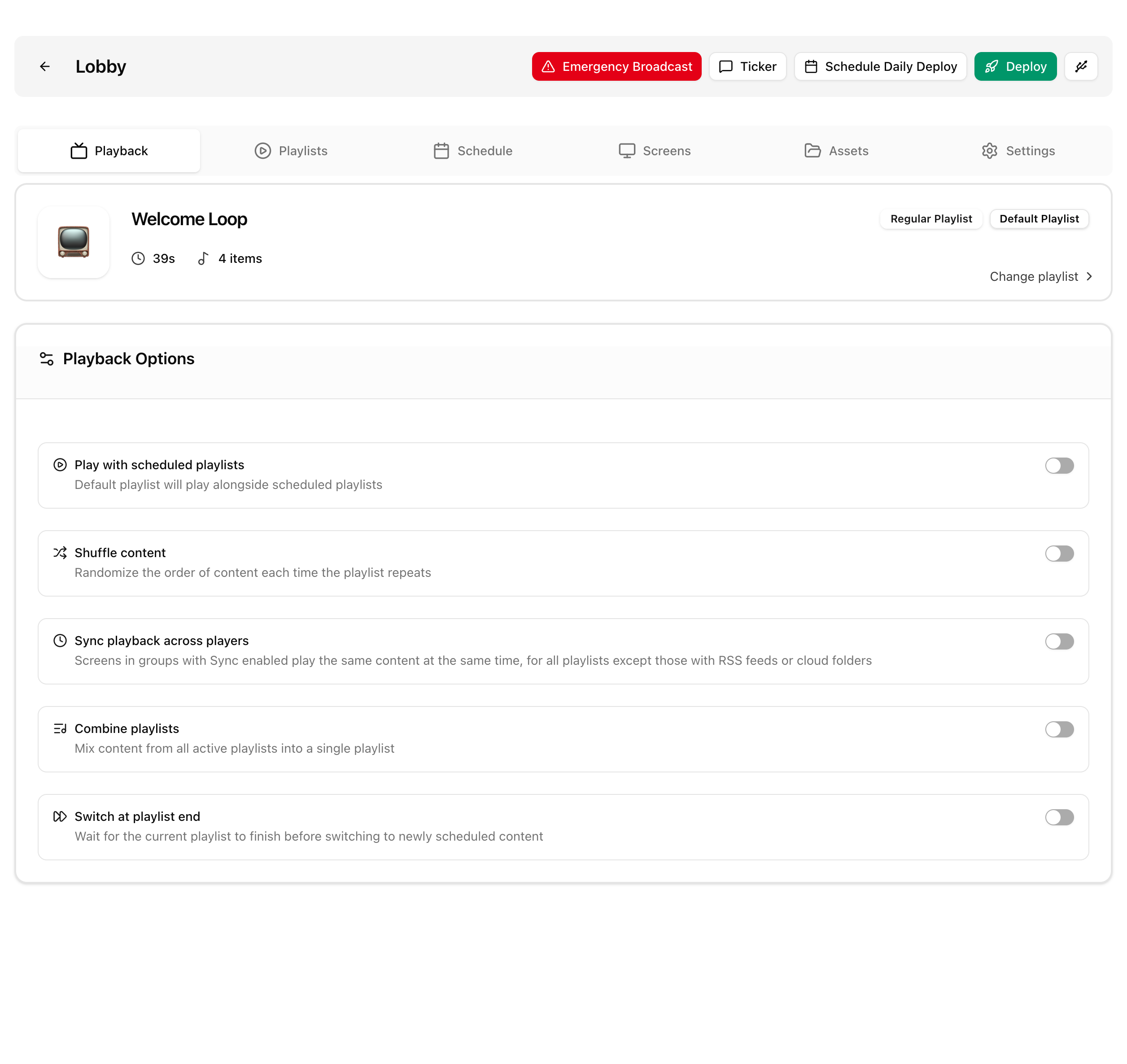
- Assign and deploy. On the Playlists tab, set the playlist as the default or schedule it. Click Deploy and wait for "Deploy done successfully."
- Check. Within a minute the screens show the same item and switch together. You can also open Screen Details for two players and watch both Feed tabs side by side.
In the legacy UI the same option is called Sync playback across players in the group settings.
Players stay within about one second of each other. A player that reboots rejoins the group automatically.