Documentshow-to-delete-a-player-and-redeem-license
How to delete a player and redeem license
Remove a player you no longer need and its license goes back to your account
When a player is no longer needed, remove it from your account. Its license is credited back automatically so another player can use it.
In the new UI
- Open Settings from the main menu and select the Screen Management tab. The Manage Players list shows every registered player and its Player ID.
- Find the player and click the red Remove player (trash) icon at the right of its row.
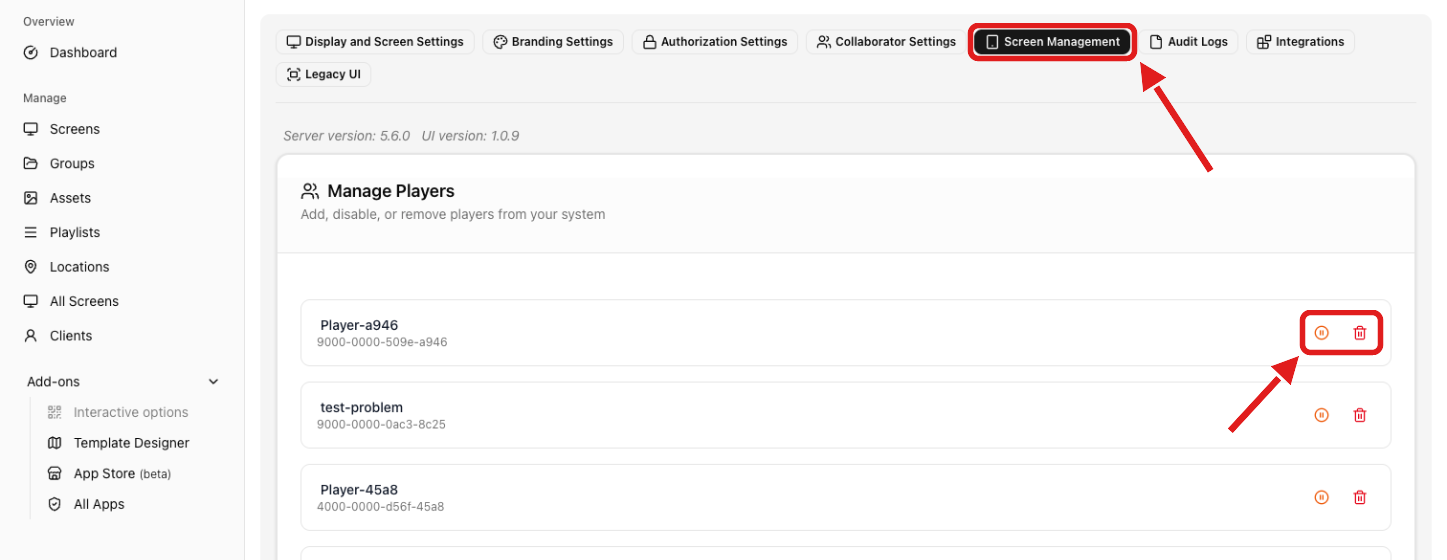
Removal happens immediately with no confirmation step, so check the Player ID before you click.
Want to take a player out of service for a while? Use the orange Disable player (pause) icon instead. A disabled player stays in the list and the same icon enables it again.
Settings covers the rest of the Screen Management tab.
In the legacy UI
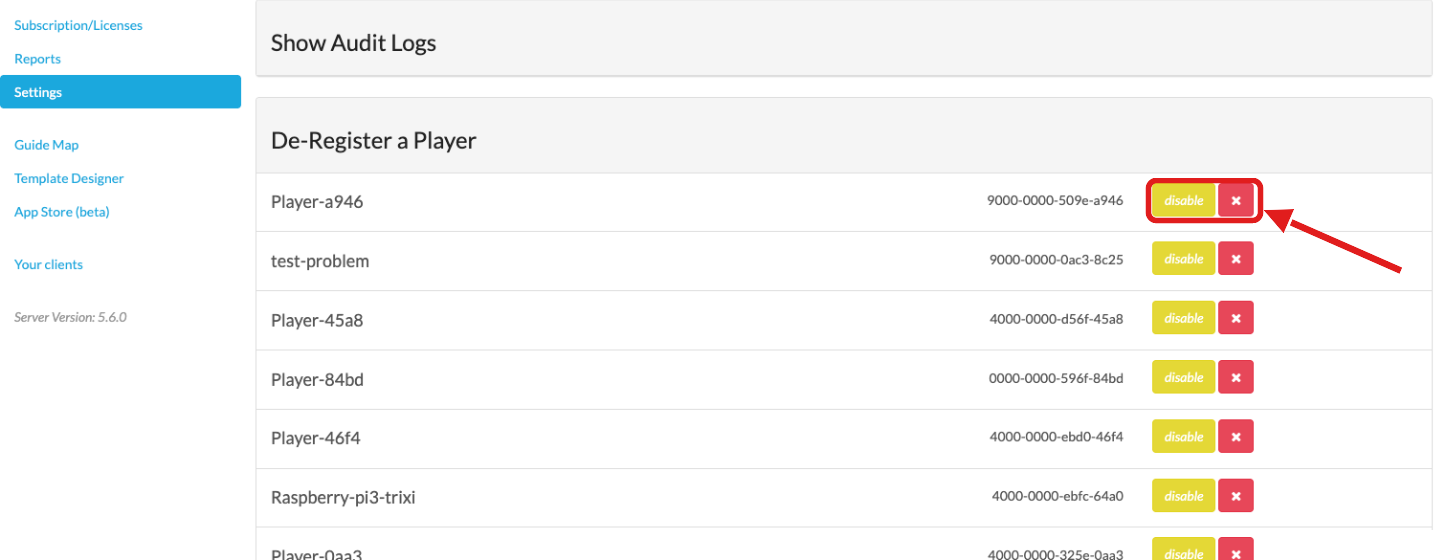
- Open Settings and scroll down to De-Register a Player.
- Click the red x next to the player to delete it, or click disable to keep it registered but out of service.
Once the licenses are adjusted, players that no longer have a license may need to be registered again.
Non-managed players
For non-managed players, write to support@pisignage.com to have the player deleted and the license adjusted.