Documentshow-to-add-files-links-messages-and-special-files
How to add files, links, messages and special files
Everything you show on a screen is added from the Assets tab.
New interface
- Open Assets and click Add Asset.
- Choose a category: Upload files, Create content, Paste a link, Live streams, Connect an account or On the player. You can also search for the asset type.
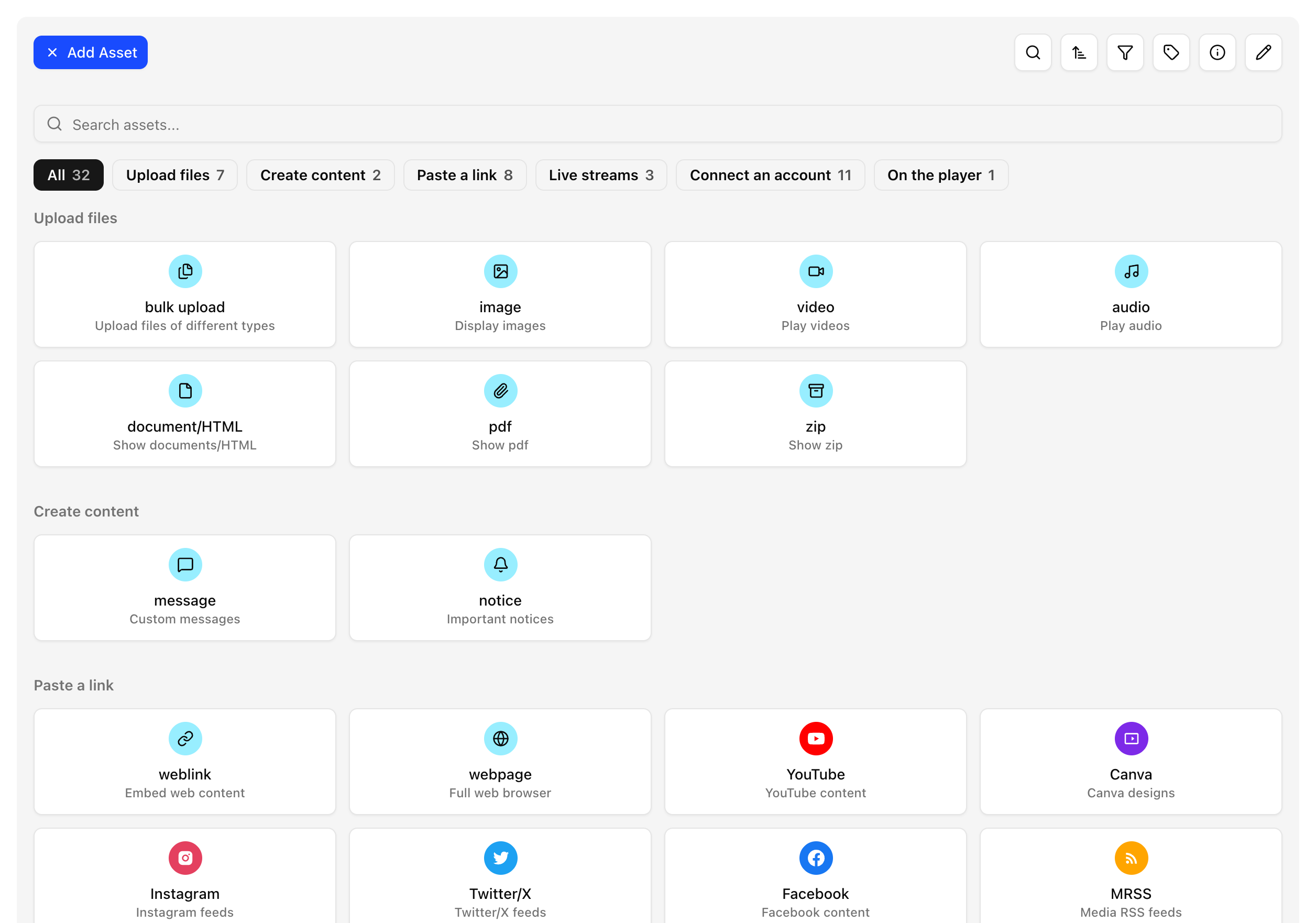
- Fill in the form and click Create Asset.
- In Configure Asset, optionally add Categories and a Validity period (a start date, an end date or both), then click Save & Continue.
Each asset row has these actions: View Details, Add to Playlist, Add/Edit Validity, Download and Delete.
- To rename assets, click the Edit assets pencil at the top right, edit the names and click the checkmark.
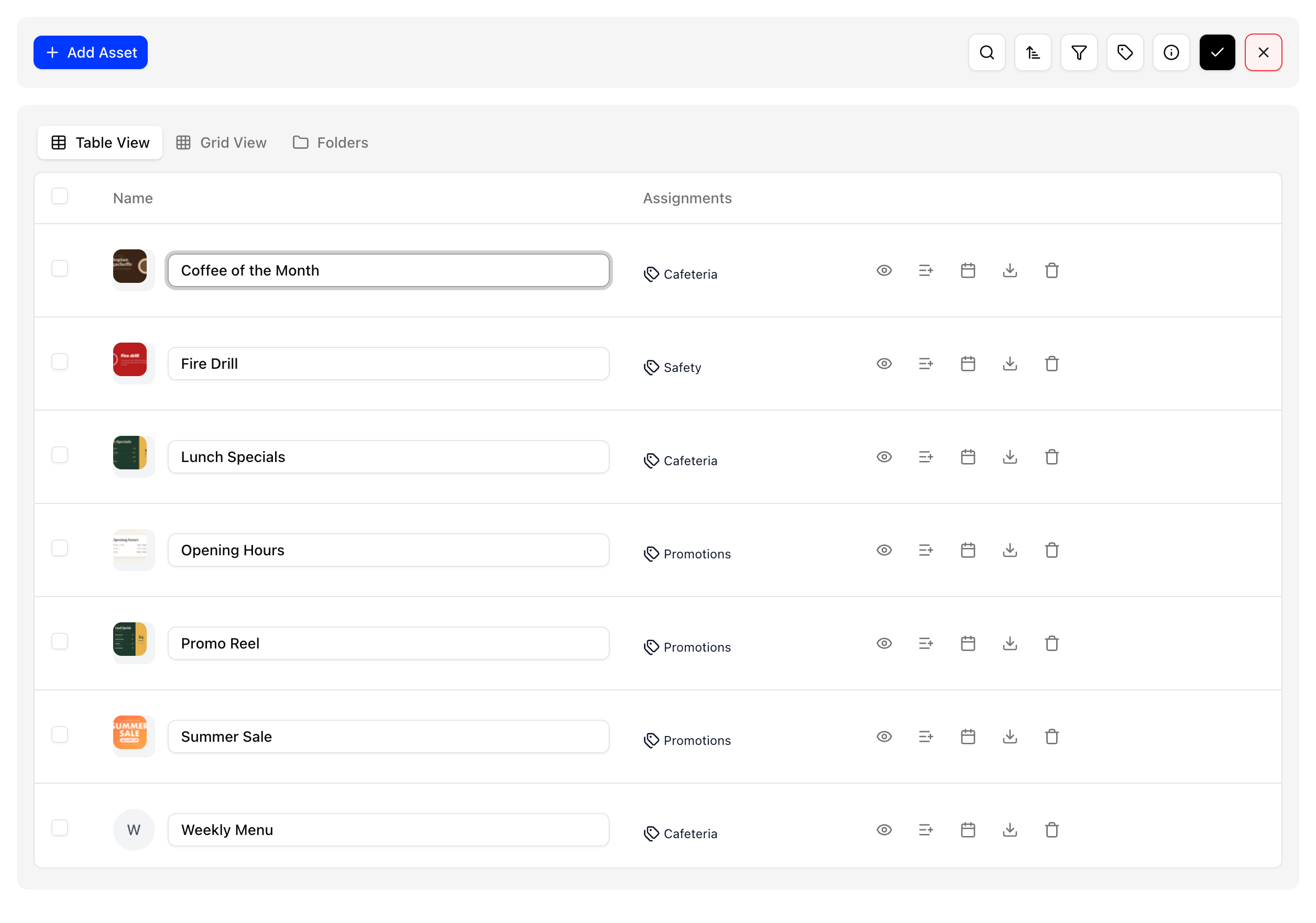
- Use Filter to find assets by type, category or Expiry Status (expiring in 7 days, expiring in 30 days, expired, no expiry).
If a web page shows a "refused to connect" error as a weblink, add it as a webpage instead, which opens a full browser. See Difference between webpage and weblink.
Links, messages and special files
| Where | Asset | What it is |
|---|---|---|
| Paste a link | weblink | A web page shown inside the layout. |
| Paste a link | webpage | A web page in a full browser, with optional zoom, keystrokes, auto scroll and headers. |
| Paste a link | YouTube | A YouTube video link. |
| Paste a link | Canva, Instagram, Twitter/X, Facebook | A public link, opened in a full browser. |
| Paste a link | MRSS | A Media RSS feed. |
| Create content | message | Text, with optional CSS. |
| Create content | notice | A title, body, footer and optional image. |
| Live streams | livestreaming | A YouTube or other live video URL. |
| Live streams | audiostreaming | An internet radio or audio stream URL. |
| Live streams | streaming | An RTSP camera stream. |
| On the player | local | A folder on the player. |
Examples of the last two:
rtsp://user:password@camera-ip:554/stream
/home/pi/myfolder
Assets covers each asset type in more depth, and Content types supported lists the formats. The blog article covers the types of links.
In the legacy UI
- Add everything from the Assets tab using the Add button. Asset types include files, templates, brand videos, special files, links, messages, notices and calendars.
- After you add a file, the server converts it, processes templates, creates a thumbnail and extracts details such as resolution, video duration and file size. This can take up to a few minutes.
- When you add a link, its details are captured and saved. Webpage settings such as zoom level and keystrokes are only available on the asset details screen.
- Set validity periods on the Assets screen. Players play an asset only on the dates it is valid, for example for a Christmas campaign.
- Use the EDIT button next to Add to rename or delete assets.
- Click an asset name to open its details screen, where you can view the asset or edit its details.