How to display webpages and dashboards that require login
There are five ways to show a login-protected page on a screen.
1. Shared or secret URL (recommended)
Many dashboards, including Grafana and Google Sheets, can create a share link that needs no login. Add the link as a weblink asset. You can revoke the link at any time.
2. Connect an account
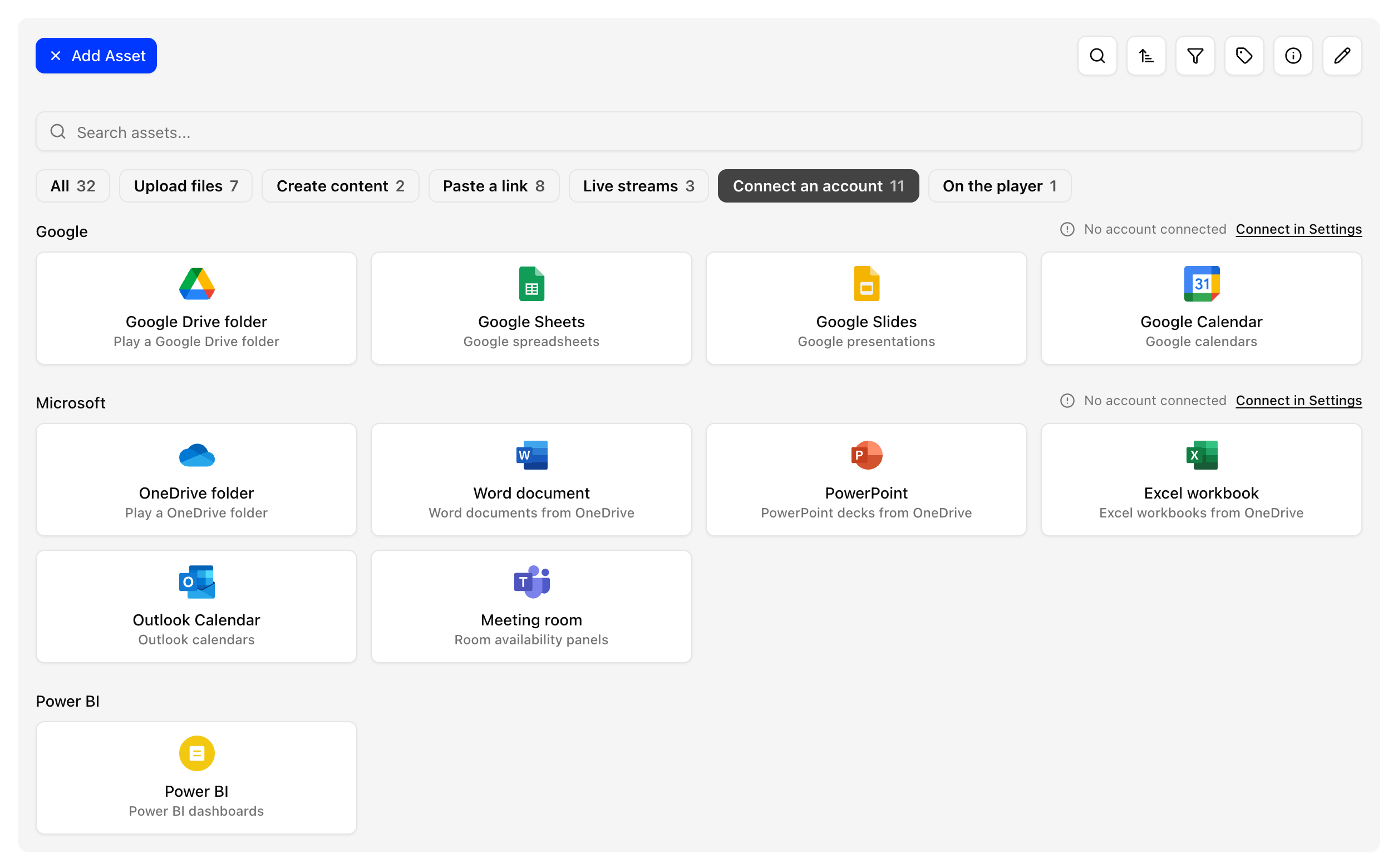
Supported services are
- Google Drive, Sheets, Slides and Calendar
- Microsoft OneDrive, Word, PowerPoint, Excel, Outlook Calendar and meeting rooms
- Power BI reports
Connect the account once under Settings → Integrations, then add content from Add Asset → Connect an account. The player does not store your password. See Settings and Assets.
3. HTTP headers
Add the page as a webpage asset and fill in Optional headers, for example a Basic authorization header or an API key header:
Authorization: Basic <token>
4. Keystrokes
In a webpage asset, use Send keystrokes to fill in a simple login form.
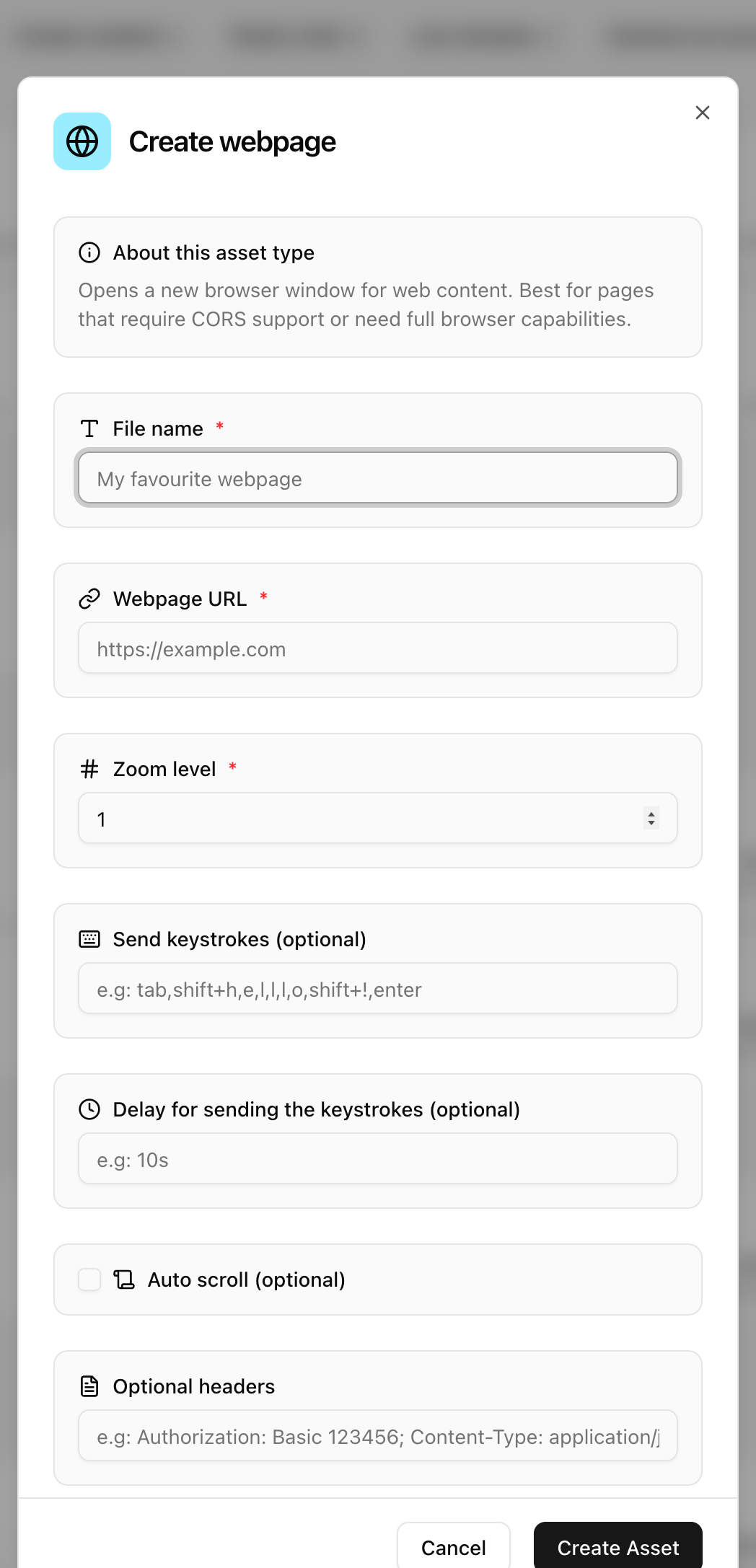
- Set Delay for sending the keystrokes (default 10 seconds) so the page has time to load.
- Use
shift+for capital letters and500msfor a pause. - Example:
tab,u,s,e,r,tab,p,a,s,s,enter
Keystrokes are stored as plain text in the asset, so use a shared URL when you can.
5. Log in once on the player
Connect a keyboard and mouse and log in on the player itself. The browser keeps the cookies, as long as the site's cookies do not expire. Each screen zone has its own browser profile, so log in within the zone that displays the page.
Headers and keystrokes work only with the webpage asset type (full browser), not with a weblink. See Difference between webpage and weblink.