PowerPoint and Google Slides presentations on digital signage
There are three ways to show a presentation on your screens.
A. Save it as a Google Slides document
Save the presentation as a Google Slides document, publish it and add the shareable link as a Google Slides asset. See Assets for the publish steps (File > Share > Publish to the web).
Slide durations and transitions are handled by Google Slides. Use this option if you need animations, transitions or embedded video.
B. Connect a Google or Microsoft account
- Go to Assets > Add Asset > Connect an account.
- Choose Google Slides to pick a presentation from Google Drive, or PowerPoint to pick a .pptx deck from OneDrive.
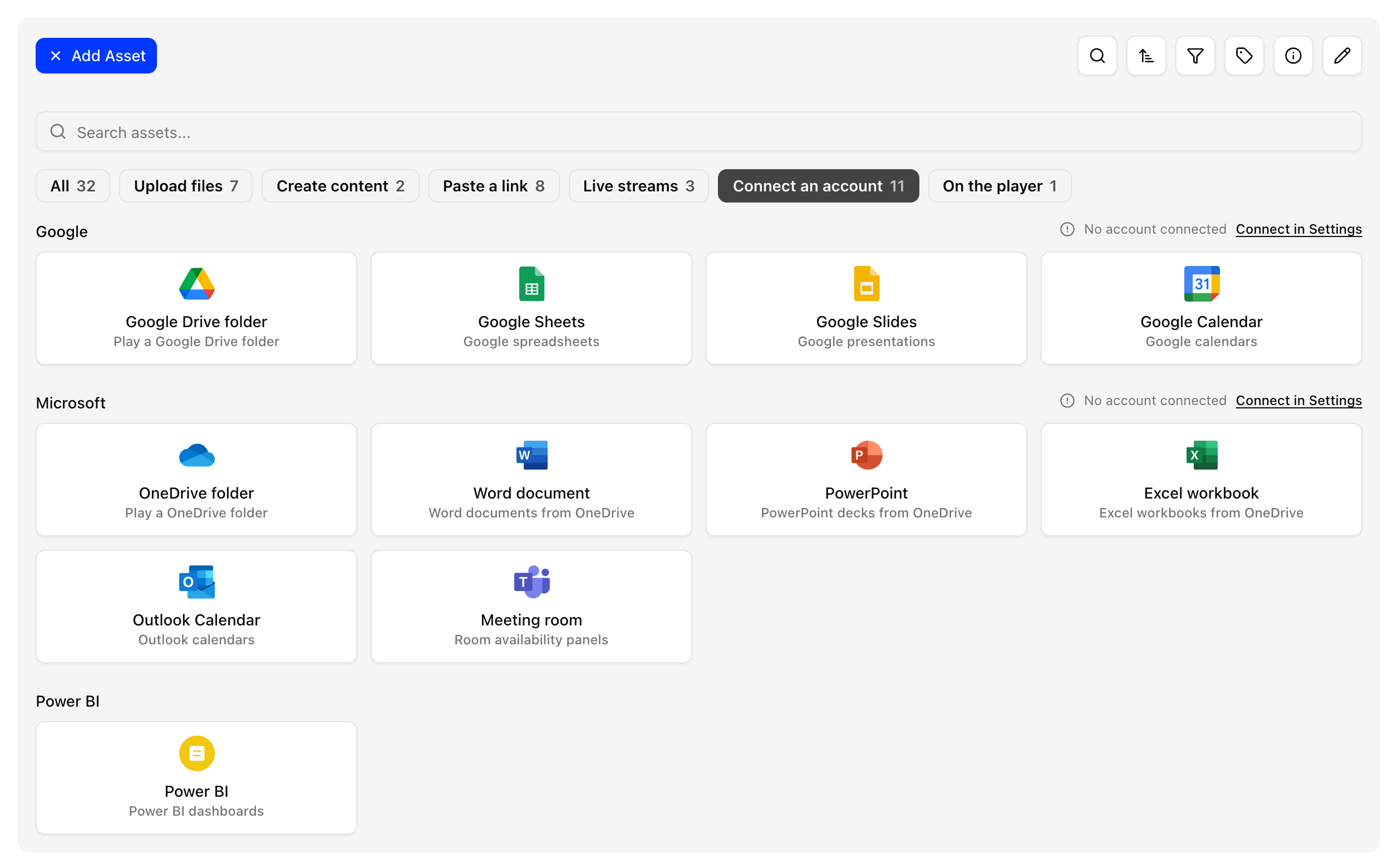
- The presentation is converted to a PDF with one page per slide and added to your assets.
- Add it to a playlist like any other asset.
PiSignage checks the presentation for changes every 15 minutes, so your edits reach the screens automatically. It plays on Raspberry Pi, Android and PWA players.
To show a whole folder of presentations, images and videos, use the Google Drive folder or OneDrive folder option.
Slides play as still pages, without animations, transitions or embedded video. Use option A if you need those.
A .pptx stored in Google Drive must first be saved as Google Slides. Decks in OneDrive need no conversion.
C. Export the presentation
Export the presentation as images or as a video and upload them as assets. Exporting as a video keeps your animations and transitions.
For more detail see the blog article. If a published Google Slides link does not work, see Google Slides publish to web link is not working.