Documentsaudit-trail-to-display-content-shown-reports
Audit trail to display content shown reports
Reports → Files shows how many times each piece of content was shown on your screens.
To see what was displayed on a screen, open Reports and choose Files. The count of times a file was shown is available for hour and day intervals.
In the current docs, Files tracks asset playback per screen. Toggle the player selection to see how assets were played on a specific screen, and download the table as a CSV if you need it. Reports covers the same in more detail.
New interface
Play counts by hour or day
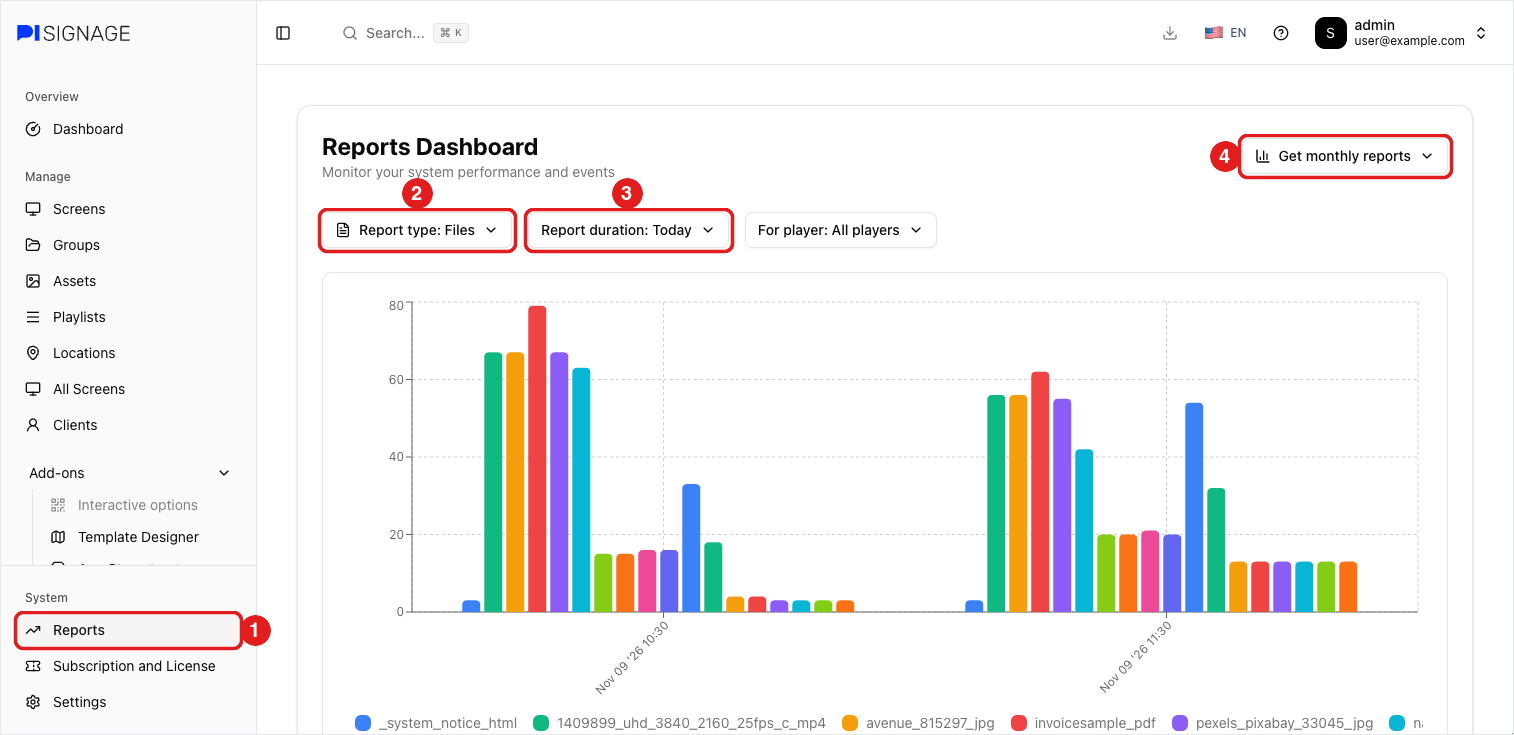
- Open Reports (1).
- Set Report type to Files (2).
- Choose the Report duration (3). Today, Since yesterday and Last 7 days show counts per hour; Last 30 days and Last 1 year show counts per day.
- Scroll down to the Data Table and click Download as CSV to save it.
The dashboard adds up the counts of all your players.
 **Monthly report per player**
- Click Get monthly reports (4) and pick a month, or Custom range for other dates.
- Set Report type to Files and choose the player under Select player.
- Click Download to save the report as CSV.
Example
Files report for one player, plays per day:
| File | Nov 3 | Nov 4 | Nov 5 | Nov 6 |
|---|---|---|---|---|
| 136058_764371355_mp4 | 125 | 115 | 114 | 110 |
| weather_dashboard_html | 120 | 114 | 113 | 108 |
| invoicesample_pdf | 121 | 112 | 113 | 108 |
| Google_weblink | 121 | 113 | 113 | 108 |
Here the video 136058_764371355.mp4 played 125 times on Nov 3.
- File names show with dots, spaces and other symbols replaced by "_", for example invoicesample.pdf appears as invoicesample_pdf.
- Counts reach the server after each hour ends, so the current hour shows up later.
- Collaborators need the Settings right to open Reports.