Reports
Reports allow you to monitor and generate charts and reports from across your account based on the applied filters.
To view reports simply click on the “Reports” tab from the main menu and toggle the available filters to set the same.
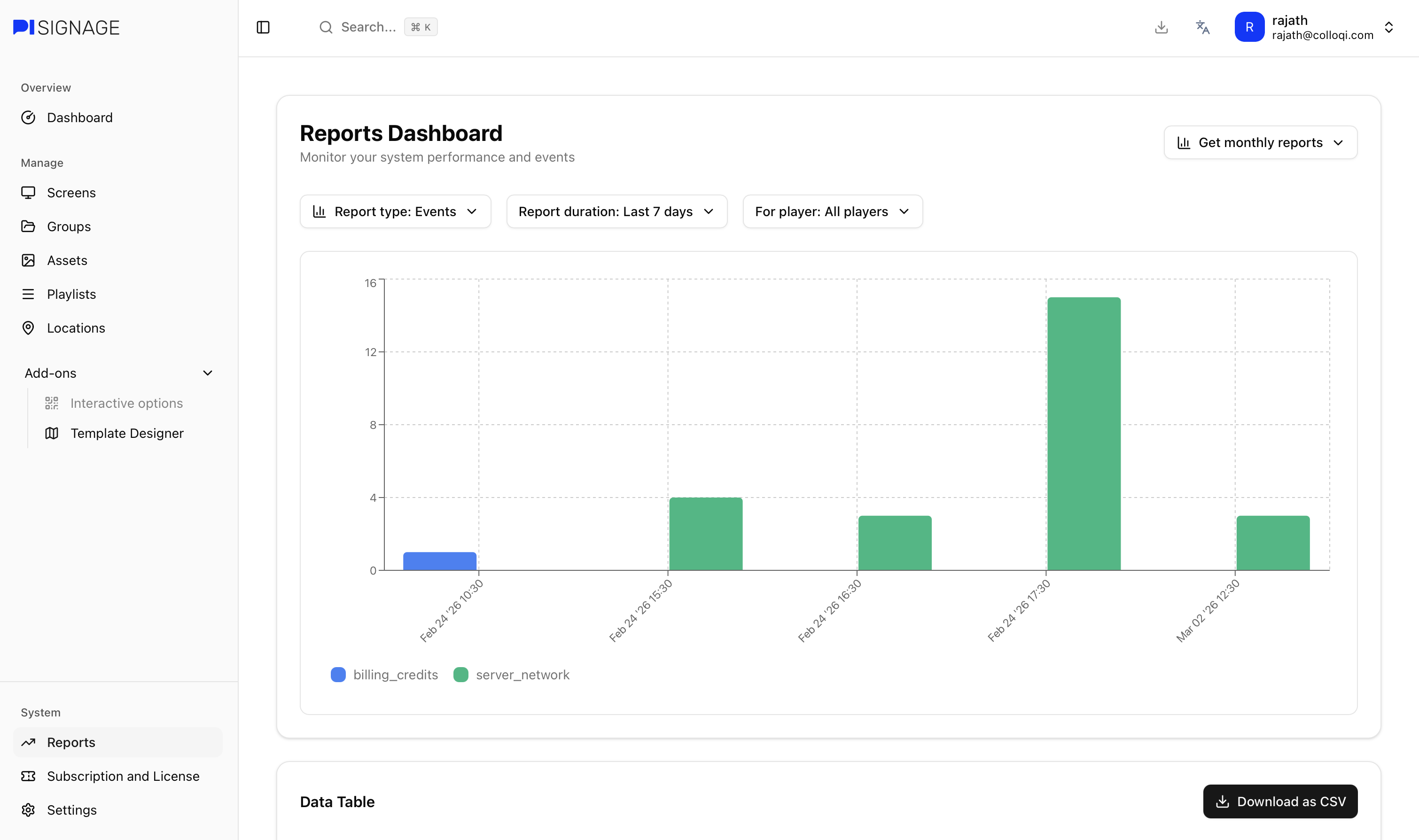
The filters
Monthly reports
Generate monthly reports by month. This is especially useful when you need to export monthly snapshots of certain reports
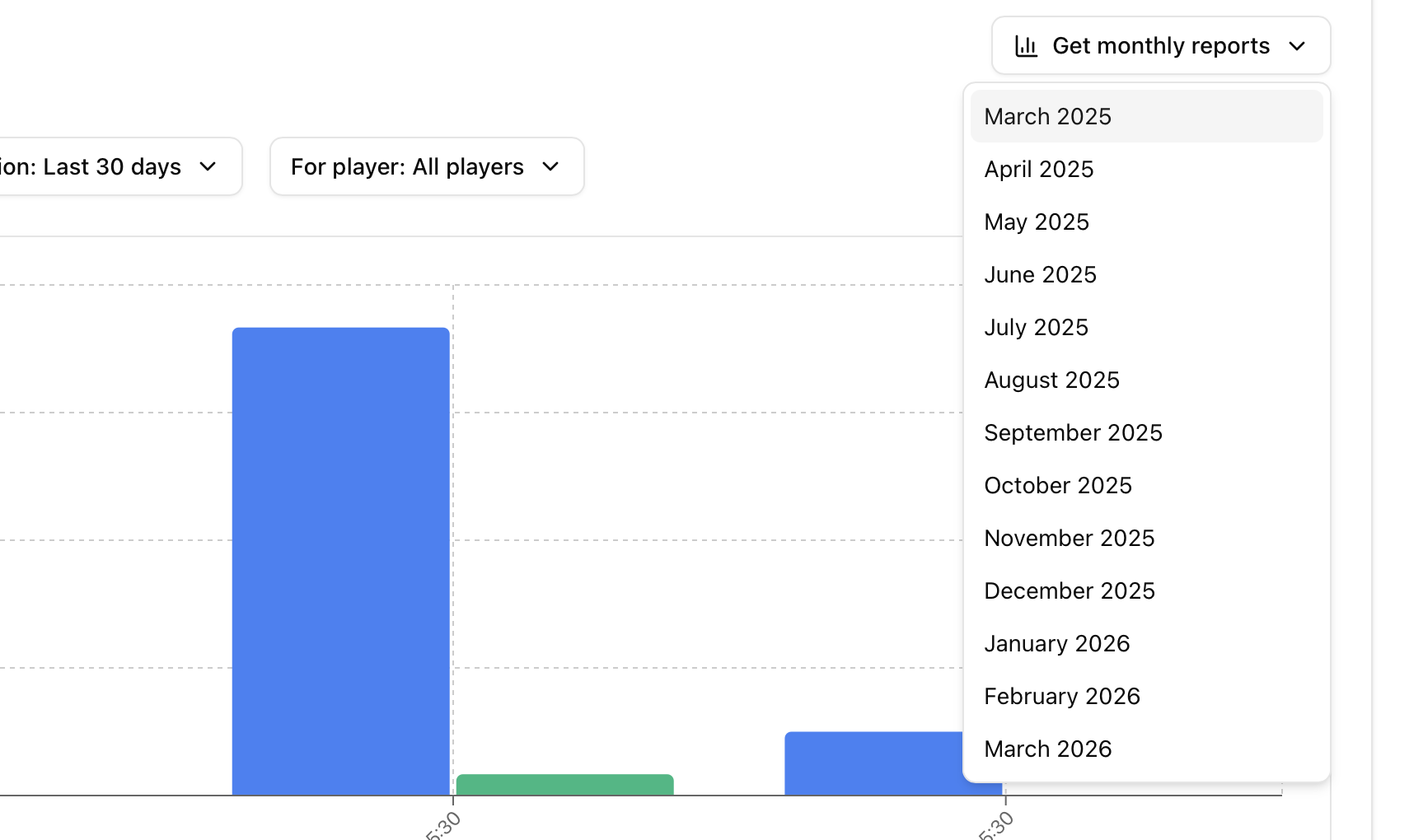
Dashboard filters
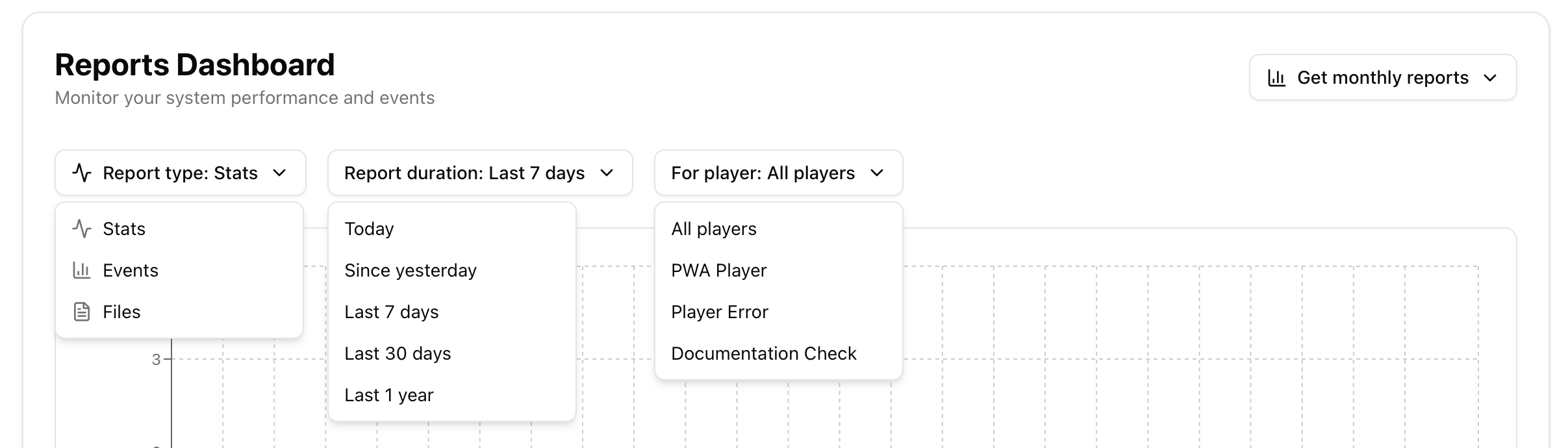
Report types
The report types are broken into 3 categories
Stats: Helps you track the uptime of players. It has 3 values it tracks across
Player uptime (Tracked even when offline): This tracks how long was the player or screen turned on and operational.
Server connected: tracks the durations in which the player was connected to the internet and reporting to pisignage.com successfully
TV Uptime (Tracked even when offline): If the player has a CEC connection enabled (see Screens for more details) this tracks the durations in which the TV was turned on and showing content as opposed to turned off while the player may have been on.
Events: Tracks events related to your account
Server network: This represents the player interactions with the server.
Billing credits: references the number of credits consumed by the active players/screens in your account.
Files: Tracks the Assets playback per Screens . To track the assets for a specific screen you can toggle the player selection to see how the assets were played per screen
Report duration
This determines the duration for of the data shown
Player selection
Filter the data shown to be specific to certain Screens and not all
Download as CSV
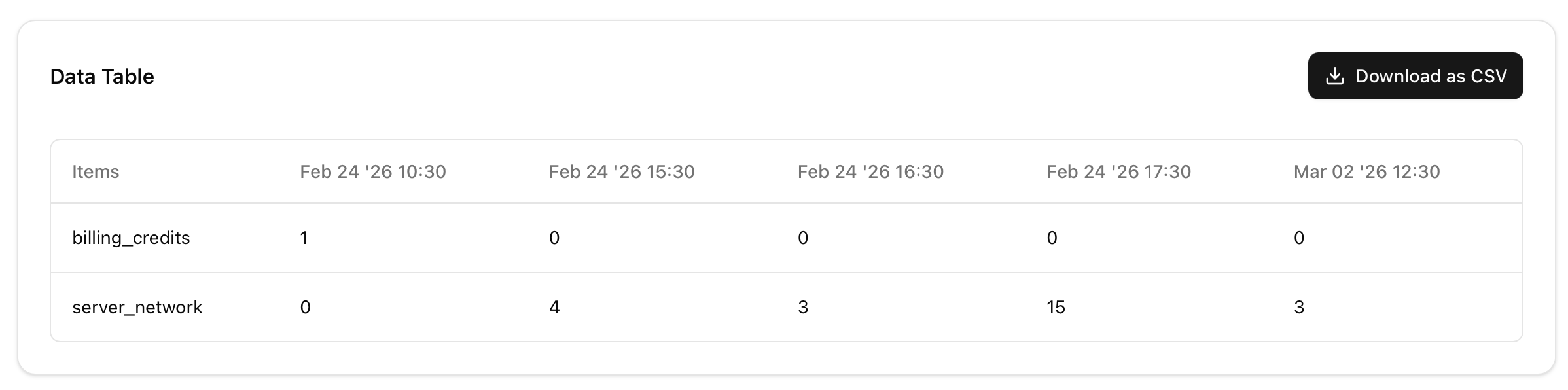
All data can be viewed as a table below the graph. The same can be downloaded as a CSV as needed
API support
Reports can be fetched via the PiSignage API as shown in piathome.com/apidocs