Documentsexporting-playlists-and-assets-via-usb-for-players-which-do-not-have-network-connectivity
Exporting playlists and assets via USB for players which do not have network connectivity
Export a group to a USB drive and plug it into the player to load content without a network.
Players without network connectivity can get playlists, assets and settings from a USB drive.
USB import works on players running version 5.6.0 or later. Upgrade older players before using a USB export. See How do I upgrade software in case of pi players.
New interface
- Register the player and add it to a group. Only players in that group are included in the export.
- Assign playlists to the group, then set its schedule and settings.
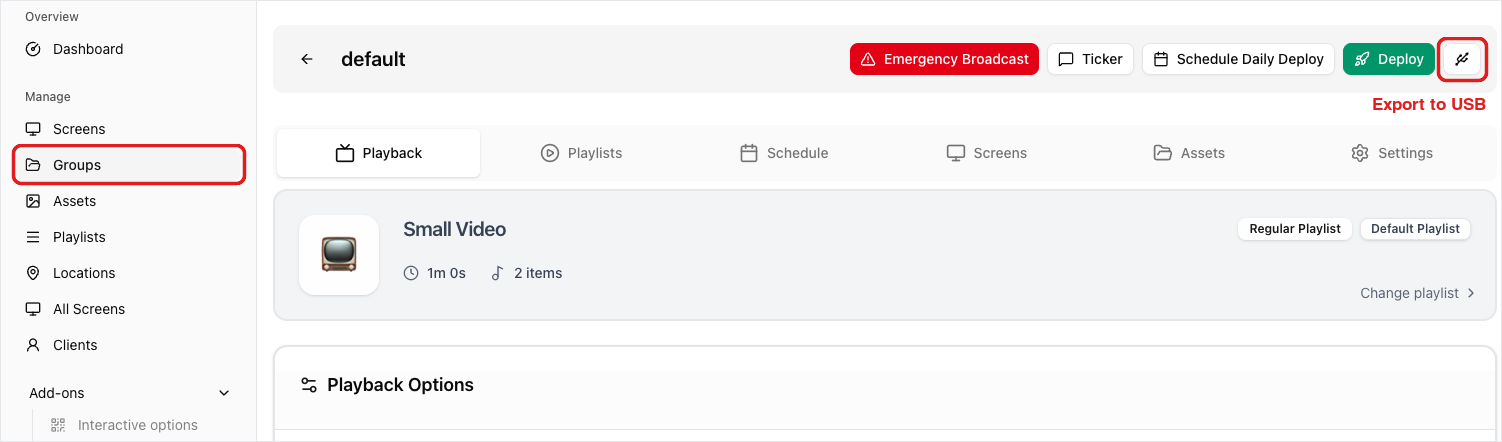
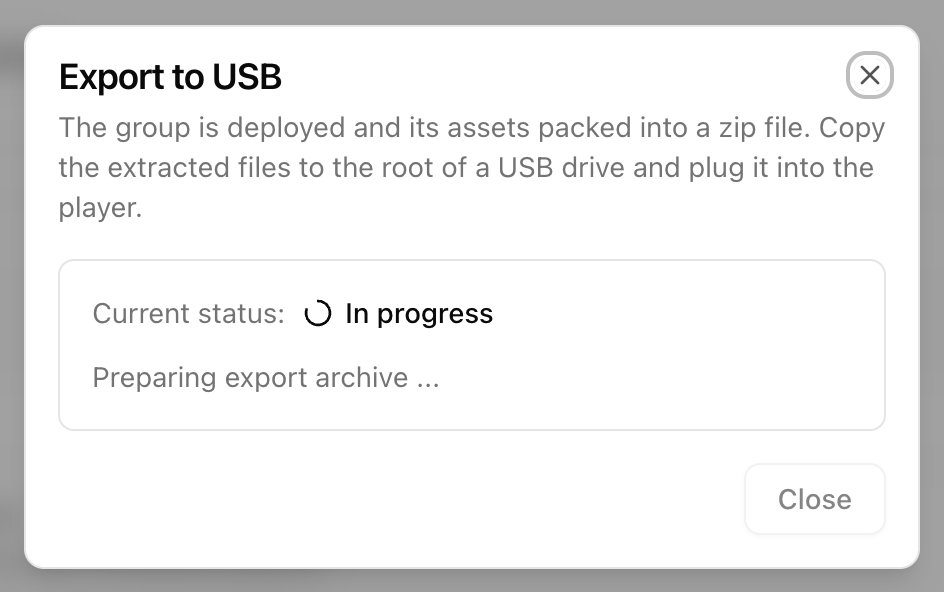
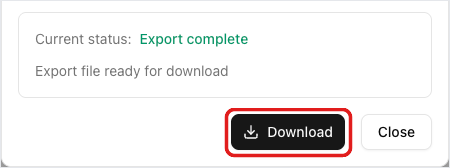
- Open Groups, open the group and click on the Export to USB icon next to Deploy. Exporting also deploys the group. Wait for the status to show "Export complete" and click on Download. See Groups.
- Copy the downloaded file to the top folder of the USB drive without renaming or extracting it. The file name looks like this.
D9ADBB67-BB4F-4D15-B5AE-2859E02E13A3.zip - Insert the USB drive into the player. The player copies the content and settings, then reboots to apply them.
To check the import, look at the log file usbimport.log in the player's home folder, for example:
/home/pi/usbimport.log
If the player is not in the exported group, it skips the import and the log gives the reason.
The export must be newer than the player's last deploy. The player imports any export it has not imported before, so an older export overwrites newer content received over the network. Re-export after every change.
In the legacy UI
- Register the player using the ID shown on the TV screen and assign it to a group.
- Configure the group settings and assign playlists, with optional schedule times.
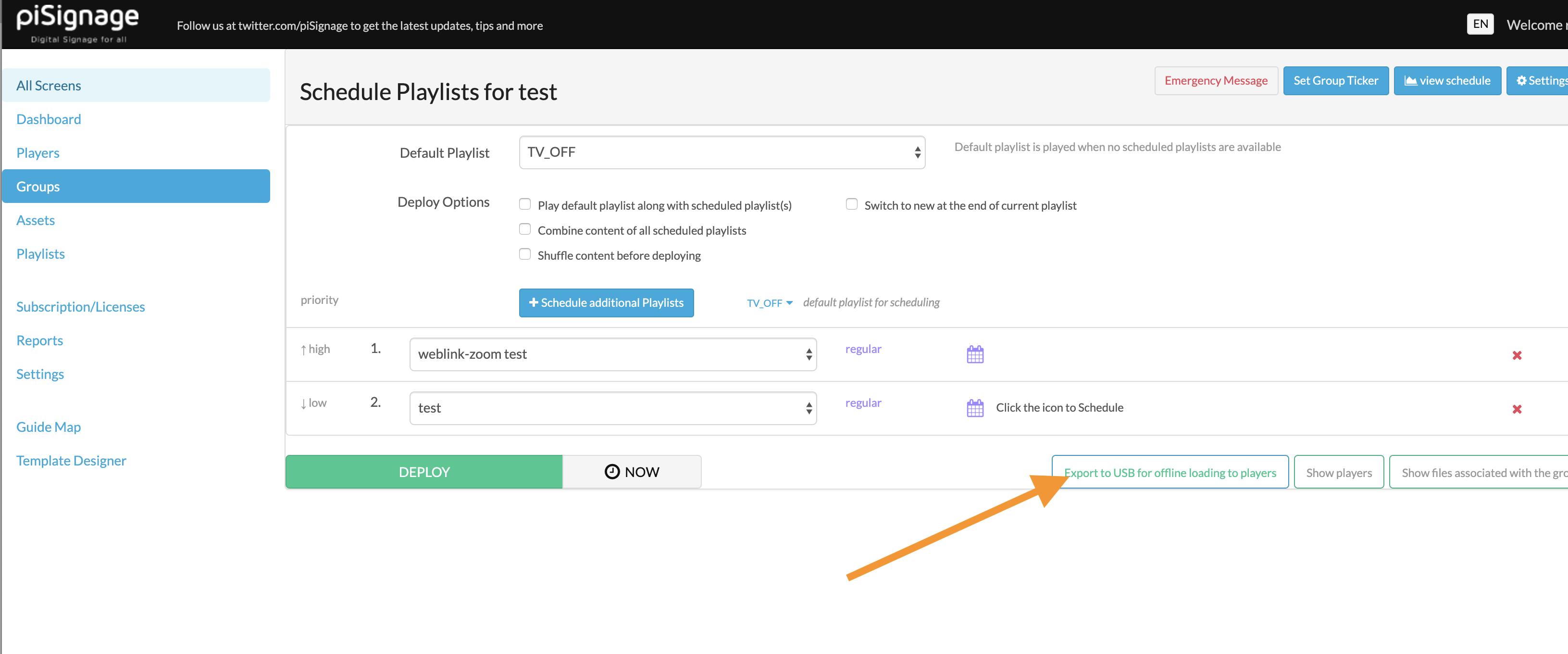
- When you are done, click on the Export to USB for offline loading button next to Deploy on the Group details screen.
- Copy the downloaded file to the USB drive without renaming it.
- Insert the USB stick into the Pi player and wait. The player copies the assets and playlists, then reboots.