Groups
The Groups tab is where you manage and schedule content for groups of screens at a time
In PiSignage Screens are combined into groups to help manage and effectively schedule content to the same. Screens are assigned a primary group during registration which is then used to import all settings, content and schedules.
A good understanding of how groups works can help you master PiSignage.
Some fundamentals before we start
All content is staged in PiSignage and NOT sent to the player until you hit deploy. Think of it as a Draft copy and the hitting “Publish” To Publish your content to your players.
Groups is where most player content and settings can be configured.
Group Directory
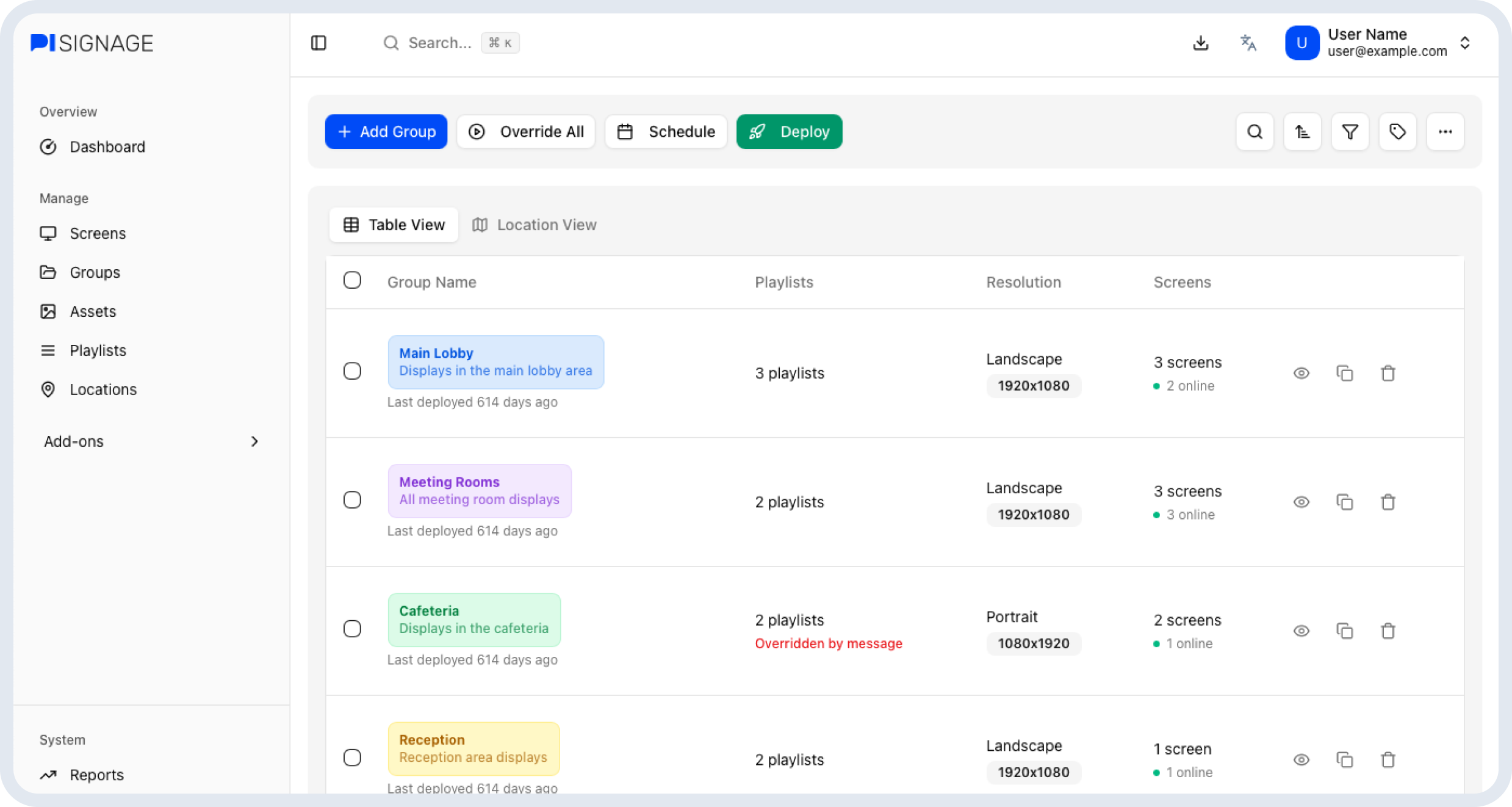
The group directory is where all groups are visible as an overview with critical information like the number of player online, any overrides currently running, etc
Add group
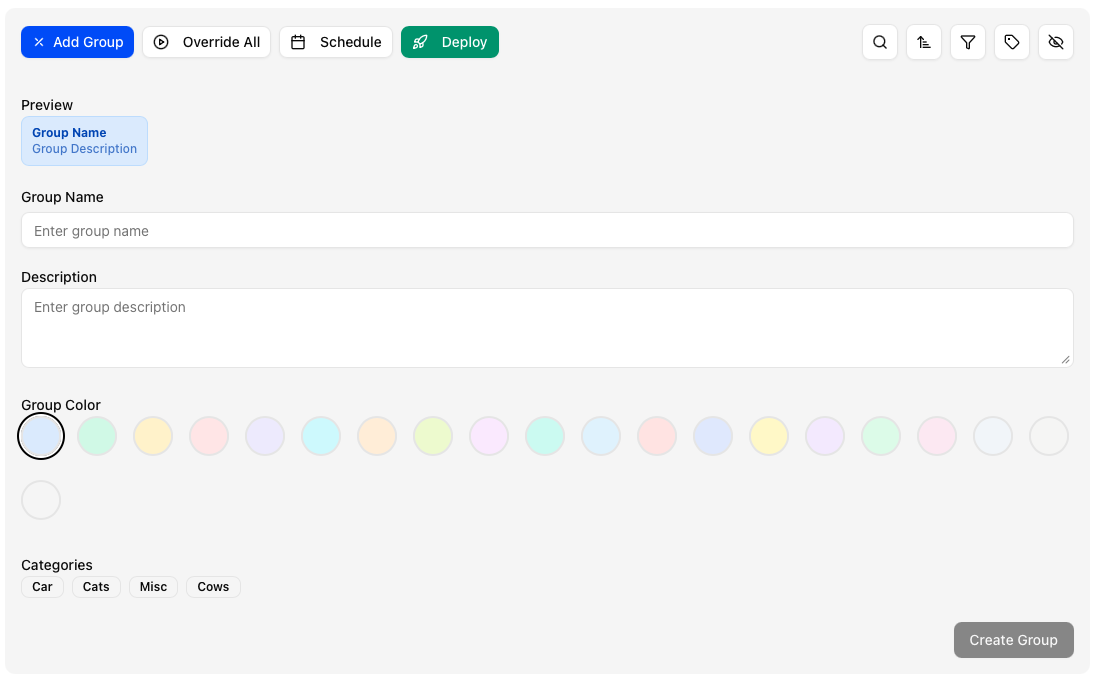
Clicking on the +Add Group option in the top bar opens the module to add a group.
There are a few options in this module
Group Name: The name for all future references
Group Description: A short note that appears in the directory
Group Colour: This will tag all players in the group with the same colour in the Screens tab
Group Categories: Categories to help filter across modules
Override all (Emergency playlists or messages)
Override All is an option to override all content across all players online in all groups with the chosen message or playlist. This is useful as a safety feature for emergencies or to deploy priority messages across campus.
Override works as long as the players are online. Offline players not connected to the internet do not receive the override.
There is a group specific override option available by clicking on a group or by selecting certain groups in the checkbox.
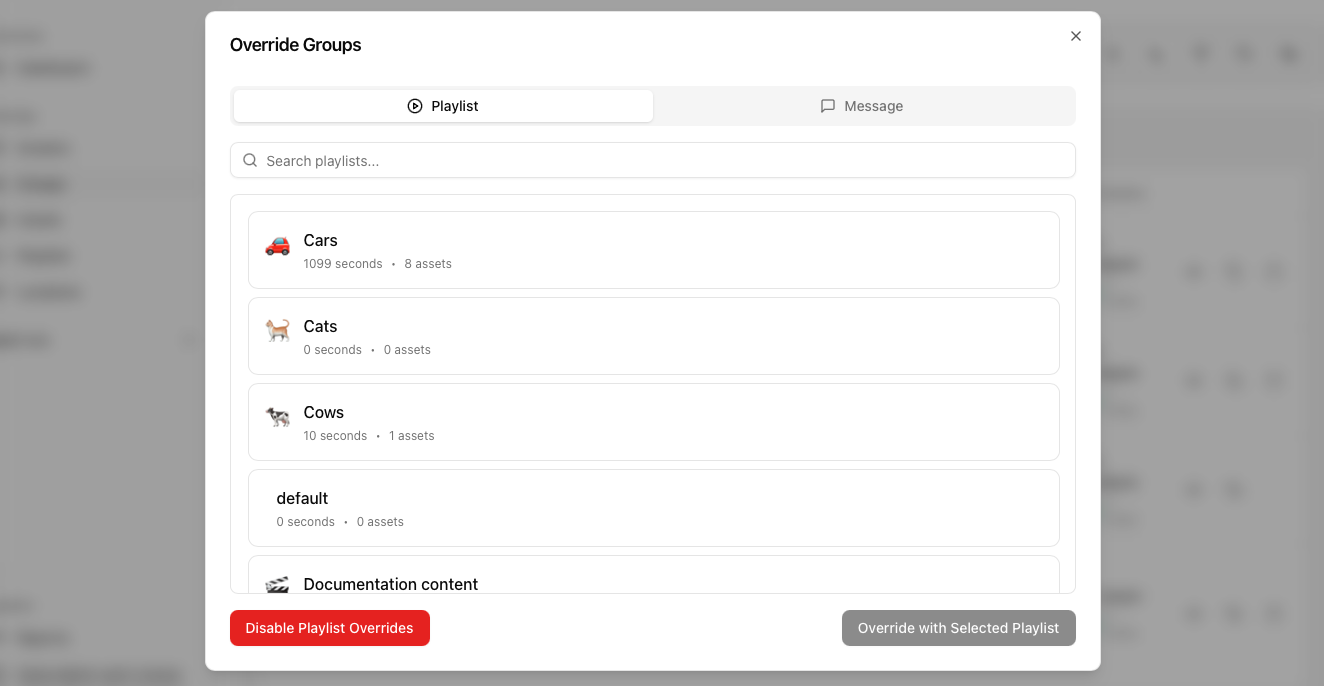
Override with playlist allows you to select a playlist and override all content. This overrides all content and plays the selected playlist until disabled.
 Override with message shows the message in the selected portion of the screen until displayed. It appears as an overlay over the existing content.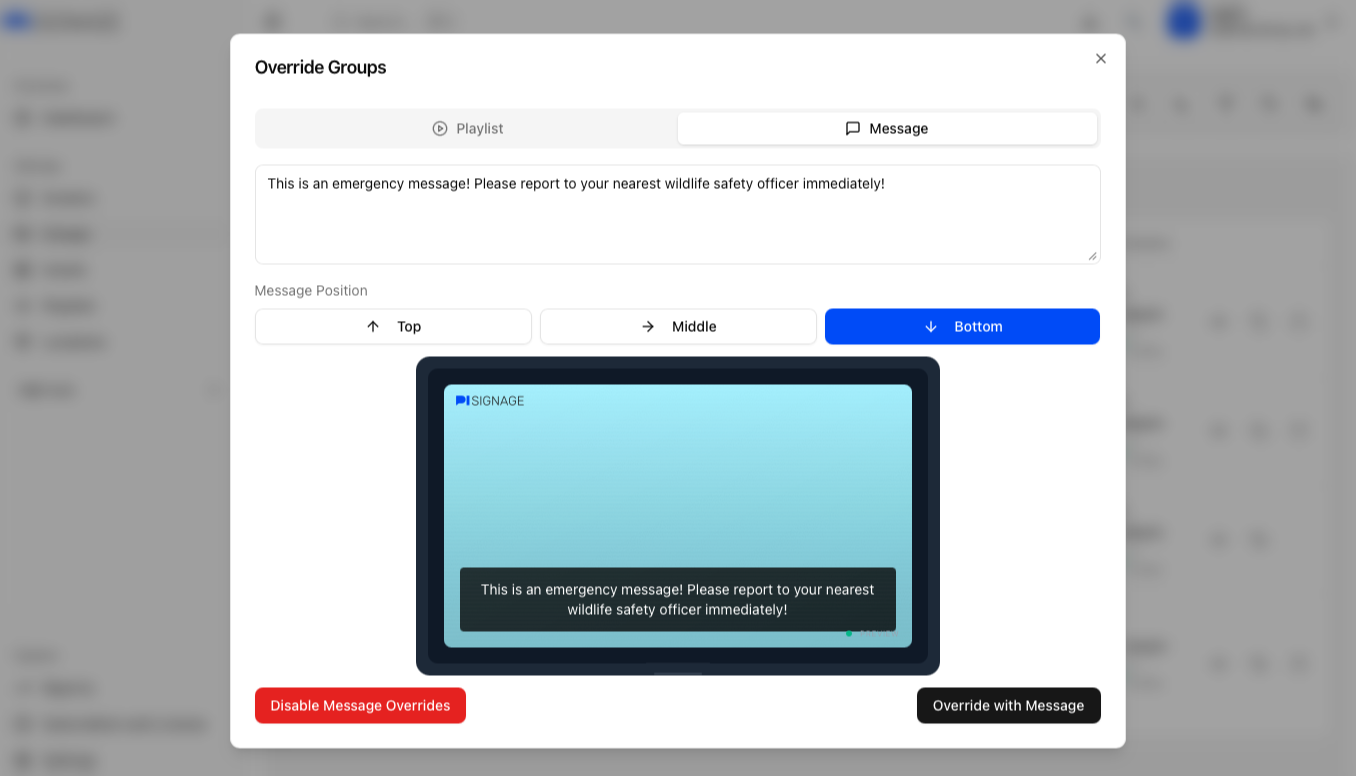
Clearing overrides
To clear an override you will have to open the override dialog and click on “Disable Playlist overrides” or “Disable message override” button which is to the bottom left in red to remove any override settings.
Deploy & Schedule Daily deploy
 Deploy: Deploys the content from all groups to the respective players. Once deployed you will see a log of all the success or failure messages
Schedule a daily deploy: allows you to schedule a time for a daily deploy. This sends across any new content to the players.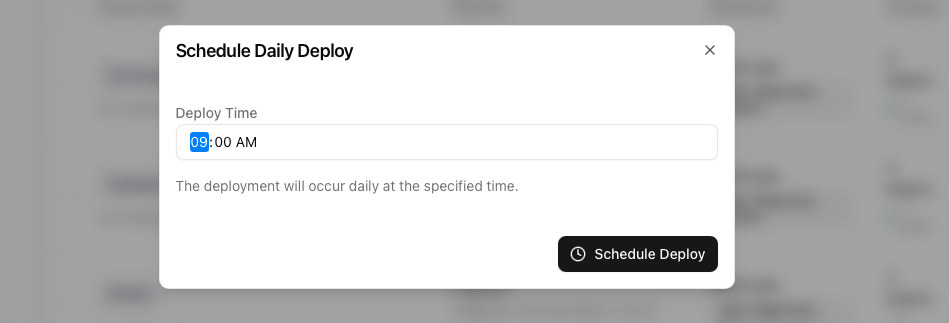
Filters
 Filters help sort and find groups within your directory. The filter options are as follows
Search by group name
Sort by name, screen count or the last deployed date
Filter by category
Manage Categories allows you to add new categories or manage existing categories. You can learn more in Categories
Hide or show hidden groups toggles the visibility of “hidden groups”. Hidden groups are created when a player is added to the account without a specific group chosen as a primary group. This can be largely ignored but use this button to manage hidden groups if the need ever arises.
Views
 You can switch between views in Groups.
Table view is the default row by row view where all groups are visible as individual rows
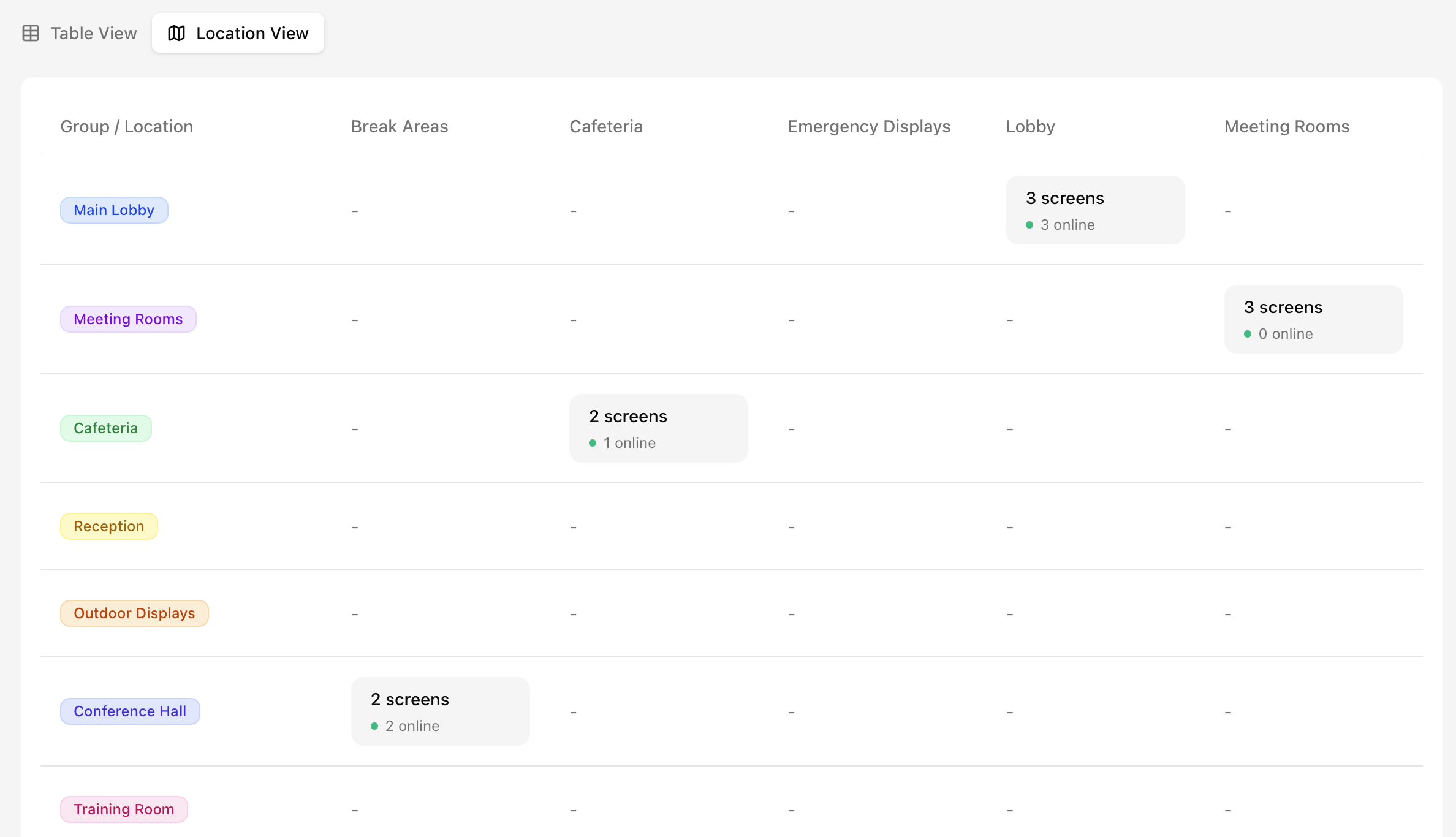
Location view categorises the groups and locations as an chart to easily identify screens in each location with a group.
Group row
 The group row cover the following group information
Group details covers the name and description along with the last time the group was deployed.
Playlists and messages covers the currently playing playlist along with the categories assigned to the group.
Resolution is the resolution as set in the group settings1
Screens provides the status of all screens assigned to the group
Actions cover view group, duplicate group and delete
View group opens the group details page
Duplicate copies all group settings and content into another group without the players
Delete allows you to delete an empty group without any players. You will need to re-assign all assigned players before deleting a group.
Bulk actions
 On selecting 2 or more players the bulk options appear. They are namely
Deploy: Deploy content to all selected groups
Manage categories: Assign or remove categories to the selected groups
Delete: Delete the selected groups
Group details
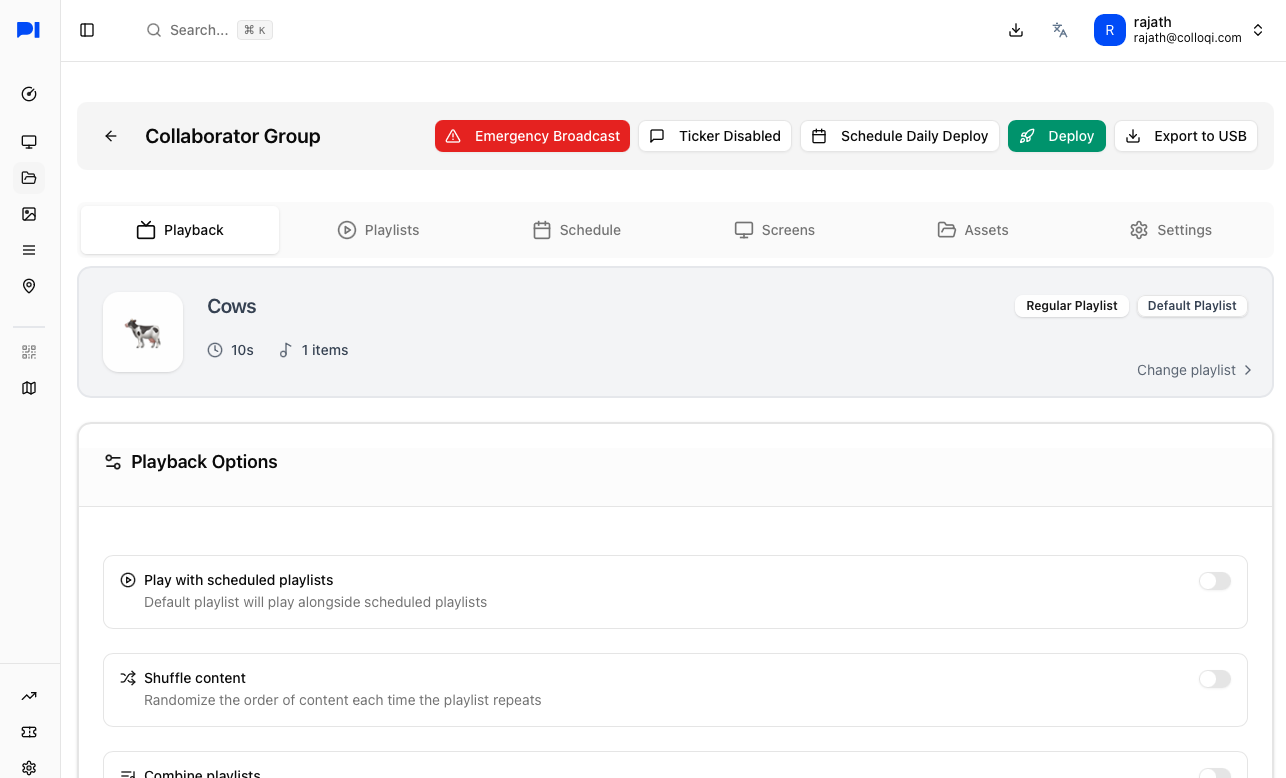
On Clicking on any group name will take you to Group detail page where the induvidual group settings and configurations can be managed.
Global options
 The global options affect all players in the group and regardless of the playlist configured, etc it continues to take effect.
Emergency broadcast
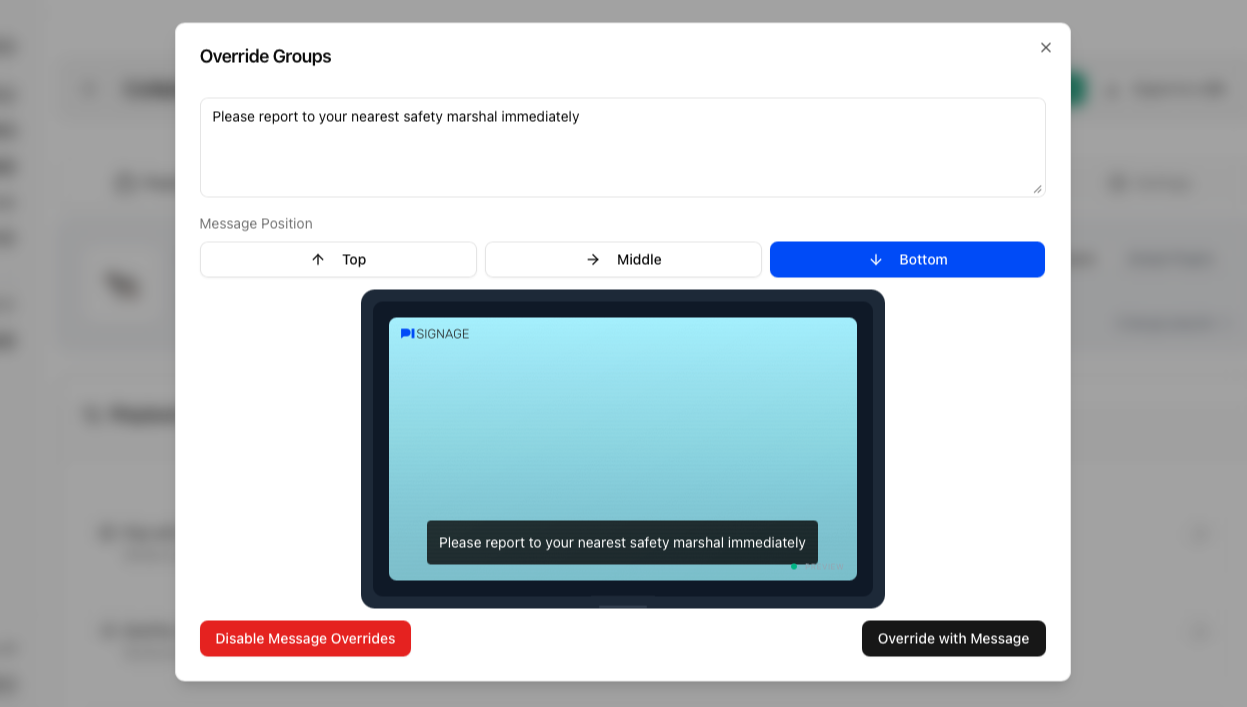 Emergency broadcasts are messages that appear as overlays over all content in the group of screens. These can be positioned as needed.
DO NOTE: The emergency override will only take effect on the players as they come online or instantly if they are online during the override.
Tickers
Add a RSS or message based ticker to the bottom of your screen across playlists. You can choose between 3 kinds of tickers here
Text associated to the asset (text overlays, etc)
Messages
RSS text
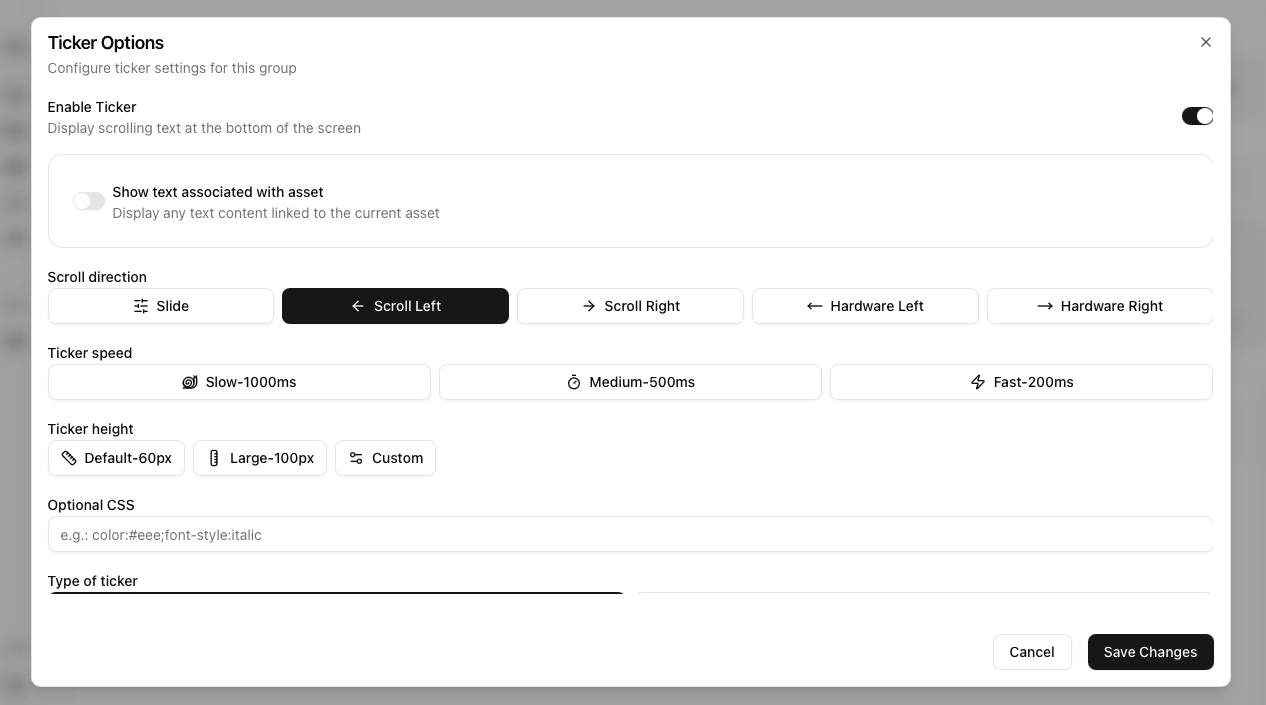 Configure the scroll direction, Ticker speed, Ticker height along with optional CSS to change its styling.
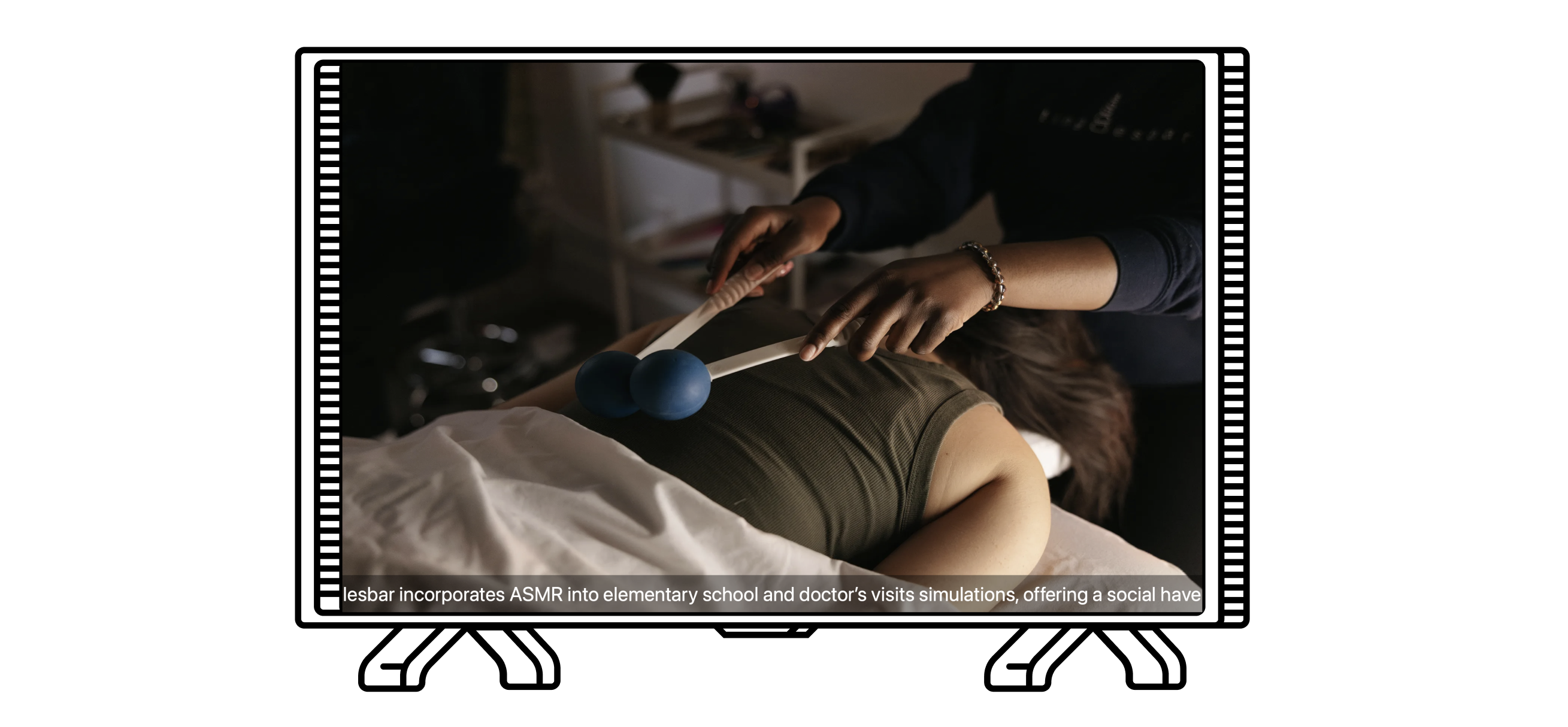
When using an RSS, you can choose between the description or title field. To display an RSS feeds images along with text refer to Assets
Below is an example of what an RSS ticker looks like.
Schedule daily deploy
Choose a time for all draft content to be deployed daily. This is great in scenarios where more than one person may add content across the day.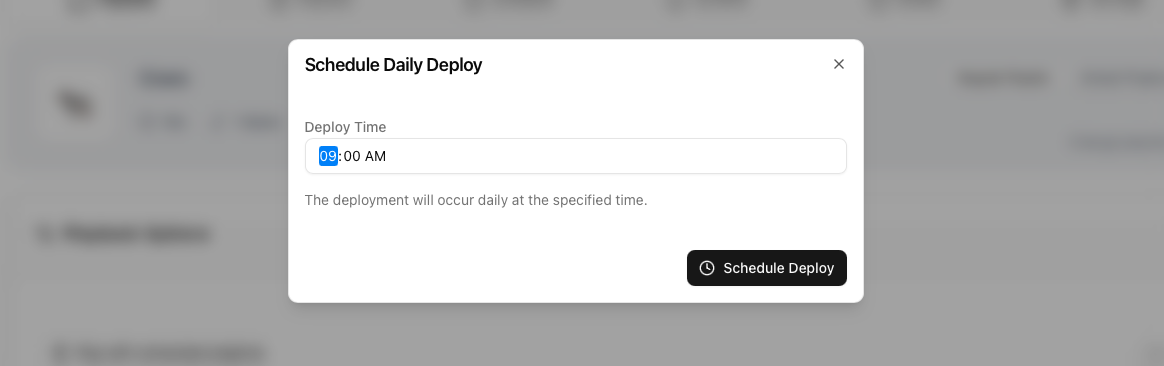
Deploy
 Deploys all content and settings instantly to all players in the group. You will also receive a log of everything deployed and the player responses.
Download
 Export to USB will copy all content and download it. This can then later be used to play content from an external storage device.
Playback
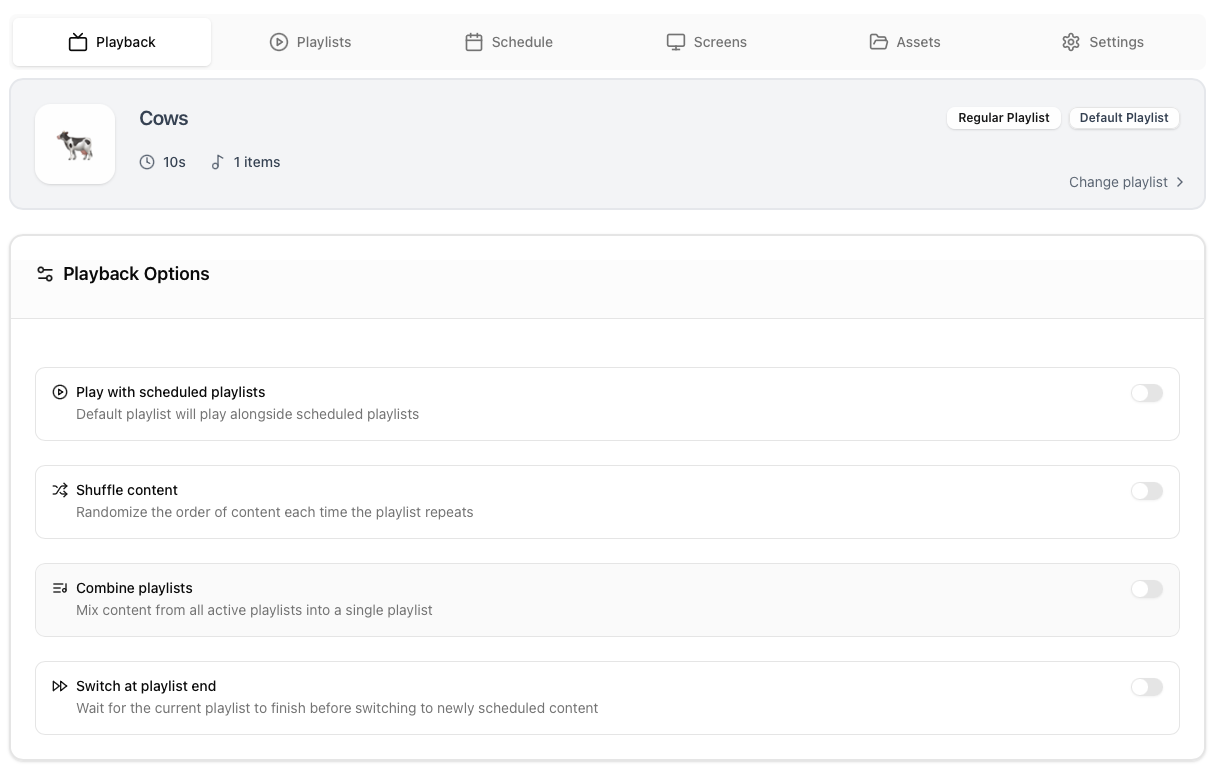 The playback option determines how content is mixed and played when multiple playlists are scheduled for the same time.
Default playlist
 This playlist will be played by default when nothing else is scheduled to play over it. A default will remain always scheduled in parallel. Unless a specific playback option is chosen this playlist will be over-ridden by any other playlist scheduled at the same time.
TV Off as the default playlist
Some configurations choose the TV Off system playlist as the default playlist to turn off the screen when not in use. Unless a playlist is scheduled at a particular time the TV Off playlist kicks in and turns of the screen.
Playback options
By default only ONE playlist (on top of the stack) plays even when multiple playlists are scheduled for the same time. The playback options below help mix content and play multiple playlists.
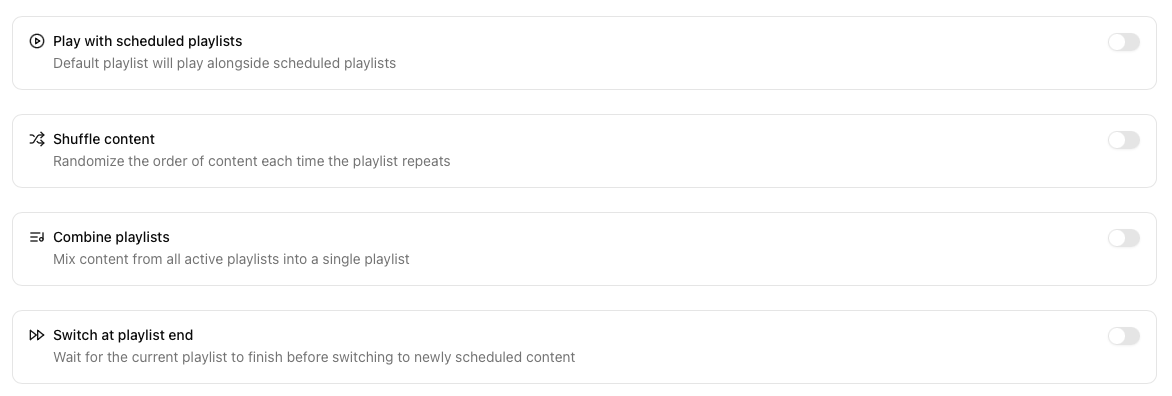 The playback options are as follows:
Play with scheduled playlists: The default playlist will play along side the scheduled playlist. Based on the below configurations the the content will be shuffled or will play after.
Shuffle content: Mixes the content within the single or multiple playlists scheduled to play and plays them in a randomised order.
Combine playlists: Combines all content within playlists scheduled for the same time into a single playlist. Will play one after another unless shuffle content is selected above
Switch at playlist end: When the playlist schedules change - rather than interrupting the previous playlist, the next playlist waits until it completes before playing.
Playlists
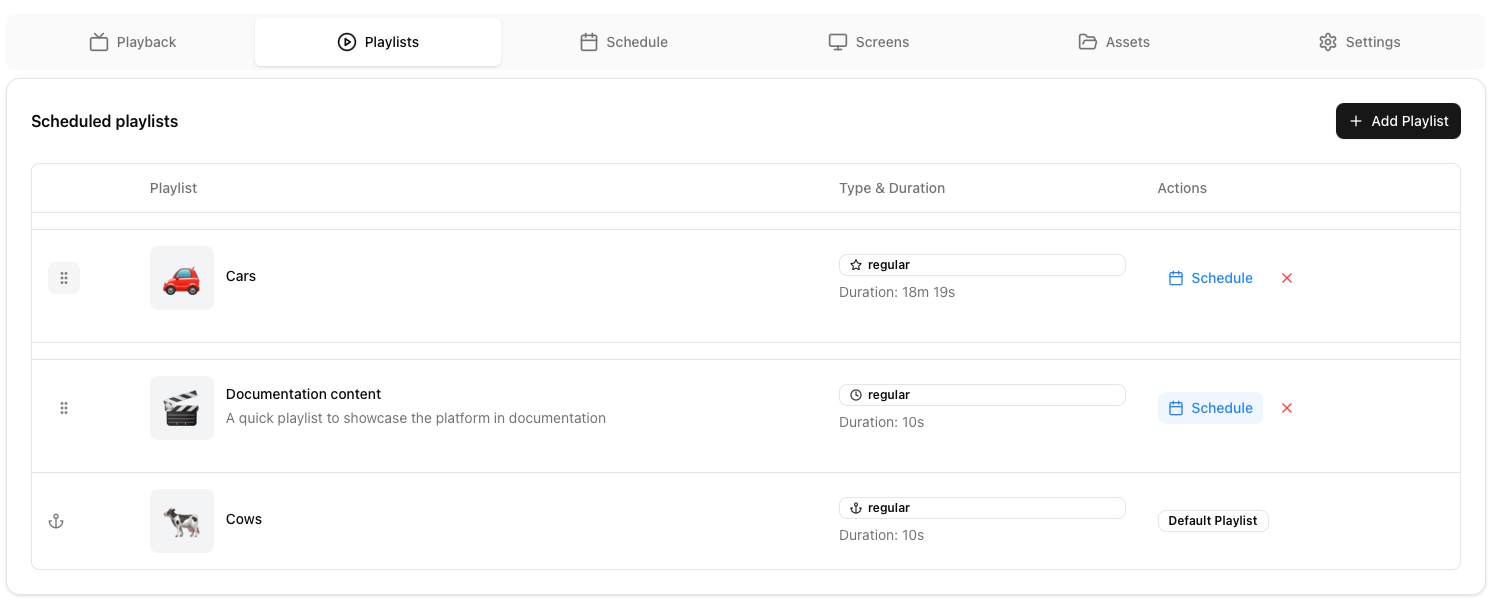 The playlists tab is where you can view and schedule playlists to play within the group.
Simply add a Playlist and click on schedule to set a time and date for it to play. The playlist closer to the top determines priority. The higher in the list the playlist is, the more likely it is to over-ride the playlist below if scheduled at the same time. There are exceptions based on the chosen playback options or the chosen playlist-type.
Add playlist
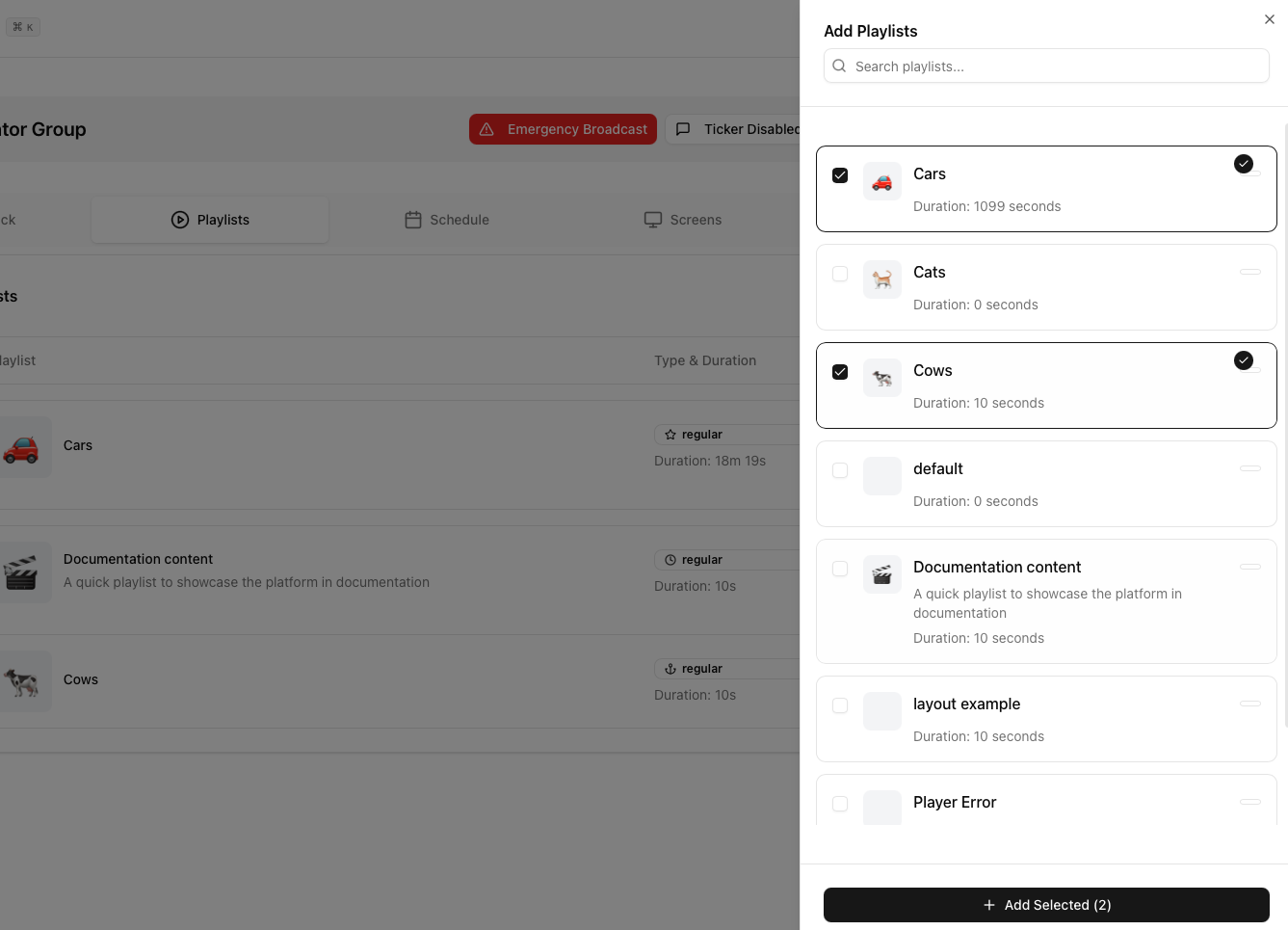 You can either click to select multiple playlists or drag and drop them into the schedule. You can search for a playlist as well when adding the same.
Once added the playlist will appear in the list.
Schedule options
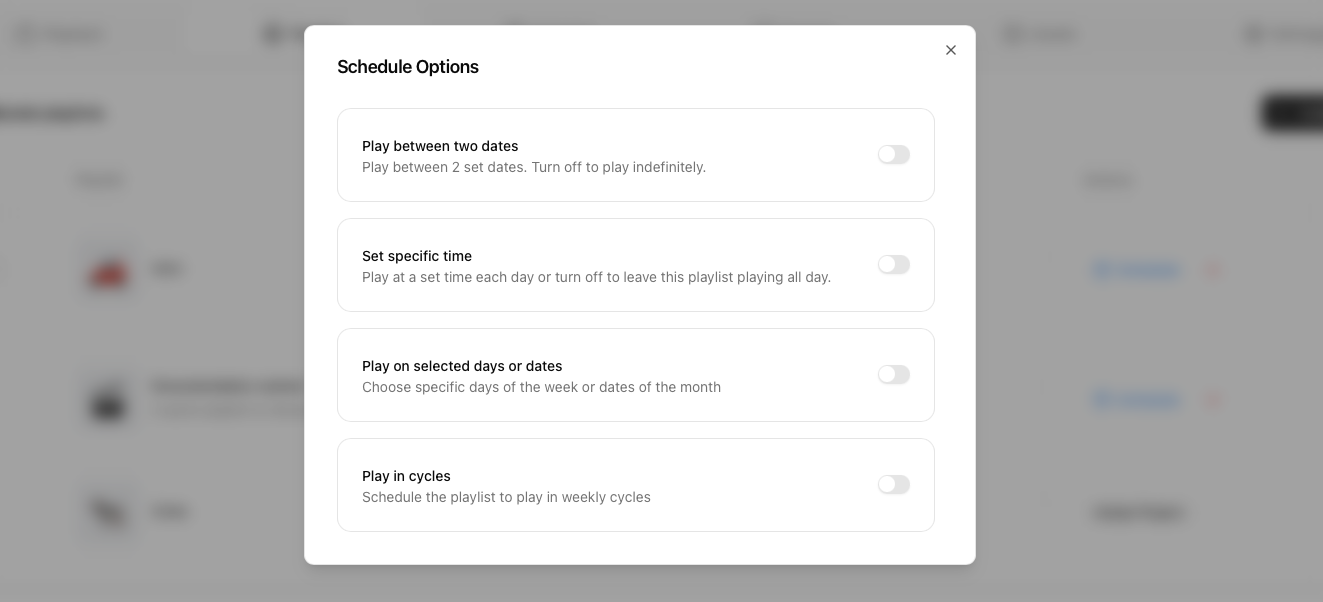 Schedules help limit the scope of when a playlist will play based on the selected options. The options include
A start and end date
Specific time window it plays during
Selected days or dates that can be chosen as a window to be played (eg, A specific playlist for whenever the 2nd falls on a Wednesday)
Play in cycles of 3,4,5 weeks
Schedule
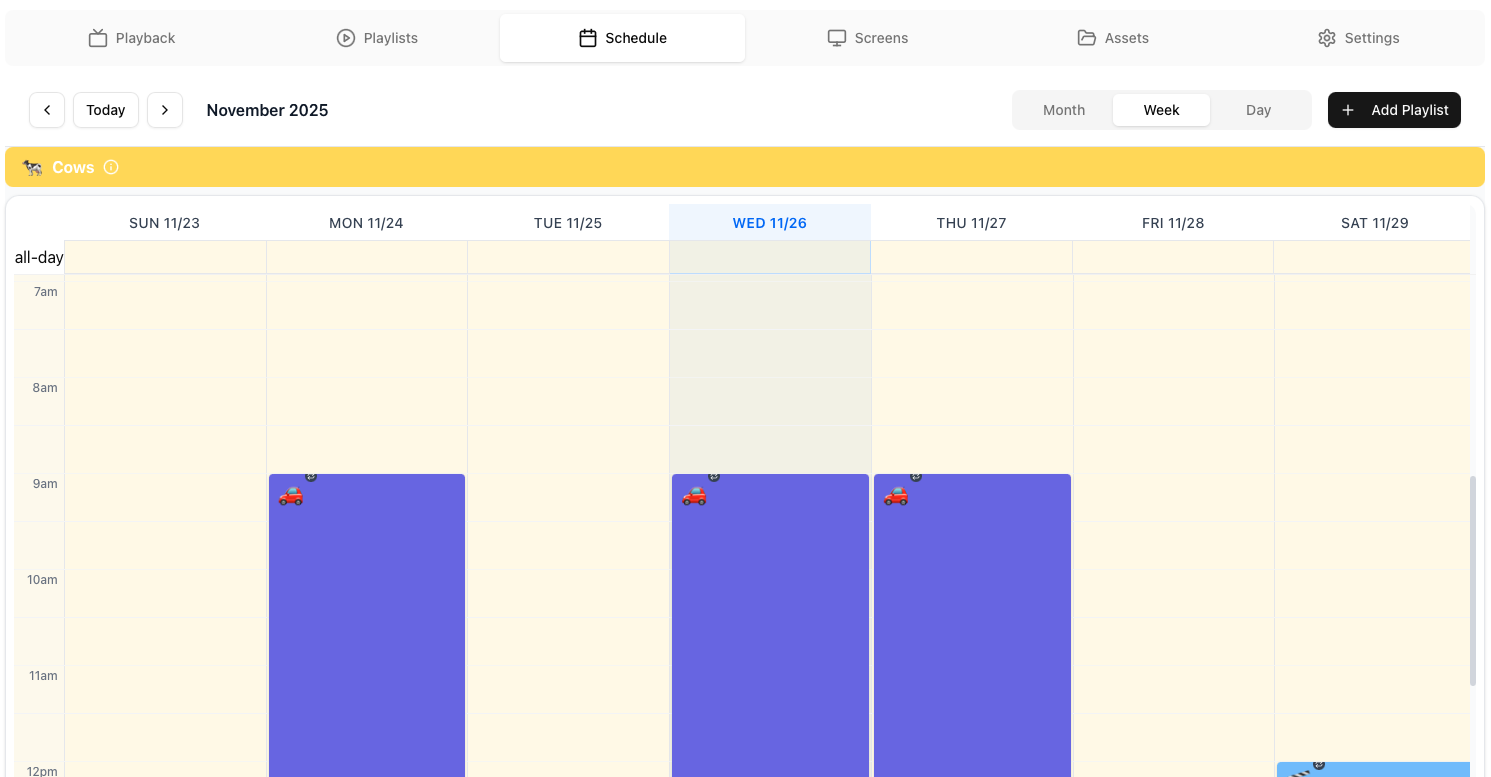 Schedule helps you view and edit your playlist schedule similar to how you could schedule events on your calendar.
Types of playlist events
 All day events (appear as a lighter colour in the background): appear at the top of the column, with the column below showing a lighter colour as indication that the all day playlist plays throughout.
The default playlist will appear above by default.
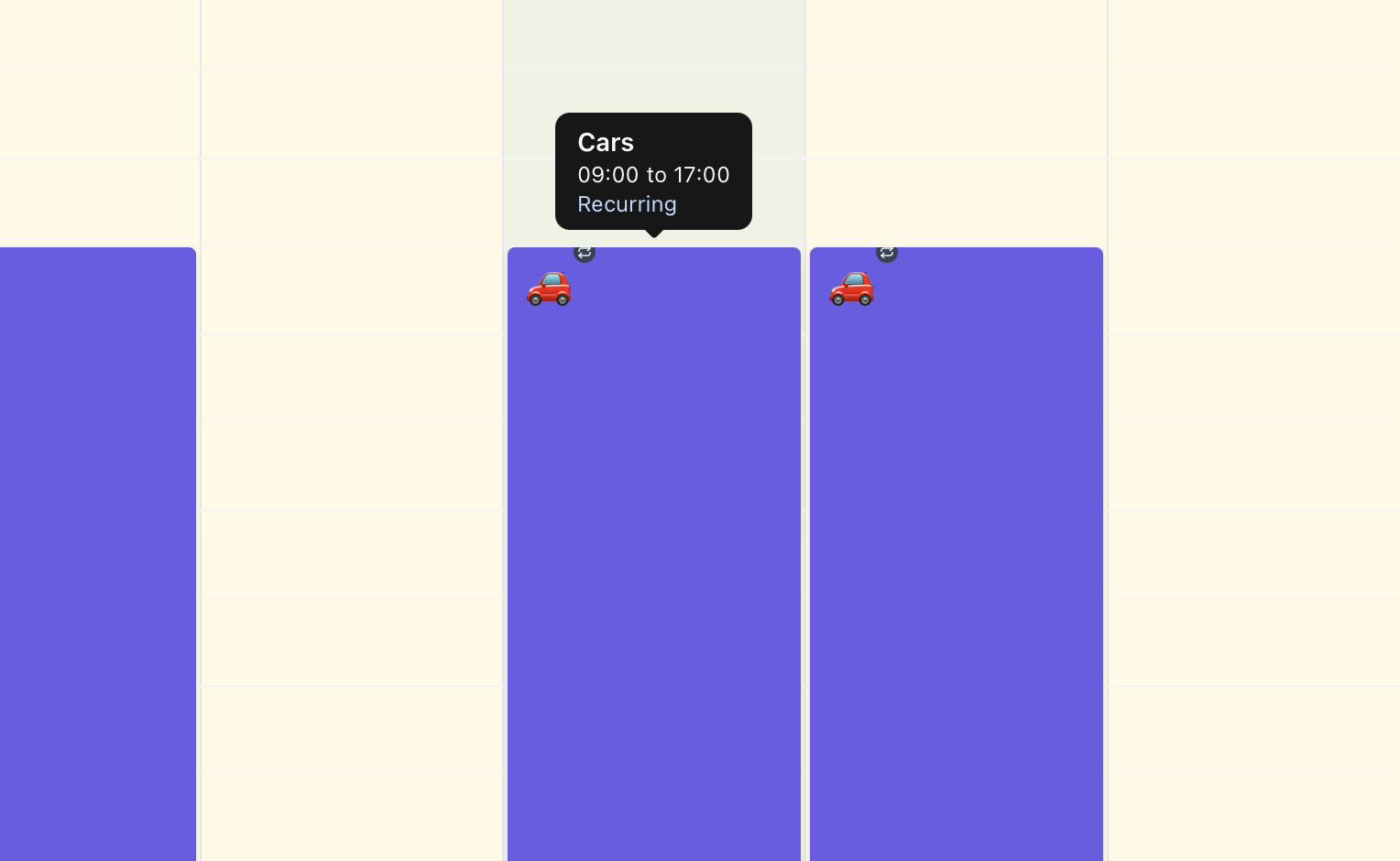 Event playlists (appear as a dark overlay on the calendar): The event playlist appears on the calendar as an event. Do remember to see the playlist order in the playlist tab when multiple playlists are scheduled at the same time.
Views
 Regular calendar view options are available including Monthly, Weekly and Daily views including buttons to switch between today and the next few intervals.
Adding a playlist
Using the “+ Add Playlist” button to add a playlist.
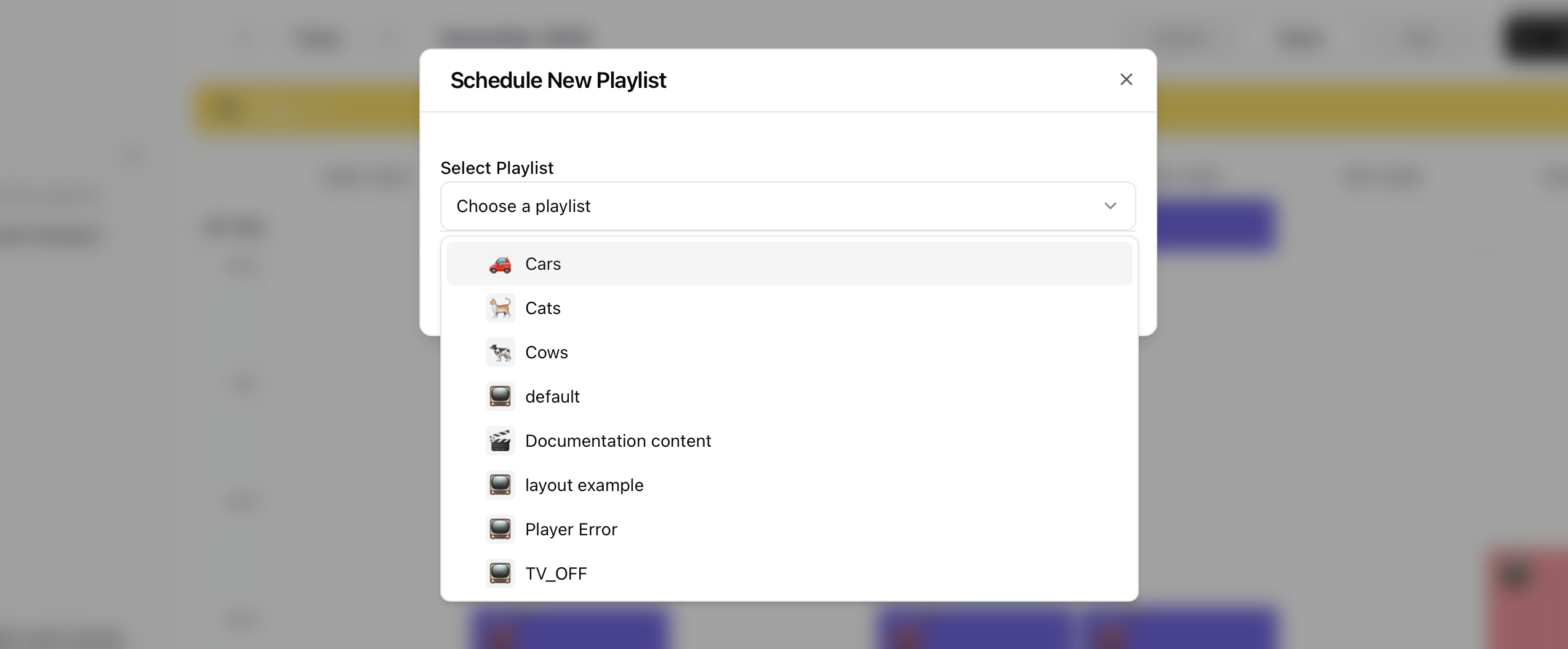
Alternatively Draging to add an event is an option as well.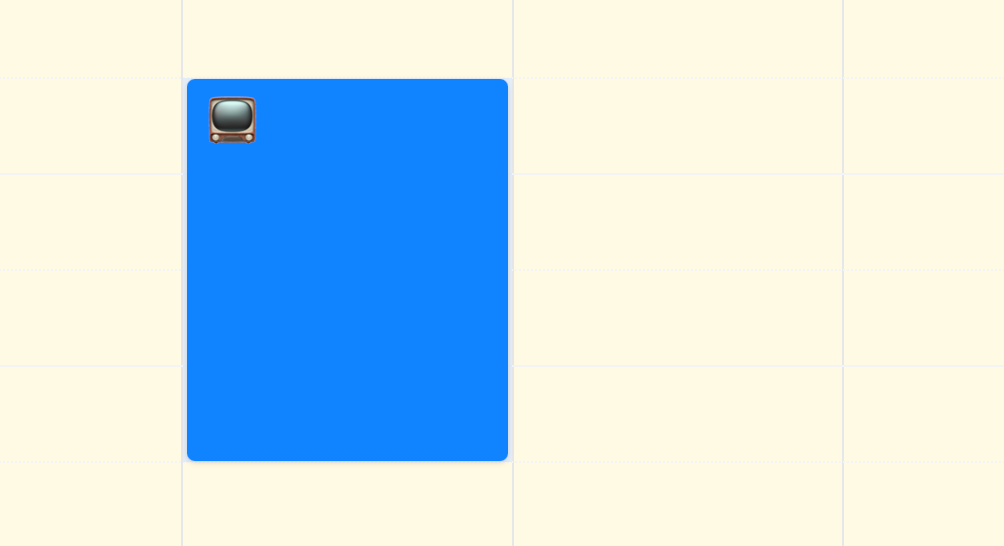
Schedule options
Schedules help limit the scope of when a playlist will play based on the selected options. Once added they reflect in the calendar accordingly. The options include
A start and end date
Specific time window it plays during
Selected days or dates that can be chosen as a window to be played (eg, A specific playlist for whenever the 2nd falls on a Wednesday)
Play in cycles of 3,4,5 weeks
Screens
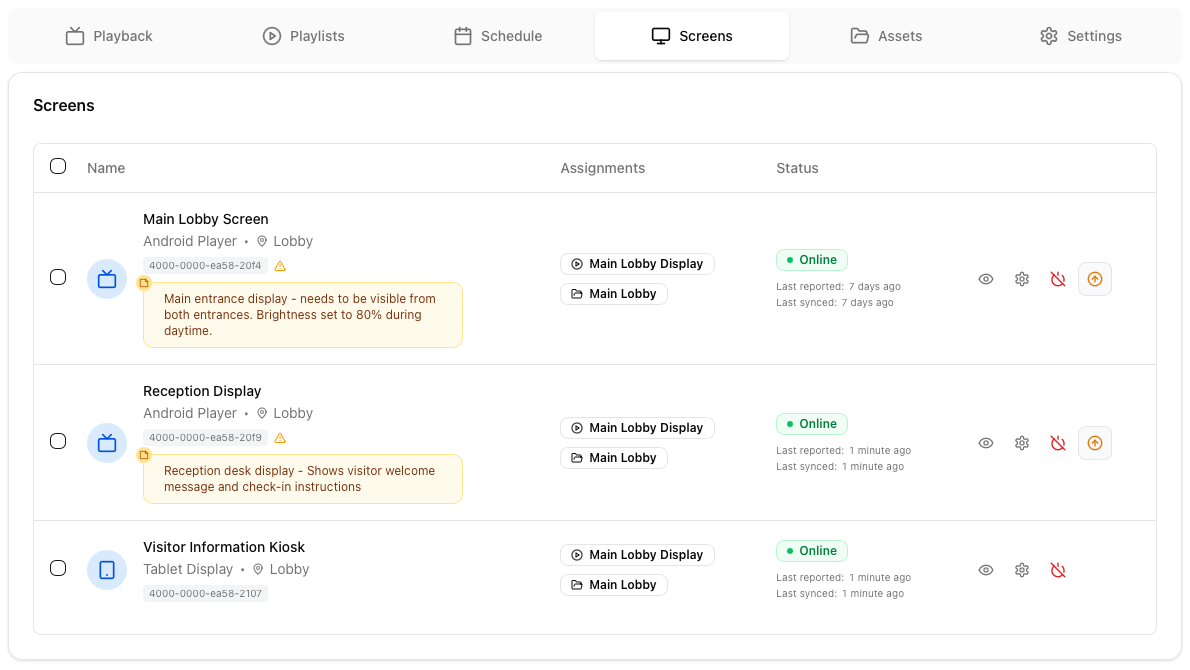 Displays all of the screens associated with the group. Most functions in Screens should be available here.
Assets
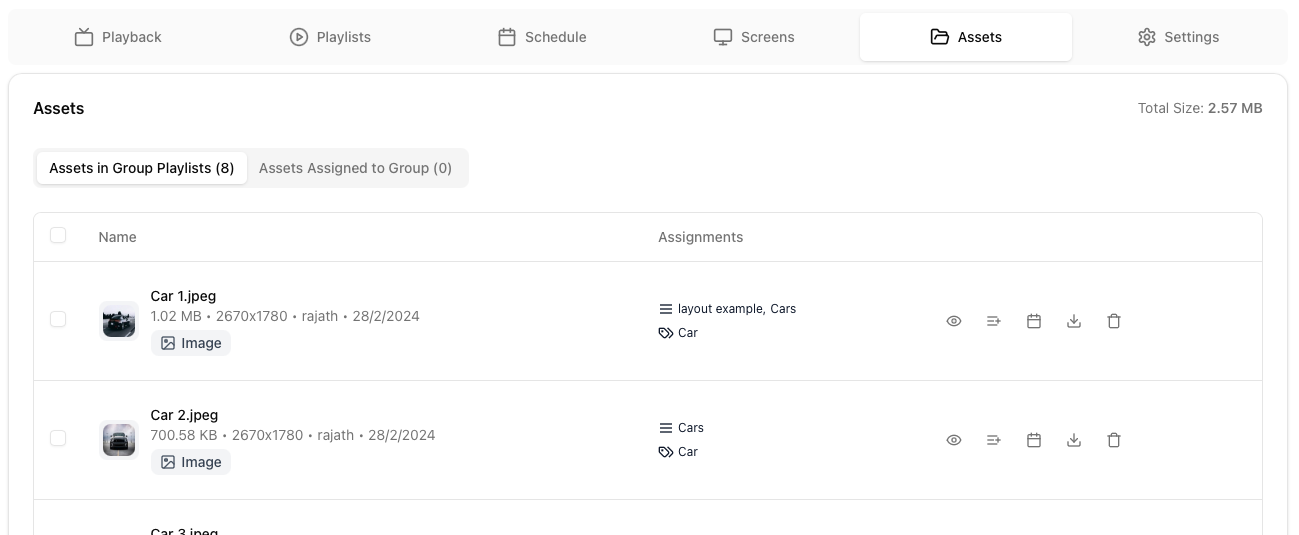 Displays all of the assets associated with the group. Most functions in Assets should be available here. Assets assigned to the group are visible in a separate tab (relevant when defining scopes of what Collaborators can and cannot see).
Settings
These are the primary settings applied to all screens across the group. These settings include orientation, resolution, Transitions and more.
Group details
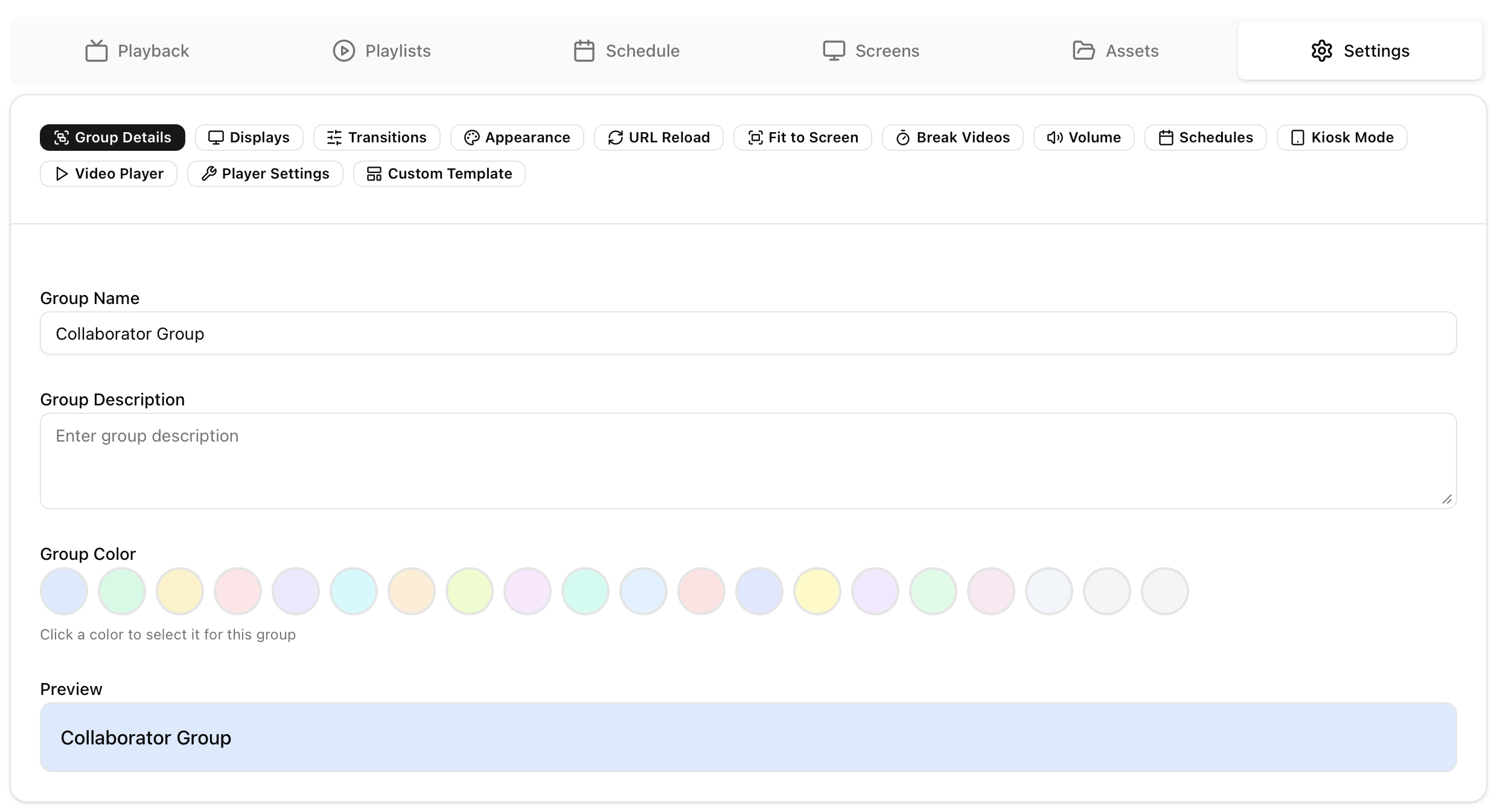 Covers all of the basic information of the group including its name, description and colour (used to colour code the Screens )
Displays
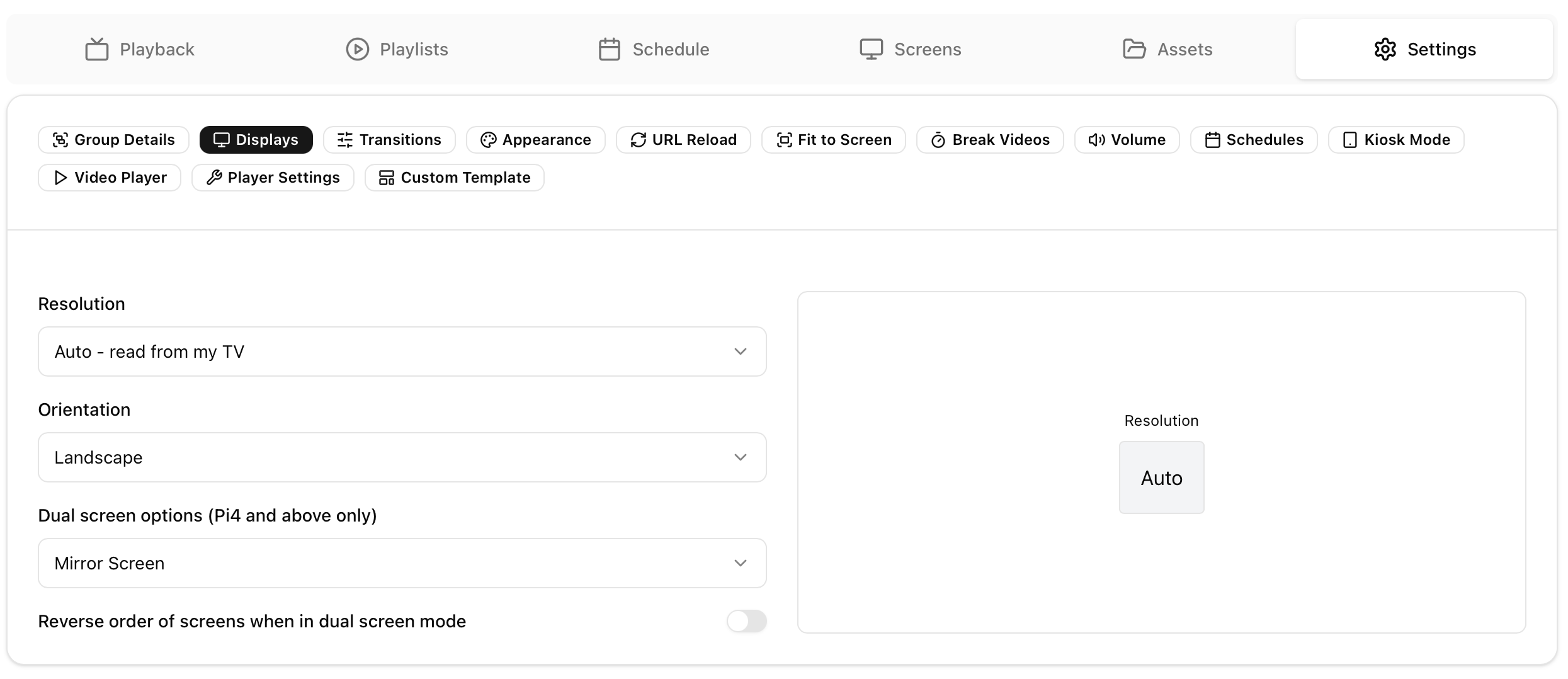 Sets the display resolution, orientation and dual screen modes.
The default resolution is set to auto which reads the resolution from the TV but this can be over-ridden incase the TV resolution detection is un-reliable.
Orientation allows you to switch between landscape and portrait modes for all screens in the group
Transitions
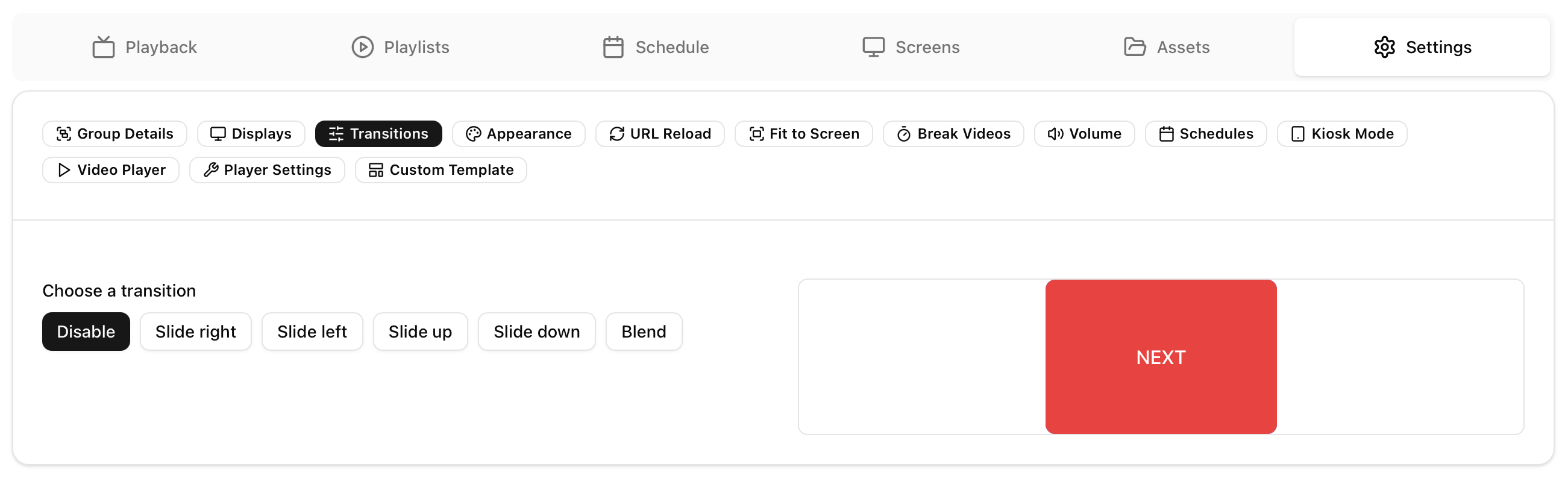 Switch between transitions to use as content switches on the screen.
Appearance
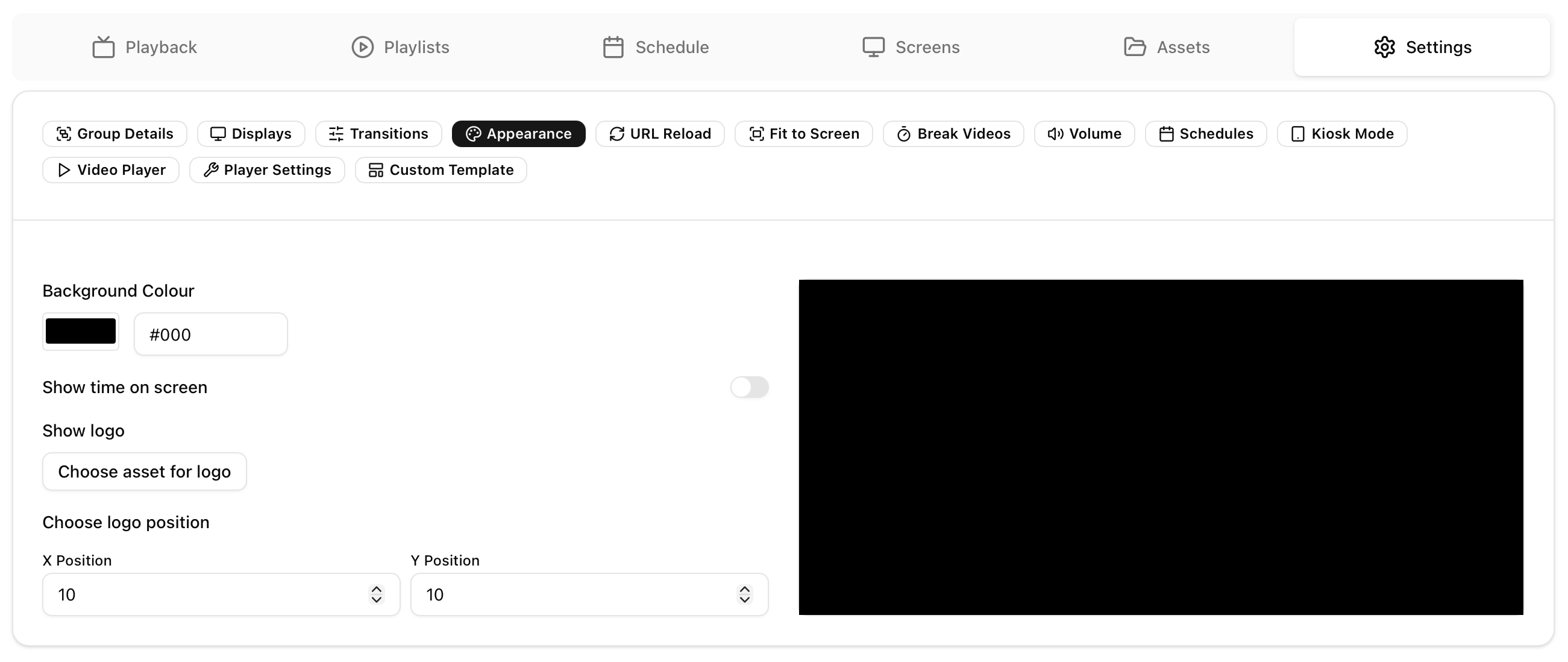 Appearance allows you to change the background colour (visible between content switches or visible as the background of messages)
URL Reload
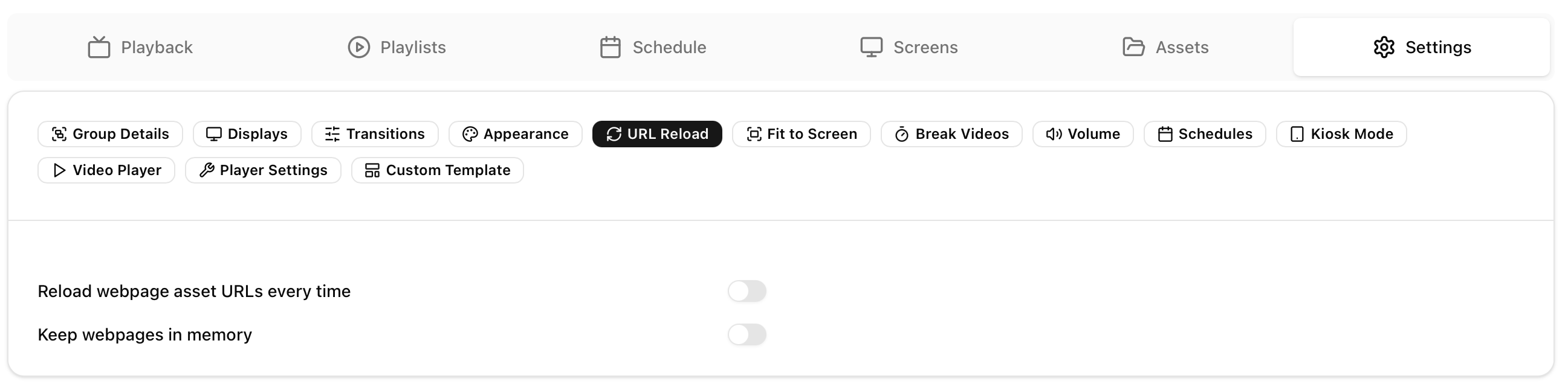 Define the webpage behaviour as playlists play.
Reload webpage asset URLs every time forces the webpage to reload everytime it is called.
Keep webpages in memory retains all loaded information to load webpages faster.
Fit to screen
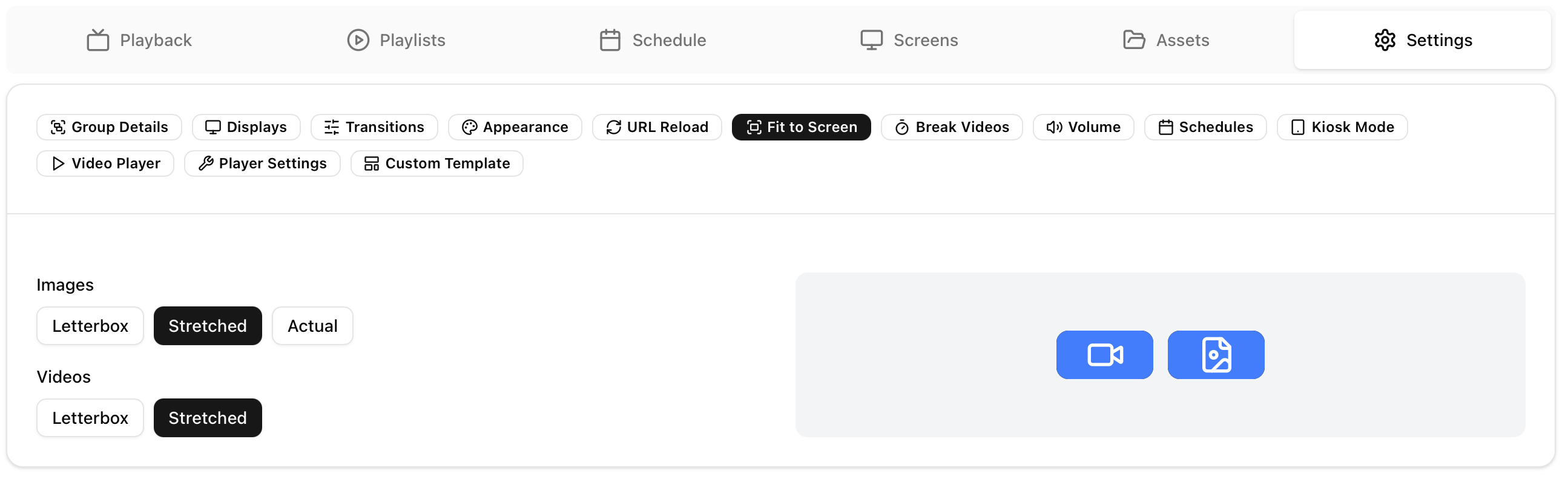 Configure how photos and videos are displayed on screen.
Letterbox: plays the video or image in its original aspect ratio
Stretched: stretches the images and videos to fit the screen
Actual: shows the image in its original size
Break videos
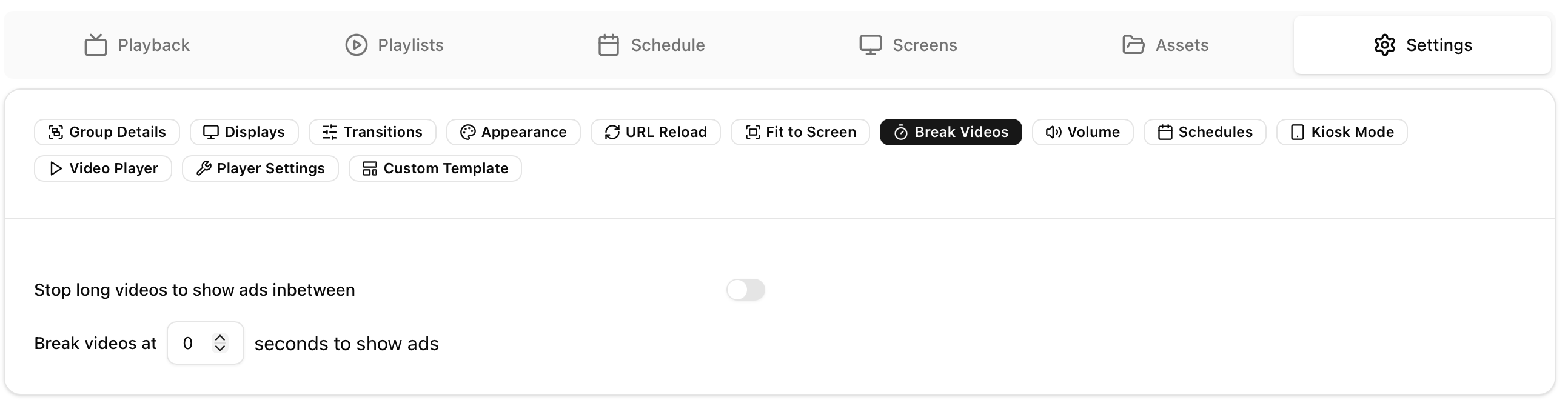 Breaks all long videos into segments to allow for ads to play inbetween with an Ads playlist.
Volume
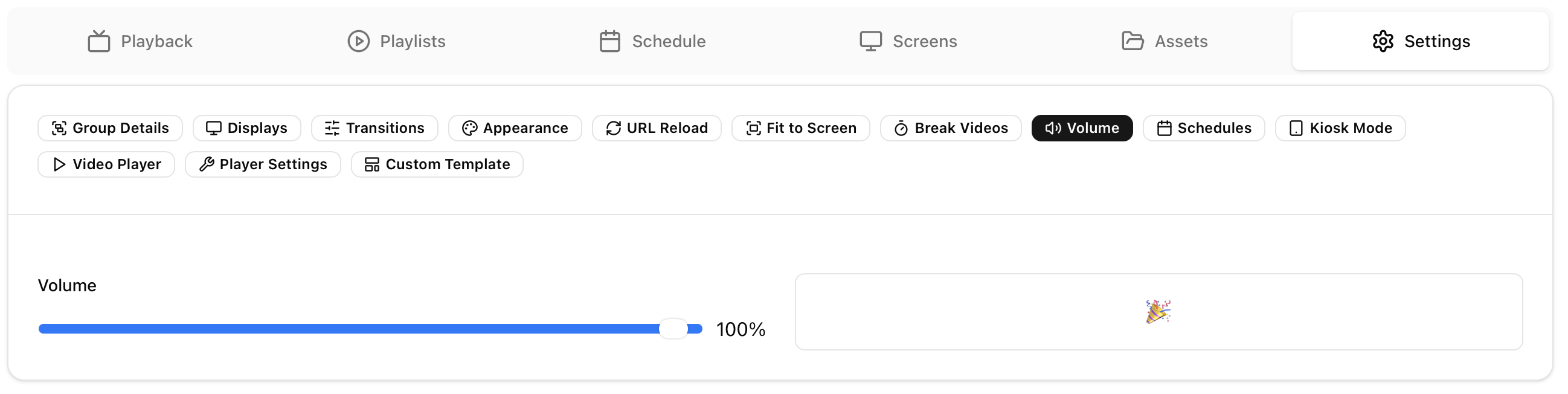 Set the volume for all screens in the group
Schedules
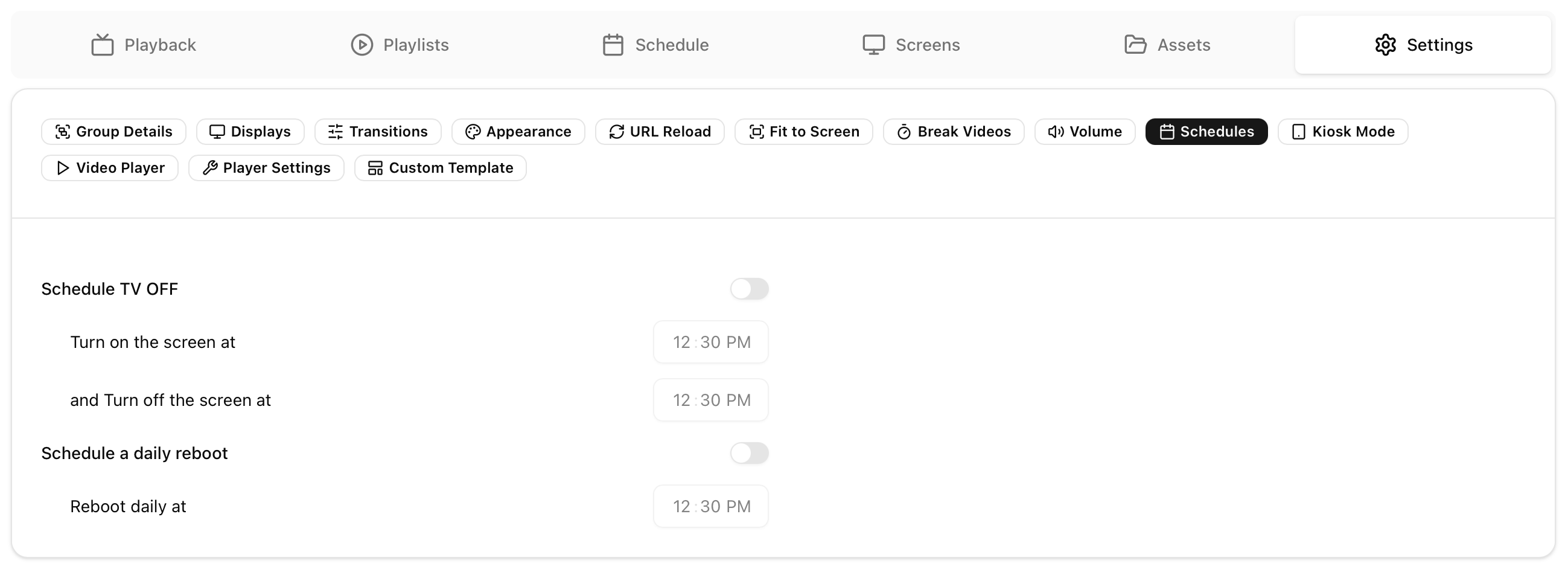 Schedule a time every day for the screens to turn off and on.
Schedule a daily reboot for all screens to reset and restart.
Kiosk Mode
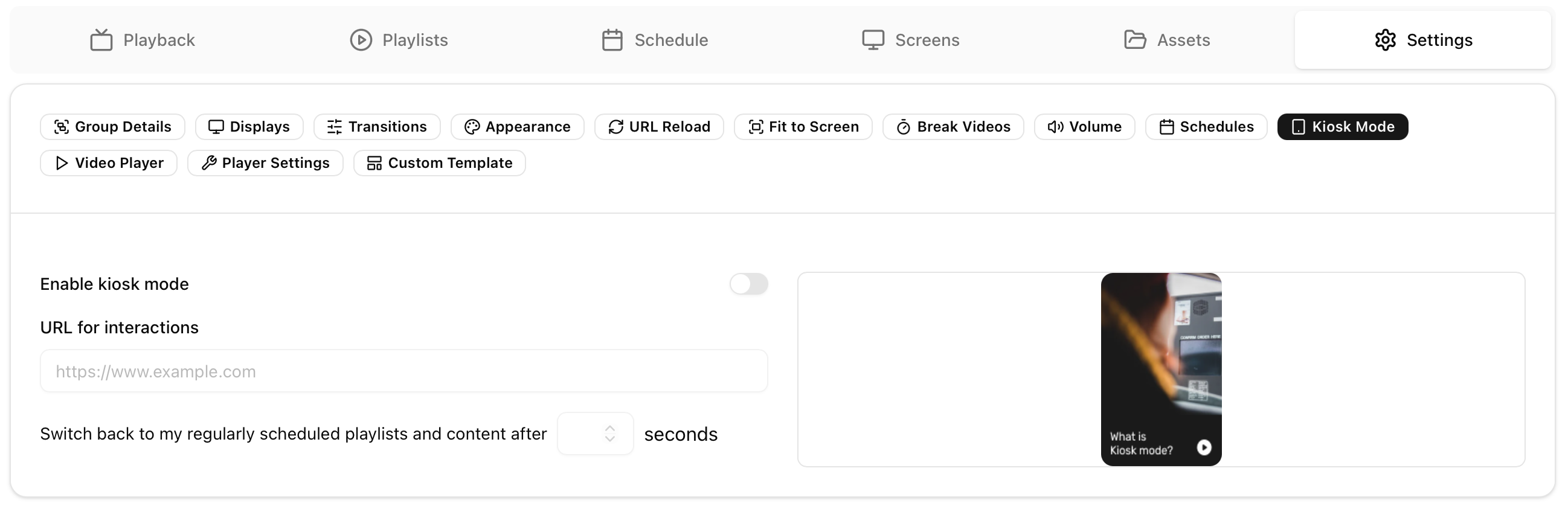 Kiosk mode enables touch and mouse controls with your screen.
Playlists and content will play as normal on the screens until a touch or mouse movement is detected, at which point the configured webpage will display and allow the user to interact with the webpage.
Video player
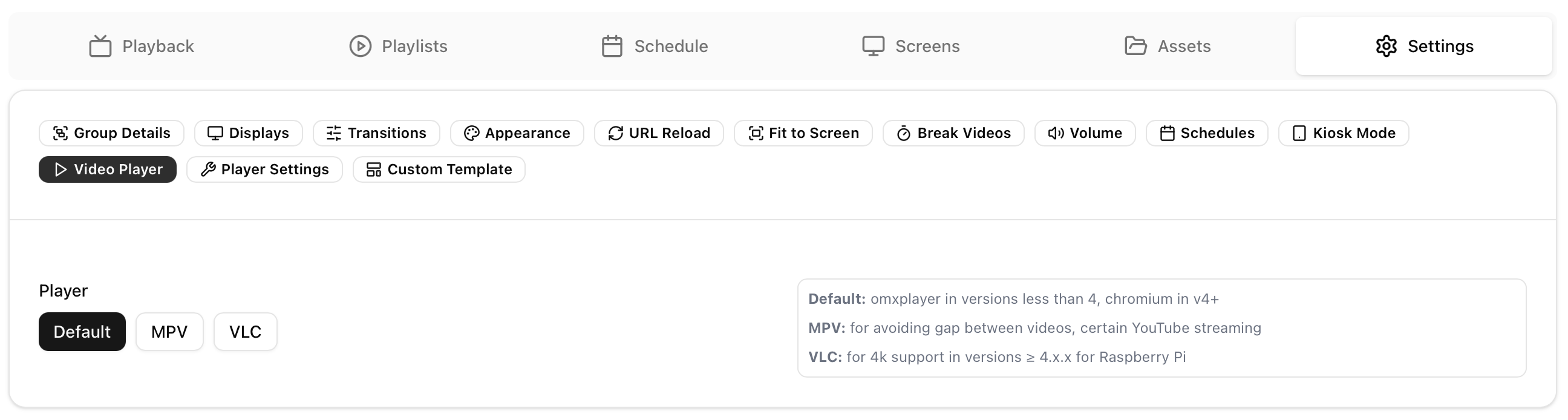 Choose the default video player for all your assets in your screens.
Default: omxplayer in versions less than 4, chromium in v4+
MPV: for avoiding gap between videos, certain YouTube streaming
VLC / EXO player: for 4k support in versions ≥ 4.x.x for Raspberry Pi
Player settings
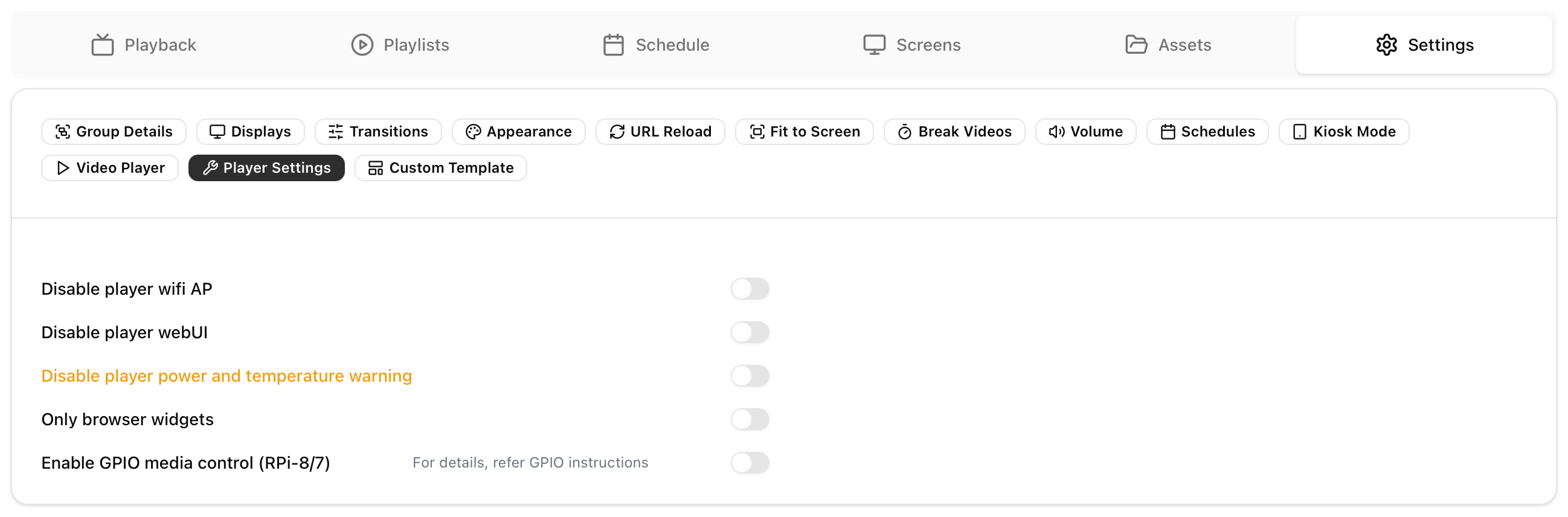 These settings directly change player / screen behaviour
Disable Player with AP:
Disable player webUI: Removes access to the player webUI via the local IP address
Disable player power and temperature warning:
Only browser widgets:
Enable GPIO media control (RPI-8/7):
Custom Template
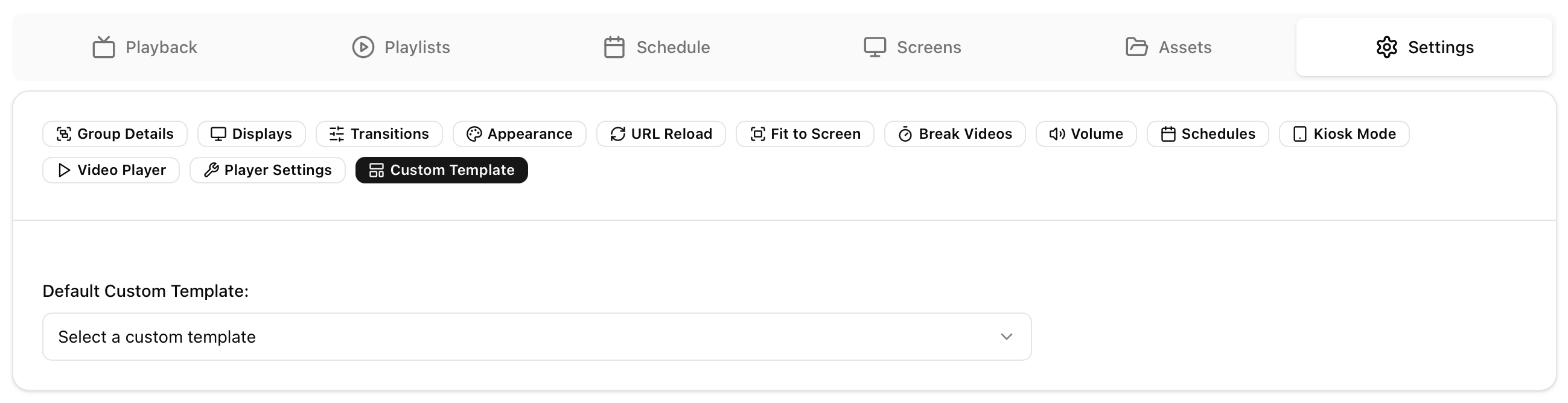 Choose a custom template to be the default for all playlists in the group.