How to display Google Calendar
Use the Google Calendar integration for a live calendar, or embed a calendar link as a weblink.
There are two ways to show a Google Calendar on your screens. The older Google Calendar asset under Add Assets has been removed.
Option 1: Embed link as a weblink
Follow the Google help article to get the embed code.
Take only the
srclink of the iframe, not the full embed code, and add it as a weblink under Assets.Do not use the customize option. Instead, add a mode parameter at the end of the URL to show a week view or an agenda (events only).
&mode=WEEK&mode=AGENDA
Option 2: Google Calendar integration
This shows a live calendar that refreshes itself. Events you add or move in Google Calendar appear on screen without editing the playlist.
- Open Settings → Integrations and click Sign in with Google. One sign in covers Drive, Sheets and Calendar.
- Open Assets → Add Asset. Under Connect an account, select Google Calendar.
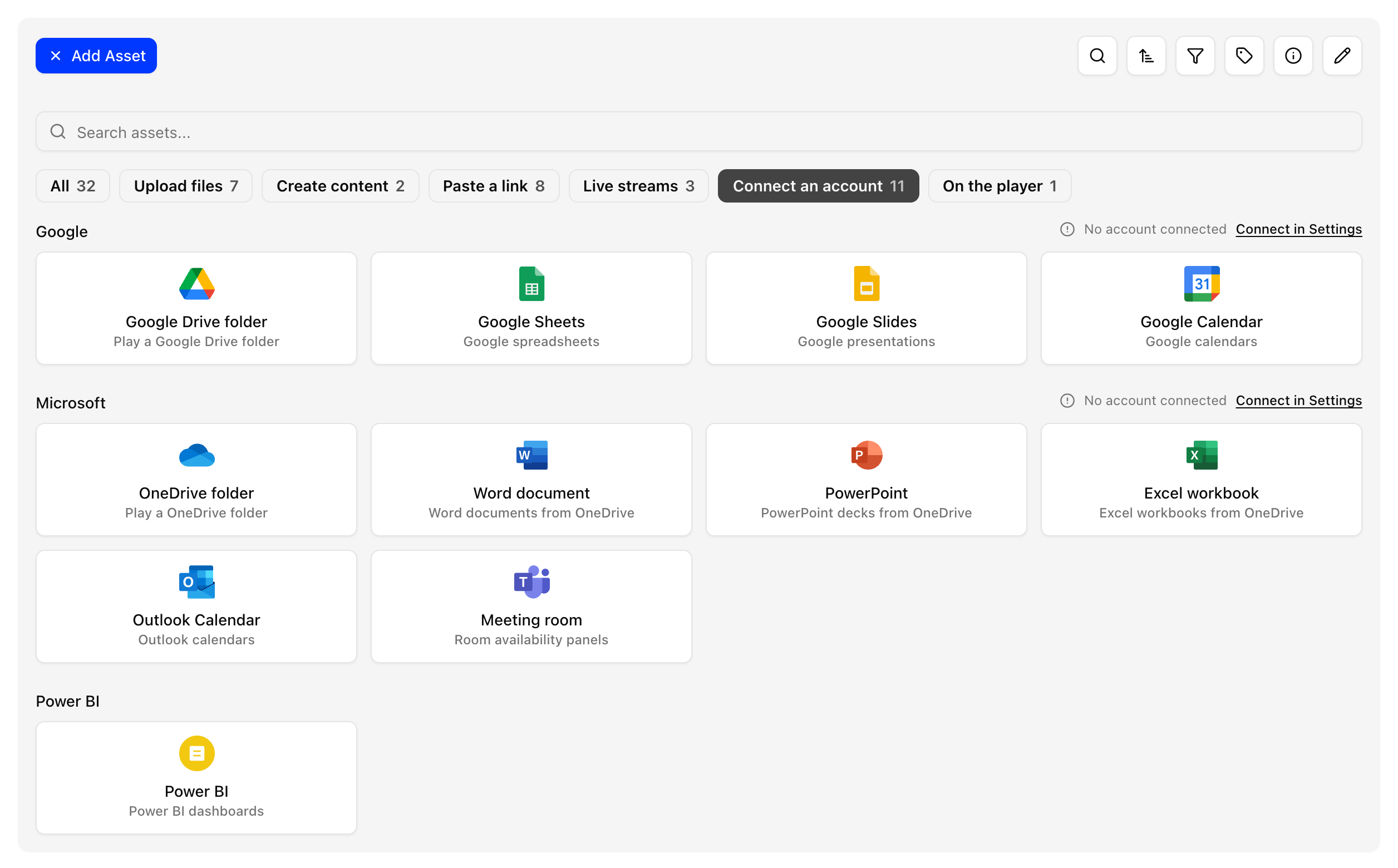
Click your Google account, then choose the calendar to show. A preview lists the upcoming events.
Enter a File name and set
Field Default Days ahead 7 Max events 10 Refresh (min) 5 Then click Save & Continue.
Add the asset to a playlist and deploy. The calendar appears on the screen.
The asset preview in the dashboard may show "unauthorized", but the calendar still displays on the player.
If you disconnect the Google account, calendars stop updating. Settings covers integrations.