Showing a Power BI report on your screens
Connect your Power BI account once, add a report as an asset and choose which pages each screen shows.
There are three ways to get a report onto a screen. You choose one when you connect. Power BI costs are paid directly to Microsoft, PiSignage adds no Power BI charge. The figures below are approximate (early 2026) and should be rechecked before you commit.
| Option | Best for | Approximate cost |
|---|---|---|
| Sign in with Microsoft (user owns data) | A quick, cheap start, a few screens or one team | About $10/month for one Power BI Pro license for the signing-in account |
| Service Principal (app owns data) | Production, many screens, unattended long-term running, multiple teams. Keeps working when passwords change or staff leave | About $750/month and up for a Power BI Embedded capacity (entry "A1" tier, larger tiers cost more) |
| Publish to Web (public link) | Non-confidential numbers such as lobby stats | $0, but anyone with the link can view the report |
Use Sign in with Microsoft for trials or a handful of internal screens. Use a Service Principal for confidential data, many screens or long unattended runs. For Publish to Web, set it up in Power BI and paste the public URL as a normal web link, not as a "PowerBI Report" asset. If unsure what your organisation allows, ask whoever manages your Microsoft 365 / Power BI tenant.
Power BI is available on pisignage.com and the self-hosted enterprise server. It is not part of the open source server, see Open Source vs Self Hosted.
Before you start
- A PiSignage login with full rights and a Power BI report that opens in app.powerbi.com.
- Either a Microsoft account that can sign in to Power BI (for Sign in with Microsoft), or Service Principal credentials from IT (Tenant ID, Client ID, Client Secret).
You connect Power BI only once per account. After that you can add unlimited reports to unlimited screens.
Step 1: Connect Power BI (one time)
- Go to Settings, then Power BI Integration (see Settings).
- Choose one:
- Sign in with Microsoft (recommended for most): sign in with the account that can see your reports, approve the permissions prompt and return to PiSignage showing "Connected".
- Service Principal tab: enter the Directory (Tenant) ID, Application (Client) ID and Client Secret from IT, then select Save credentials.
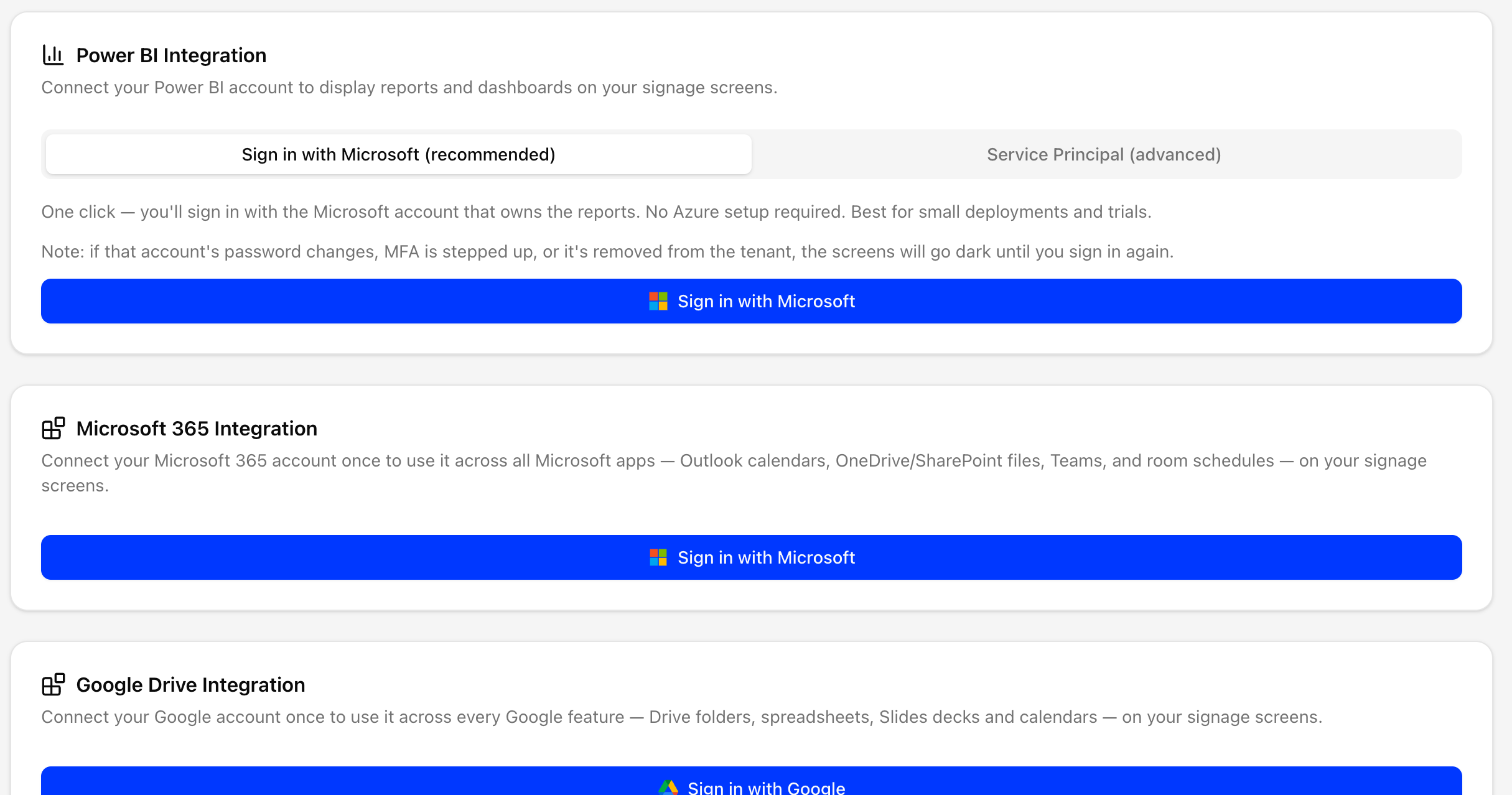
- The page shows a green Connected status, plus the signed-in account name for the Microsoft option.
If "Power BI is not connected" appears while adding a report, come back here and reconnect.
Step 2: Find your Workspace ID and Report ID
Open the report in app.powerbi.com and read the browser URL.
https://app.powerbi.com/groups/<WORKSPACE_ID>/reports/<REPORT_ID>/ReportSection
The value after groups/ is the Workspace ID. The value after reports/ is the Report ID. Copy both.
Step 3: Add the report as an asset
- Go to Assets and add a new link.
- Set the link type to PowerBI Report.
- Fill in:
- Name: a friendly name.
- Workspace ID and Report ID: from Step 2.
- Page duration (seconds): optional, see Step 4.
- Pages to show: optional, and the key part, see Step 4.
- Row-Level Security: optional and advanced, used only with Service Principal. Leave it collapsed if unsure.
- Save. The report is now an asset you can add to any playlist or schedule. See Assets.
Step 4: Choose which pages the screen shows
A report can have several pages (tabs). You do not need to split reports to show one page on one screen, select pages here.
- Confirm the IDs are filled in and Power BI is connected.
- Click Load pages. PiSignage lists the pages by friendly name as checkboxes.
- Tick the pages you want and save.
| Selection | What the screen shows |
|---|---|
| Nothing selected | The whole report (its default page, or all pages in rotation if a page duration is set) |
| Exactly one page | Only that page, fixed, with no rotation whatever the duration |
| Several pages | Rotates through only those pages, in the order you ticked them. A page duration is needed to set the time per page |
Page duration sets seconds per page. It applies to several selected pages, or to no selection when cycling the whole report. It is ignored when one page is pinned. Leave it blank to switch rotation off.
Tips:
- Add the same report as several assets, each pinned to a different page (for example "Sales" and "Operations" screens from one dashboard).
- Click Load pages again after changing the Workspace or Report ID so the list matches.
- If a pinned page is renamed or deleted in Power BI, the screen falls back to the whole report instead of going blank. Re-open the asset and re-pick pages.
Step 5: Put it on a screen
Add the Power BI asset to a playlist (and schedule or group) like any image or video. The player loads the live report, refreshes the session token automatically in the background and applies your page selection.
Editing a report later
Open the asset and go into its link details. You can change the Workspace/Report ID, page duration and page selection, then click Update. Click Load pages again if the report changed. Previously selected pages are shown.
You cannot rename a Power BI link in place. To rename it, delete it and create a new one.
Troubleshooting
| Symptom | Cause and fix |
|---|---|
| "Power BI is not connected" in the add/edit form | No saved credential, or it broke (password change, MFA, admin sign-out, expired secret). Reconnect under Settings, Power BI Integration |
| Load pages shows an error | Wrong Workspace or Report ID, the account cannot see the report, or Power BI is not connected. Check the IDs in the URL and confirm the report opens for the signed-in account |
| Screen shows an error message ("Access denied", "Report not found", "Temporarily unavailable") | See below |
| Screen shows the wrong or all pages | No pages selected, or the pinned page was renamed or deleted. Re-open the asset, Load pages, re-tick and Update |
| Pages do not rotate | A single pinned page never rotates, or no page duration is set for several pages. Set a duration |
| Report stops after a while | Usually a stale connection (sign-out or expired secret). Reconnect under Settings, the player recovers once the credential is healthy |
If a screen shows an error message
A failed load shows a clean error page (dark background, large message) instead of a blank screen. It retries automatically every 5 minutes, so you do not need to restart or redeploy after the fix. Each error page ends with small technical details (screen ID, asset ID, timestamp). Include them when you write to Support.
"Access denied - 403": Power BI accepted the sign-in but refused the report.
- (Service Principal) The app is not a workspace member. In Power BI, open the workspace, then Access, and add the application as Member or Admin. Contributor is not enough for embed tokens.
- (Service Principal) The workspace is not on a paid capacity. It must be assigned to a Power BI Embedded, Premium or Fabric capacity, a regular Pro workspace returns 403. Set a License mode in the workspace settings that includes a capacity (the roughly $750/month "A1" tier).
- (Service Principal) The tenant blocks service-principal API access. A Power BI admin must go to Admin portal, Tenant settings, Allow service principals to use Power BI APIs and enable it for the app or its security group.
- (Row-Level Security) An RLS username is set but the dataset has no matching role. Clear the RLS fields on the asset, or add the role to the dataset in Power BI.
"Report not found - 404": Power BI could not find that workspace and report combination.
- The report was deleted or re-published, which can change the Report ID. Copy the new ID from the app.powerbi.com URL, then in PiSignage use Edit, paste the new ID, Load pages and Update.
- The Workspace ID or Report ID is wrong (copy/paste error). Verify against the URL.
- (Service Principal) The app is not a workspace member. Power BI returns "not found" rather than "access denied" to hide whether the workspace exists. Add the app as above.
- The report is in "My workspace". Personal workspaces are invisible to external apps. Move the report to a group workspace.
"Temporarily unavailable": anything else, usually a connection issue.
- The Microsoft sign-in expired or was revoked (password change, MFA, admin sign-out, inactivity). Reconnect under Settings, Power BI Integration.
- (Service Principal) The client secret expired or was rotated. Secrets usually last 6 to 24 months. Get a new one from IT and update it under Settings, Power BI Integration.
- The asset configuration is missing or corrupt (rare). Re-save the asset.
- A brief network or Microsoft outage. Nothing to do, the screen recovers on its next retry.
Quick FAQ
- Do viewers need Power BI licenses? Passers-by are not signed in and there are no per-viewer sessions. Licensing depends on the connection method.
- Can two screens show different pages of one report? Yes. Add the report as two assets and pin a different page to each.
- Does rotation follow my selection order? Yes, it cycles in the order the pages were ticked.
- What if I select pages but no duration? The screen shows the first selected page without rotation. Add a duration to cycle.
- I changed the report in Power BI, what do I do? If you renamed, added or removed pages, re-open the asset, click Load pages and re-pick. Data and visual changes need nothing, since the screen shows the live report.
- Do I restart anything after fixing an error page? No. The page rechecks every 5 minutes and recovers once permissions, capacity or Report ID are fixed.