Documentszoom-level-and-keystrokes-for-webpage-link-window
zoom level and keystrokes for webpage link window
For webpage links you can set a zoom level and send keystrokes after the page loads.
You can set a zoom level and send a series of keystrokes some seconds after a link launches, for webpage (CORS) links.
In the new UI
Zoom level and keystrokes are set when the asset is created.
- Open Assets.
- Click Add Asset.
- Under Paste a link, choose webpage (Full web browser).
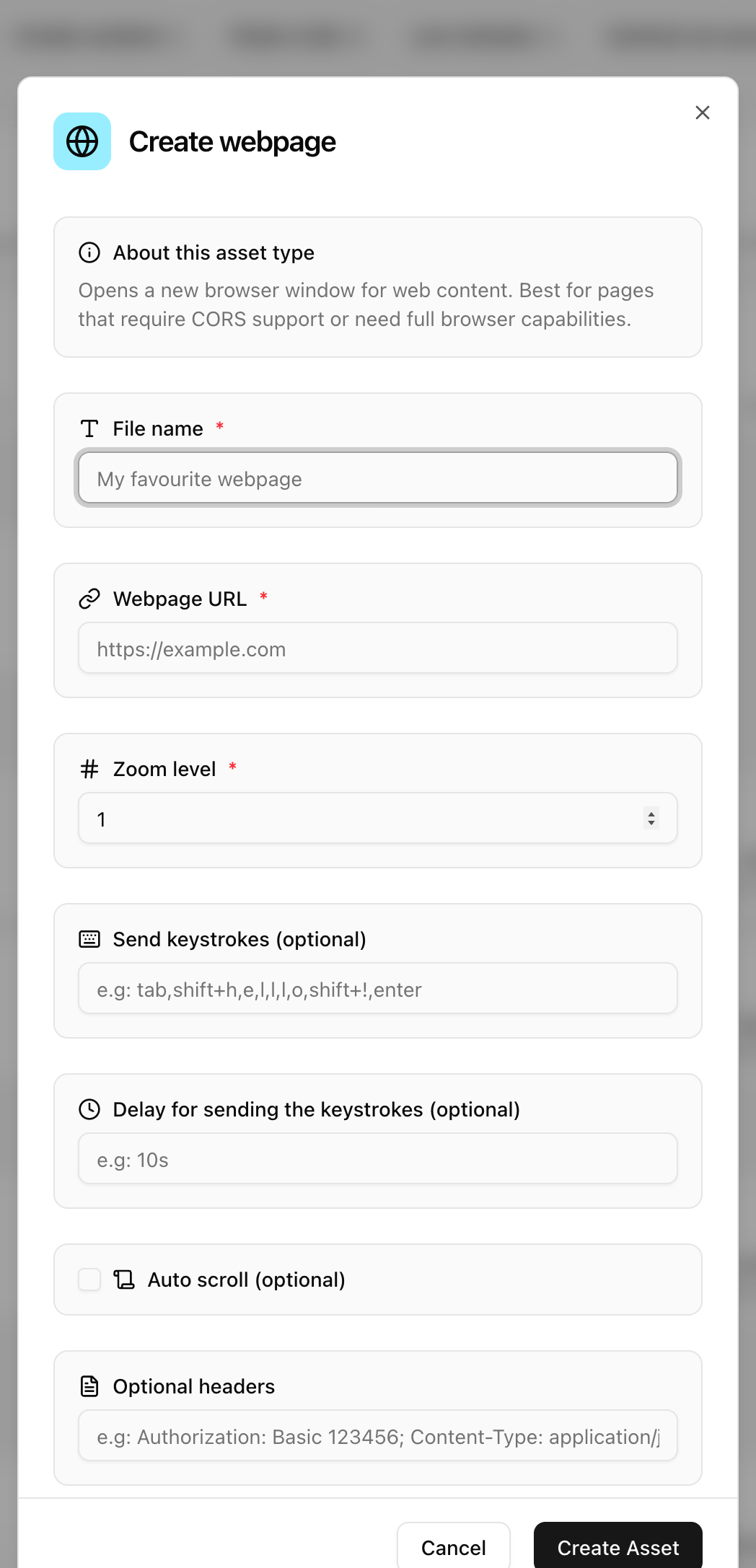
The Create webpage dialog has these fields.
| Field | What it does |
|---|---|
| Zoom level | A scale factor. 1 is normal size, 1.5 shows the page at 150% |
| Send keystrokes | Comma-separated keys sent after the page loads. Capitals and symbols use shift+letter, or shift+2 for @. Add 2000ms between keys to wait 2 seconds, for example when a new page loads after a key |
| Delay for sending the keystrokes | Seconds to wait after the page loads before the first key is sent. Default is 10. Player builds up to 5.6.1 ignore this field and always wait 10 seconds. It takes effect from the next player release |
| Auto scroll | The player presses Arrow Down every 2 seconds, 100 times, so long pages scroll automatically. Needs player 2.6.0 or later, or player2 4.0.8 or later |
| Optional headers | HTTP headers sent with the page request, in the form Name: value; Name: value. For example an Authorization header for a page behind basic authentication |
Examples of keystrokes:
shift+b
shift+2
2000ms
tab,shift+h,e,l,l,o,enter
Repeat a key: add repeat=N after a key to resend it every N seconds while the page is shown (default 10).
control+r,repeat=60
down,repeat=5
The first reloads the page every minute. The second scrolls one line every 5 seconds.
- Keys are sent 100 milliseconds apart.
- Editing an existing webpage asset only lets you change the URL. To change the zoom level or keystrokes, create the asset again.
Assets covers the webpage asset in more depth.
In the legacy UI
Enter the link details in Add link, then go to that asset's details page and set the zoom level and keystrokes there.
- Capital letters and special keys are sent as combinations such as
shift+b, andshift+2for the @ character. - Key names are documented in the key syntax reference.
- To add a delay between keys, append a number followed by
ms. For example2000msadds a 2-second delay, useful when a new page loads after certain keystrokes.