PiShell Commands for Android and Amazon Signage Stick Players
Run shell commands on your Android and Amazon Signage Stick players from the server.
The PiSignage Android app is available on Google Play. The same app runs on the Amazon Signage Stick, and the commands below work on both.
The player must be online to receive shell commands.
Open the terminal
- Go to Screens and click the eye (View Details) button on the player's row.
- In the Screen Details panel, open the Terminal tab.
- Type a command in the box at the bottom and press Enter or click Execute. The panel also has Show Logs and Reboot buttons.
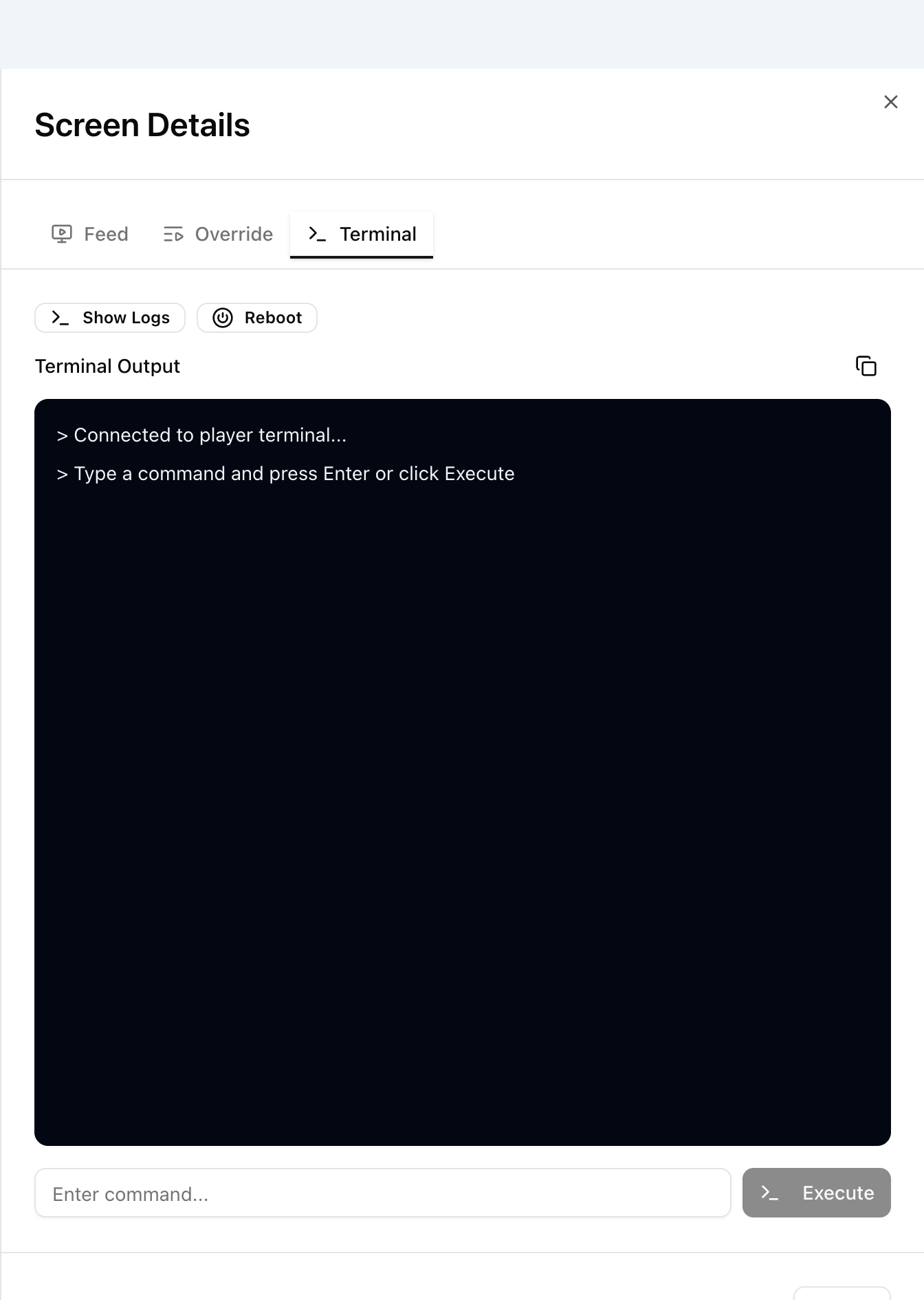
Screens covers the Terminal in more detail.
In the legacy UI, go to the Players tab and press the >_ icon on the player to open the piShell command screen.
List the supported commands
Type help to get the list of shell commands for the installed player version.
help
This is the complete list, so check it first if a command below does not respond.
Common commands
Player logs
Get the last 200 player logs. This helps when debugging issues.
tail -200
Restart
Restart the PiSignage Player 2.0 Android app with any one of these:
restart
reboot
reload
Stop
Stop the app with either of these:
stop
shutdown
Reset
Clear the media files and restart the app:
reset
View assets
See the assets in the media directory:
ls media
Amazon Signage Stick
Commands that mention EMA (reboot, update, completereset) use Amazon's device management service and apply to the Amazon Signage Stick.