Screens
The Screens tab is where you manage and monitor your screens.
PiSignage allows you to monitor and manage your screens at a granular level with the ability to view whats being displayed, turning the display on/off and more.
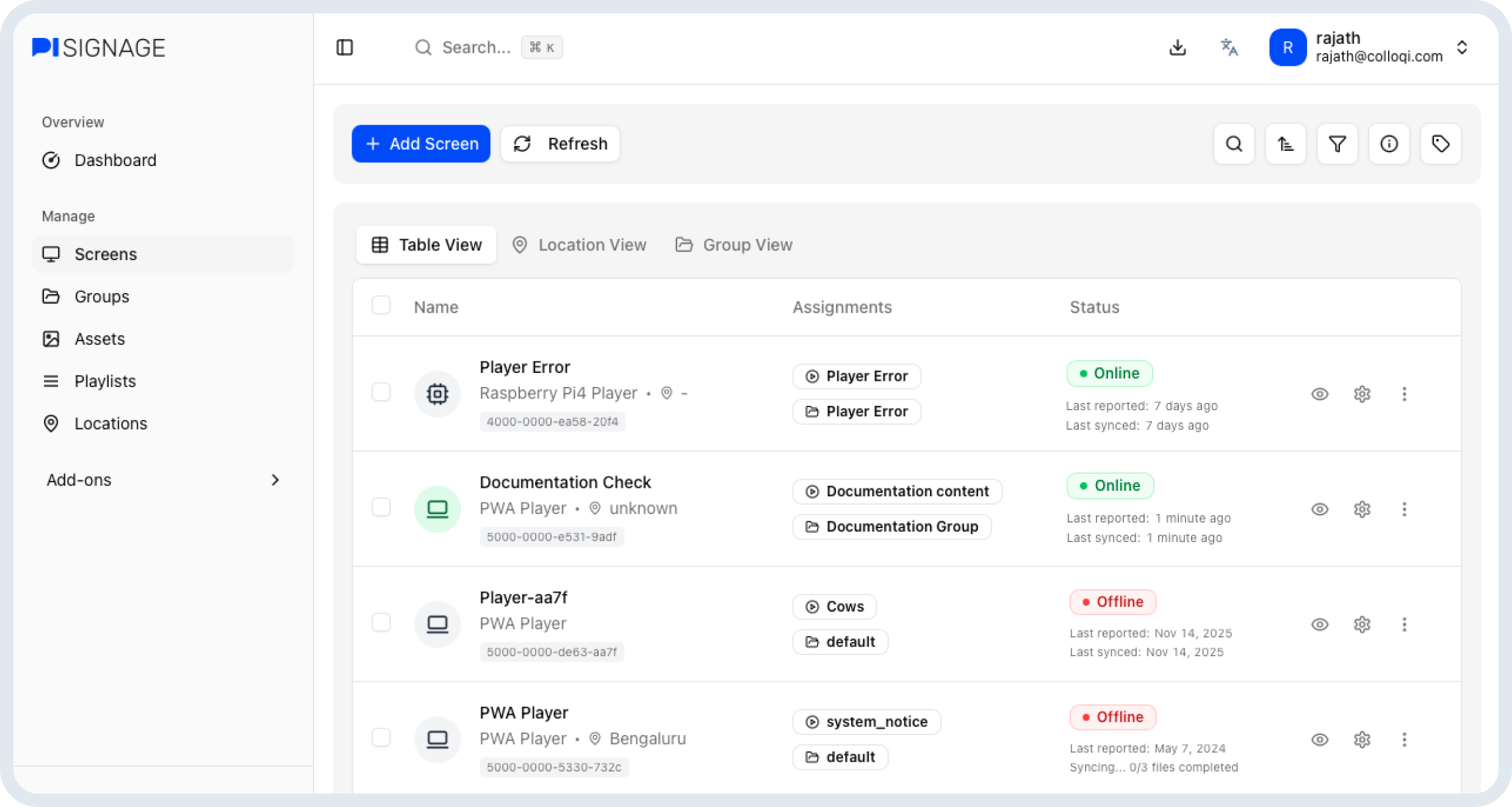
Screens and players are often used interchangeably. Previously, the legacy interface referred to them as “Players”.
In the screens tab you can
Register a new screen.
View what the given screen is playing.
View and check the status of multiple screens.
Send SSH commands to your screens
Turn on and off your screens
and more…
Register a new screen
Once you have setup your screen/player and see the 16-digit code on the screen, you are ready to register the same on PiSignage. To register a new screen click on the “+ Add Screen” button in screens.
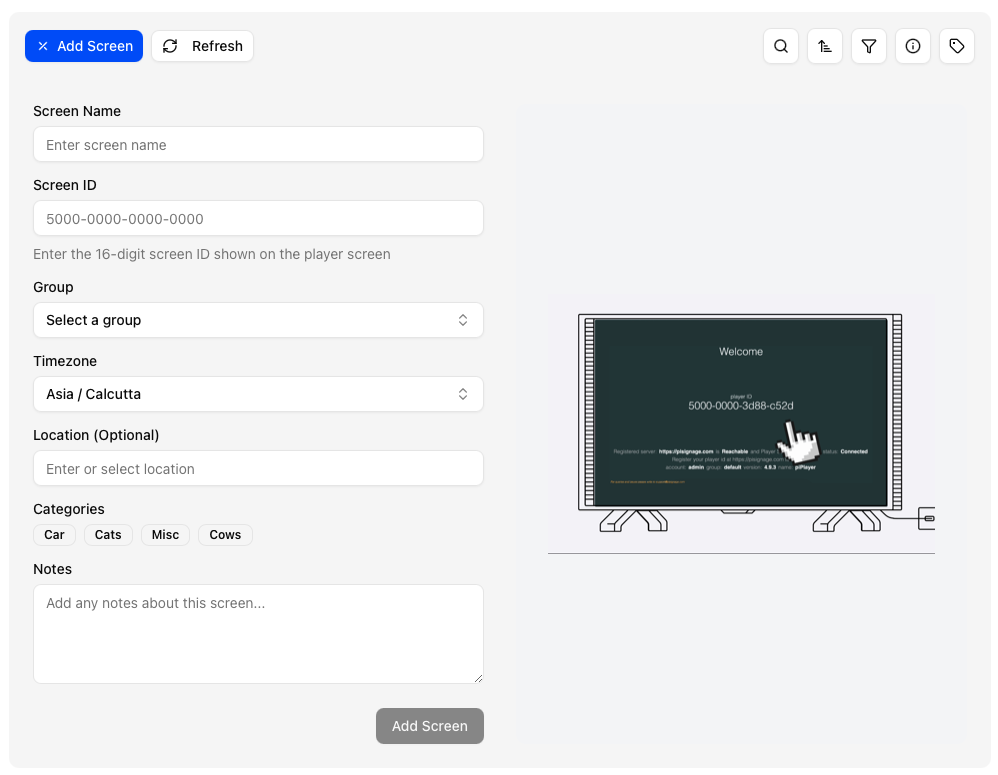
When registering a screen you will need to enter:
Screen Name: The name as you would like it to appear
Screen ID: The 16 digit code on your TV screen
Group: The primary group that the screen will now be a part of
Timezone: The timezone used as reference when scheduling content
Location: Location to manage the screen
Categories: Category to assign to the screen
Notes: Any special notes that appear below the screen name. These could be instructions, etc
Screen directory
The screen directory is where you manage your screens and players. You can view notes, take action, check status and monitor the vitals of your screen/player.
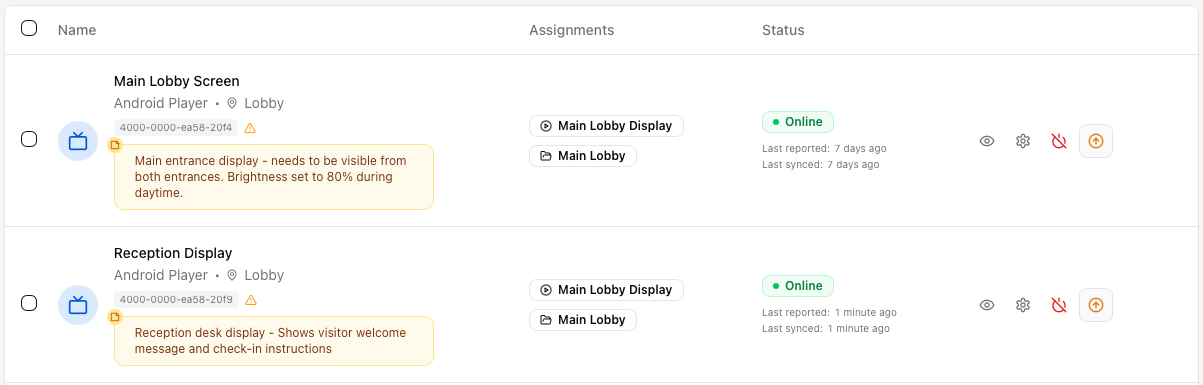 Each row of the screen directory can be broken down into parts.
Player information
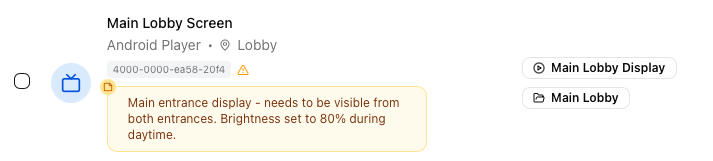 Player information is broken into 2 parts
Screen specific information includes - Player name, type, location, Player ID and any notes associated with the player. This information is specific to the player hardware
Content information under the “assignments” column covers playlists and groups currently playing on the player
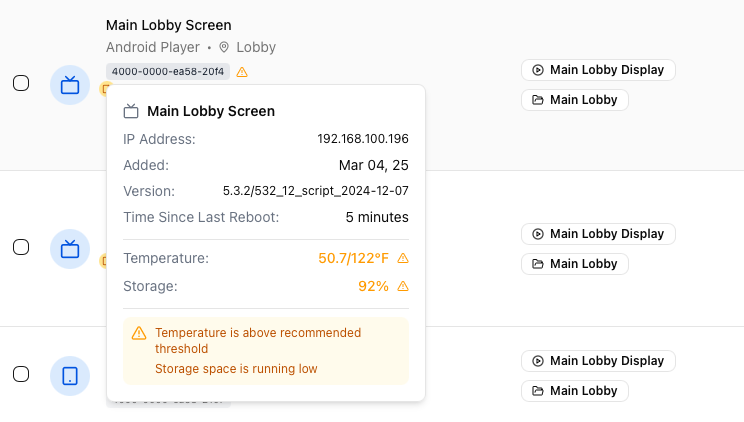 Additional information on hover
On hovering over the Player ID additional information about the player including its storage, version, IP address, added on date, last reboot date, temperature (on RPI models) become available.
Player status
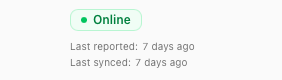 The player status shows the current status of the screen. This covers the following states.
Online: the player is online and connected to the internet and is reporting to the server
Offline: The player is disconnected from the server for one of two reasons
The player is not connected to the internet
The player is connected to the internet but a network policy is preventing it from connecting to PiSignage.com or the server. Contact your IT admin to whitelist the domain to fix this.
Online but no Playlist playing: The screen is online and connected but has no playlist configured to play
Disk space almost full: The disk space in the player is almost full which may cause playback issues
CEC not supported: CEC is not supported either because
The TV does not support CEC
The TV setting for CEC is not enabled
The HDMI cable prevents the signal from coming through
Online and playing but TV is off:
What is CEC: CEC is a protocol that enables communication between various consumer electronics devices, such as televisions, Blu-ray players, gaming consoles, and soundbars. The aim of CEC is to simplify control and interaction between these devices.
Player actions
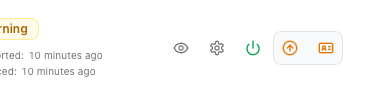 Player actions can be categorised into 2 groups
Always visible:
Open Screen controls (👁️): Opens the screen control panel
Screen Settings(⚙️): Opens player settings
TV on/Off(🔌): Turn the display on or off
Sometimes visible:
Update player version(⬆️): when a new player version is available the update button appears. Clicking on the same updates the player and restarts the same. This may take a few minutes depending on network connectivity. it can also be scheduled for later.
License player(🪪) : Licenses an unlicensed player with an available license. An unlicensed player will often show the banner “this player is powered by PiSignage”.
Screen controls
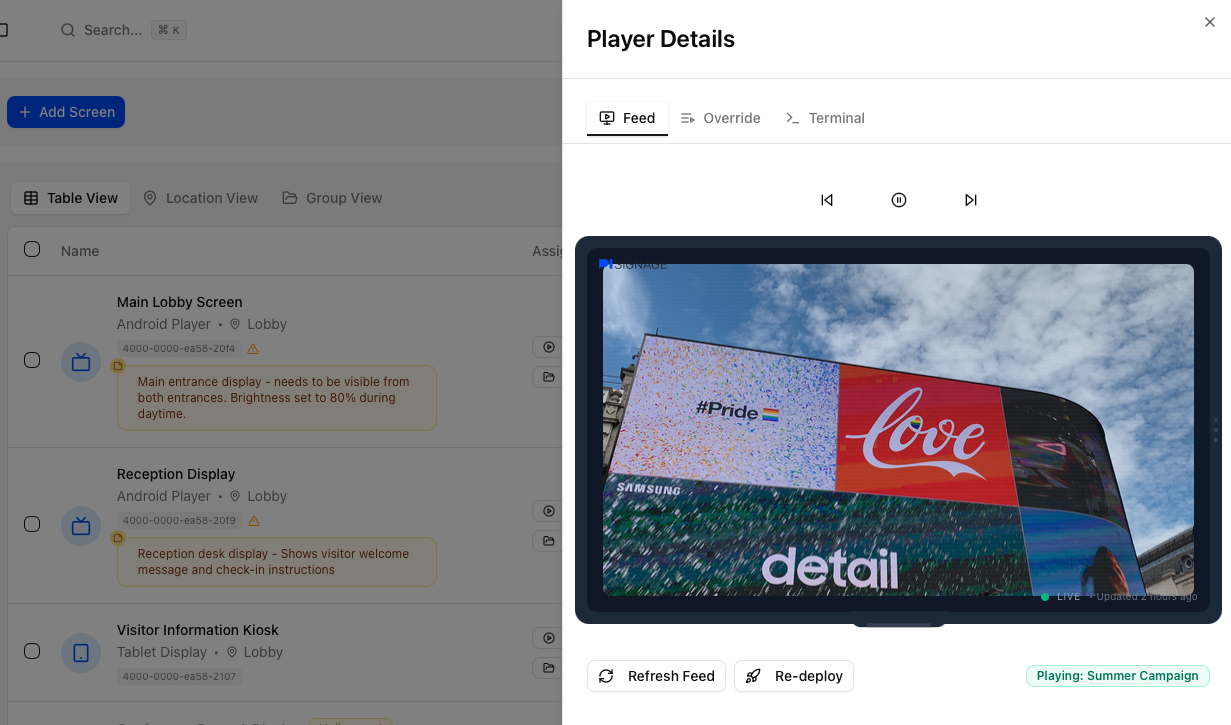 The screen controls can be accessed by clicking on the player name or by clicking on the “eye” icon in the player actions. This opens the panel to the right which contains the below controls.
Feed
The Feed shows in realtime the content playing on the screen. This is a screenshot directly from the device and NOT a preview of what is supposed to play.
You do also have additional controls to move to the next asset or previous, pause content or redeploy.
Override
 Override the current content on the player with a playlist of your choice.
Terminal
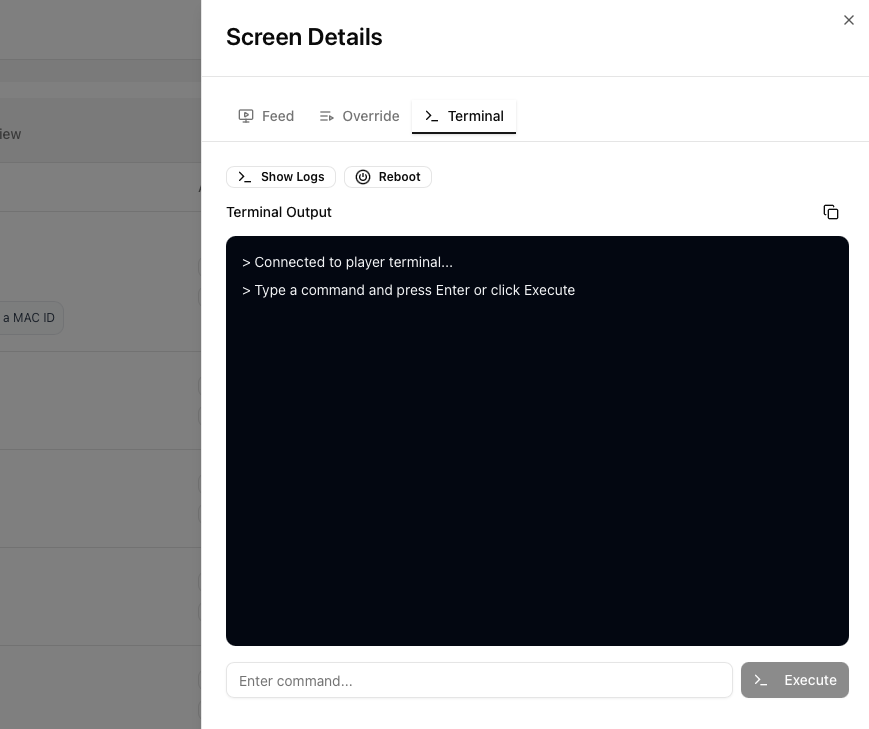 Terminal allows you to deploy commands directly to the device via SSH to get realtime information and to control the device. Command commands like reboot player or fetch logs have been made quick buttons up top.
Screen Settings
General
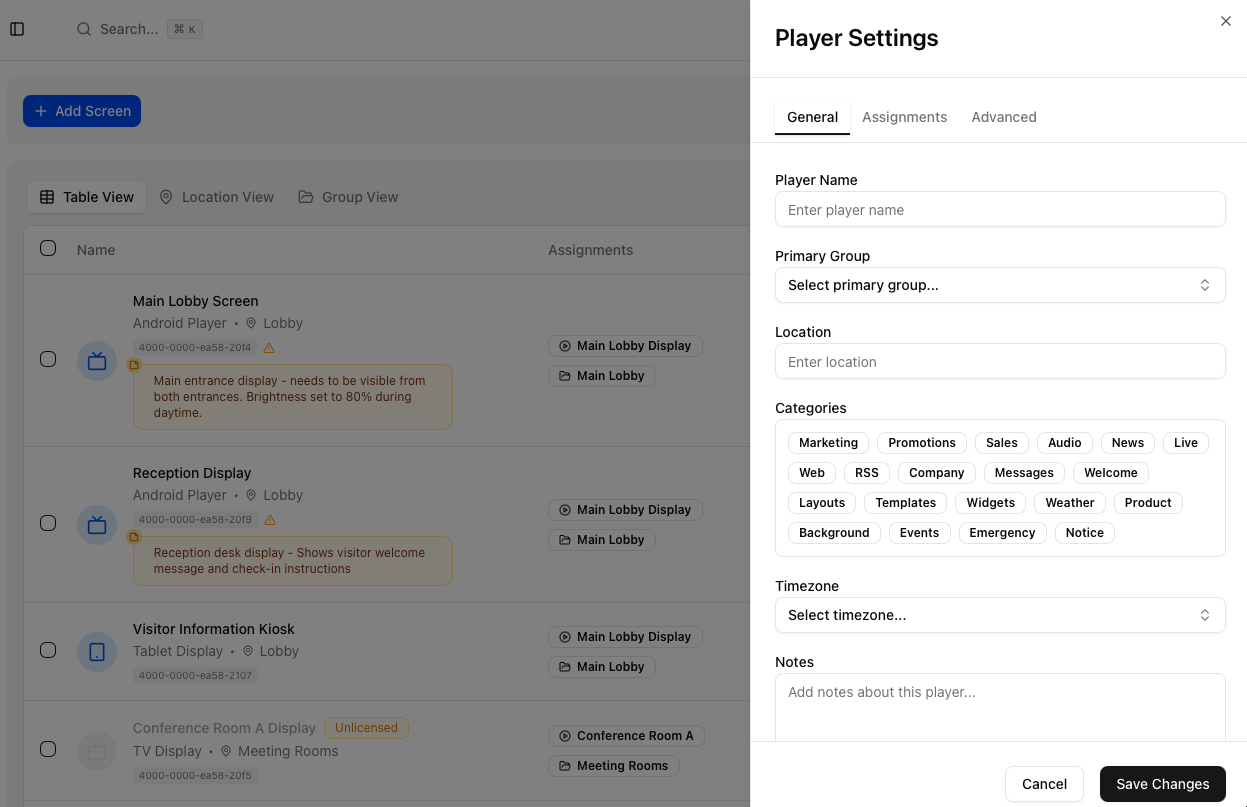 This tab allows you to change all player assignments set during registration. This includes the name, primary group, location, categories, timezone and notes.
Assignments
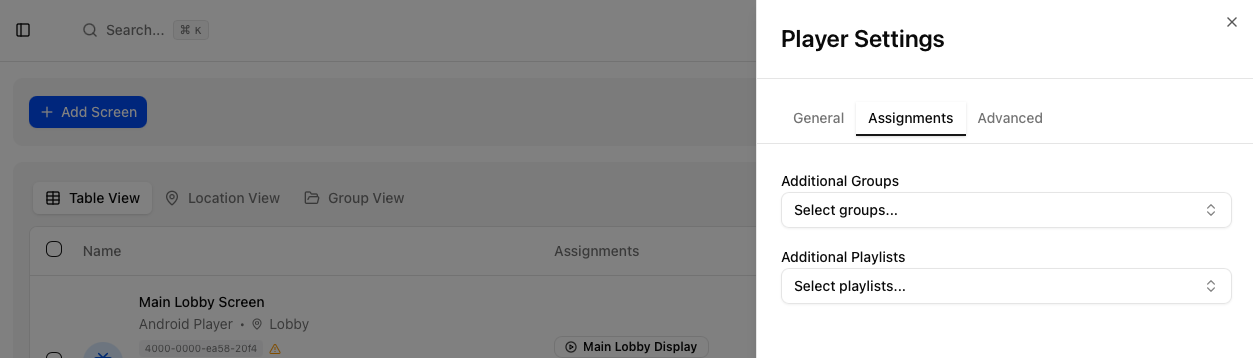 This tab allows you to add additional playlists and groups to the specific players.
Secondary groups and playlists have their content shuffled with the primary groups content and played alongside in the player.
Secondary Playlists will always play their content
Secondary Groups will play their content based on their schedule
All settings are inherited from the Primary group with all other secondary group settings ignored.
Advanced
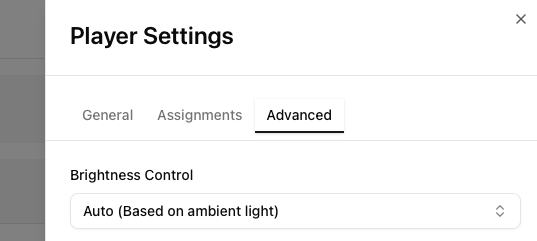 Advanced contains all advanced options such as brightness control or integrations.
Bulk actions
 By selecting 2 or more playlists with the checkbox you can perform a few bulk actions in screens.
Override with playlist allows you to override all playing content on all of the selected players with a playlist of your choice
Update players will upgrade their software. This may take a few minutes and will result in a reboot
License players will license all unlicensed players with available licenses
Change group allows you to reassign the selected players primary group
Views
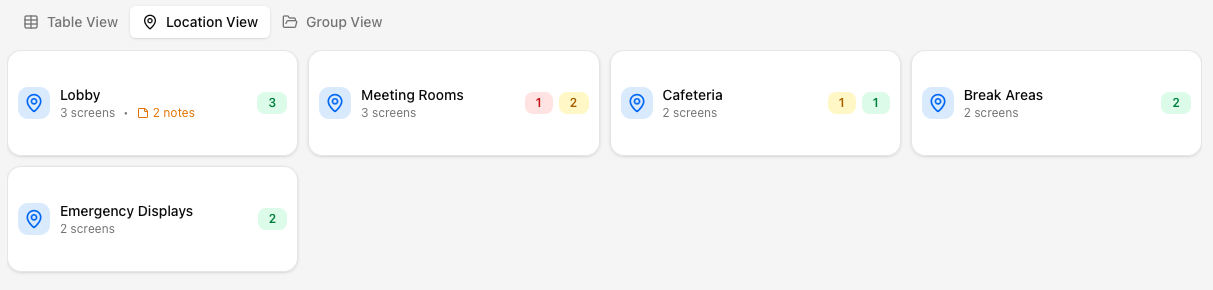
Besides the regular list based screen directory, the screens tab has 2 more views.
Location view
Groups players by location in a folder style format. Clicking on a location opens all players in that location in a list view
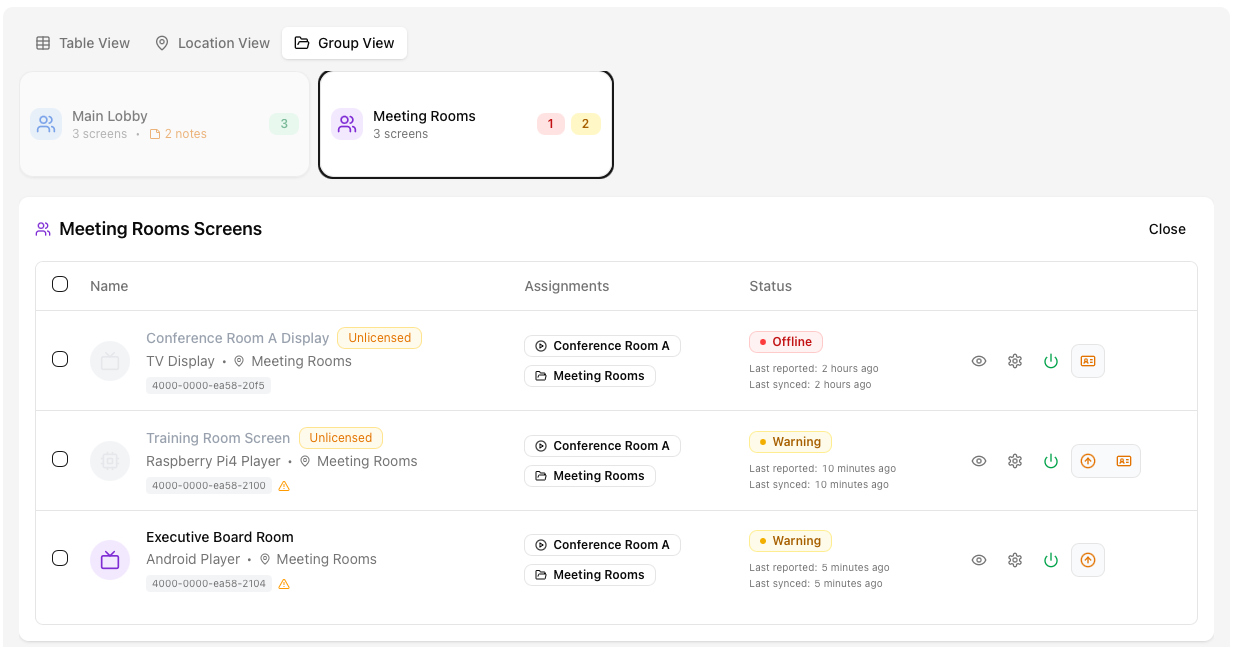
Group view
Groups players by their primary group in a folder style format. Clicking on a group opens all players in that location in a list view