PiSignage screen displays at a lower resolution or incorrect resolution on TV
If your TV shows the wrong resolution, update the player or pin the TV's EDID.
Older Raspberry Pi OS releases (before 2022, using the Legacy and FKMS stacks) rely on firmware in the VideoCore graphics processor to detect HDMI presence and properties. KMS instead uses an entirely open-source, ARM-side implementation. The two code bases differ, so behaviour can vary between them in some cases.
Update the player
If a display shows the wrong resolution on a 5.x.x player, update to the latest version. Starting with 5.1.5, /boot/firmware/cmdline.txt includes the settings below. They force HDMI to 1920x1080 whether or not the cable is connected or the TV is powered on.
video=HDMI-A-1:1920x1080M@60D vc4.force_hotplug=1
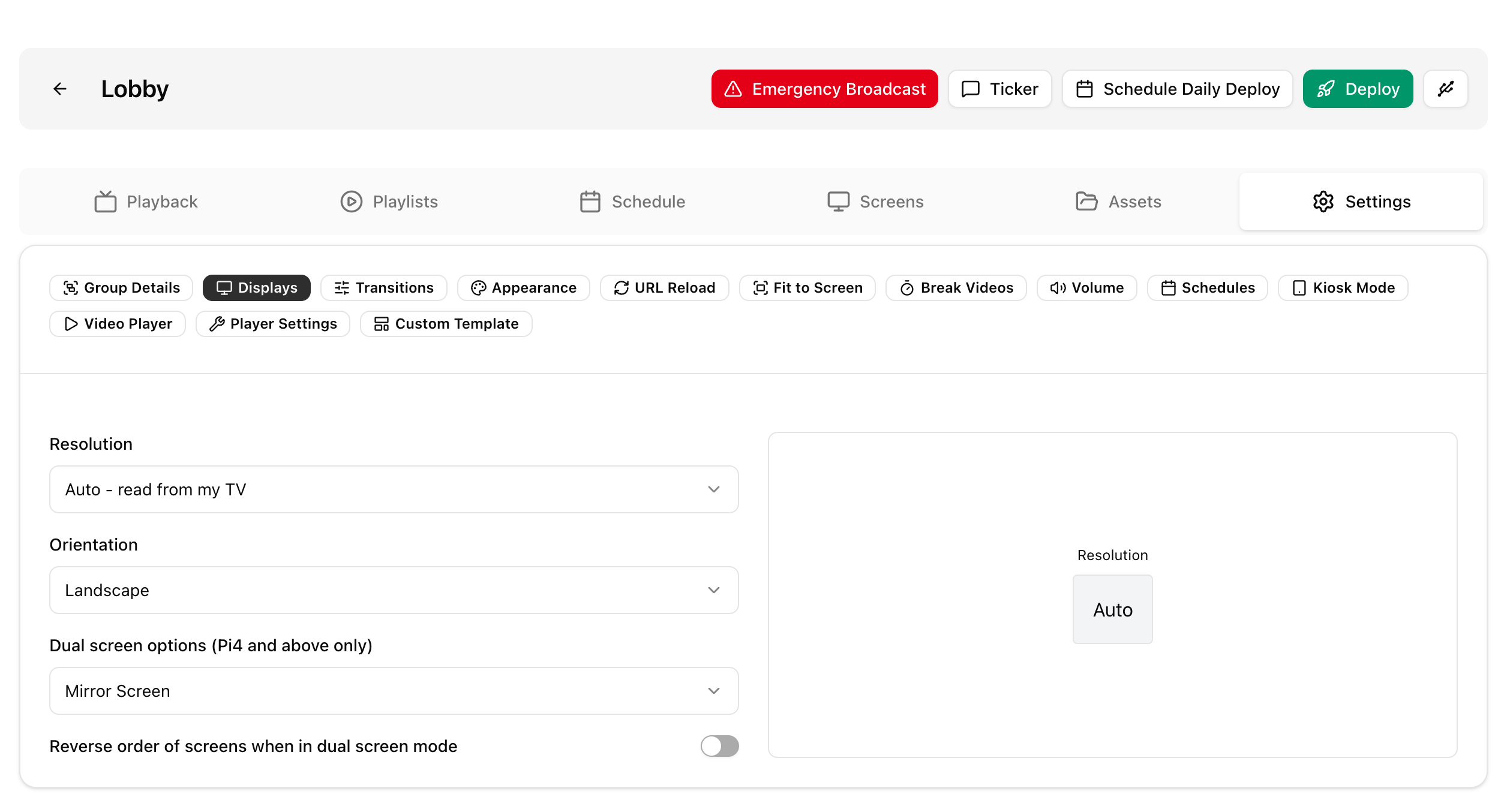
You can also set the resolution from the group. By default the resolution is set to auto, which reads it from the TV, and you can override it in your group settings. See Groups.
Use a specific TV resolution
To follow the EDID (display capability) properties of a specific TV, copy the EDID file while the TV is connected and powered on, before the Pi boots. Then use that same EDID every time.
- Copy the EDID file to
/lib/firmware/myedid.dat.sudo cp /sys/class/drm/card?-HDMI-A-1/edid /lib/firmware/myedid.dat - Edit the kernel command line file with sudo. Remove this setting:
and add this at the end of the line:video=HDMI-A-1:1920x1080M@60Ddrm.edid_firmware=myedid.dat
The original article gives the command line file as
/boot/firmware/cmdline.txtin the first part and/boot/cmdline.txtin step 2. On current Raspberry Pi OS (Bookworm and later) the file is in/boot/firmware/.
More details are in the Raspberry Pi whitepaper Troubleshooting KMS HDMI output.