Setting Up SAML SSO for PiSignage with Microsoft Entra ID
Configure Microsoft Azure and PiSignage so your users can sign in securely with SSO
You need to set up both Microsoft Azure (Entra ID) and PiSignage. Signup and Login has the general SSO overview. For an existing account, write to support@pisignage.com with your username.
Set up SSO
Click Sign Up with SSO on the PiSignage signup page. A popup appears.
Enter your login details.
- Username: any username you choose for your PiSignage account, for example
johndoe. - Email: the email address linked to your Microsoft Entra ID account, for example
admin@testapp.onmicrosoft.com. PiSignage uses this to identify you.
- Username: any username you choose for your PiSignage account, for example
If you do not already have an Enterprise Application in Entra ID, sign in to the Azure Portal, go to Home > Enterprise applications, click Create your own application and name it PiSignage SSO. Add users to the application.
Set the Issuer to the Identifier (Entity ID).
In the Single sign-on tab, select SAML. In the Basic SAML Configuration section click the Edit icon and add the values below. Save the changes.
Identifier (Entity ID): https://pisignage.com/saml-authenticated
Reply URL: https://pisignage.com/saml-authenticated
Logout URL: https://pisignage.com/saml-authenticated
Copy the Login URL exactly into the Entry Point URL field of the PiSignage SSO form. Download the Base64 certificate, open it in a text editor and paste its contents into the Certificate field.
Click Sign Up to create your PiSignage account.
You are redirected to the login page. Click Login with SSO, enter the username of the new account and click Log In. You are redirected to the Microsoft login page. After signing in you land on your PiSignage dashboard.
Adding collaborators
Want to share access to your account with colleagues?
- Existing PiSignage users added as collaborators cannot use SSO. They log in with their own username and password.
- New collaborators can use your SSO configuration. When creating a new collaborator, enable the SSO login option. Each collaborator needs a unique email address linked to their Microsoft Azure account.
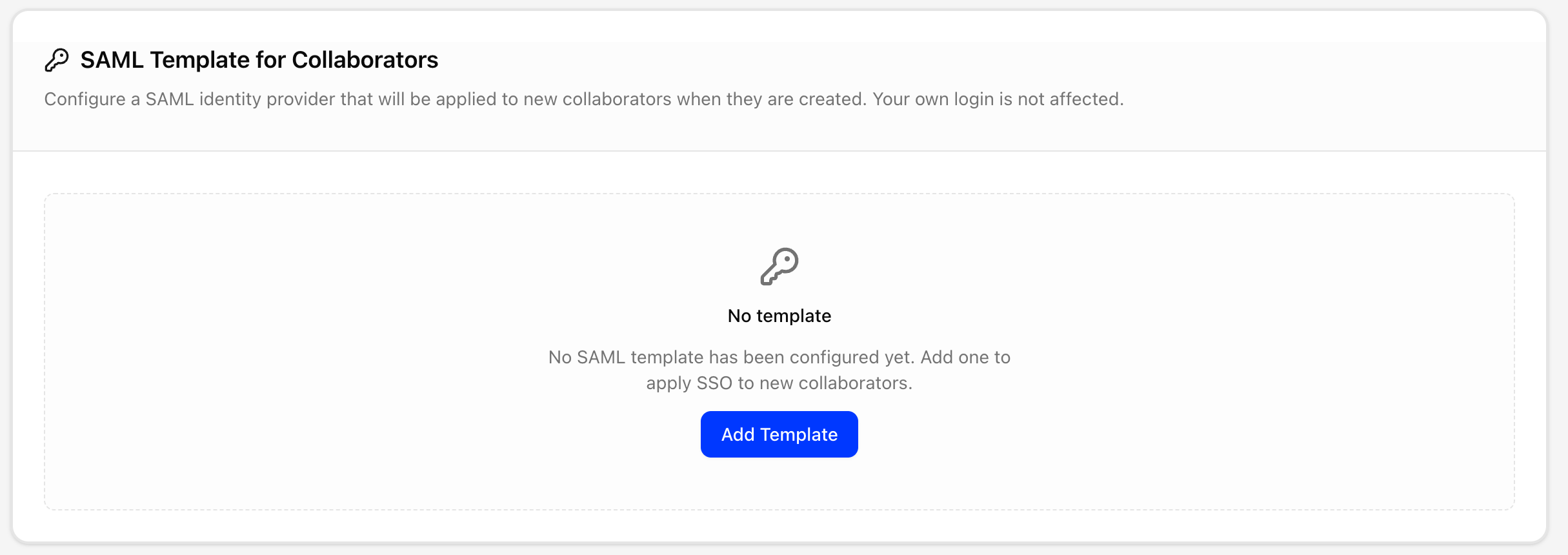
In the current UI the SAML options for collaborators live under SAML Template for Collaborators in Settings. See Collaborators, which covers it in detail.