Documentscsv-or-excel-files-not-shown
CSV or Excel files not shown
CSV and Excel files can't be uploaded directly. Show them through a connected Microsoft 365 or Google account instead.
The spreadsheet plays as a PDF with one page per sheet. It refreshes every 15 minutes and works on every player.
Show an Excel workbook or Google Sheet
- Connect your account once in Settings → Integrations. Use Microsoft 365 for Excel files in OneDrive, or Google for Google Sheets. See Settings.
- Open Assets and click Add Asset.
- Under Connect an account, select Excel workbook or Google Sheets.
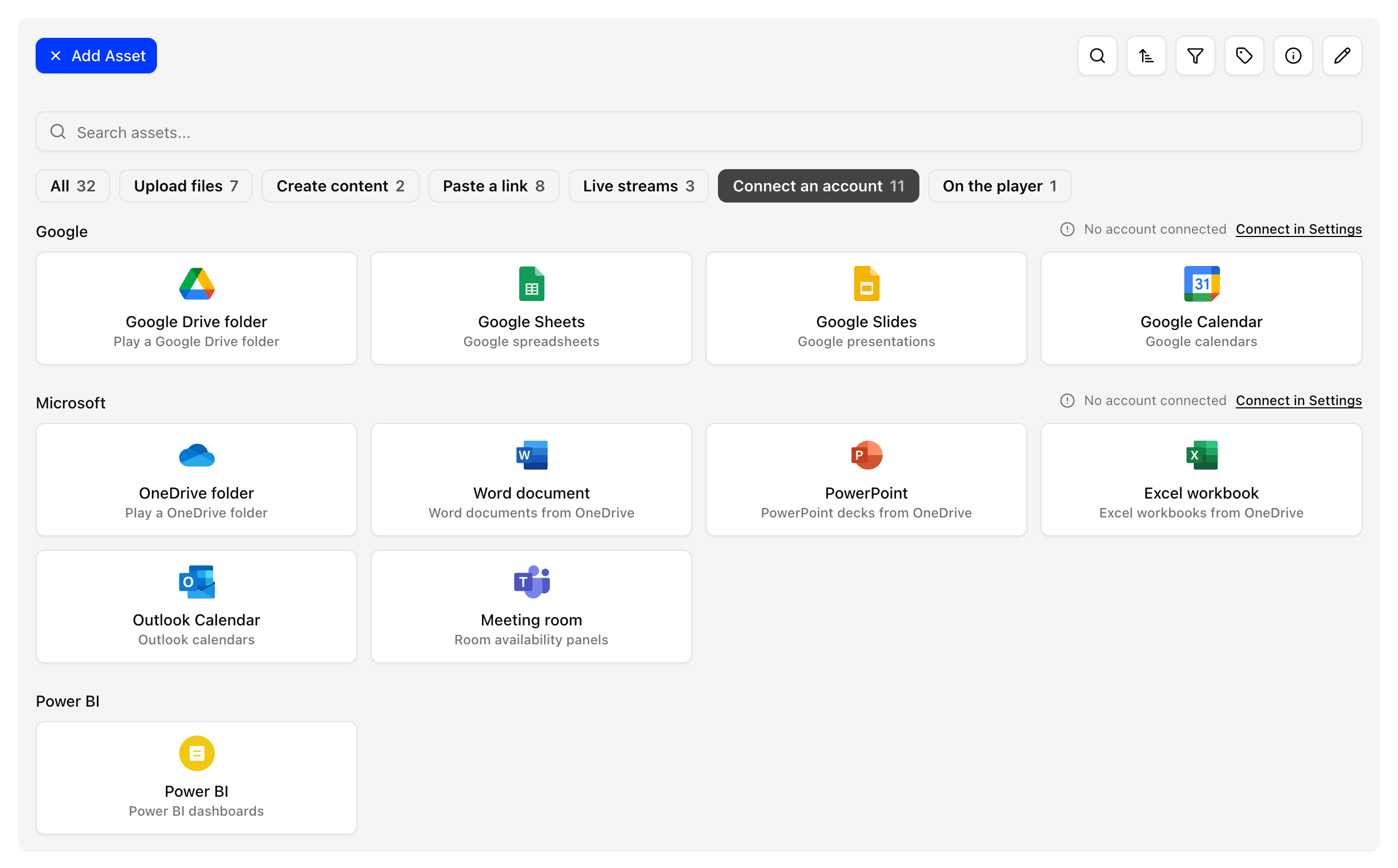
- Click your account, choose the workbook or spreadsheet and click Sync to assets.
- The spreadsheet appears in Assets as a PDF, and the preview shows each sheet. Add it to a playlist and deploy.
Tips
- For a CSV file, open it in Google Sheets, or save it as Excel in OneDrive, then add it as described above.
- Keep sheets narrow and use large fonts. Very wide sheets become small text on screen.
- For a live table that refreshes on screen, use the Excel widget in the App Store.