App Store
The App Store is where you build your own apps for your screens using widgets and templates.
Choose from a range of templates or create your own. Each app is made up of widgets such as clocks, weather, text, images, videos, news and live TV that you arrange on a grid. Once you are happy with your app simply add it to your Assets and play it in any of your Playlists.
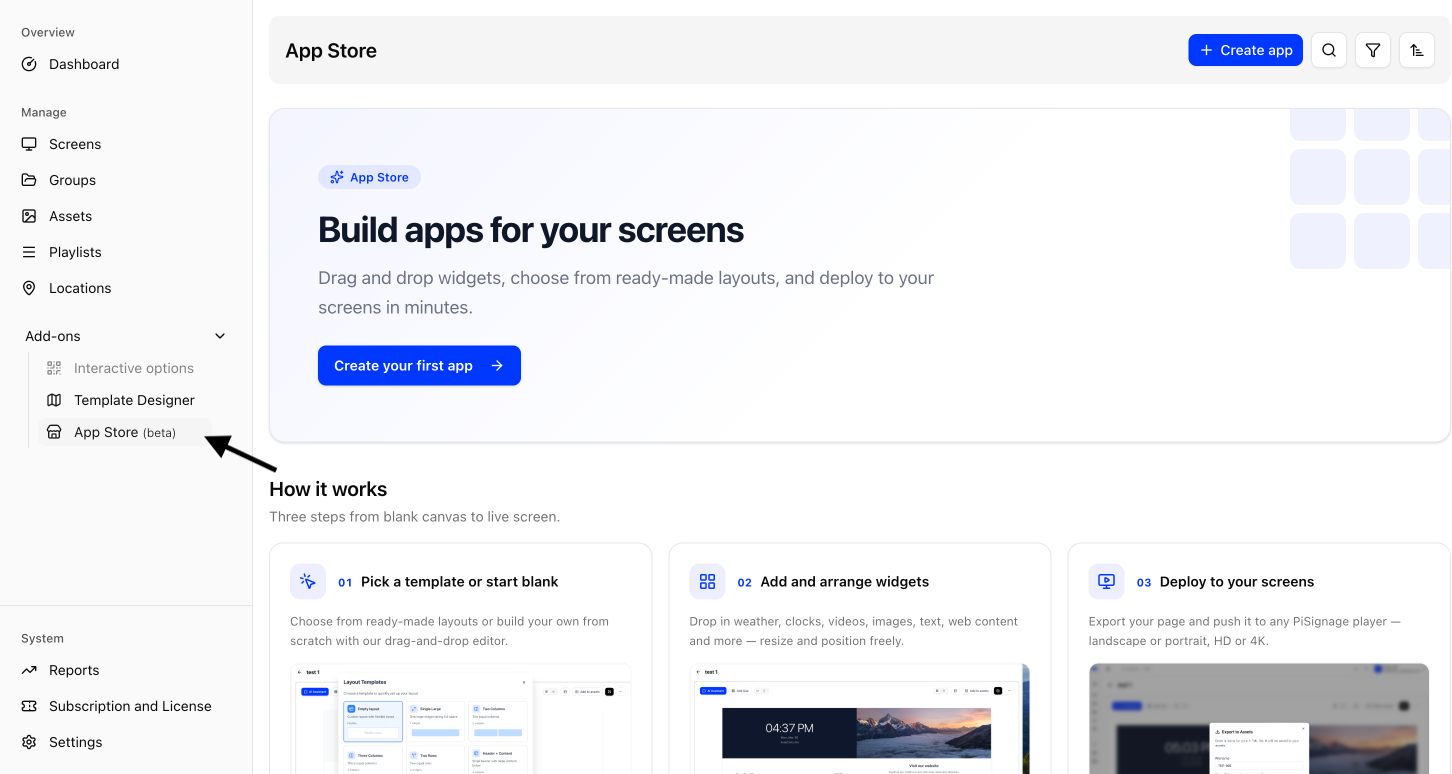
The App Store is currently in beta. You can find it under Add-ons in the main menu.
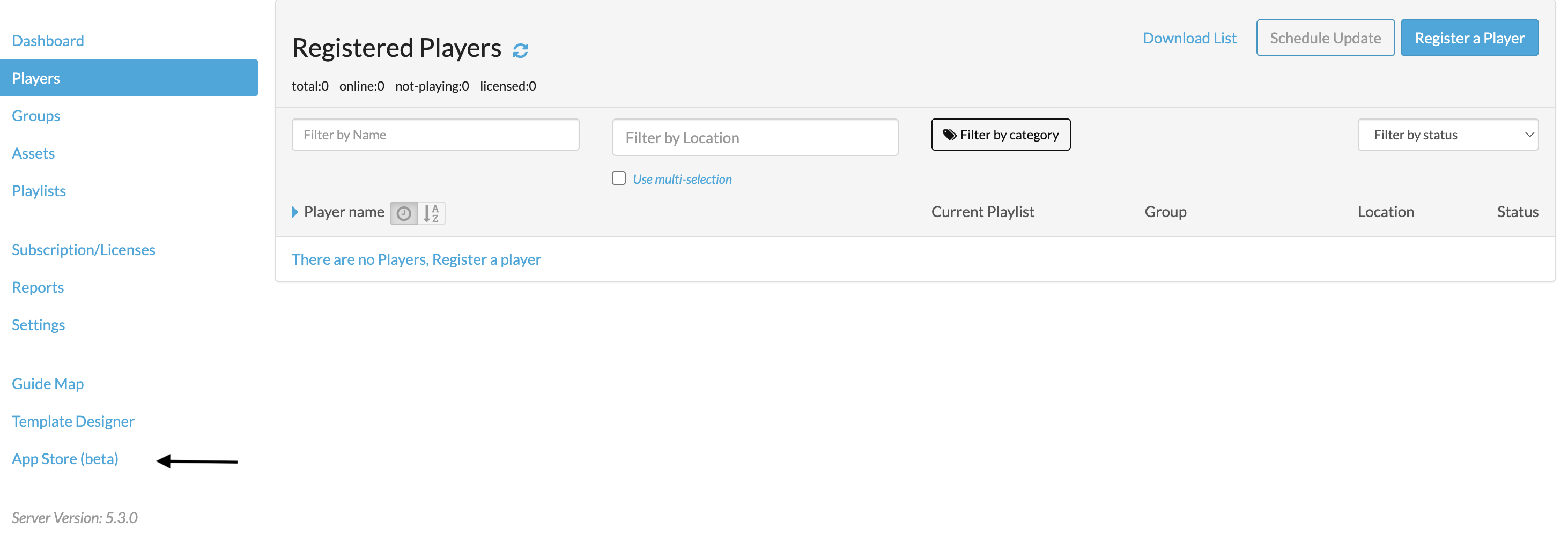
If you are on the legacy UI simply click on App Store (beta) in the menu on the left.
Building an app takes three simple steps
- Create an app from a template or start with a blank app
- Add and arrange widgets on the canvas
- Add the app to your assets and play it in a playlist on your screens
Creating an app
To create an app click on the “+ Create app” button (or Create your first app if you don’t have any apps yet) and enter the following
- App name: The name for all future references (eg: Reception screen)
- Description (optional): What the app is for
Click on Create app and the editor opens up for you to start adding widgets.
Start with a template
Templates are a great way to get started. Under Start with a template you can
- Search for a template (eg: weather, news, clocks or video)
- Explore by category: Weather, News & Live TV, Media & Video, General, Office & Info and Data & Finance
- Popular templates to get started straight away
Click on a template to preview the same and then click on Use this template to open it in the editor. You can also click on Start with a blank app to start from scratch.
An app made from a template shows as Not saved yet until you click on Save in the editor.
My apps
All of your apps are listed under My apps along with when they were last edited. Click on an app to open it in the editor or click on the ••• button on the app to
- Rename: Change the name and description of the app
- Duplicate: Creates a copy of the app
- Delete: Deletes the app. Please note this can’t be undone
Use the search and sort buttons next to “Create app” to find an app by name or to sort your apps by Recently edited or by name.
The editor
The editor is where you build your app. Your app is laid out on a grid and each slot in the grid holds a widget.
Adding widgets
Click on any empty slot that reads “Click here to add a widget” to open the Available Widgets pane. Search for a widget or browse through the tabs and click on a widget to add it to the slot. You can find all of the available widgets in the Widgets section below.
Arranging widgets
Hover over a widget to
- Move it by dragging it onto another slot to swap the two
- Resize it by dragging its edges or by changing the W (width) and H (height) at the bottom left of the widget
- Delete it from the slot
Configuring widgets
Click on a widget to configure the same. Each widget has its own options and you can see your changes in the Live Preview before saving the same.
Layouts
Click on Layouts to start from a ready-made grid of empty slots such as Two columns, Header + content or 4-grid and then fill each slot with a widget.
Choosing a layout replaces the canvas and removes any widgets you have placed. Layouts are only available when the screen shape is set to Landscape.
Screen shape
Set the shape of your app to match the screen or zone it will play in
- Landscape: Full screen or the main zone
- Portrait: A rotated screen
- Side zone: A narrow column in a multi-zone playlist layout
- Banner: A strip at the top or bottom in a multi-zone playlist layout
You can read more about layouts and zones in Playlists.
Spacing and Preview
Spacing adds space between your widgets and can be turned on or off as needed. Click on Preview to see how your app looks on a screen and on Edit to go back to editing.
Saving your app
Whenever you have changes to save you will see Unsaved changes next to the Save button. Simply click on Save to save the same. If you try to leave the editor before saving you will be asked to confirm.
More options
Click on the ••• button in the editor to
- Upload HTML widget: Add your own HTML file as a widget
- Clear canvas: Removes all widgets and takes the canvas back to an empty landscape grid
You can rename your app at any time by clicking on the pencil icon next to its name.
Widgets
The Available Widgets pane groups all of the widgets under the following tabs
- Content: Blank, Heading, Notice, Rich Text, Image, Digital Clock, Analog Clock and Stopwatch & Countdown
- Weather: Weather – Current, Weather – Sunrise & Sunset, Weather – Humidity, Weather – 5-Day Forecast and Weather – All in One along with Local Weather, Local Hourly Forecast, Local Rain Chance and Local Weather Dashboard which pick up the location automatically
- Live TV: LiveNOW from FOX, ABC News Live, CBS News Live, Sports Now Live and CNN Live
- Embed: Web Page, YouTube Video, Al Jazeera Live, Sky News Live, CNA Live, Excel Table, Google Slides, PowerPoint, QR Code, RSS Feed, BBC News, CNN Top Stories and ESPN News
- Data: Currency Rates
- Yours: Widgets you have uploaded
The All tab shows all of the above in one place.
A few widgets such as Excel Table need your Microsoft account connected first. You can connect the same in Settings under Integrations.
Your own widgets
Click on Upload HTML under Yours (or Upload HTML widget in the ••• menu of the editor) to add your own HTML file as a widget. Your widgets appear under Created by You and can be added to any slot just like the rest.
Click on one of your widgets on the canvas to edit its text, or its HTML and CSS under Advanced Options, and click on Save Changes once done.
Adding your app to your assets
Click on Add to assets to add your app to your Assets. Your app is saved first and then added as an HTML file with the following options
- Asset name: The name of the asset. The same is saved as a .html file
- Auto fit: Trims empty slots and shrinks any content that would overflow its widget. Turn this on when your app plays in a small or oddly shaped zone
- If the screen is a different shape: Choose Fill the screen to stretch the widgets across the whole screen (text keeps its size) or Keep the exact layout to keep your app exactly as it looks in the editor with empty bars at the sides or top and bottom
Once added simply add the asset to a playlist in Playlists and schedule the playlist to your screens in Groups.
Saving your app does not change an asset you have already added. Simply click on Add to assets again to add the latest version. Widgets that pull live data such as weather, calendars, RSS feeds and spreadsheets refresh on their own on your screens, so you only need to do this when you change the design of your app.
Collaborators need access to the App Store to view or edit apps and access to create assets to add an app to assets. You can read more in Collaborators.