Unable to upgrade player software
If a player does not upgrade, these are the usual causes.
When you click the orange Update player arrow on Screens, the player downloads the new release, installs it and reboots. If the version does not change after a few minutes, check the following.
Players on Node.js 14 (older images)
We no longer release updates for players running Node.js 14, because of security vulnerabilities in that version.
To check, open Screens → eye icon → Terminal and run node -v. If it shows v14.x, reflash the SD card with the latest image from pisignage.com/downloads:
- Raspberry Pi 5 and Pi 4: Raspberry Pi 5 & Pi 4 Image (64-bit)
- Raspberry Pi 3: Raspberry Pi 3 Image (32-bit)
- Raspberry Pi Zero 2 W: Raspberry Pi Zero 2 W Image
- Linux desktop / custom hardware: Linux Desktop Image (Node.js 20+)
Reflashing erases the SD card. The Pi player ID comes from the hardware, so after it reconnects the player keeps its license and group and downloads its content again. If you use a self-hosted server, set the server name again after flashing.
Other causes
- The player was offline. The Update arrow is shown only for online players that have a newer version available. If the player went offline before it received the command, the command is lost. Click the arrow again once the player is online.
- No internet access. The player needs to reach your PiSignage server (or pisignage.com) and the npm package registry. Make sure proxy and firewall settings allow both.
- Errors during the upgrade. Open Screens → eye icon → Terminal:
- Click Show Logs (
forever_out.log) and look forUpdating pi software. If it is missing, the command did not reach the player. - Run
tail -50 ~/forever.logto see the upgrade steps and any error, for examplewget could not get the release fileorunzip piimage failed. A successful upgrade ends withRebooting after the update.
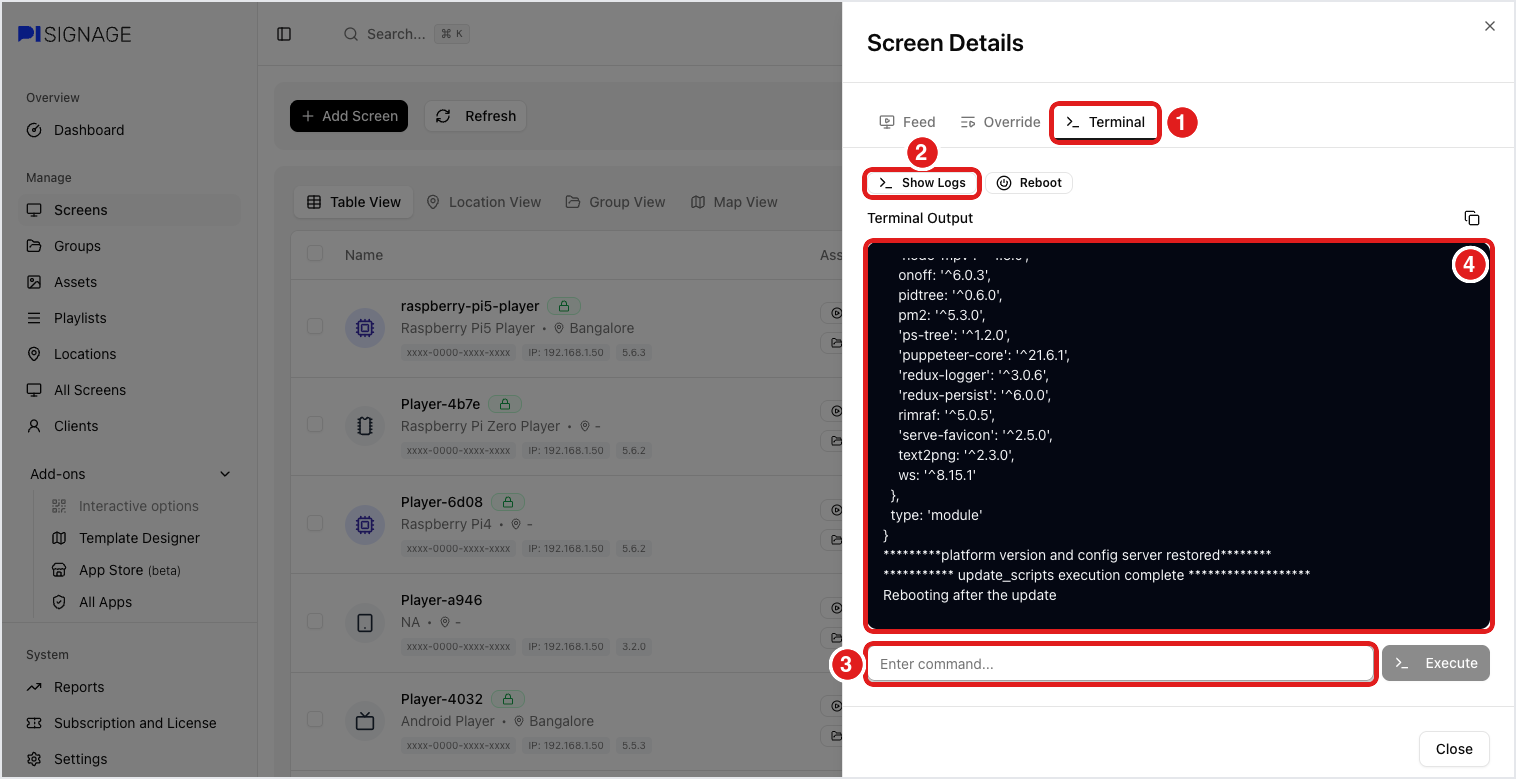
- Click Show Logs (
- Not enough free space. Run
df -h ~. The release file and the package install need free space on the SD card. - The player went back to the old version. If the new version fails to start within a minute, the player restores the previous version on its own, and the error is logged in
forever_err.log. Send the output oftail -100 ~/forever.logandtail -100 ~/forever_err.logto support. - Open-source or white-label server. Update the server to the latest commit (
git pull origin masterin your pisignage-server directory). The server also needs the player release files, see Will the open-source server get Pi player image upgrades? - Android app. The app is updated from the Google Play Store once a new release is available.
For the normal update steps, see How do I upgrade software in case of pi players. For the logs, see Player logs.