Locations
The locations tab is where you can manage the on/off schedule for screens based on their location
In addition to the scheduling options in groups - PiSignage allows you to schedule on/off times for your screens based on their locations. This helps in situations where a group of players maybe spread across multiple locations with varying open/close hours.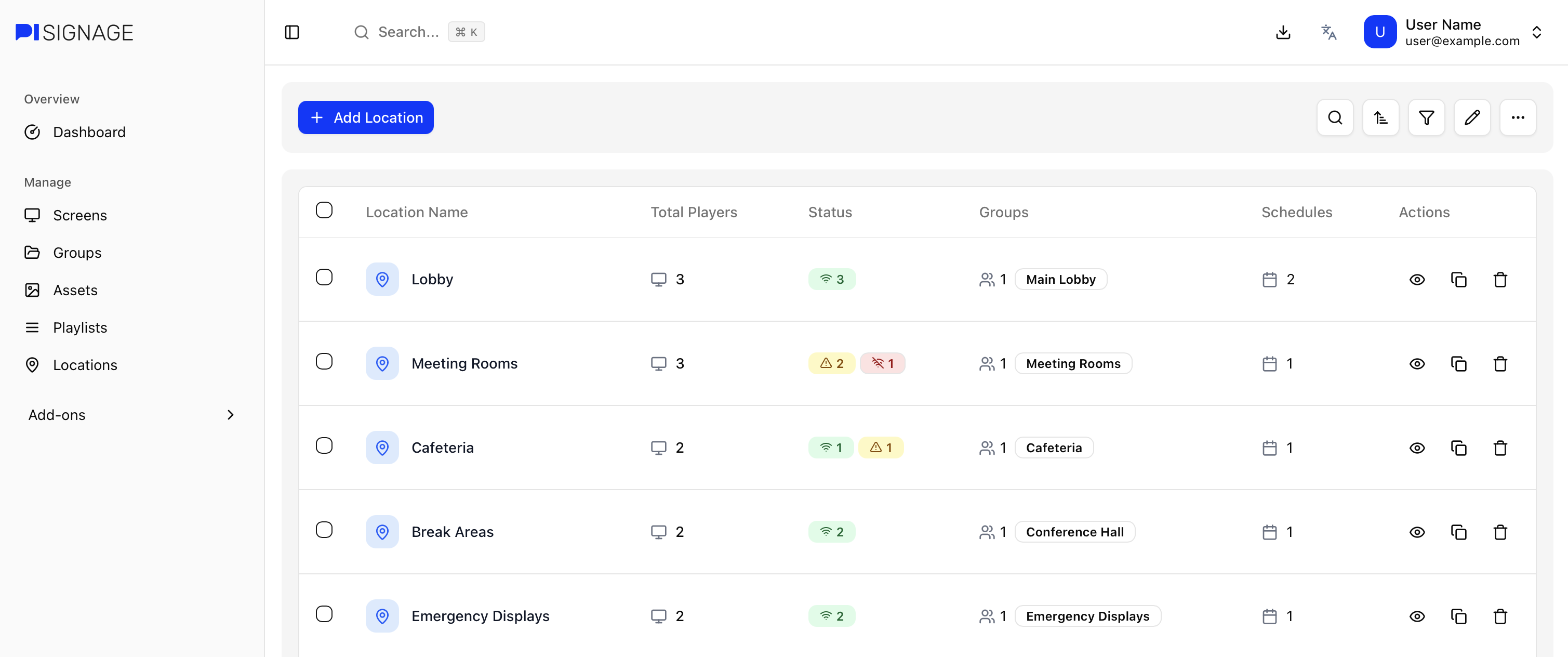
Managing locations
The locations view is where you can view all locations in one go. This gives you an overview of the number of players, the player status’ and the groups that are active in the location. 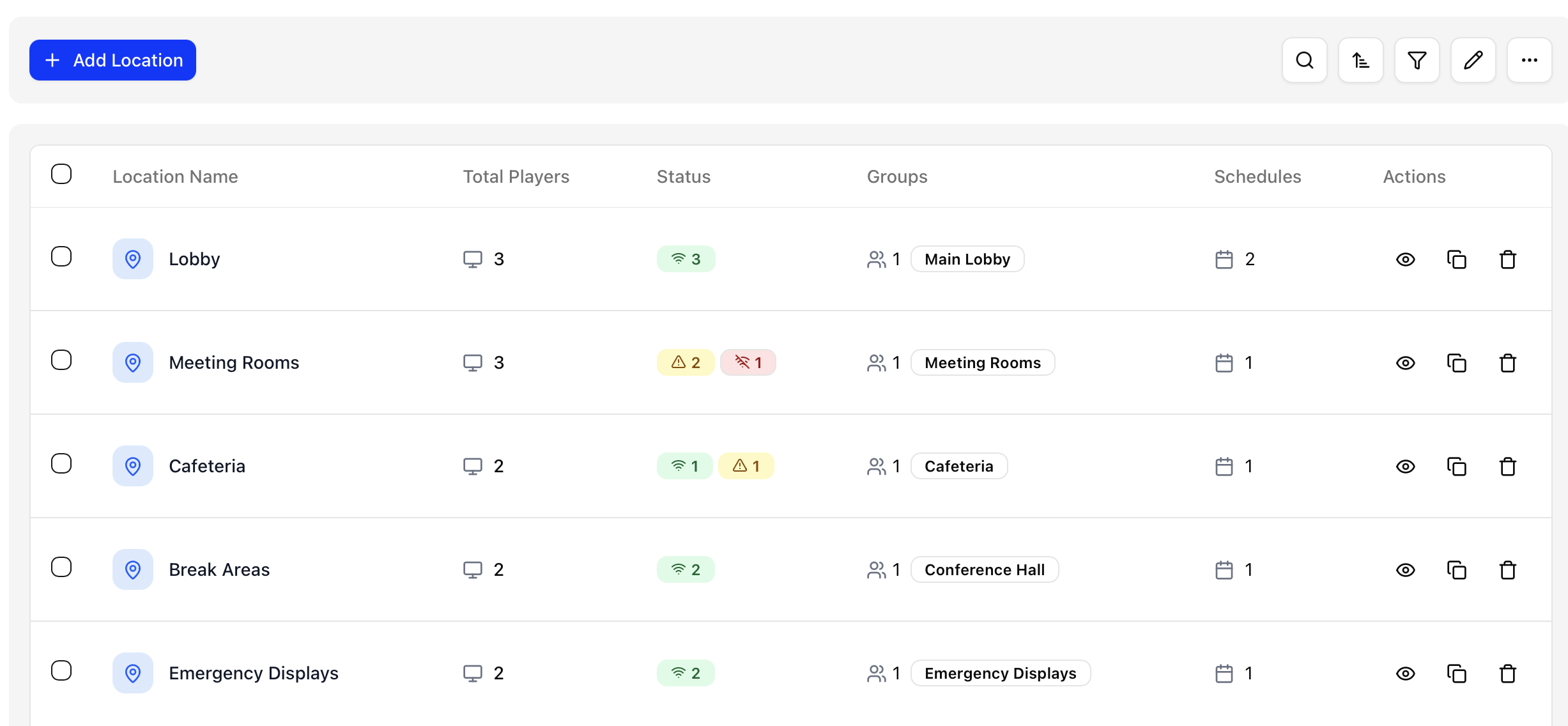 The Status column covers the player status of all of the players in the location. Online, offline, storage full, warnings, etc
Add a new location
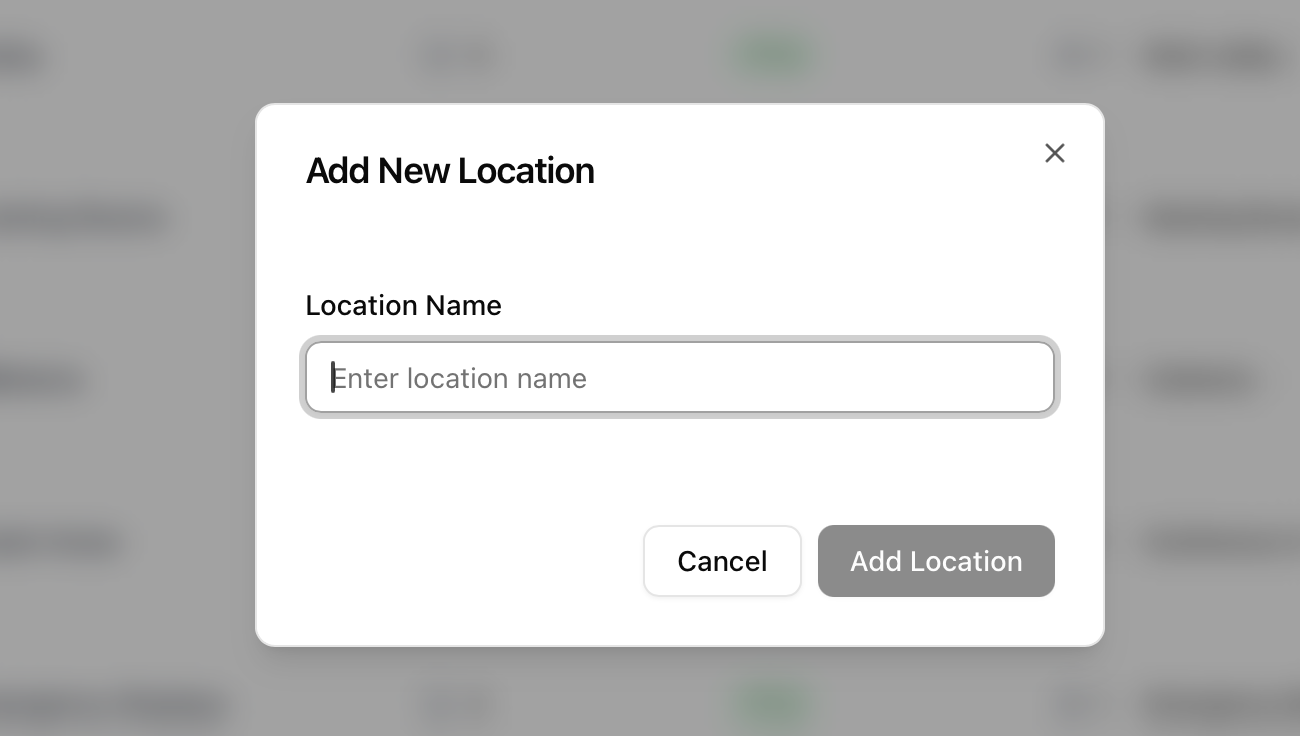
To add a new location click on the “+ Add Location” button and enter the name of the location in the dialog prompt.
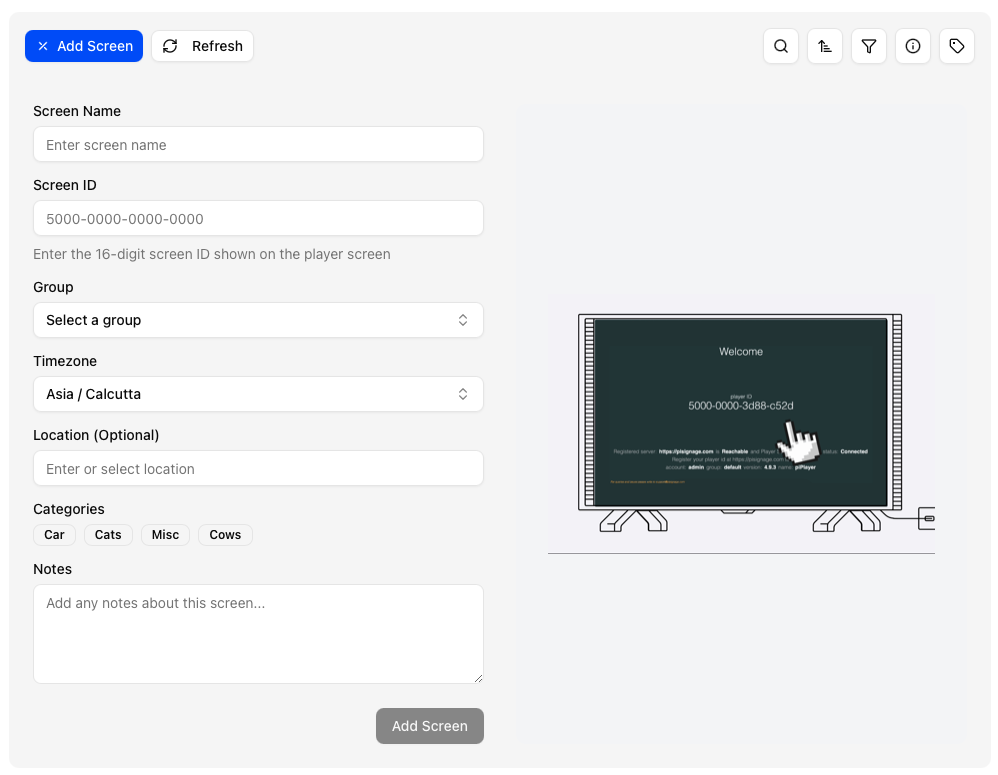
 A new location also gets added when a user adds a new screen in Screens and enters a new location in the Location input that is not already on the list.

Bulk actions
 Bulk actions are visible when one or more locations are selected.
Duplicate: Duplicates the location with all its properties without adding the players to the new copy.
Merge: Merges two locations by combining players and schedules.
Delete: Deletes the group.
Location view
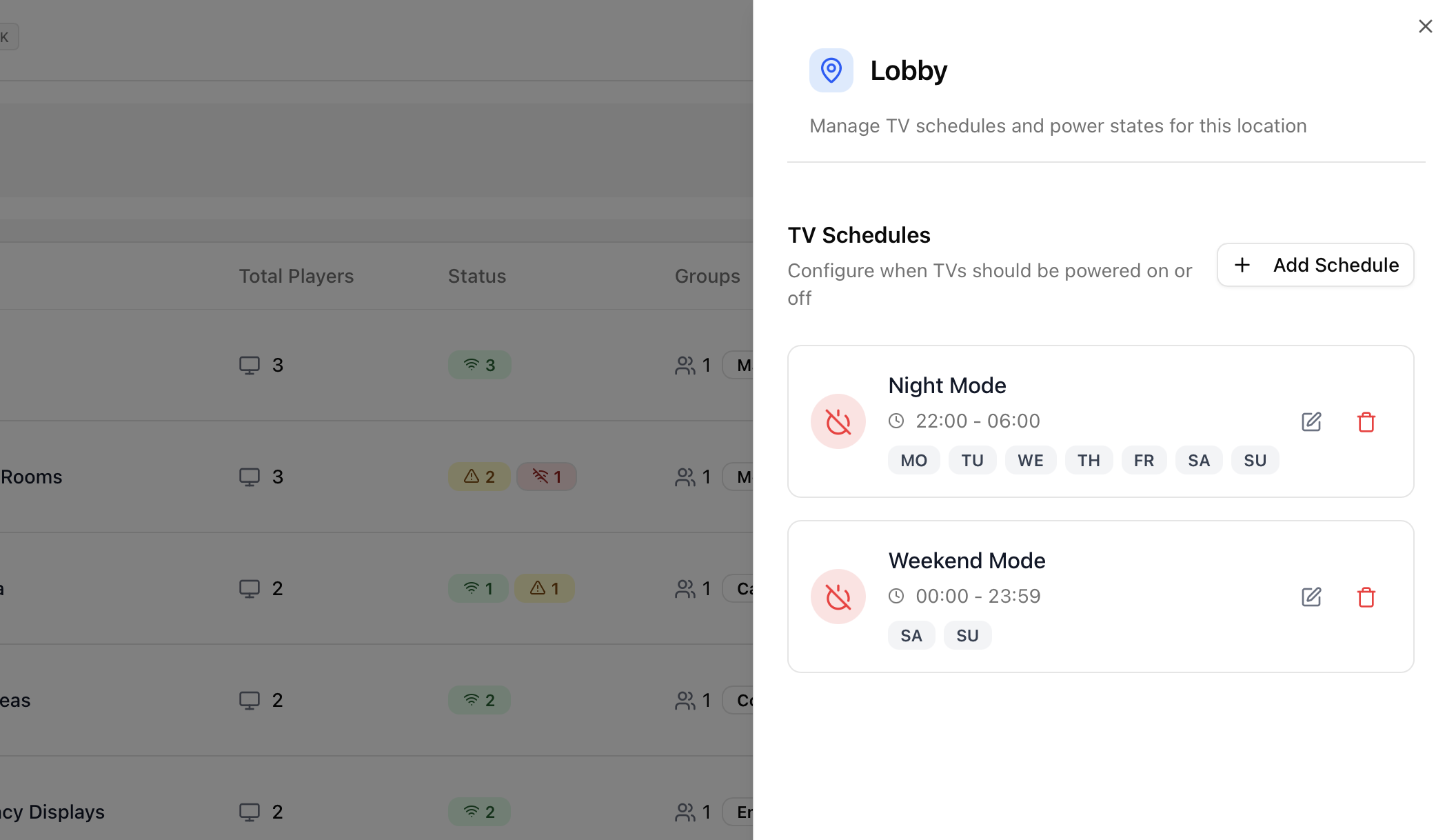 On clicking on a location a flyout with all of the added schedules in the location appears. The icon indicates the On or Off nature of schedule along with the days and time each day. You can edit or delete a schedule.
Adding a schedule
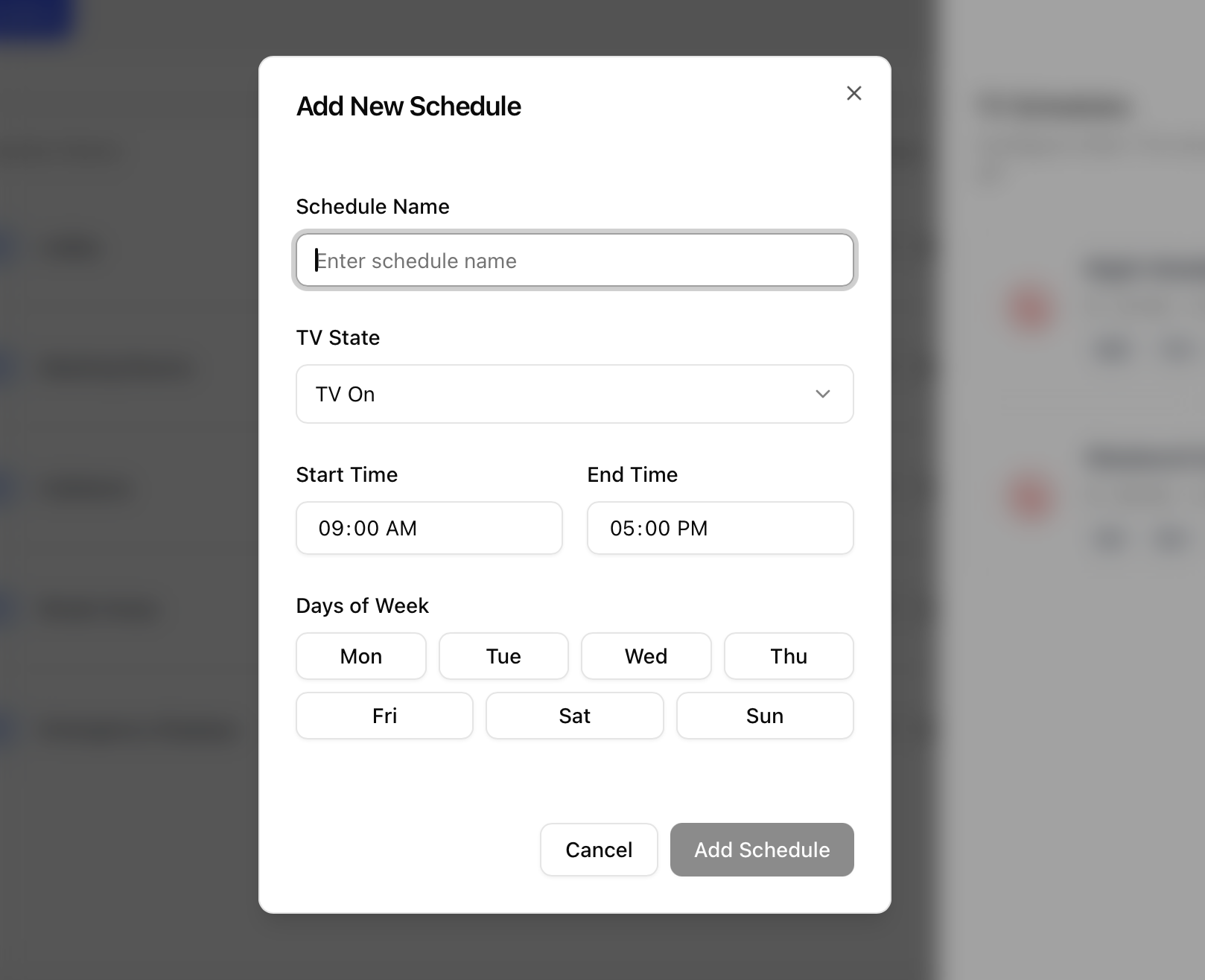
Click on the "+ Add Schedule” button to add a new schedule. Once clicked choose a name, TV state(on or off), Time duration, Days of the week it stays relevant to set up your schedule.
once done click on “ Add schedule” to add the same.
Pairing together schedules
Schedules combines and takes the superset of all schedules. In case of a conflict the TV on command takes priority over the other.