Categories
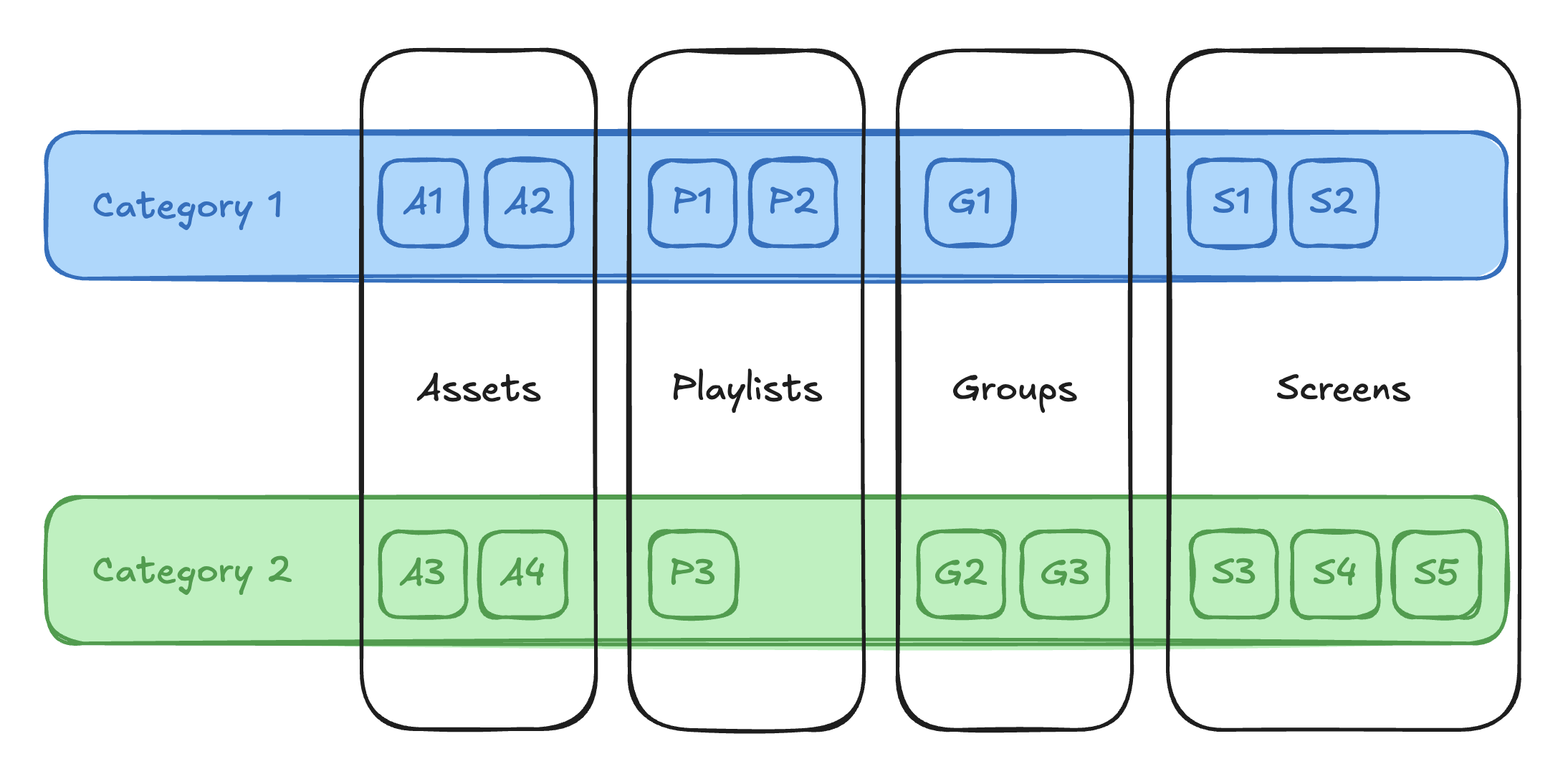
The categories are how you tag all playlists, groups, etc across your account and organise the same.
Categories are simply tags that are universally available across all of your PiSignage account. It’s great when you have something like a Client name, use case, or general attributes you want to use horizontally across all of the platform.
Categories in the UI
Manage categories
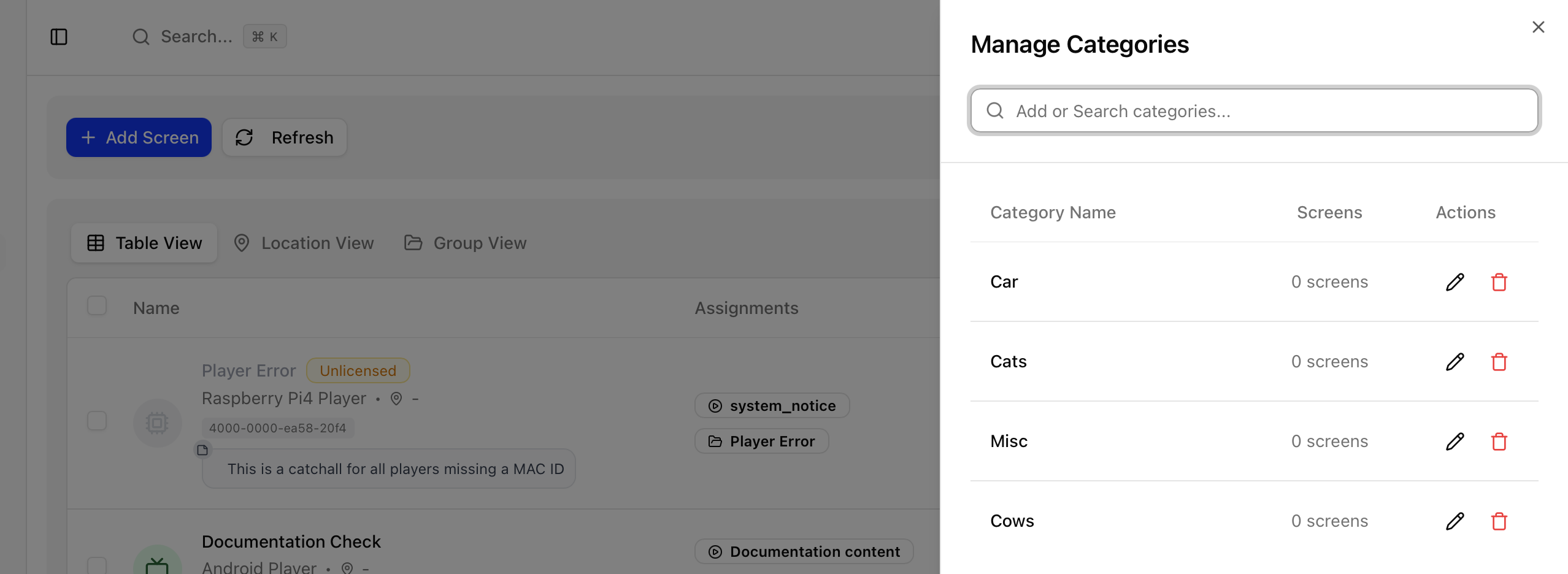
Most pages will provide access to the manage categories toggle in the top bar. Click on the tag icon to open the manage categories pane.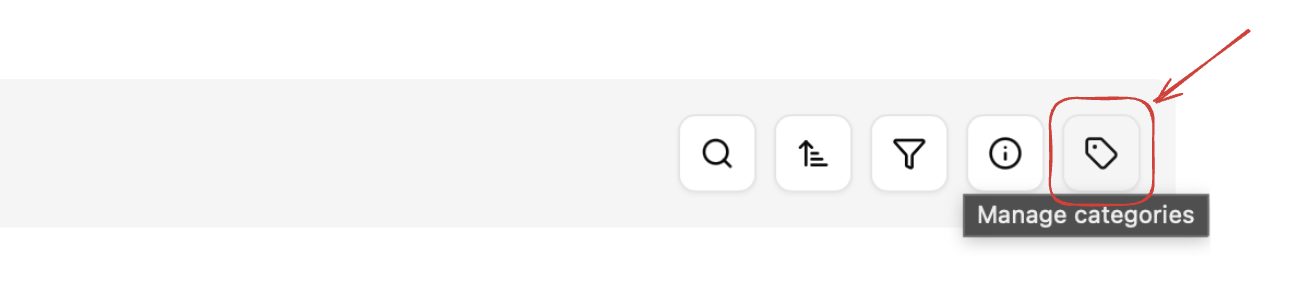 The Categories pane contains a list of all categories searchable through the input bar. Based on the screen that it is opened from it also provides a list of attached (screens in this case) items from the page.
You can also
Edit the name of the category
Delete the category
Adding a category
To add a category simply type the name of the category you wish to add and click on the plus button in the yellow banner to create a new category to now use.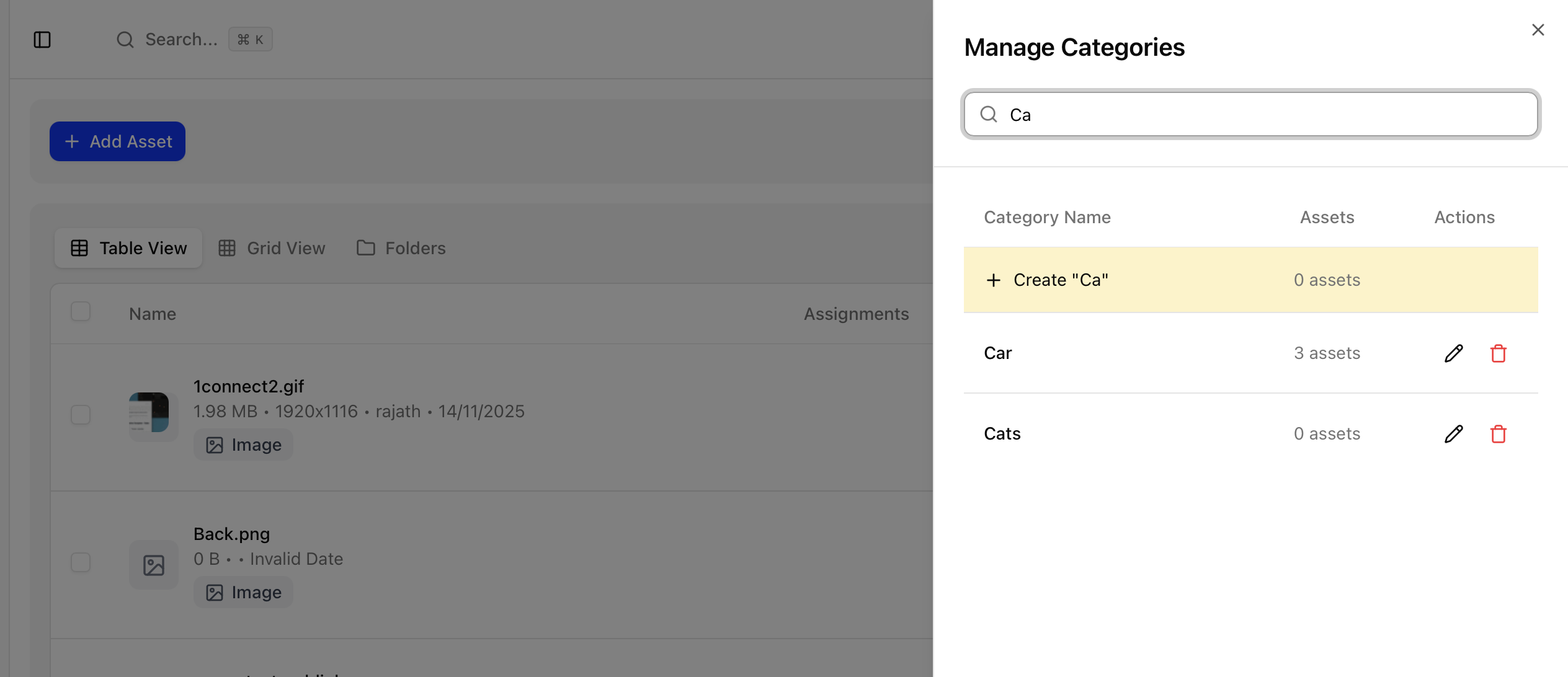
Assign a category
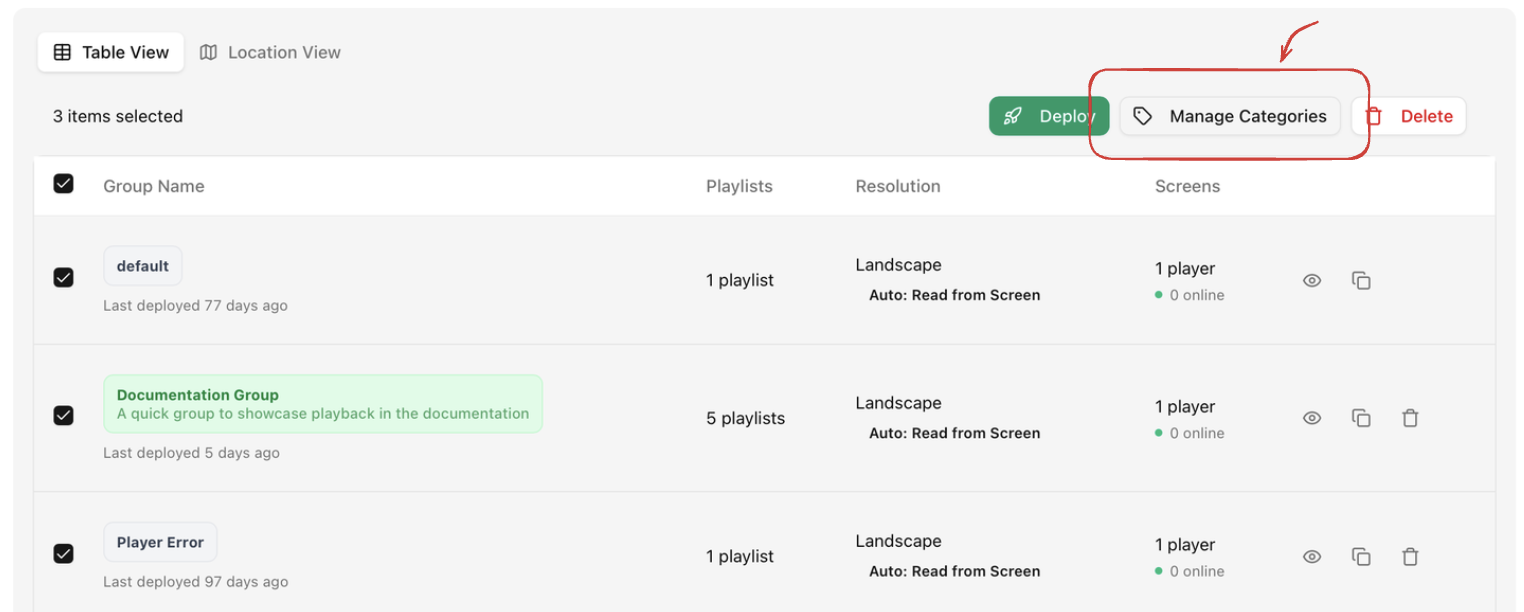
To assign or tag an item in a page with a category - simply select one or more items using the checkbox to the right. On doing so the Manage categories option should appear uptop with the rest of the bulk action options. Click on the same to open the categories dialog
Adding categories
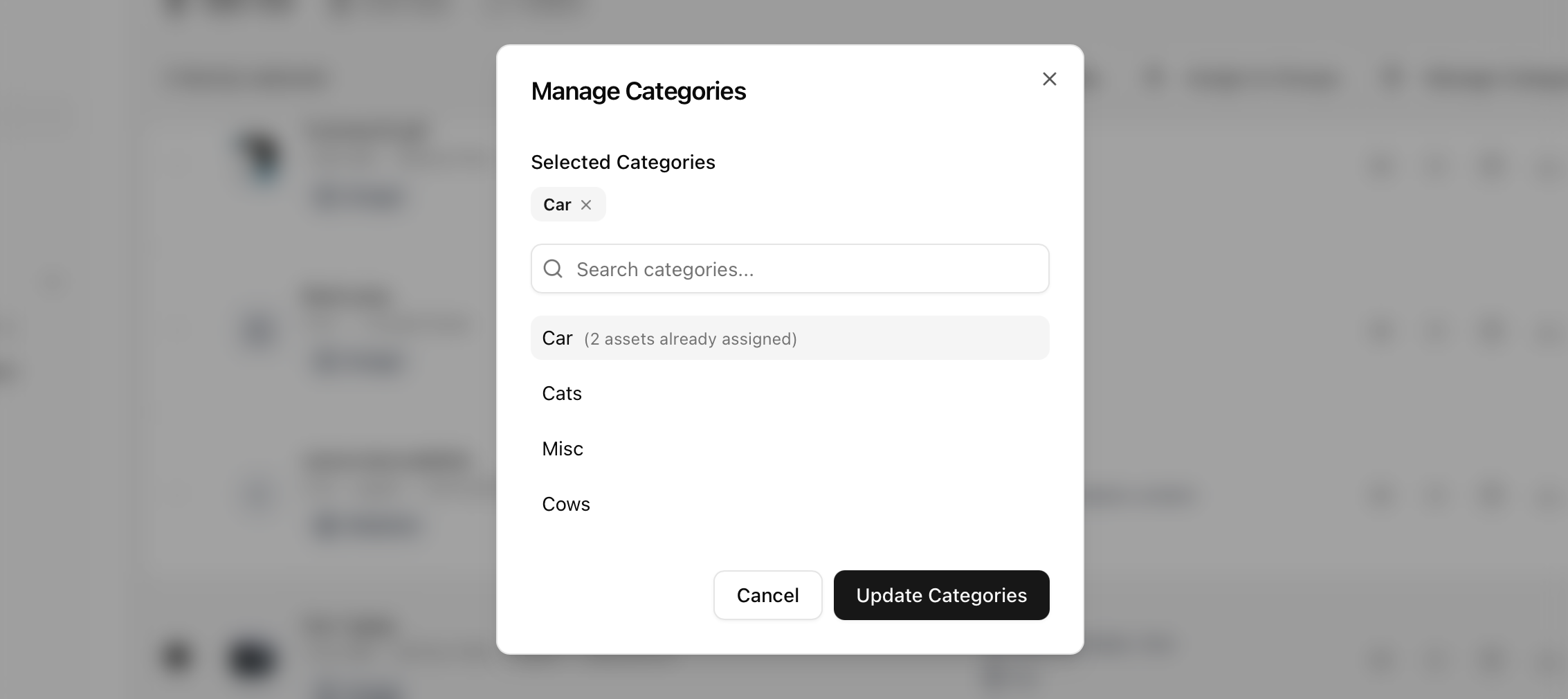
In the dialog for the same simply click on categories you wish to add and it will appear in the selected categories section. Click on “Update categories” once done to add the same to the items.
Removing categories
Any category that applies to all of the selected assets appears pre-selected in the selected categories section. Simply click on the same and click “update categories” to update and remove the same.
Filter by category
On pages
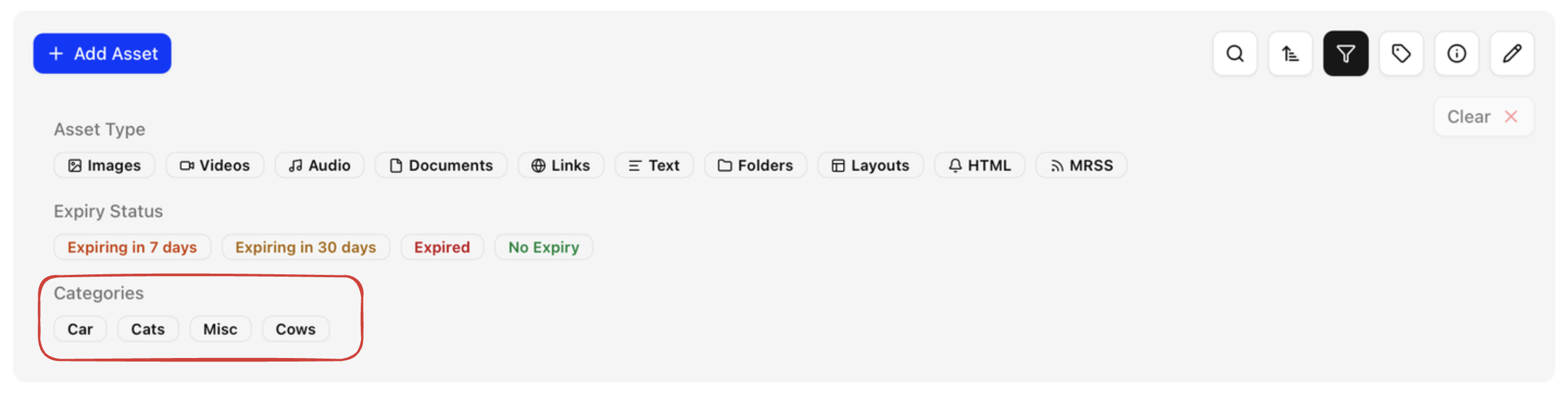
On clicking the filter options in any of the main pages - Assets, Playlists, Groups and Screens you should see the categories as a separate section. Clicking on the same will filter down all of the options to just the items with that category assigned
On fly-outs and Panes
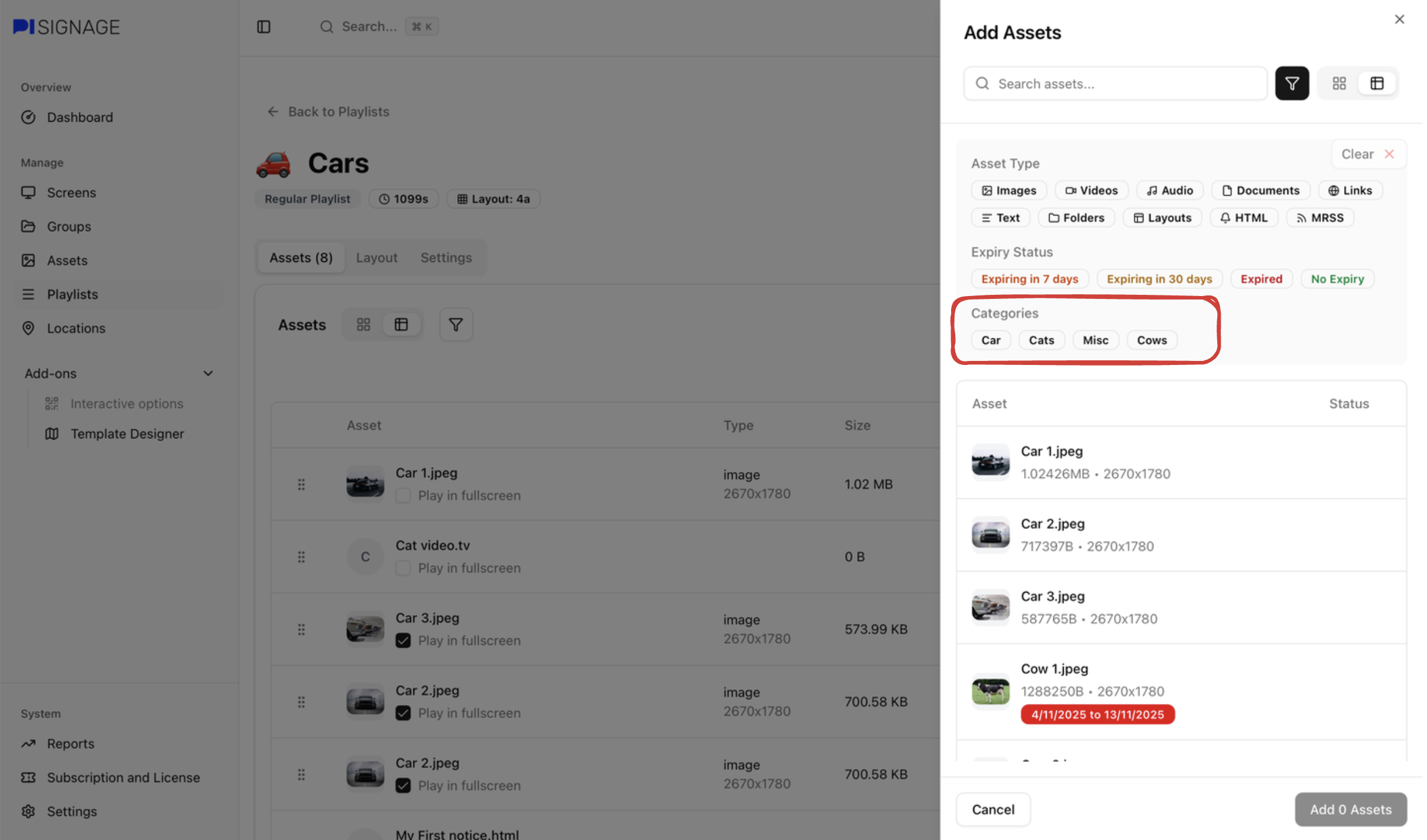
In all flyouts like the assets flyout that appears on clicking “add assets” in Playlists and “schedule playlists” in Groups , etc the filter options will continue to show the category sections for easy filtering and access.