How to sync a Microsoft OneDrive folder to PiSignage digital signage screens
Show a Microsoft OneDrive folder on your screens and keep it up to date.
You can show a folder from Microsoft OneDrive on your screens. Add files to the folder in OneDrive and your screens pick them up. There are two ways to do it:
| Sync to assets (default) | Sync directly to the player | |
|---|---|---|
| How it works | The server copies the files into your assets, under a category | Each player keeps its own copy of the folder |
| When the folder changes | Your assets are updated every 15 minutes. Add new files to a playlist and deploy. | Players check the folder every 15 minutes and update the screen. No deploy needed. |
| Storage | Counts toward your account storage | Uses the player's own storage |
| Players | Raspberry Pi and Linux players | Raspberry Pi and Linux players with version 5.6.0 or later |
Requirements
- New PiSignage interface on a pisignage.com account. OneDrive folder sync is not available on the open-source server.
- Sync to assets: any Raspberry Pi or Linux player.
- Sync directly to the player: a Raspberry Pi or Linux player with software 5.6.0 or later. Check the version shown under the player name on Screens, and click the orange Update player arrow if one is shown. Players on older Node.js 14 images cannot be updated to this version; reflash them with the latest image from pisignage.com/downloads. See Unable to upgrade player software.
- Free space on the player: the player keeps at least 500 MB free and skips files that do not fit.
- Android players are not supported yet.
Before you start
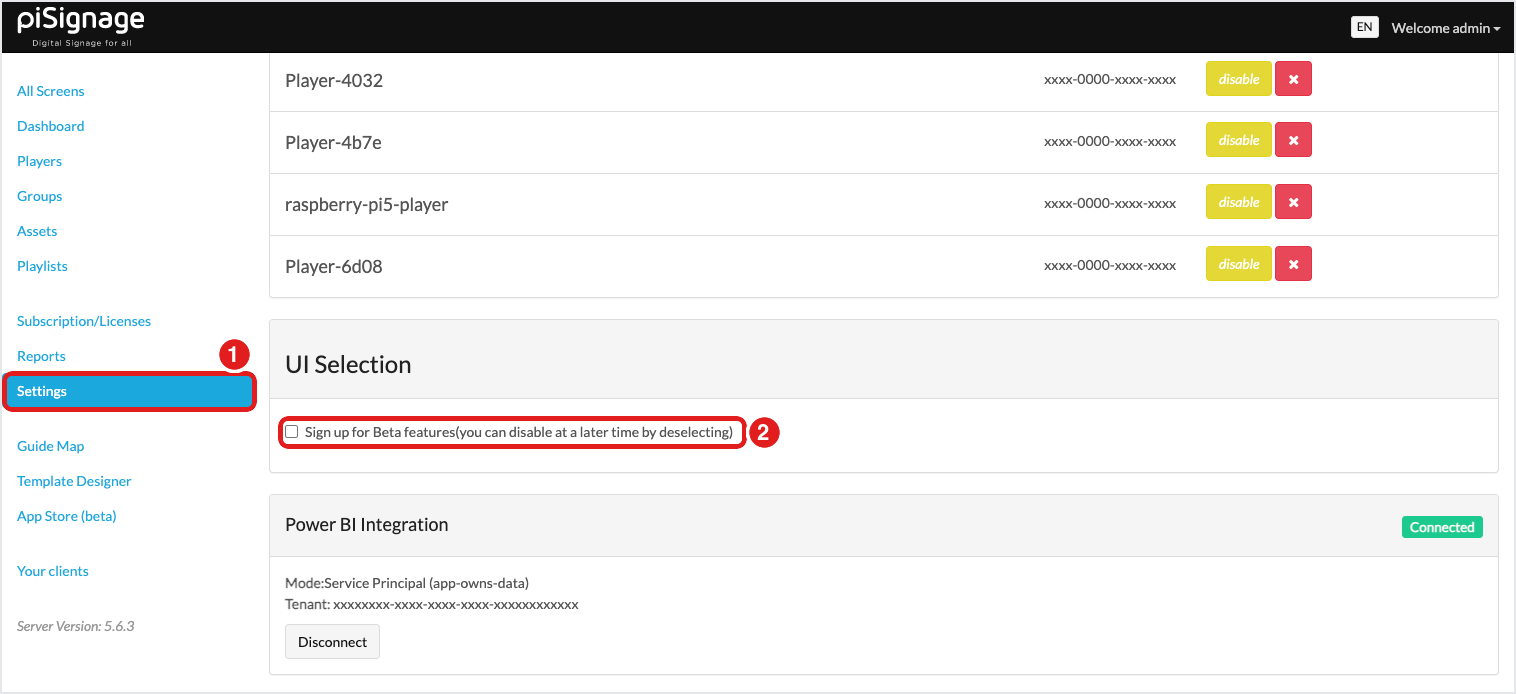
- Use the new interface. OneDrive folder sync is available only in the new PiSignage interface. If your page has a black top bar and a Players menu on the left, you are in the classic interface. To switch, open Settings, go to UI Selection, tick Sign up for Beta features and reload the page.
- Connect your Microsoft account once: Settings → Microsoft 365 → Sign in with Microsoft.
Sync to assets
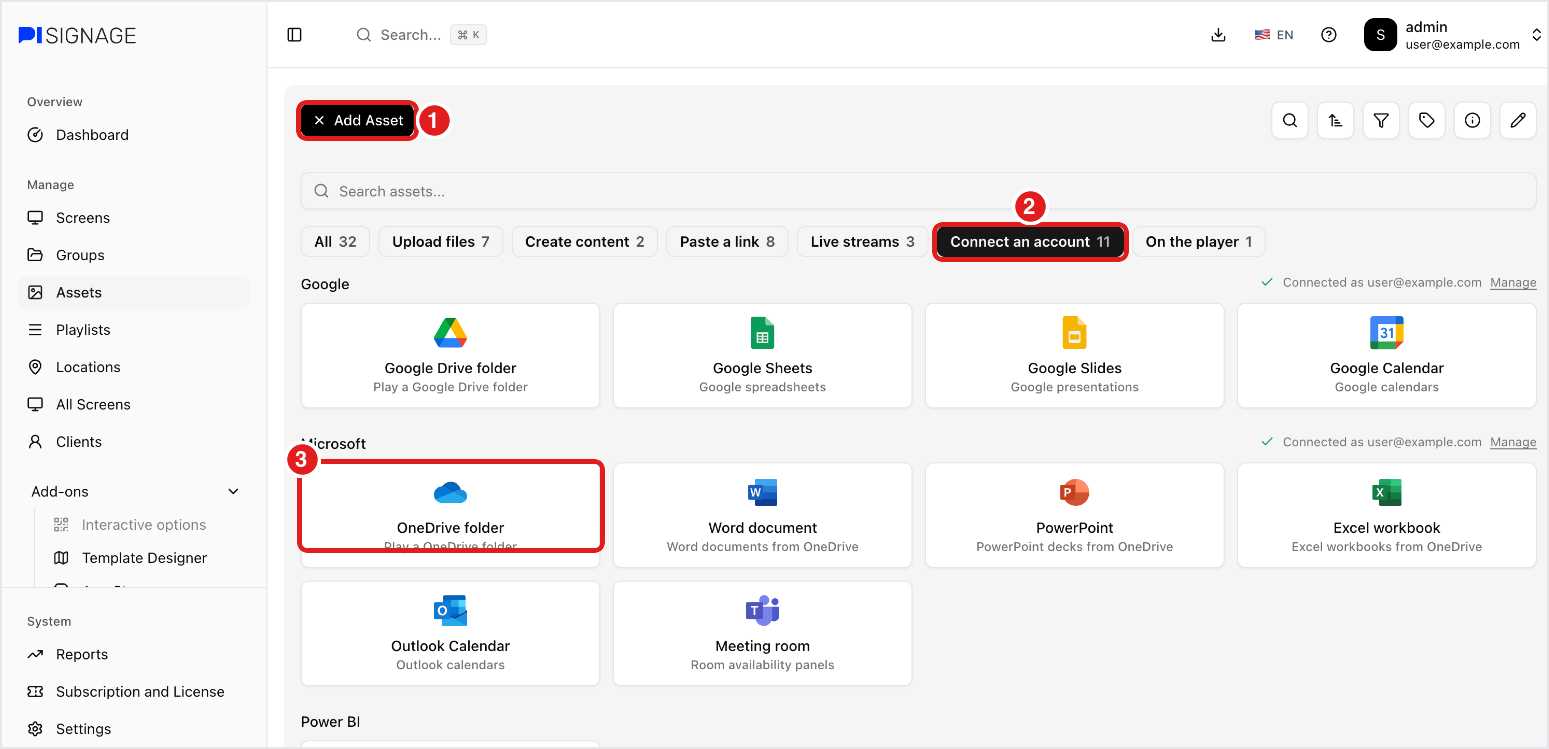
- Go to Assets and click Add Asset.
- Click Connect an account.
- Click OneDrive folder.
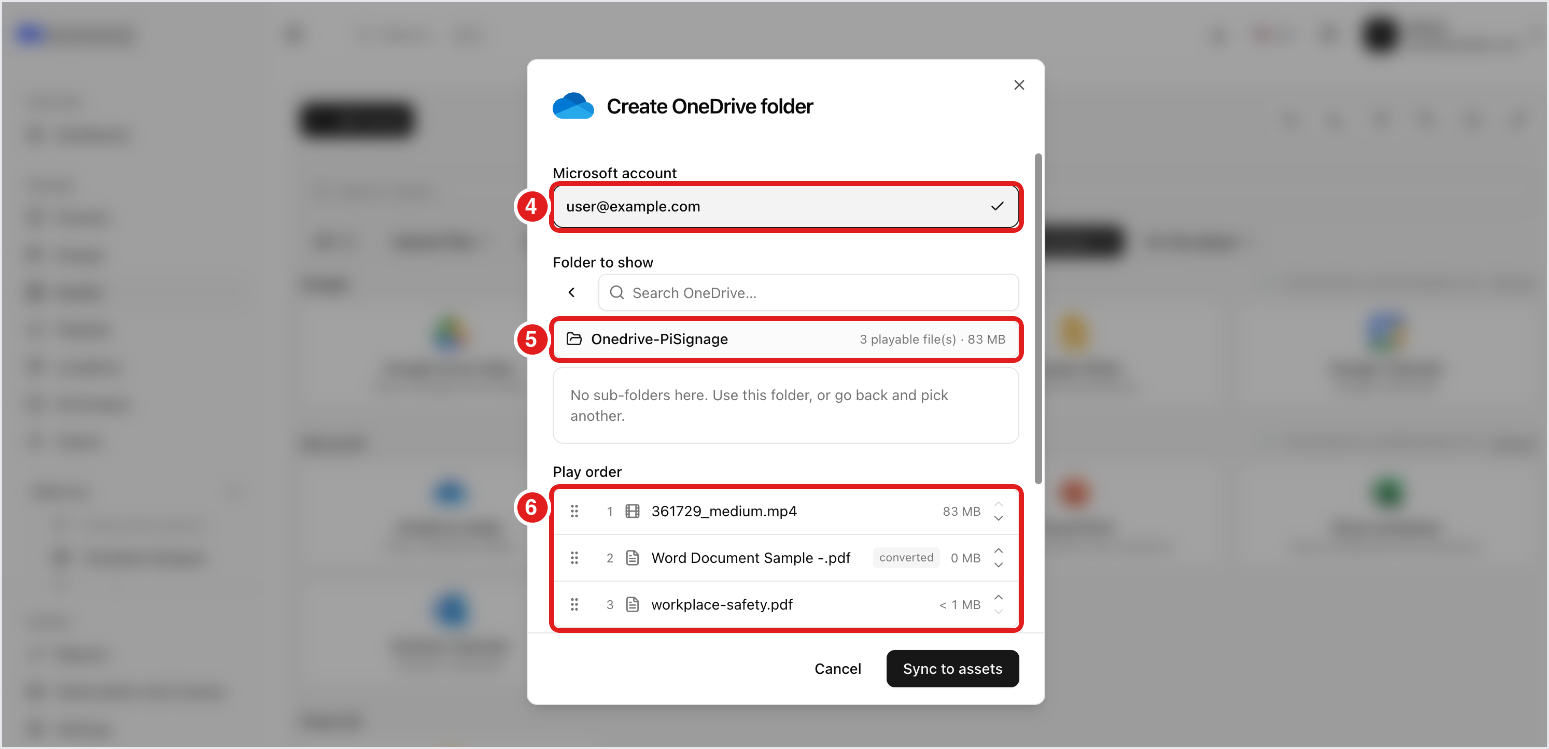
- Select your Microsoft account.
- Open the folder you want to show. The bar at the top shows the number of playable files and their total size. The folder shown in the bar is the one that gets synced; sub-folders are not included.
- Check the Play order. Word, PowerPoint and Excel files are converted to PDF and marked converted.
- Leave Sync drive directly to the player unticked and click Sync to assets.
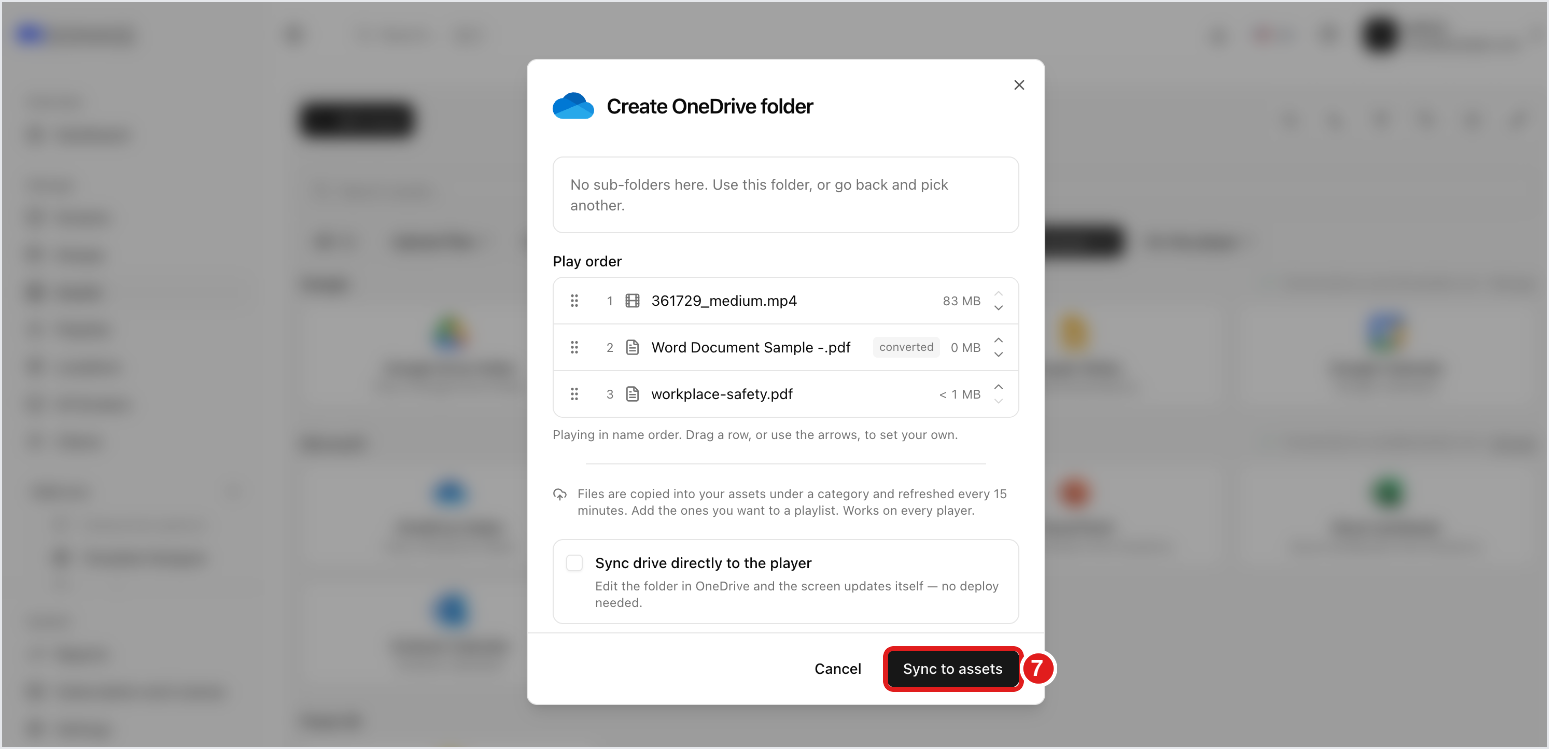
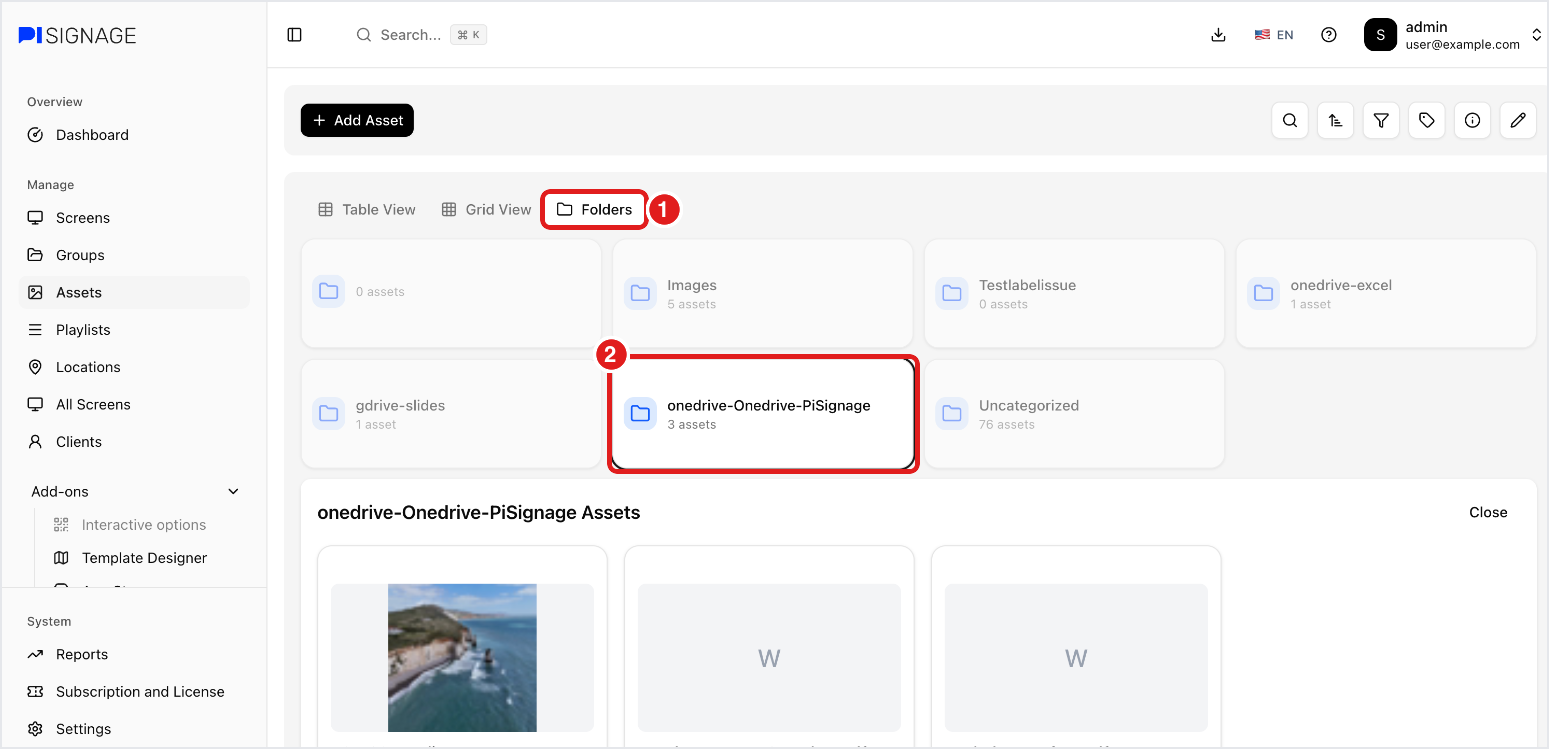
The files appear in Assets under a category named onedrive-<folder name>. To see them, open the Folders view and click the category. Add the files to a playlist and deploy it to your group.
Notes
- The folder is checked every 15 minutes. New files are added to the category, and files deleted from the OneDrive folder are removed from your assets.
- A file is skipped if an asset with the same name already exists. Rename the file in OneDrive to include it.
- Folders with more than 500 files cannot be synced. Pick a smaller folder.
Sync directly to the player
Use this when the files in the folder change often. The player plays whatever is in the folder, and keeps playing it when it is offline.
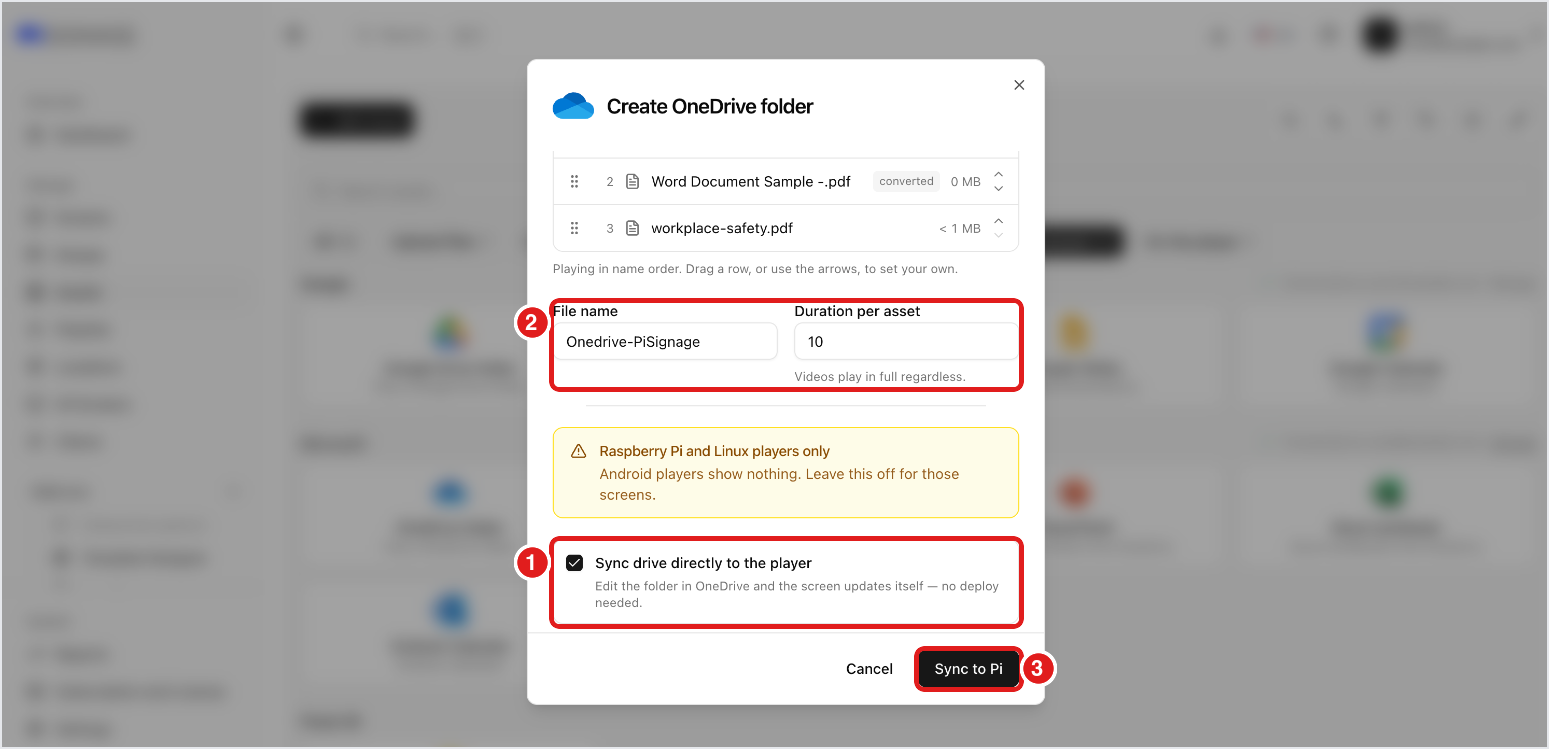
- In the same dialog, after selecting the account and folder, tick Sync drive directly to the player.
- Enter a File name for the folder asset and a Duration per asset in seconds for images and documents. Videos always play in full.
- Click Sync to Pi.
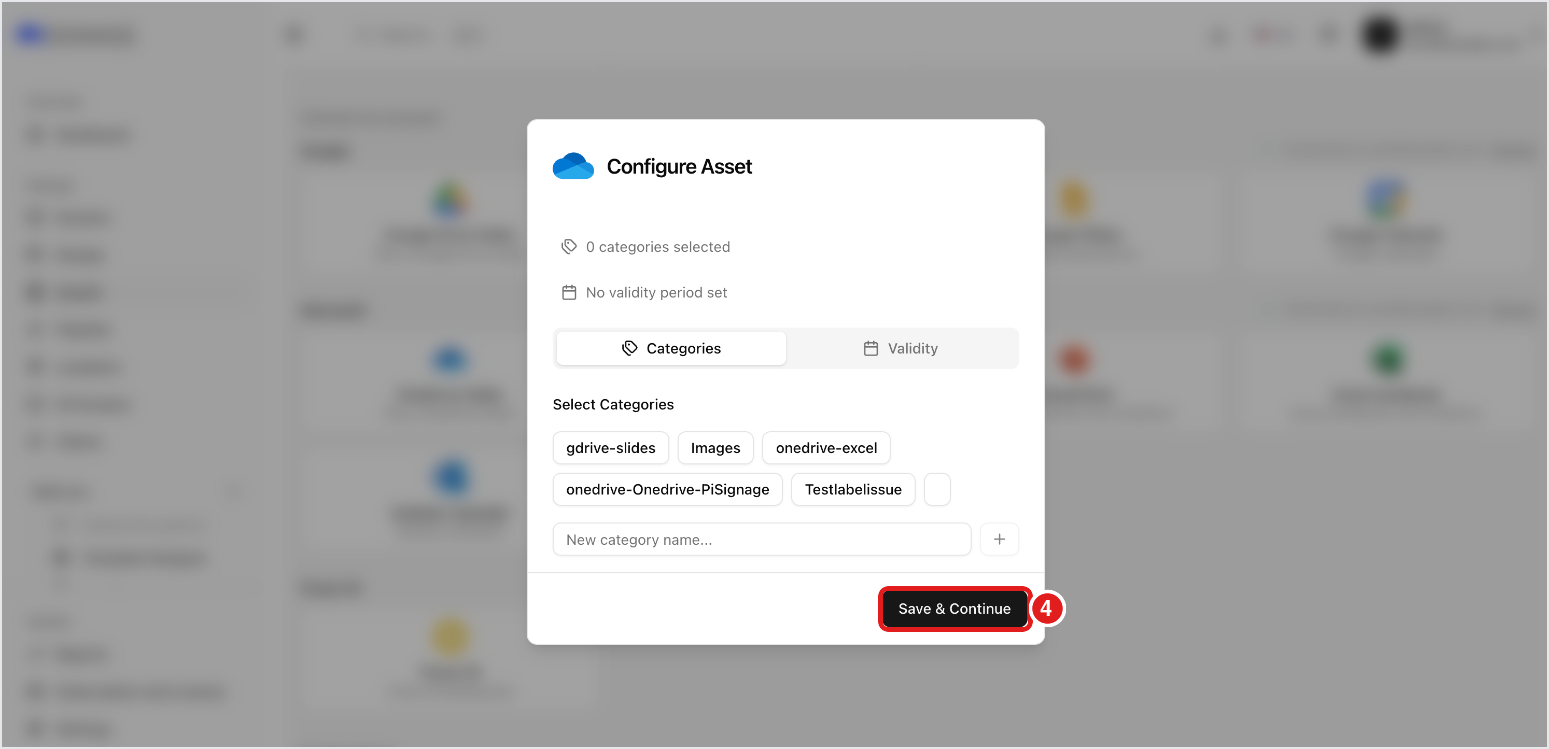
- In Configure Asset, optionally pick categories or a validity period, then click Save & Continue.
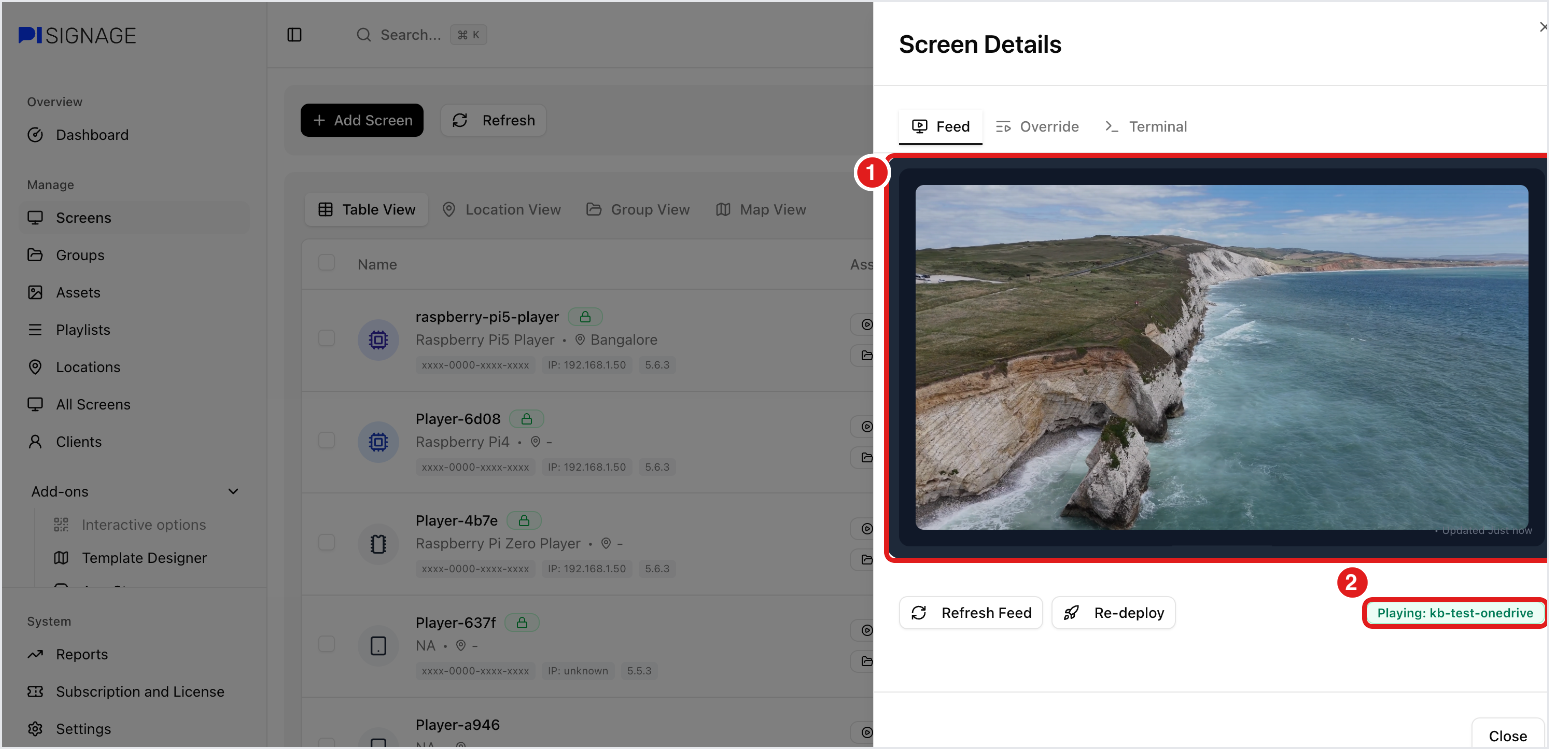
This creates one asset with the name you entered. Add it to a playlist and deploy it to your group. Each player then downloads the folder and plays its files. Players check the folder every 15 minutes, so changes in OneDrive show up without another deploy.
For other asset types, see How to add files, links, messages and special files.