Access assets and media files in Pi
Find the files stored on your Raspberry Pi, Android or Amazon Signage Stick player.
New interface
Raspberry Pi and Linux players
Downloaded assets are stored in the media folder in the player user's home directory (~/media, for example /home/pi/media).
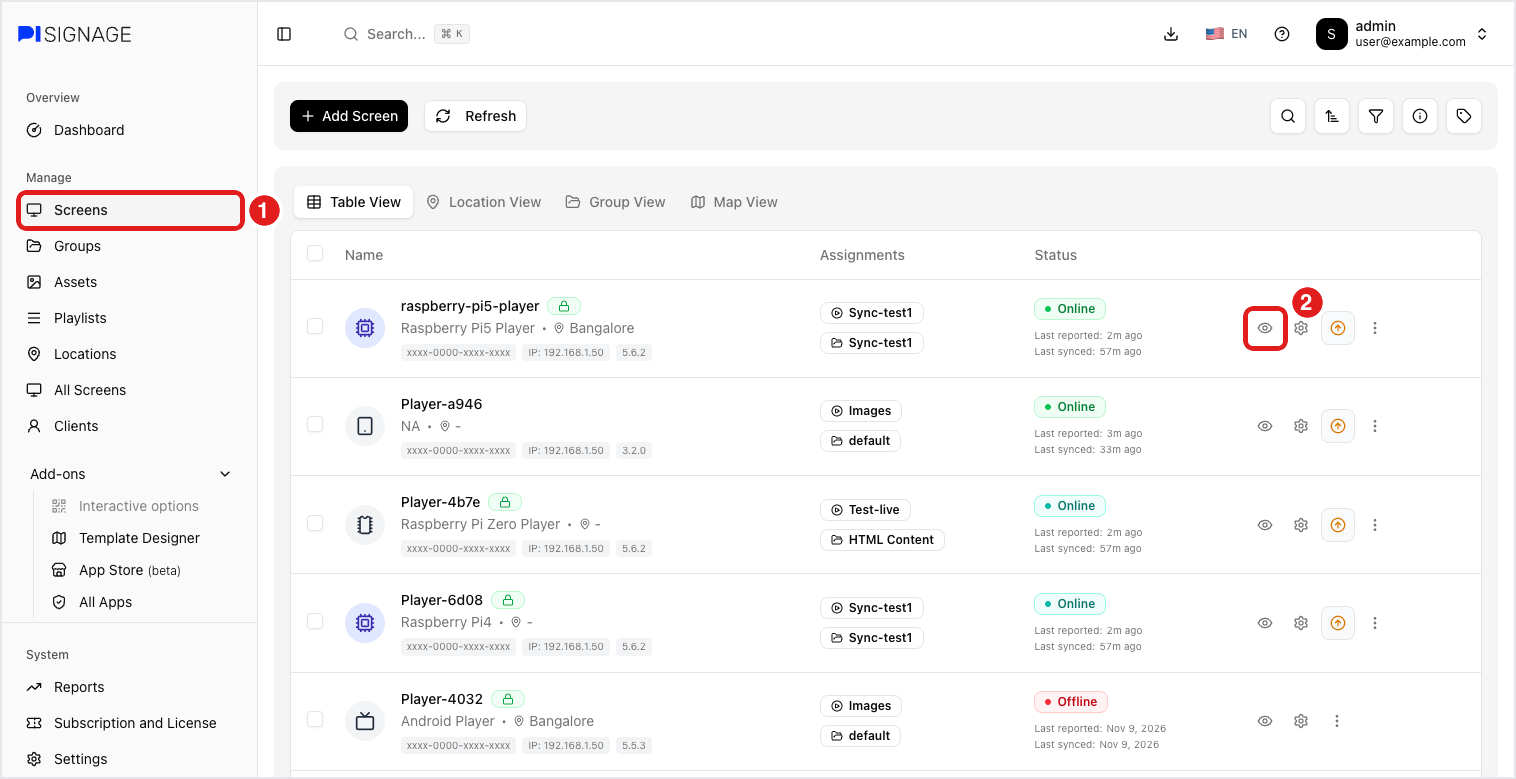
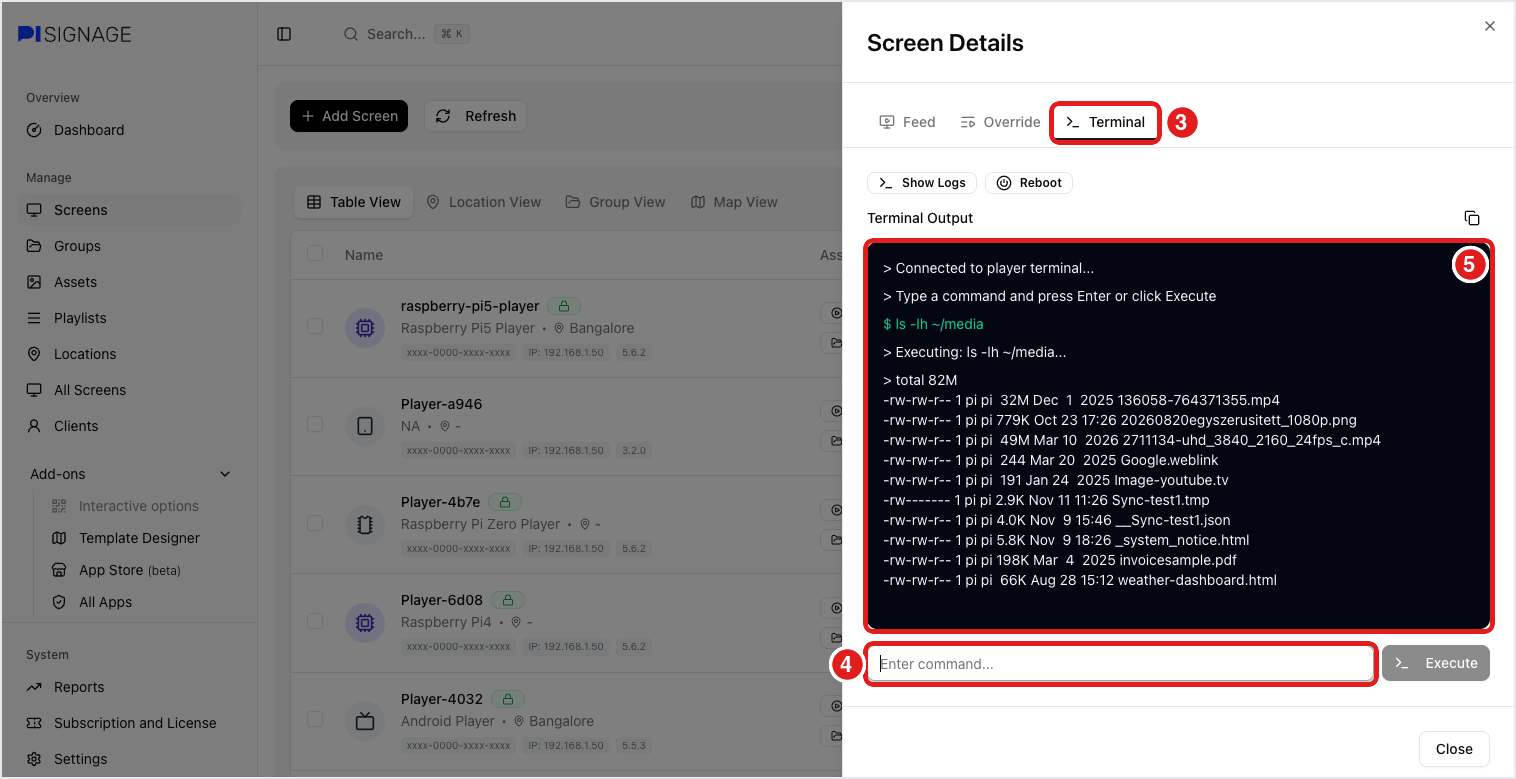
To list the files from the web UI:
- Go to Screens and click the eye (view) icon of the player.
- Open the Terminal tab.
- Type
ls -lh ~/mediaand press Enter. The files are listed with their size and date.
You can also:
- SSH to the player IP address and open the
~/mediafolder. - Open
http://[player ip]:8000in a browser on the same network to use the player's web UI (user namepi). This web UI can be turned off with Disable player webUI in the group settings.
Android app and Amazon Signage Stick
The app stores the assets inside its own app storage, not in a folder you can open with a file manager or over USB.
To list the files, open Screens → eye icon → Terminal (same as above) and run:
ls– lists the media files with size and modified timeinfo– shows the device details, free disk space and the size of the media fileshelp– lists all commands available on the player
See PiShell Commands for Android and Amazon Signage Stick Players for the full list.
Classic interface
The Pi player is based on Raspberry Pi OS, which is a Linux variant. You can reach the assets stored on it in two ways.
Over SSH
SSH to the IP address of the player. The assets are stored in this directory.
/home/pi/media
See Issue shell commands or connect to pi terminal for how to connect.
In a browser
Open the following address in a browser on the same network, replacing the placeholder with the IP address of your player.
http://[player ip]:8000/assets
Use the EDIT button there to delete assets.