Documentsissue-shell-commands-or-connect-to-pi-terminal
Issue shell commands or connect to pi terminal
Reach the terminal of a Pi player over SSH, with a keyboard, or straight from the server.
A. Connect to the Pi terminal
- SSH over the local network: note the IP address shown on the welcome screen of the player. From the same local network use PuTTY (Windows) or
ssh(Linux and Mac). The default username and password are bothpi. You can change them in Settings, see Default player passwords and how to change them.
ssh pi@192.168.0.163
- USB keyboard: connect a USB keyboard and press
ctrl+alt+tto open the terminal. If a video is playing in front, type this blindly first.
pkill node;sudo pkill omx;
B. Change network or server settings
Connect a USB keyboard and press ctrl+N (or F6).
C. Issue shell commands from the server
The player must be online. In the new UI:
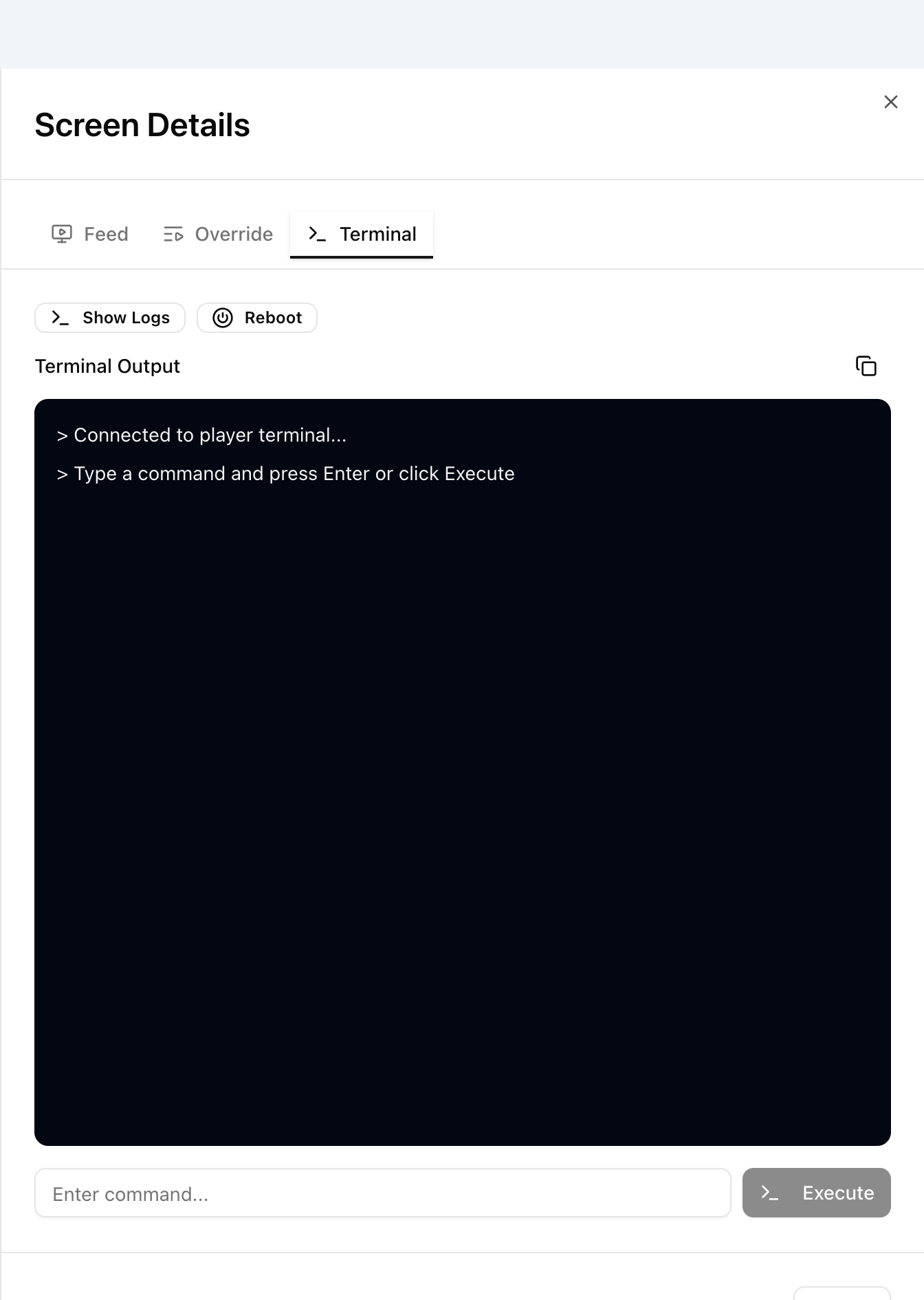
- Go to Screens, click the eye icon (View Details) in the row of the player and select the Terminal tab.
- Type a command in the box at the bottom and press Enter or click Execute. The output appears in the black Terminal Output area.
- Show Logs loads the log of the player into the same area and Reboot restarts the player. Neither needs a command.
You can edit files with sed commands. See Screens for more on the Terminal tab.
In the legacy UI, click the >_ icon next to the player name to open the piShell command screen and enter the commands at the prompt.