New UI Settings Guide - Display, Branding, Collaborators, SAML, Audit Logs and Integrations
A walk through every tab of Settings in the new UI
Open Settings under System in the main menu. Each setting applies to your whole account, including every group and screen. Settings is the main page for this and covers the same in more depth.
Click Save Changes at the bottom of a tab after editing it (as the old guide says). The current Settings page notes that some changes in Display and Screen Settings are saved the minute you make them.
Display and Screen Settings
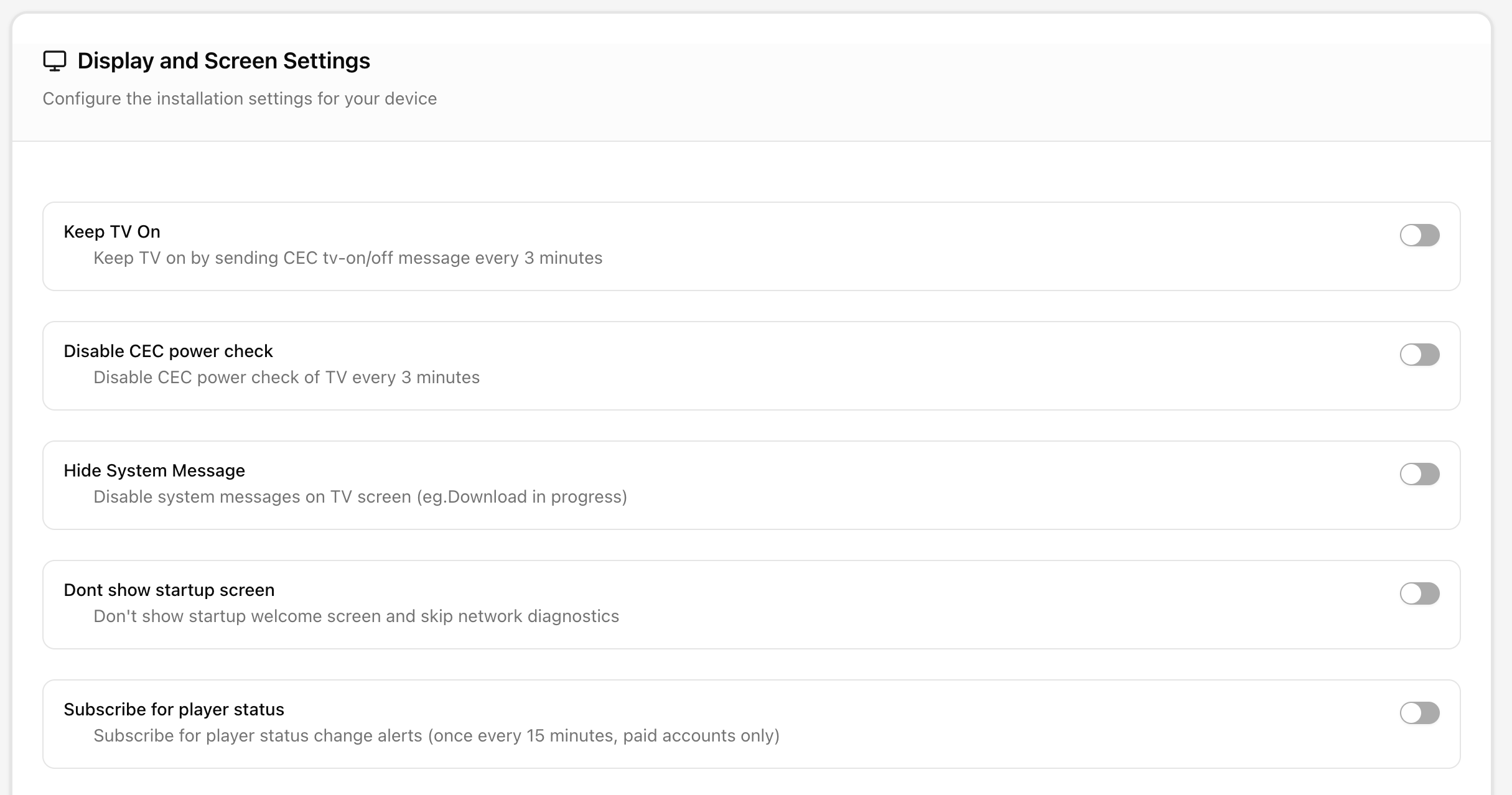
Installation-wide player defaults.
- Keep TV On: Sends a CEC "TV on" command every 3 minutes, so a TV switched off with its remote turns back on.
- Disable CEC power check: Stops the player from checking the TV's power state over CEC every 3 minutes. Enable it for displays that misbehave with CEC.
- Hide System Message: Hides on-screen messages such as "Download in progress".
- Dont show startup screen: Skips the welcome screen and the boot-time network diagnostics.
- Subscribe for player status: Emails you when a screen goes offline or comes back. Checked every 15 minutes. Paid accounts only.
- Auto-register player: Lets a new player register to your account when it first powers on. The account details must be in player-config.txt on the SD card.
- Disable download from UI to your local storage: Removes the option to download assets from the Assets page to your computer.
- Enable log for file play count/details: Players report every file played, for the play-count reports. This is network intensive, so leave it off unless you need the reports.
- Disable player download on modem: Players will not download content when they are online only through a modem, not Wi-Fi or Ethernet.
- Bypass video conversion: Uploaded videos are stored unchanged instead of converted to 1080p. Needed for 4K. Upload mp4 or mkv only.
- Default duration for assets in playlists: The seconds an image or page plays when added to a playlist, unless changed there.
- Screen reporting interval in minutes: How often each player reports its status to the server.
- Zone Aliases: Your own names for the side, bottom and zone4 to zone6 zones, shown in the playlist editor in place of the zone names.
Branding Settings
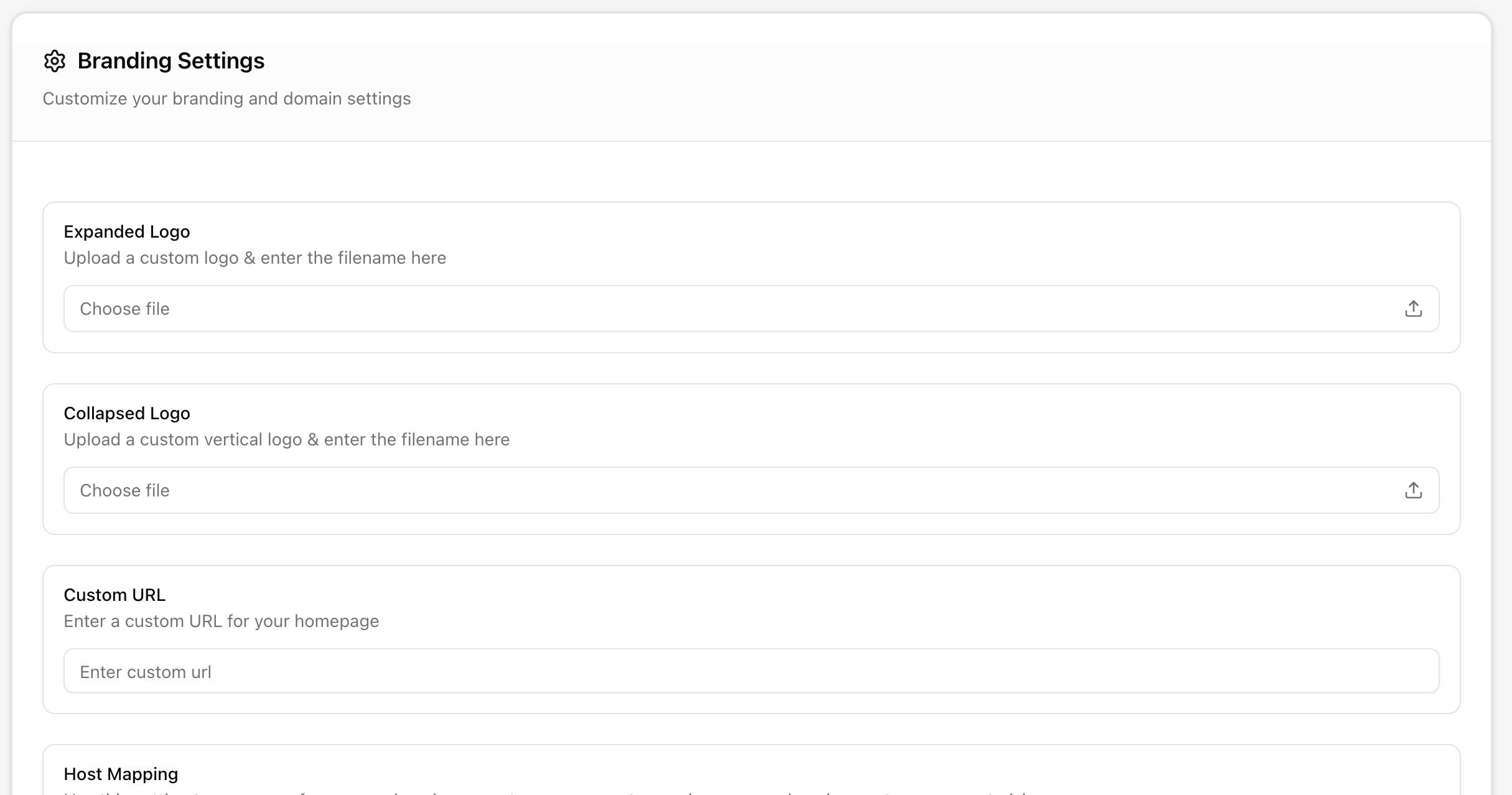
White-label the web interface for your account and clients. White Label covers the bigger picture.
- Expanded Logo / Collapsed Logo: The logo shown in the menu when open and when collapsed to icons.
- Custom URL: The page the logo links to, such as your company website.
- Host Mapping: Serves the interface from your own domain, for example signage.yourdomain.com. Available to accounts with 25+ players. Write to support@pisignage.com first so the https certificate can be set up.
- Primary Color / Secondary Color: Accent colors for buttons, links and highlights.
- Login image, Signup image, Verify email image, Two-Factor Authentication choice image, Authenticator app setup image and Success image: Pictures shown beside each step of the login and signup flow on your branded domain.
Authorization Settings
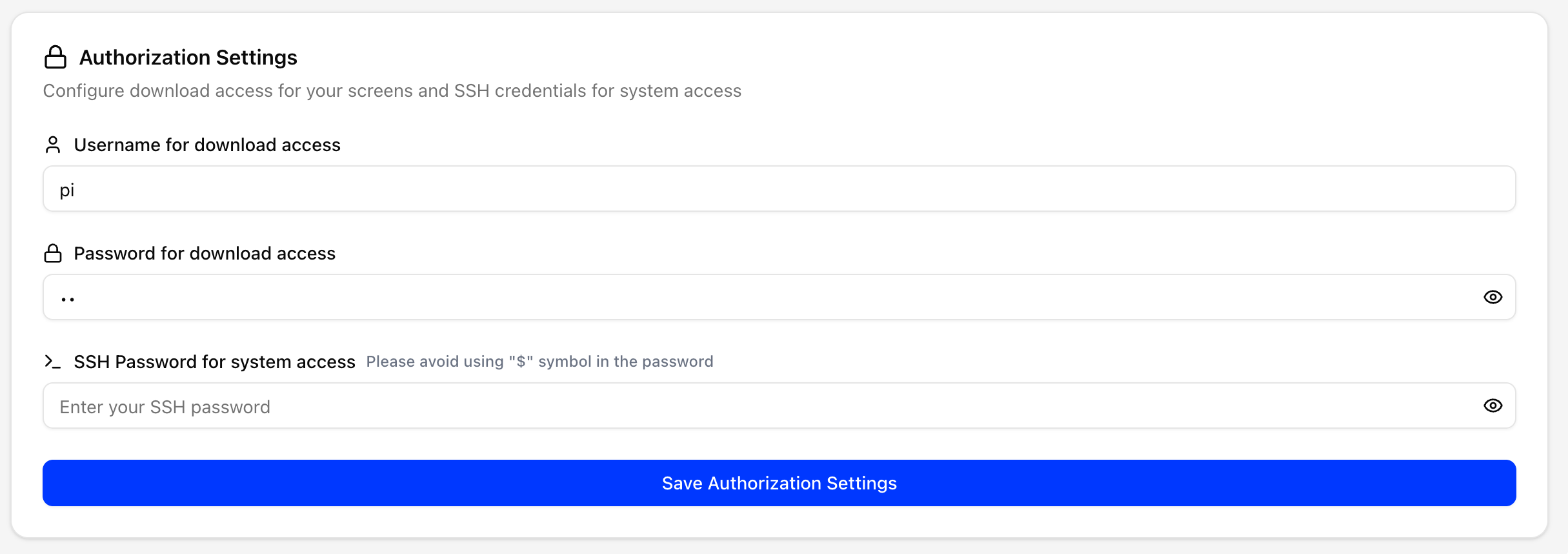
- Username for download access / Password for download access: Protect content downloads and the player web UI with a login. Players use these credentials to fetch content.
- SSH Password for system access: The password for the
piuser on every Raspberry Pi player in your account (the default ispi). Avoid the "$" character.
Collaborator Settings
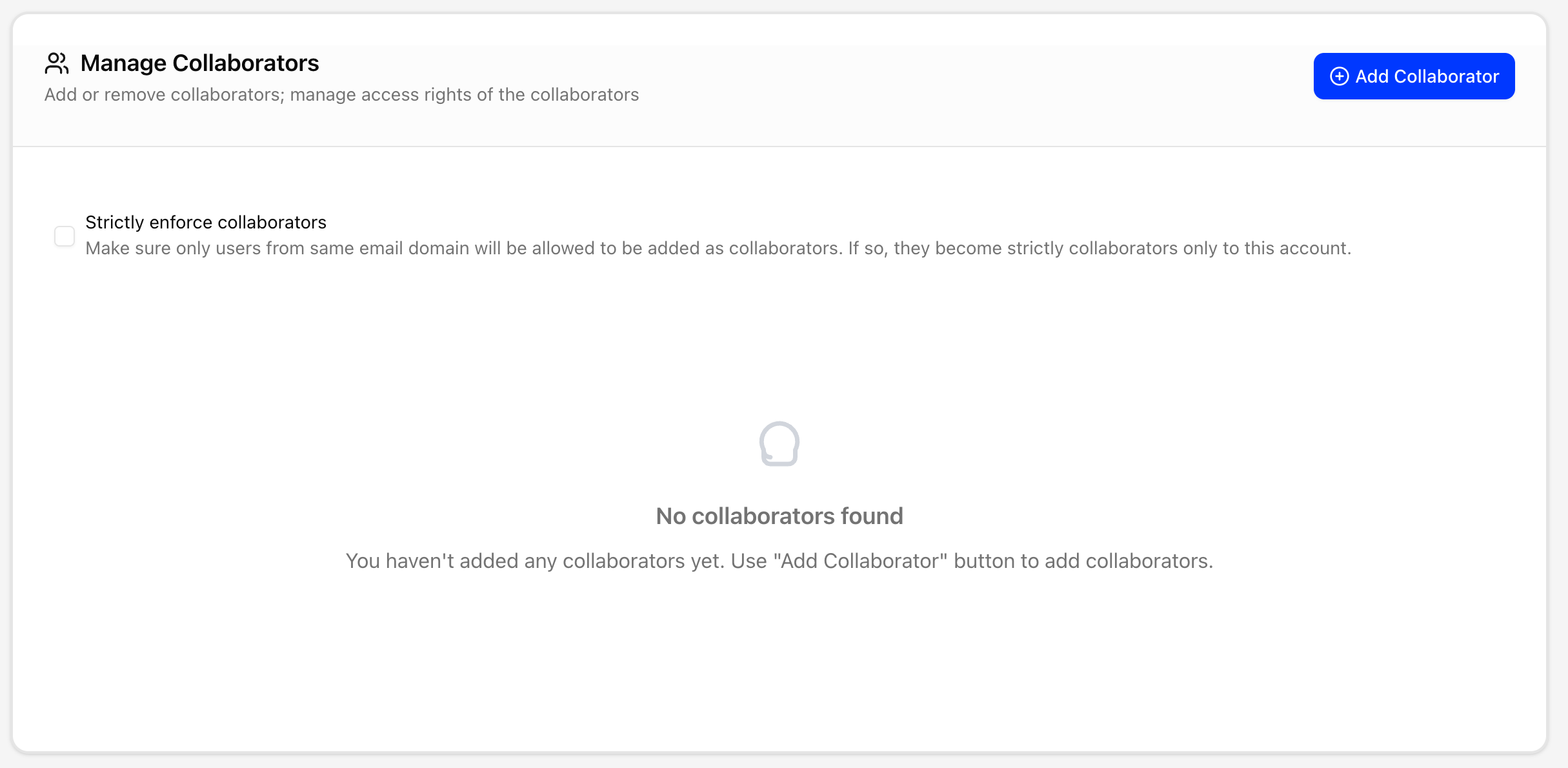
Share your account without sharing your password. Collaborators has the full details.
- Add Collaborator: Add an existing pisignage.com user by username, or create a new user with a username, optional email and password. Then assign groups and locations and tick their rights.
- Strictly enforce collaborators: Only users with an email on your domain can be added, and they can be collaborators of this account only.
- Edit rights (per collaborator): Set the accessible groups and locations, then the rights for:
- Assets: create and view, edit, restrict to allowed groups
- Playlists: edit, choose layout
- Groups: view only, edit settings, change default playlist, edit schedule
- Players: create, edit settings, use the screen terminal
- Locations: view only
- Settings: edit all
- Payments, Template Designer and App Store
- Remove collaborator: Removes their access. Their own account is not deleted.
- Manage rights templates: Save a named set of rights to pick when adding collaborators.
- SAML Template for Collaborators: An identity provider (entry point URL, issuer, certificate, optional private key and relay state) applied to new collaborators so they sign in through SSO, such as Okta or Azure AD. Your own login is not affected.
Screen Management
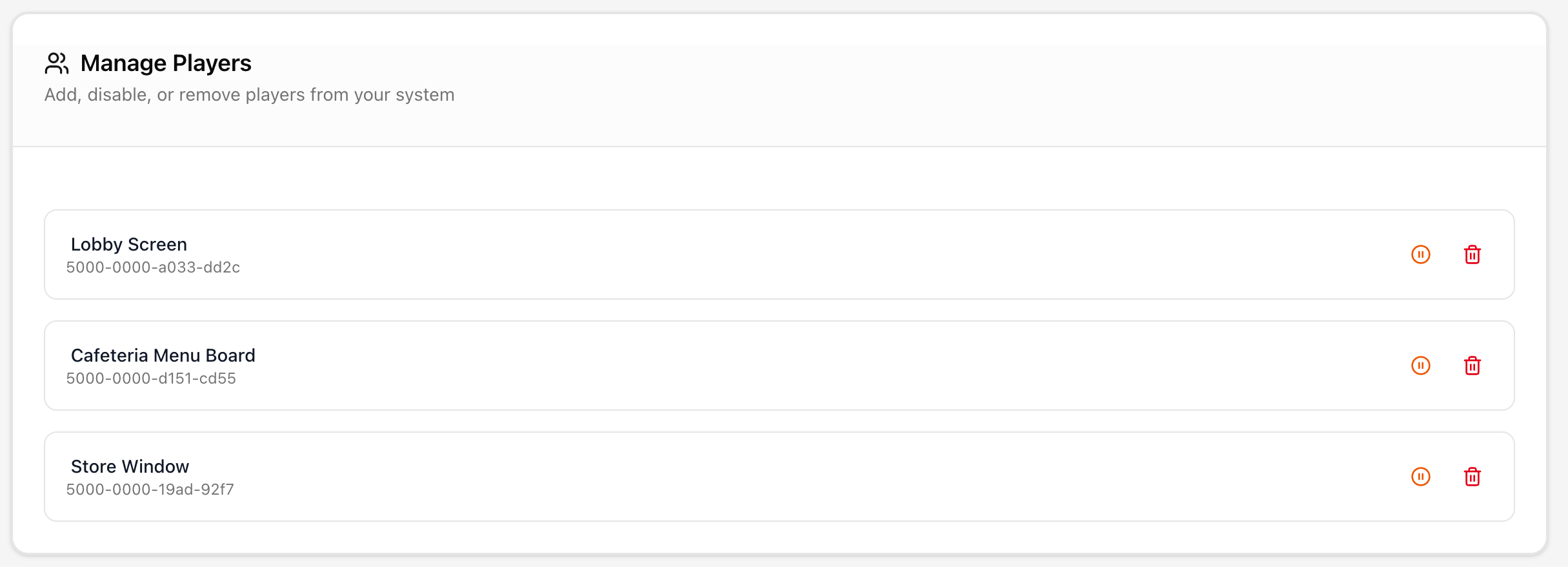
Manage Players lists every registered player with its Player ID.
- Disable player: Takes the player out of service but keeps it in the list.
- Remove player: Deletes it immediately with no confirmation step. Its license is credited back to your account.
See How to delete a player and redeem license.
Audit Logs
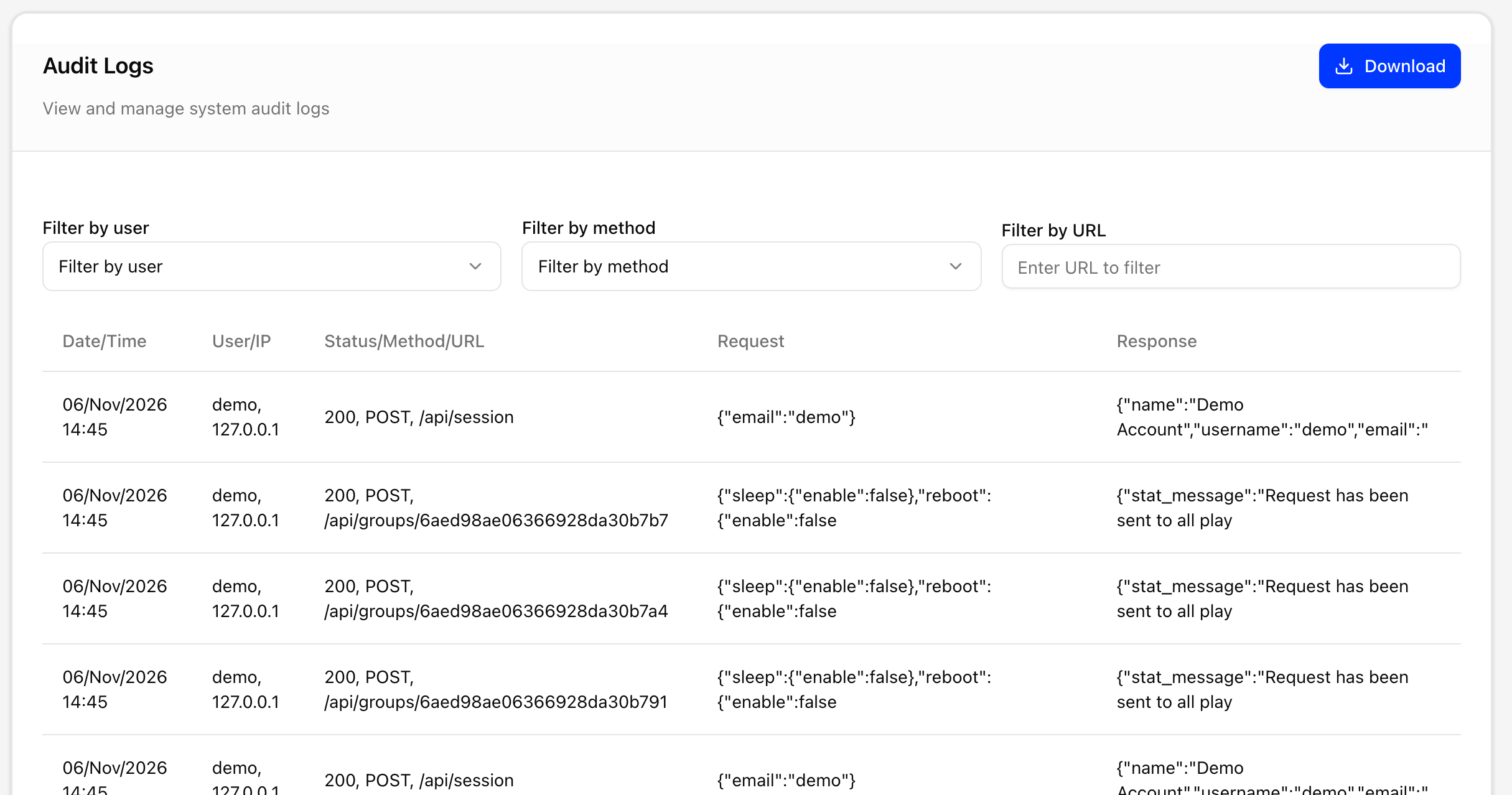
Records every change made through the interface or the API, with the date, user, IP address, HTTP method, URL and the request sent. Filter by user, method or URL, and use Download to export the log.
Integrations
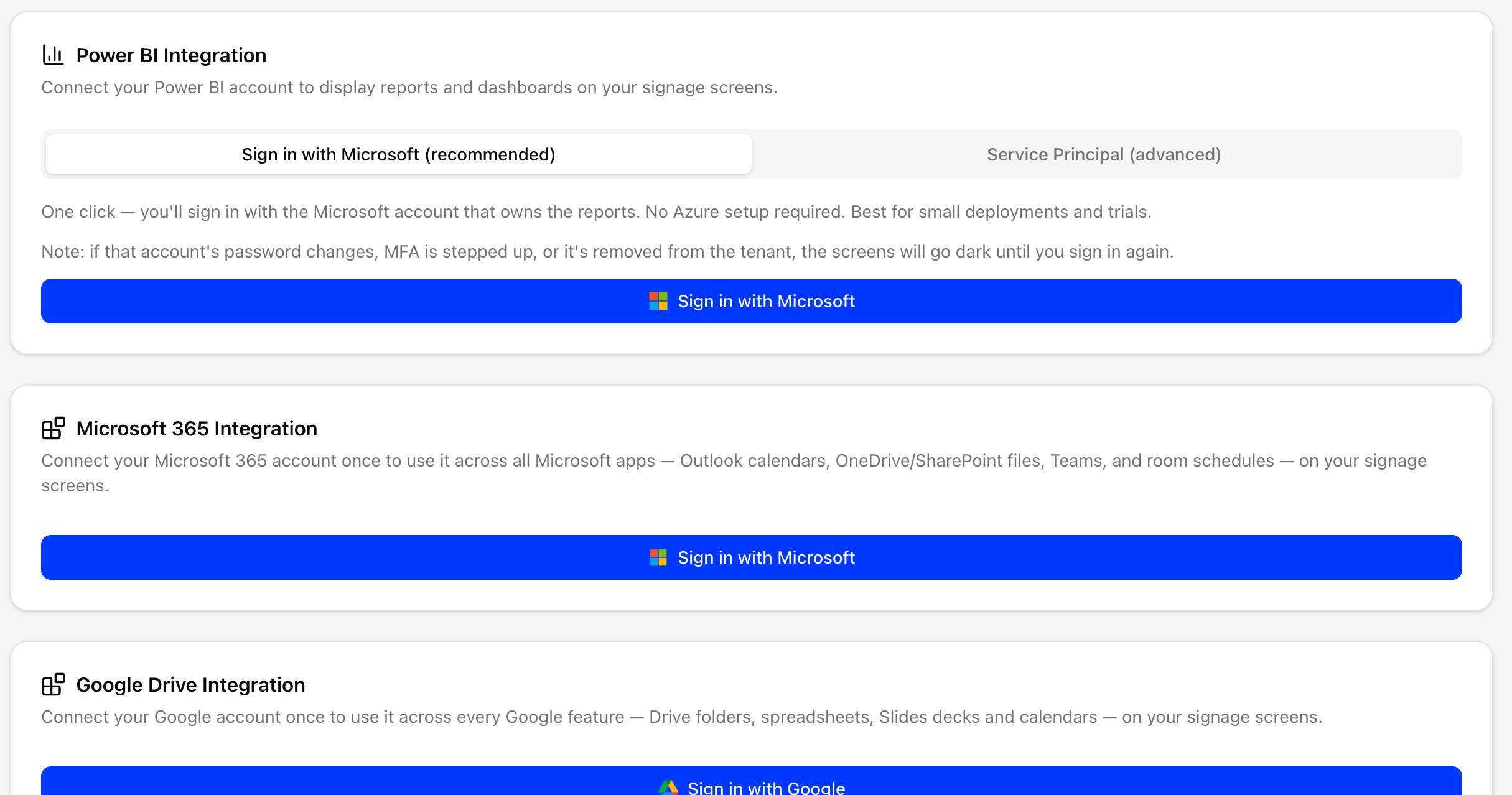
Connect your cloud accounts once, then use them in assets and widgets on your screens.
- Power BI Integration: Connect with a Microsoft Entra service principal (tenant ID, client ID and secret) to show Power BI reports and dashboards. The Settings page also offers signing in with Microsoft. See Showing a Power BI report on your screens.
- Microsoft 365 Integration: Sign in with a Microsoft account to use Outlook calendars, OneDrive and SharePoint files, Teams and room schedules. You can add more than one account.
- Google Drive Integration: Sign in with a Google account to use Drive folders, Sheets, Slides and Google calendars. You can add more than one account.
Legacy UI
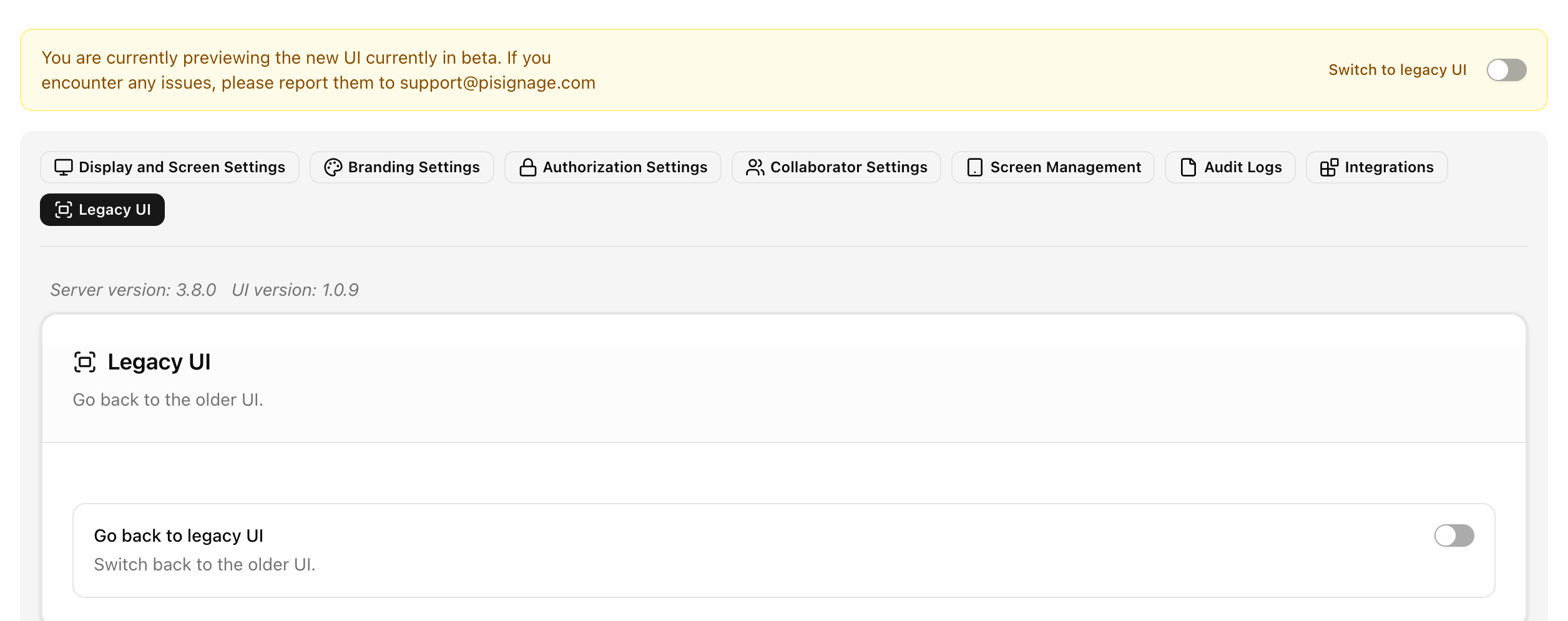
Go back to legacy UI switches your account back to the classic interface. The Switch to legacy UI toggle at the top of the page does the same. Everything configured here is shared by both interfaces.