Template Designer
Template designer allows you to create custom layouts that can then be used in Playlists and groups.
Template designer is to help create custom layouts as pages that can then be applied to your Playlists and Groups. While certain layouts are already defined you could always create your own.
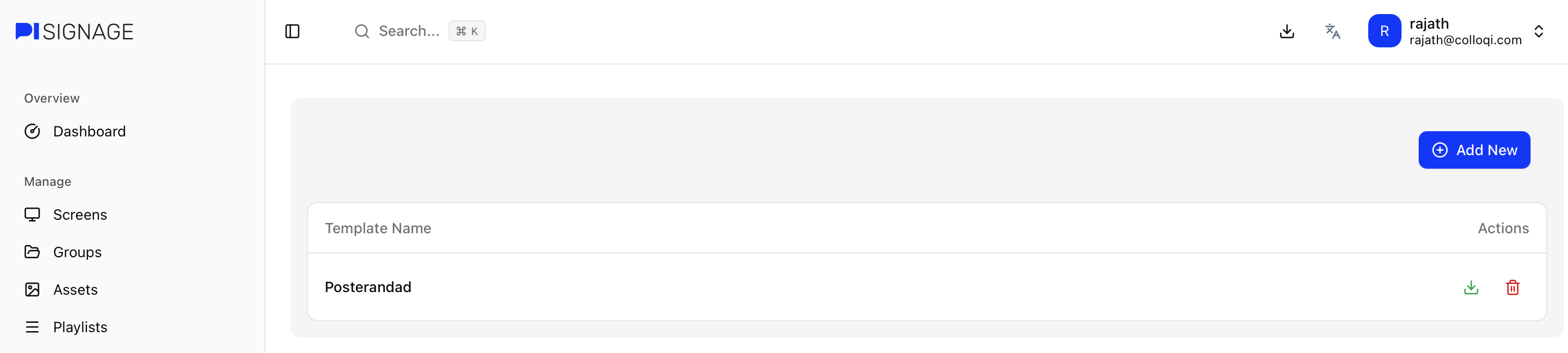
Layout1
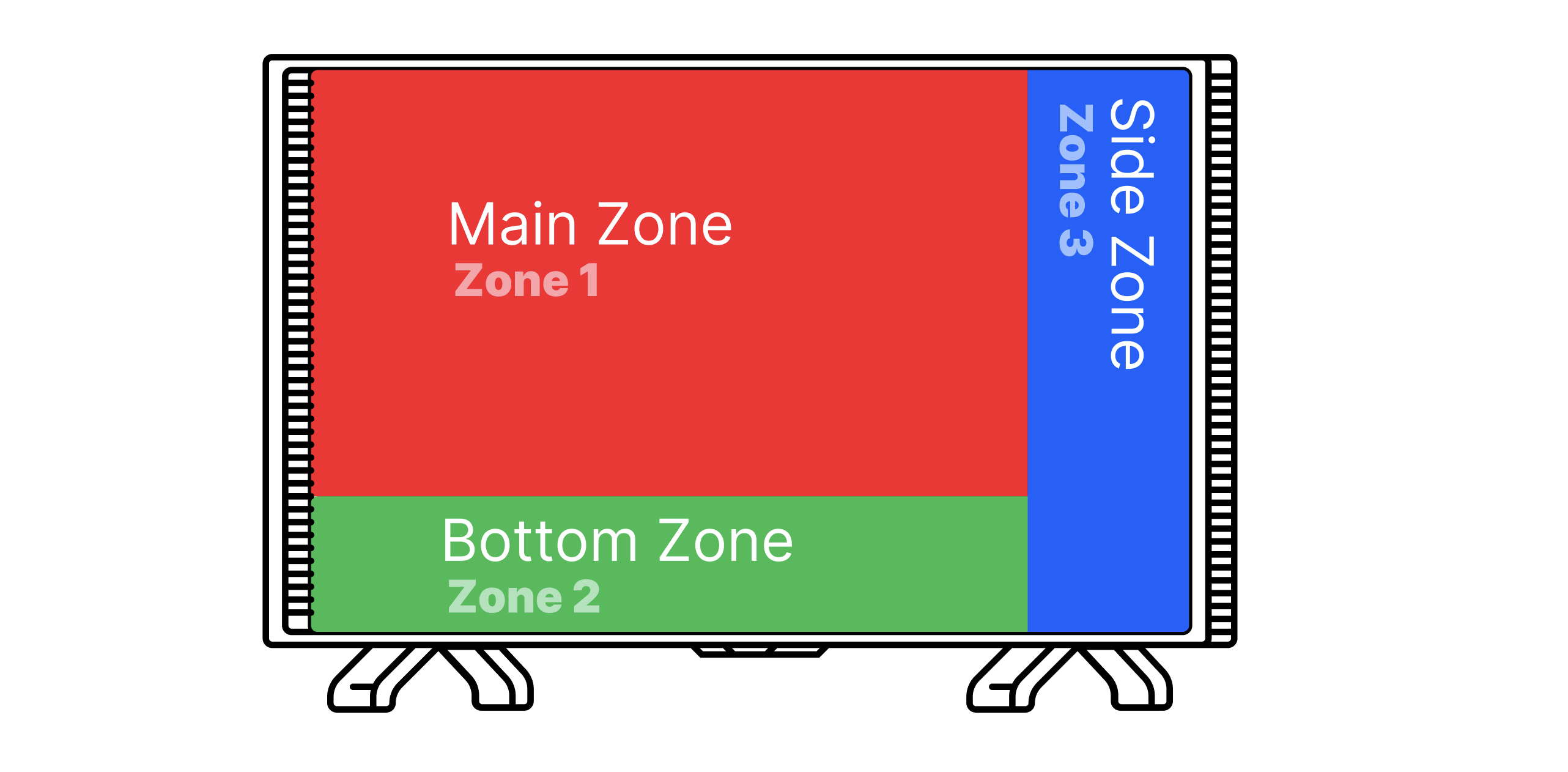
Layouts help configure your playlist to show multiple assets on the same screen by splitting the screen as desired. In any layout the screen is divided into zones. These zones are where you configure and place assets. An example of one such layout is below. PiSignage supports upto 6 zones in a layout
Choosing a layout
Main page
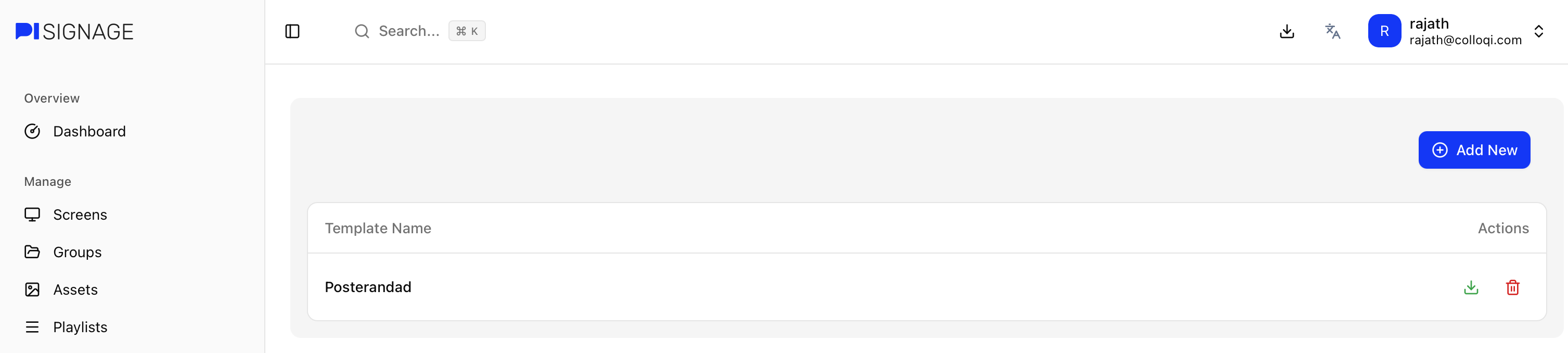 The main page of the template designer lists all of your custom layouts that are now available. Here you can download the layout as a HTML file or delete the same.
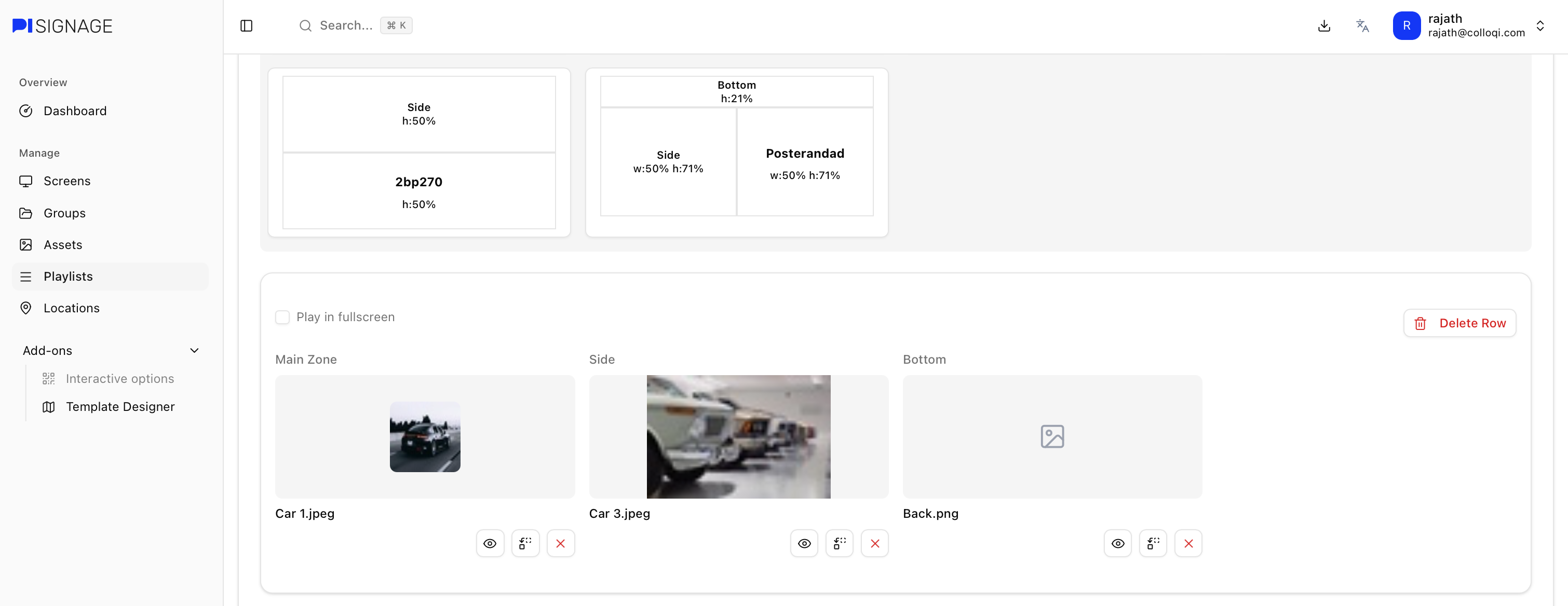
Any layout here can be used in Playlists and Groups as shown below
Configuring a layout
The layout is defined in zones. Enabling a new zone adds it to the layout as shown below. The zones can be named and their dimensions and positions determine their location in the screen.
The resolution settings helps set the base resolution within which all the zones can be defined.
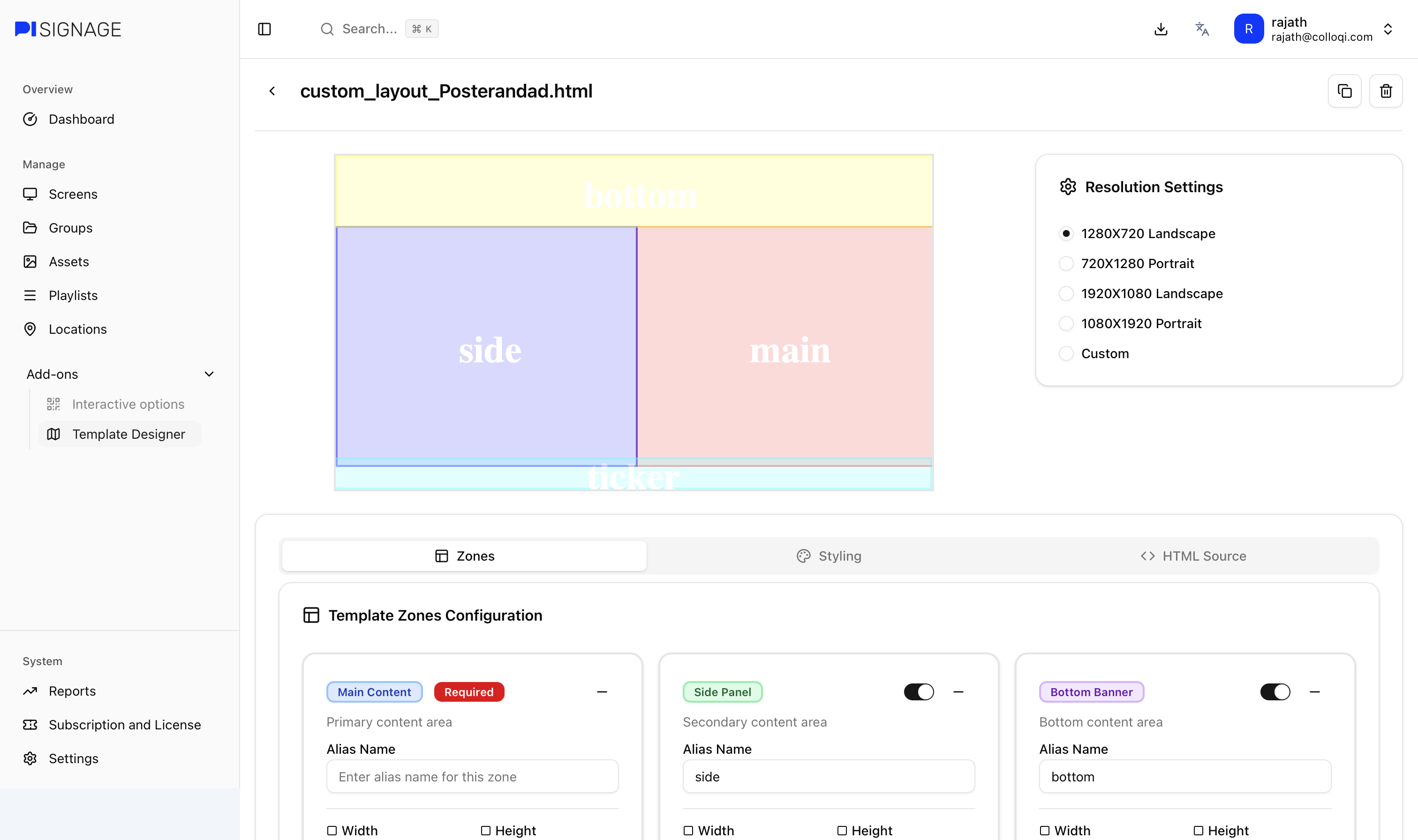
Configuring zones
The zones panel as shown below is where each zone can be
Enabled
Named
set dimensions
set location within the resolution
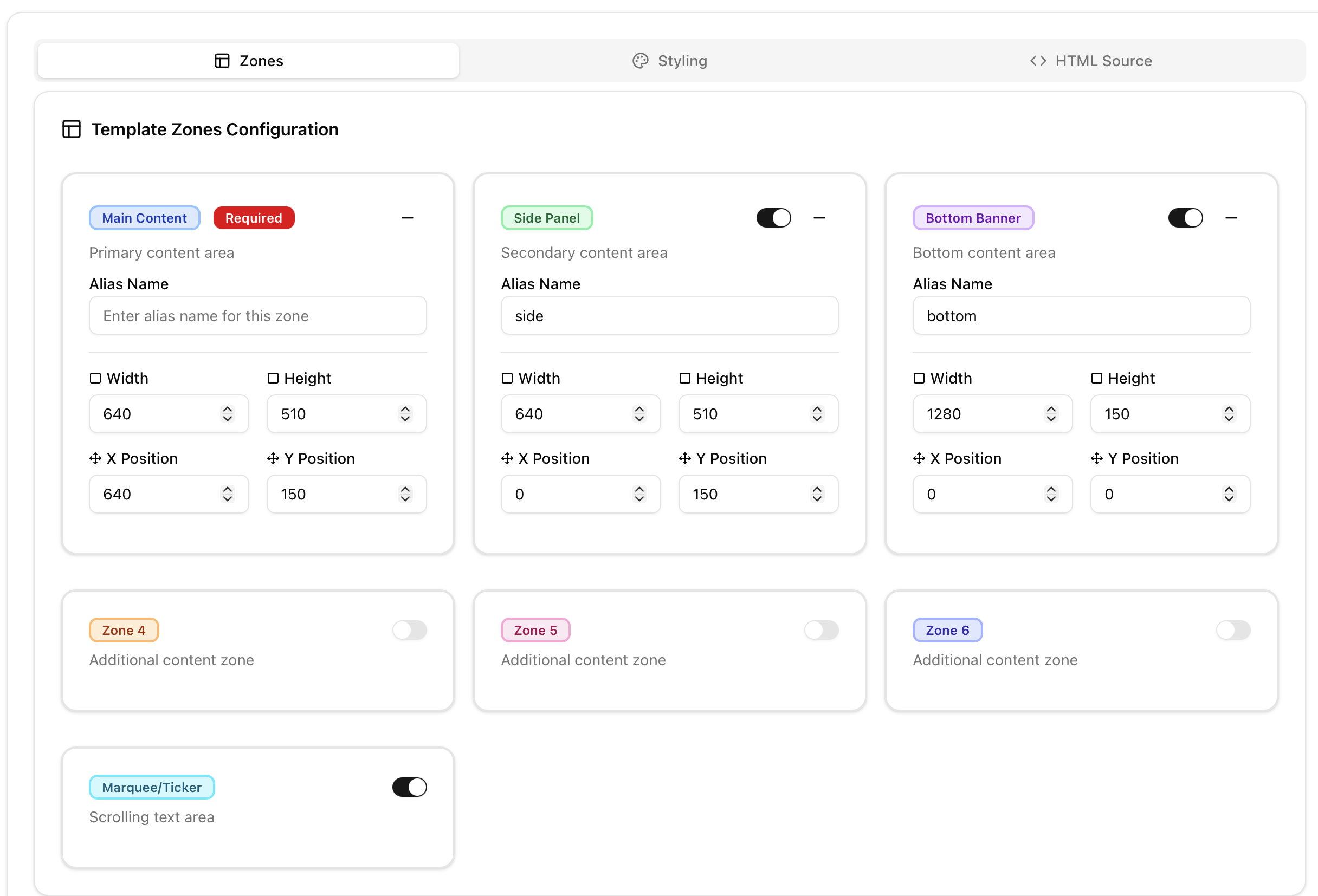
Styling
The styling tab allows you to set a background colour or image to the entire layout. You can even set custom CSS to the layout.
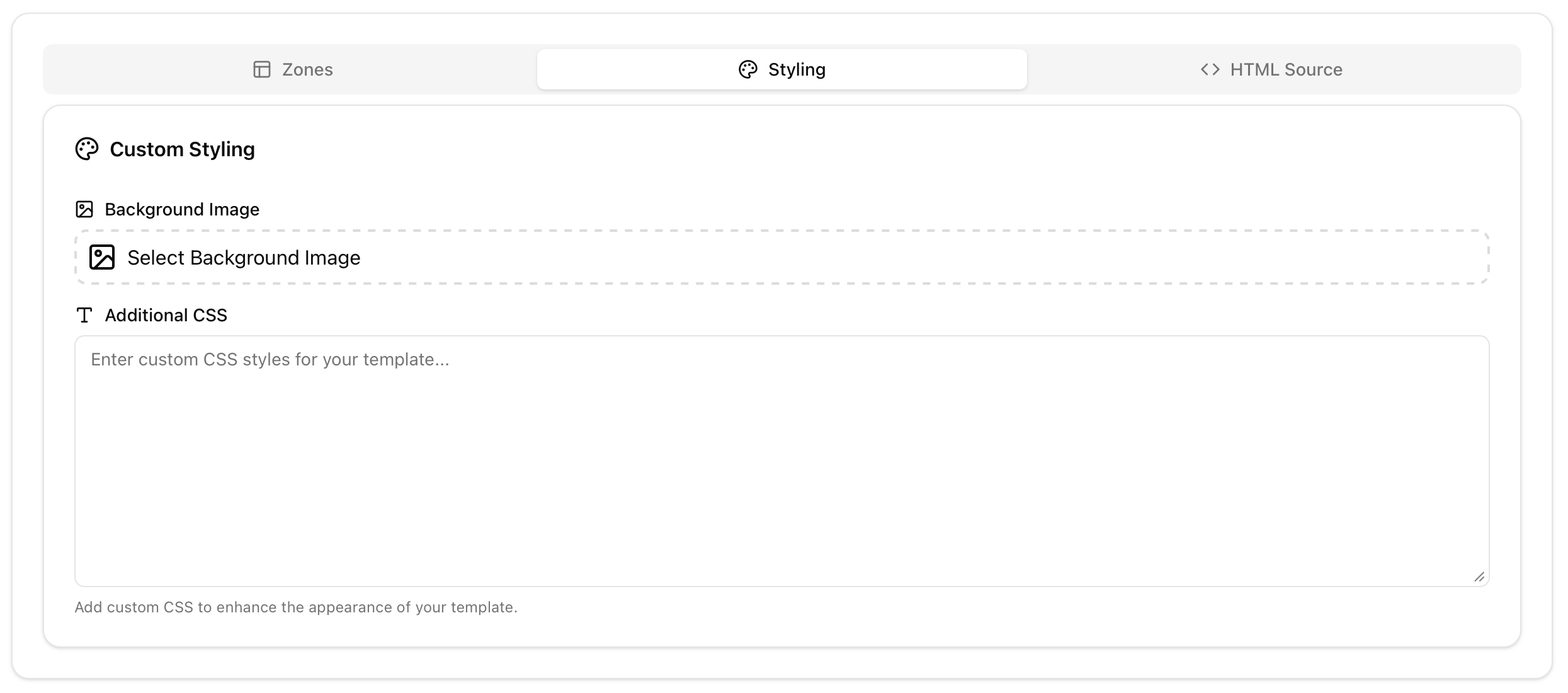
HTML Source
The source code for the HTML layout file can be retrieved here in the HTML source tab.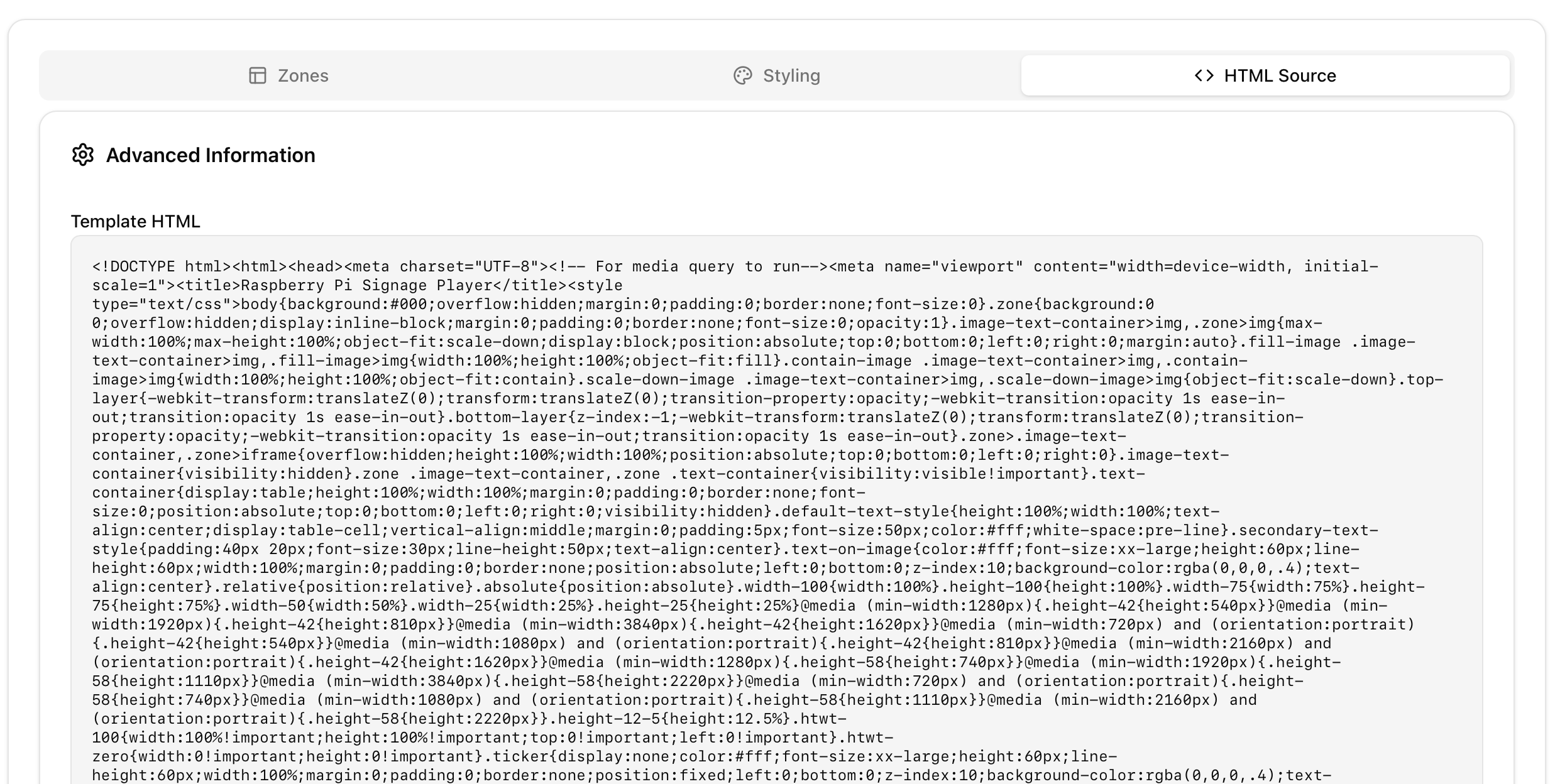
Duplicating a layout
Click on the duplicate button at the layout header to duplicate the same
