Documentsdelete-or-rename-an-asset-playlist-or-group
Delete or rename an Asset, Playlist or Group
Delete and rename live next to each item in Assets, Playlists and Groups.
New interface
Assets
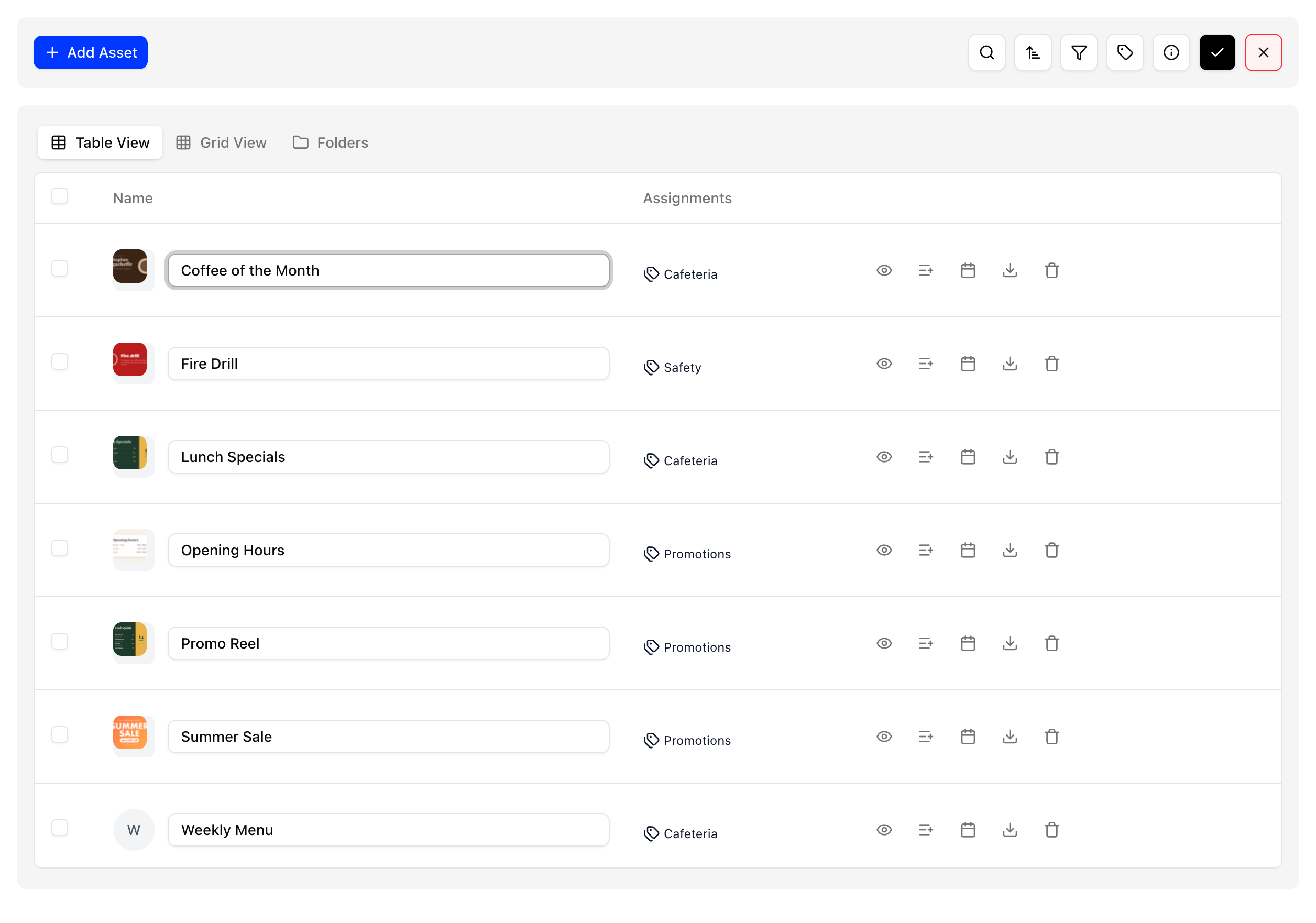
- Delete: Click on the trash icon in the asset's row, or select several assets and click on Delete. See Assets.
- Rename: Click on the pencil (Edit assets) icon, type the new names and click on the tick to save. The cross cancels.
Playlists
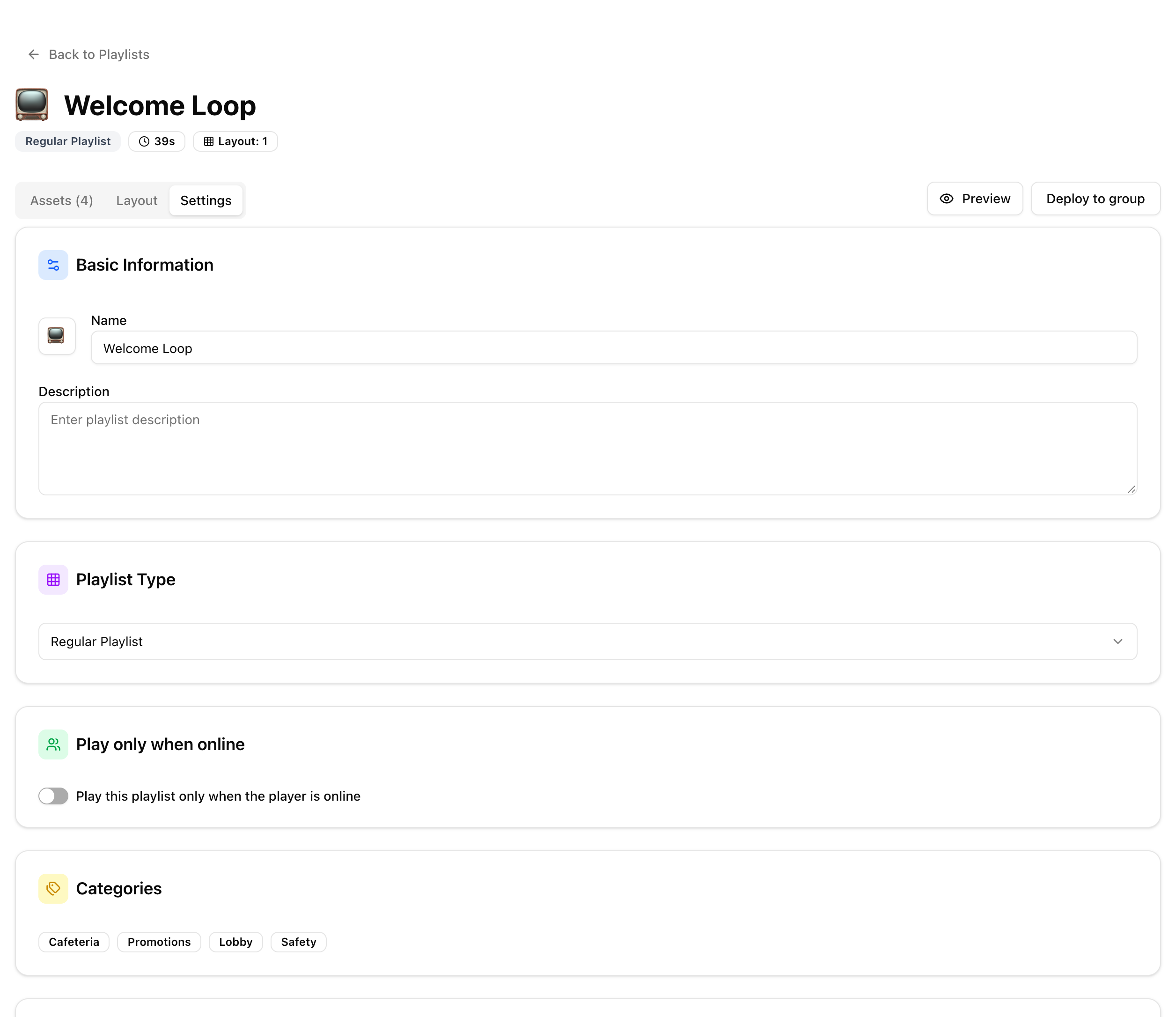
- Delete: Click on the trash icon in the playlist's row. See Playlists.
- Rename: Open the playlist, go to the Settings tab and change Name.
Groups
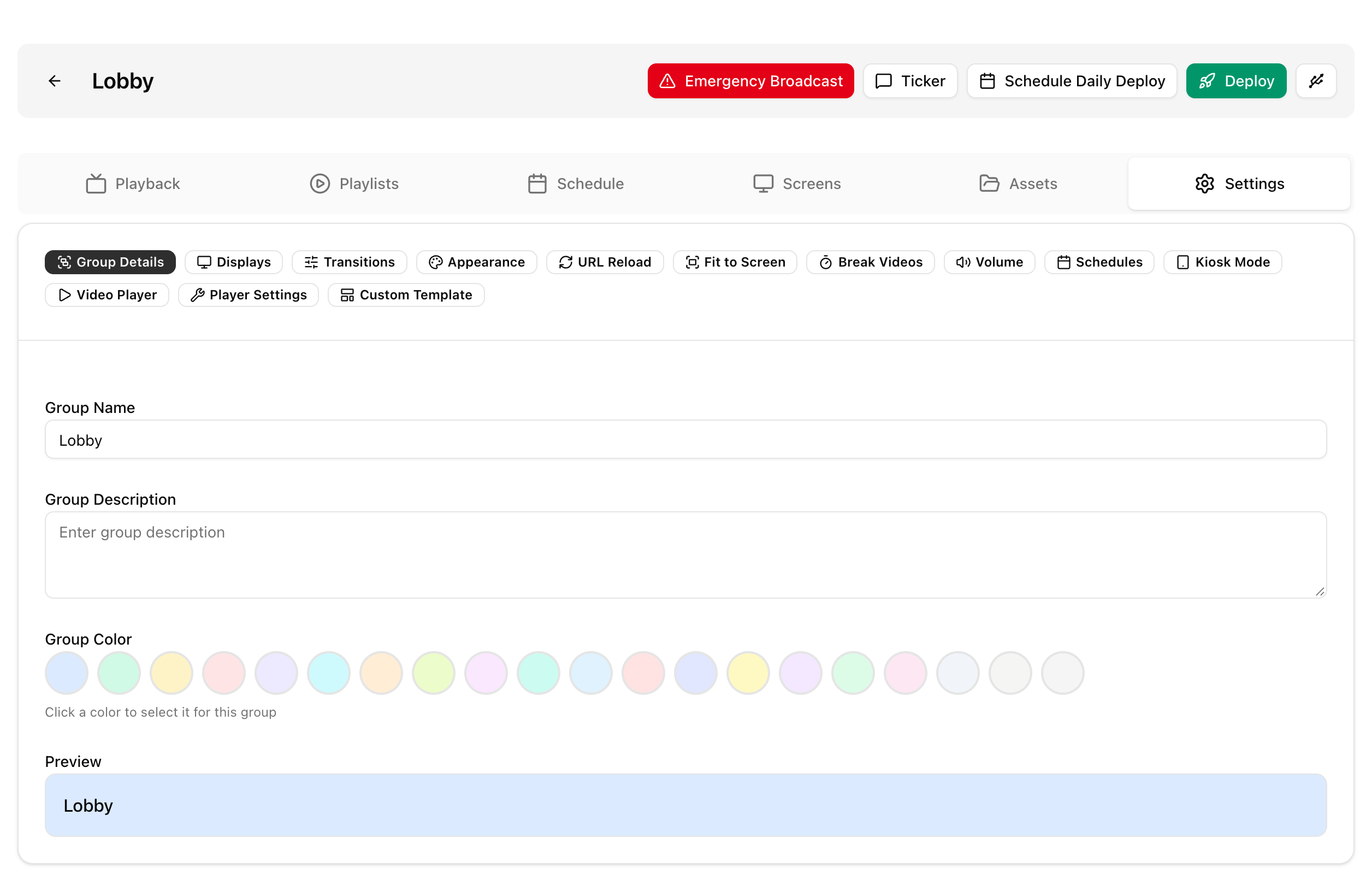
- Delete: Click on the trash icon in the group's row. See Groups.
- Rename: Open the group, go to Settings → Group Details and change Group Name.
In the legacy UI
On the Assets, Playlists and Groups screens, press the EDIT button on the menu bar to delete or rename the item.
Good to know
- Renaming or deleting an asset automatically updates the playlists that use it.
- Renaming a playlist automatically updates the groups that use it.
- After making changes, deploy the affected groups so the players receive them.
- The default group cannot be deleted.
- A group that still has players cannot be deleted. Move its players to another group first.