Documentshow-to-change-email-or-username-of-my-account
How to change email or username of my account
Change both from Change profile in the profile menu. A new username needs your players to be licensed again.
Change email
- Click your name at the top right and select Change profile.
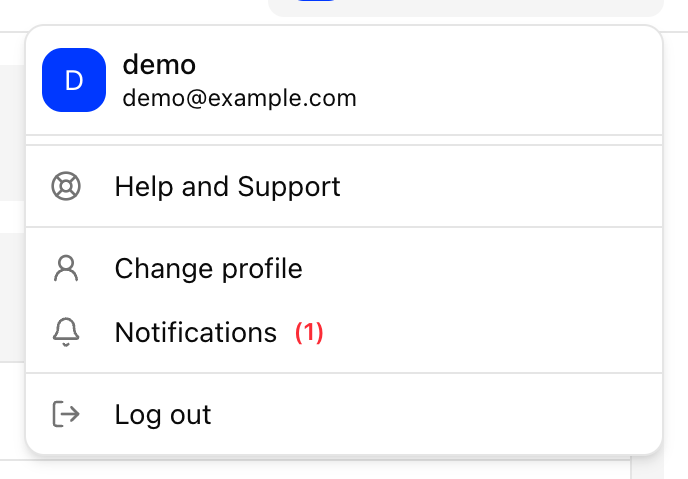
- Enter your current password and click Continue.
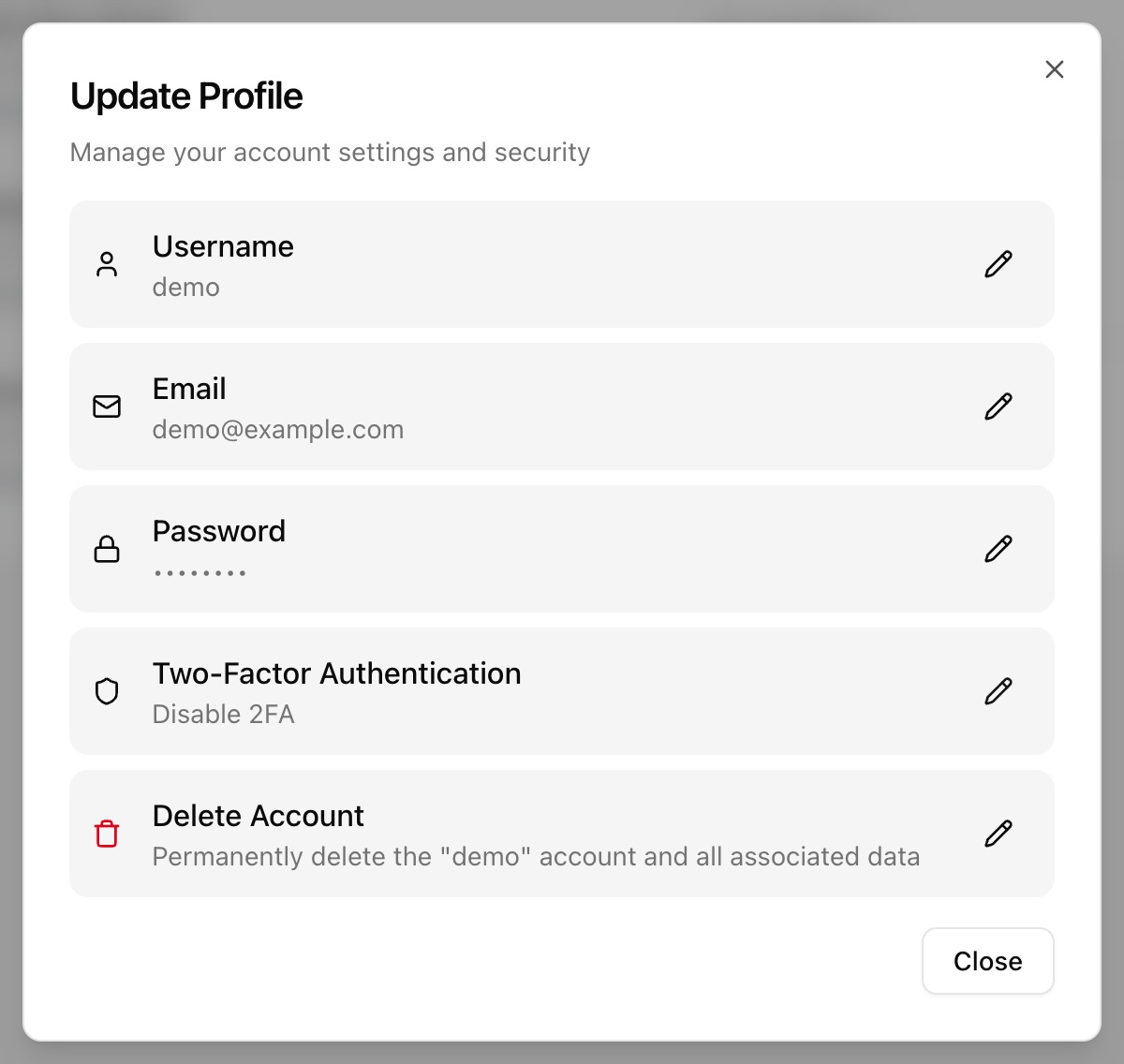
- Enter the new email address. A 6-digit verification code is sent to that address. Enter it to confirm.
Email changes are not available if you sign in with Google or SAML.
Change username
- Open Change profile as above and enter the new username. It must be 3 to 63 characters, using letters, numbers and hyphens, and it must start and end with a letter or number.
- Your players, groups, playlists, assets, reports and collaborators move to the new username automatically. You are signed out and need to sign in again with the new username. Your account URL changes to
newusername.pisignage.com. - Regenerate the player licenses. Licenses are tied to the username, so until you do this, your players show the message "This player is powered by pisignage.com." Players must be online to download the new license.
- Open Screens. Unlicensed players are marked Unlicensed. Click the License player icon at the right of the row. To license several players, select them and click License Players.
- In the legacy UI, go to Players and click the license icon next to the player. Alternatively, register the player again using Register a Player.
If you run the open source server with player only licenses, update the installation name under Settings to the new username first, then regenerate the licenses.
More on the message in This player is powered by pisignage.com. Search, Help and Profile covers the profile menu.