Search, Help and Profile
Search, download, change the language, get help and manage your profile from the top of any page.
Along with the main menu on the left, the top of every page has a few handy options that are available wherever you are in PiSignage.
Search
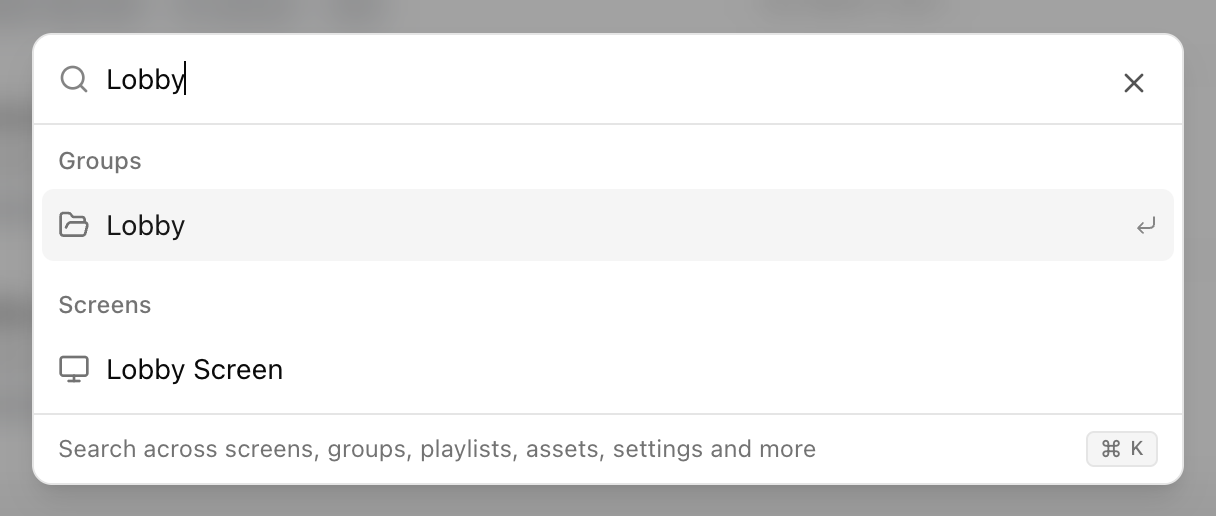
Click on Search... at the top left of any page (or press ⌘K / Ctrl+K) to search across your account. You can search for pages, screens, groups, playlists, assets, settings and your profile all in one place. The results are grouped by type and clicking on a result takes you straight to the same.
Download
Click on the download icon at the top right to download the list you are viewing as a CSV file. This is available on Screens, Groups, Assets, Playlists and Locations.
The file contains the same items you see on the page in the same order, so simply search, filter or sort the list before downloading the same. If you have filters applied the file name is marked as “filtered”.
Language
Click on the language icon at the top right to change the language of PiSignage. Simply search for your language and click on the same. Your choice is remembered on your browser.
Languages are currently experimental. If you would like to help with translations, the language menu links to our translation repo.
Help & support
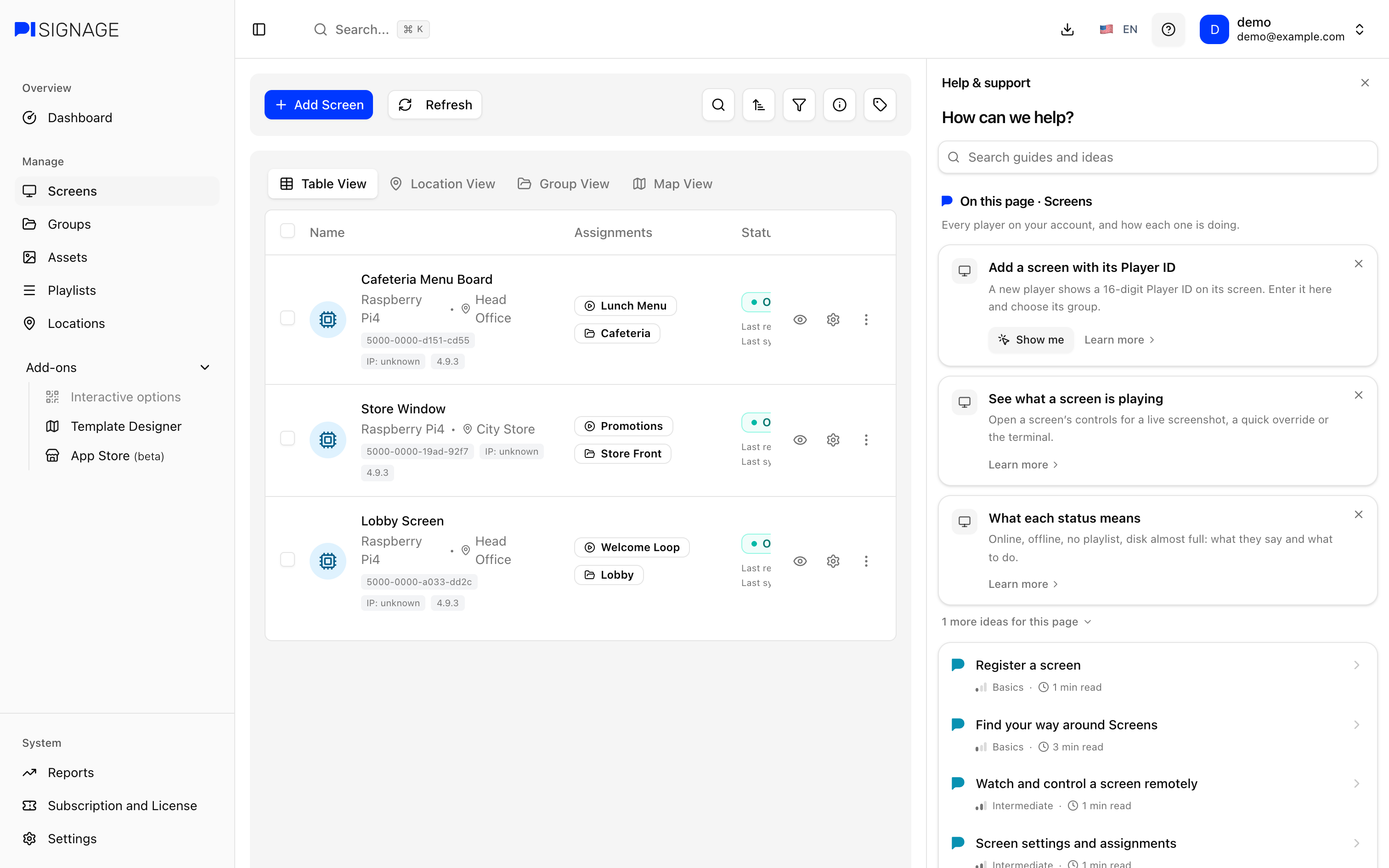
Click on the ? icon at the top right to open the Help & support panel. The panel shows tips and guides for the page you are on along with ideas for your screens, help with choosing your player and options to contact support. You can read more about getting in touch with us in Support.
Getting started
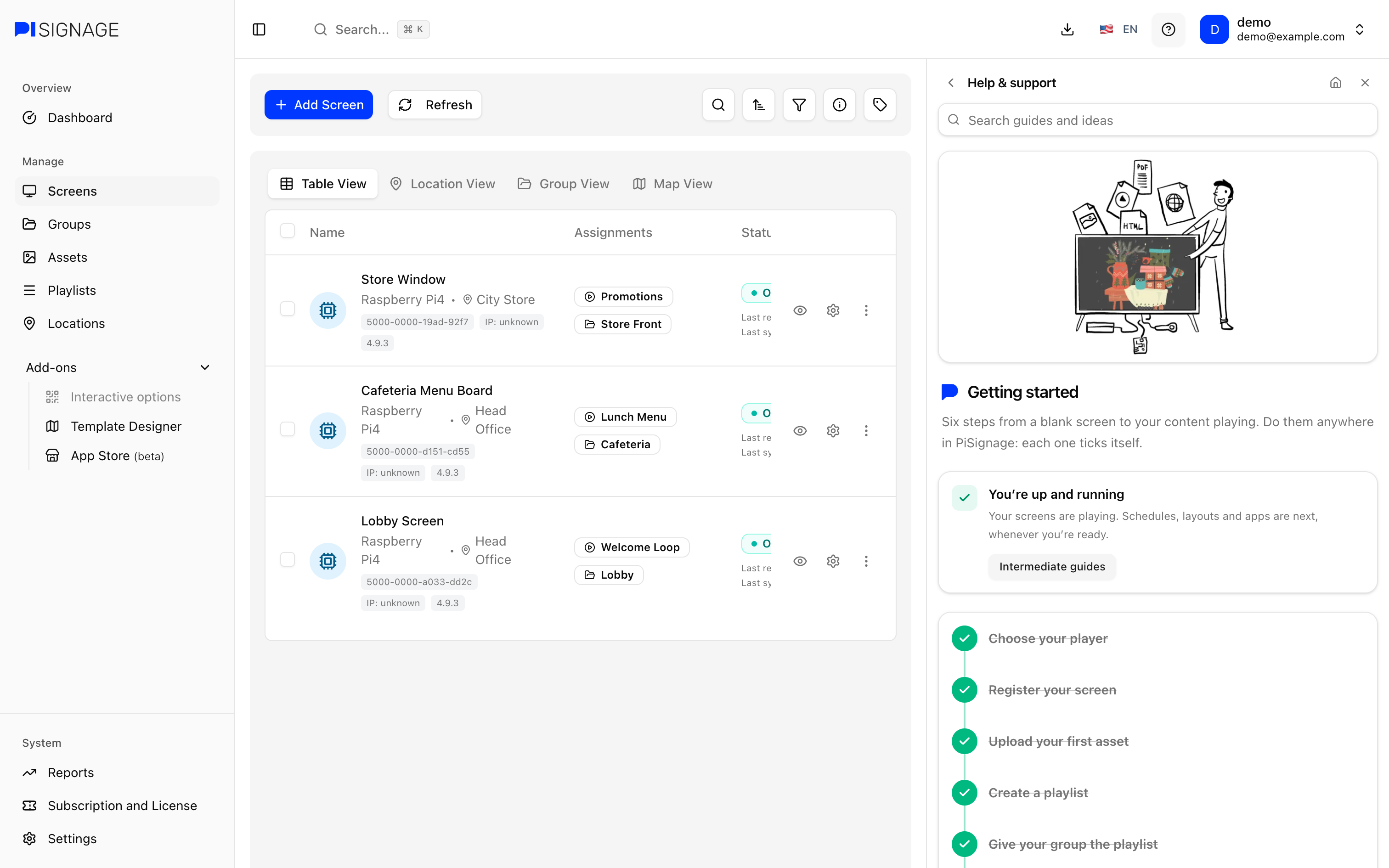
If you are new to PiSignage, Getting started takes you through the six steps needed to get your first screen playing
- Choose your player, see Start Here
- Register your screen in Screens
- Upload your first asset in Assets
- Create a playlist in Playlists
- Give your group the playlist in Groups
- Deploy the group in Groups
Each step is ticked off automatically as you complete it. Until you finish or hide Getting started, the Get started button at the top right shows how many steps you have completed.
Profile menu
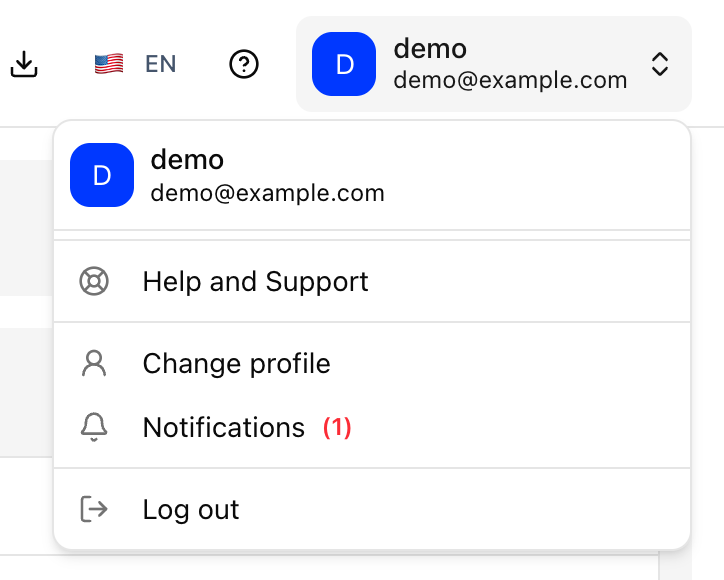
Click on your name at the top right of the screen to open the profile menu
- Help and Support: Opens our help center in a new tab
- Change profile: Update your username, email and password, set up two-factor authentication or delete your account. For your security you will be asked to enter your current password first. You can read more about two-factor authentication in Signup and Login
- Notifications: Alerts about your account, such as when your subscription has less than 2 months remaining or has run out of credits, along with any announcements from us. The number of unread notifications is shown next to the same and clicking on a notification marks it as read. You can manage your subscription in Subscriptions and Licenses
- Log out: Logs you out of PiSignage
Announcements also appear as a banner at the top of the page until you close the same or read it in Notifications.