How to schedule playlists or content
Schedule playlists inside a group, and set a validity period on assets.
You schedule content by preparing one playlist per time period and adding them to a group. Assets cannot be scheduled directly, put them in playlists and schedule those.
Playlists
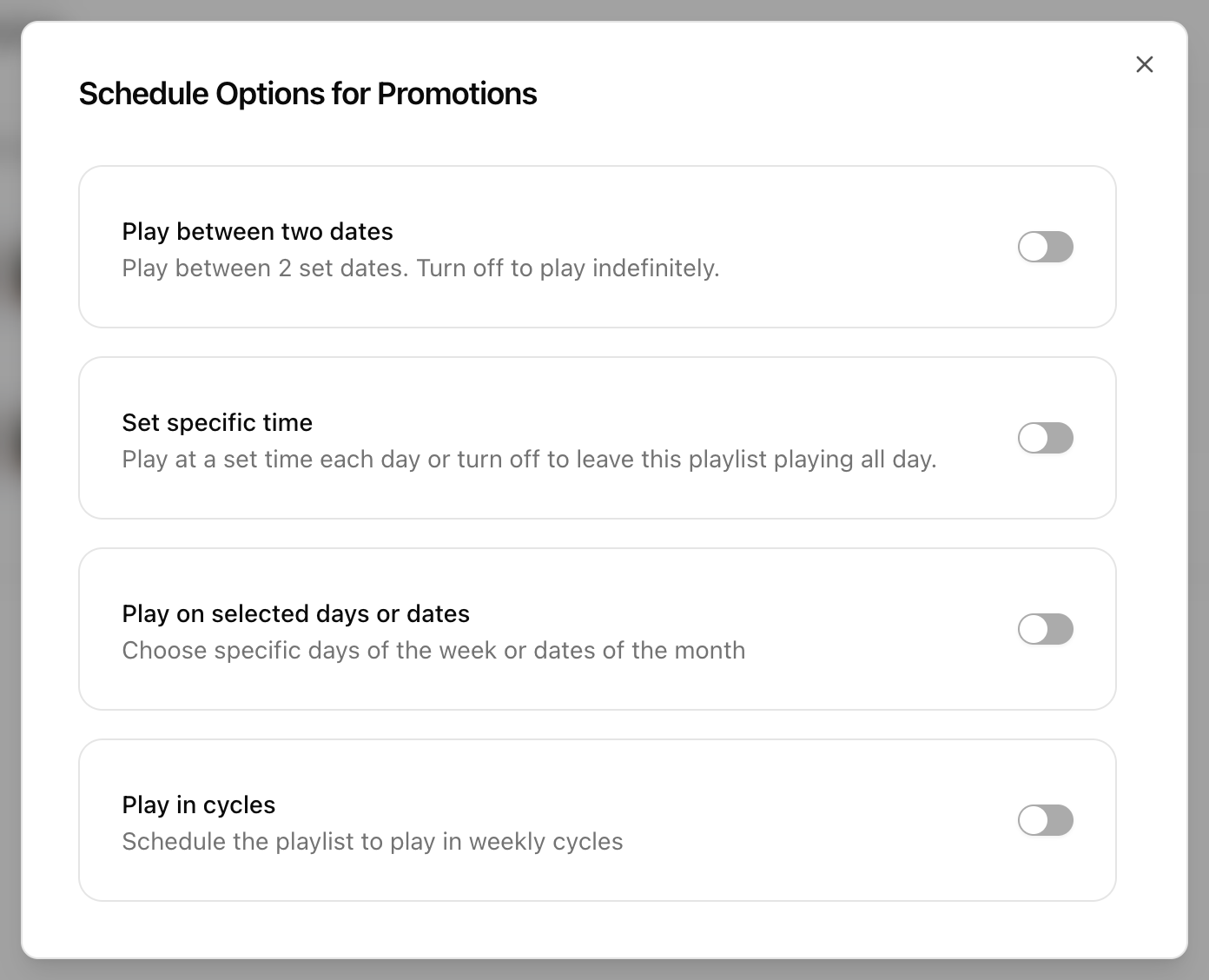
Under a group a playlist can be scheduled by
- A date range
- Specific weekdays
- Specific days of the month
- A time window within the day
- Weekly cycles
Steps
- Go to Groups and open the group.
- Select the Playlists tab and click Add Playlist.
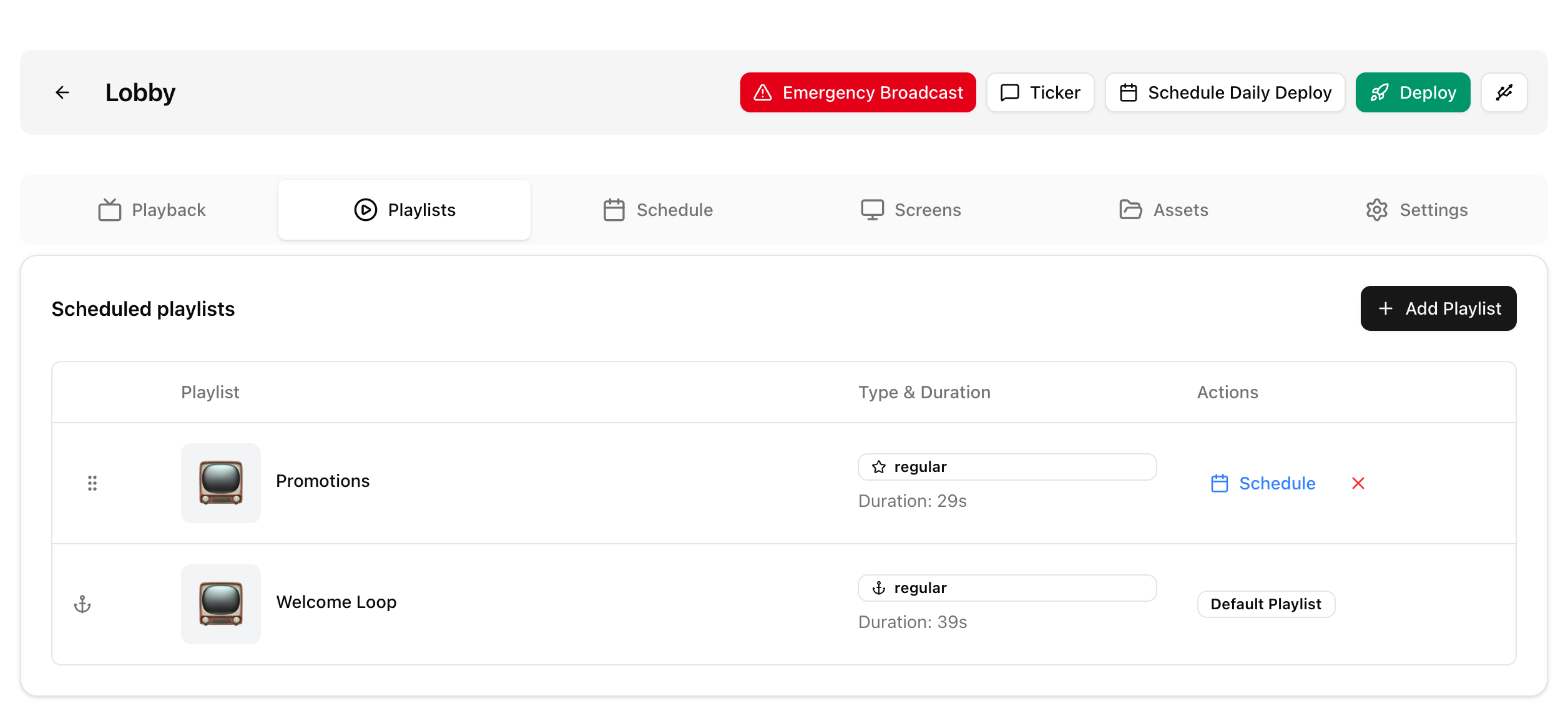
- Click Schedule next to a playlist and set one or more schedule options.
- Click Deploy to apply the changes.
In the legacy UI, open the group, press Add playlist, enable scheduling with the calendar icon and set the schedule parameters.
Default playlist
The playlist marked Default Playlist plays when no other playlist is scheduled. Set it to TV_OFF to turn the TV off in those periods.
View the schedule
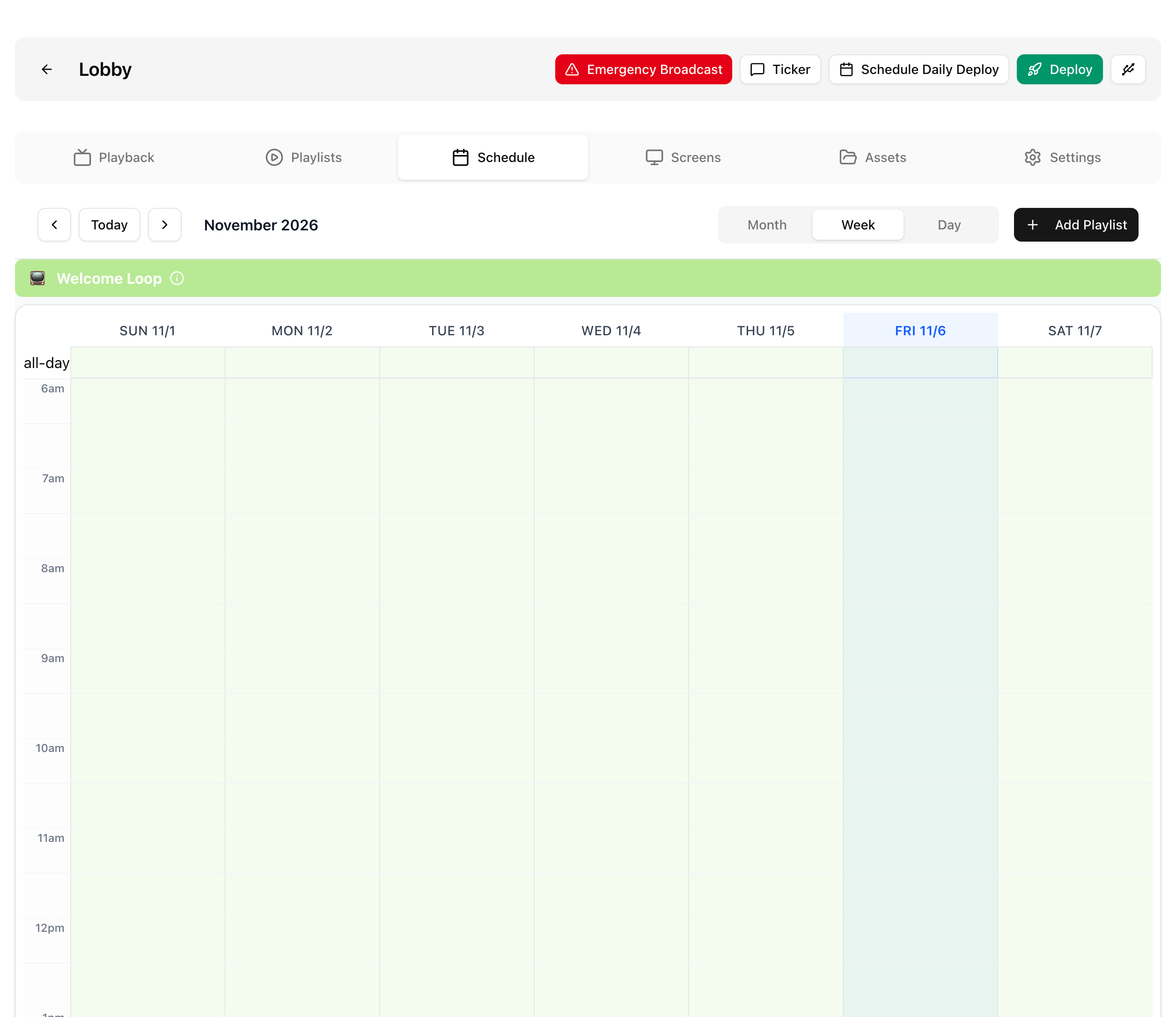
The group's Schedule tab shows a month, week or day calendar. In the legacy UI use the View Schedule button.
Advertisement, domination and event playlists
Set the type under Playlist → Settings → Playlist Type, then add the playlist to the group.
- Advertisement: inserted at regular intervals.
- Domination: inserted at regular intervals (every 10 minutes).
- Event: plays when an external event occurs.
Playlists covers the playlist types. There are scheduling examples in this blog article.
Assets
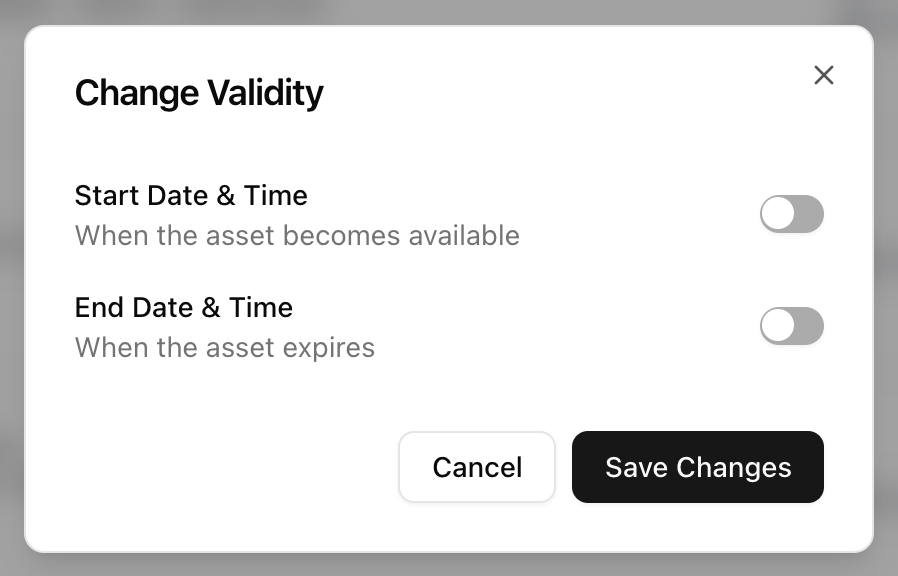
You can set a validity period on an asset so it plays only within a window. For example, a Thanksgiving Day Sale asset valid from Nov 1 to Nov 23. When the criteria are no longer met, the asset is automatically removed from all players.
- Open Assets and click the calendar icon (Add Validity) for the asset.
- Turn on Start Date & Time and/or End Date & Time, set the values and click Save Changes.