4K Digital Signage with PiSignage - 4K Video on Raspberry Pi 4, Raspberry Pi 5 and Amazon Signage Stick
Play 4K video on a Raspberry Pi 4, Raspberry Pi 5 or an Amazon Signage Stick.
PiSignage drives 4K displays (3840 x 2160) on the Raspberry Pi 4 and Pi 5 and plays 4K video with the VLC player. The Amazon Signage Stick also plays 4K video. The Raspberry Pi 3 and earlier boards are limited to 1080p.
Images, web pages and widgets are rendered by the browser at the native 4K resolution of the display. 4K video needs the settings below, because the default Chromium player handles video only up to 1080p.
4K video on the Pi 4 and Pi 5 needs player software 5.4.x or later. The player version is shown under each screen name in Screens. If your player is older, update it first, see How do I upgrade software in case of pi players.
Setting up 4K video on a Raspberry Pi
- Display: Connect a 4K display to the HDMI port. On the Pi 4 use HDMI0, the port next to the power connector.
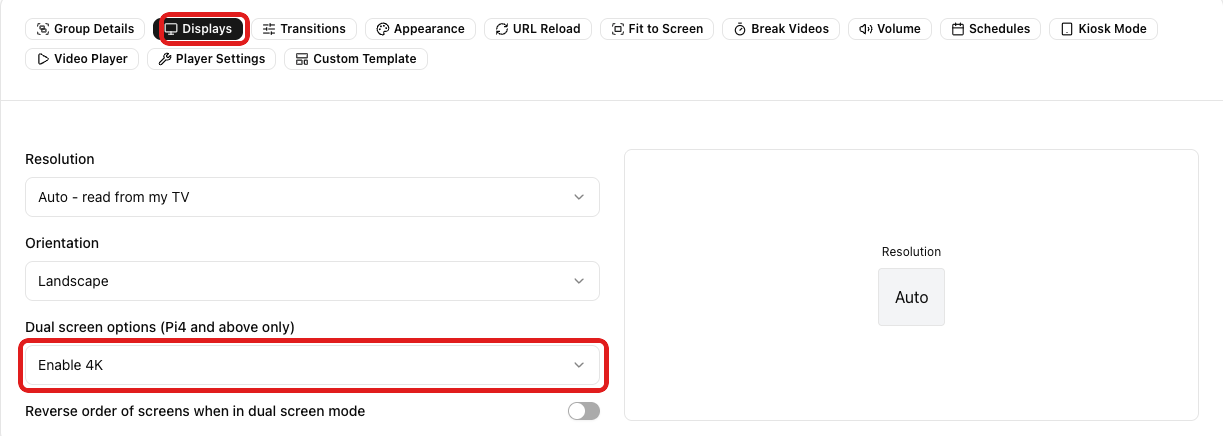
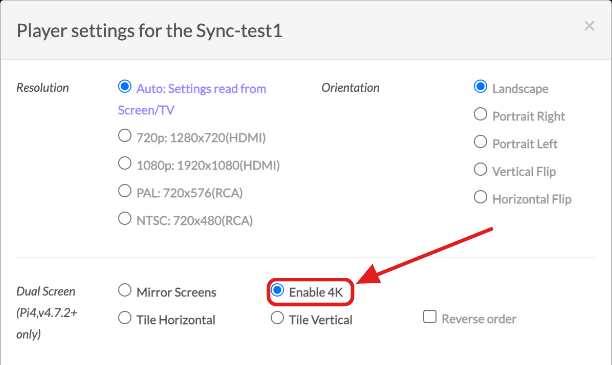
- Enable 4K: In the group's Settings, open Displays and set Dual screen options to Enable 4K. The player switches the HDMI output to 4K at 60 Hz, turns off the second HDMI port and reboots once to apply the change. In the legacy UI the same setting is under Player settings, Dual Screen.
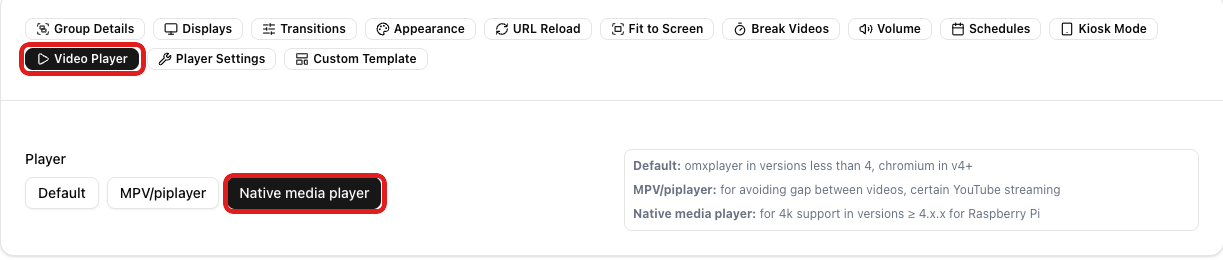
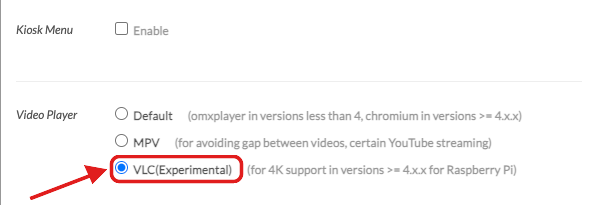
- Video player: In the same Settings, open Video Player and choose Native media player (VLC). Chromium is still used for images, web pages and widgets. In the legacy UI, choose VLC under Video Player.
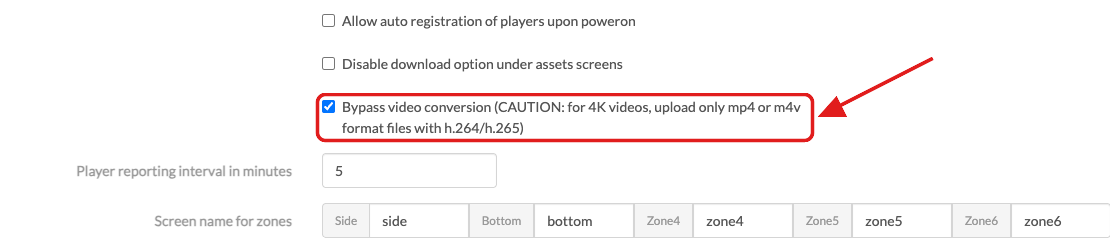
- Bypass video conversion: In your account Settings, under Display and Screen Settings, turn on Bypass video conversion before you upload. The server then keeps the file as uploaded instead of converting it to 1080p. In the legacy UI, tick the same option on the Settings page.

- Video files: Upload mp4, m4v or mkv files encoded in H.265 (HEVC). The Pi 4 and Pi 5 decode this in hardware up to 4K at 60 fps.
- Deploy the group.
Groups and Settings cover these settings in more detail.
Notes
- 4K files are large. Keep the bitrate around 20 to 40 Mbps and use a fast Class A2 card so downloads and playback keep up.
- The Pi 5 needs the official 5V 5A power supply and a fan or heatsink for sustained 4K playback.
- With Enable 4K the group runs a single display. Mirror and tile dual screen modes are not available at 4K.
Amazon Signage Stick
The Amazon Signage Stick plays 4K video without any of the settings above. Choose Exo player as the video player for better quality. See What are the other players supported and Amazon Signage Stick.