Documentshow-to-show-text-message-other-than-ticker
How to show text message other than ticker
Text can be shown as a message asset, as an emergency message or as a ticker.
There are three places to show text on screen.
1. Message asset
Create a message with the text to display, and optionally add CSS to style it.
- Open Assets and click + Add Asset.
- Choose Create content → Message.
- Enter the File name, the Message and the optional CSS.
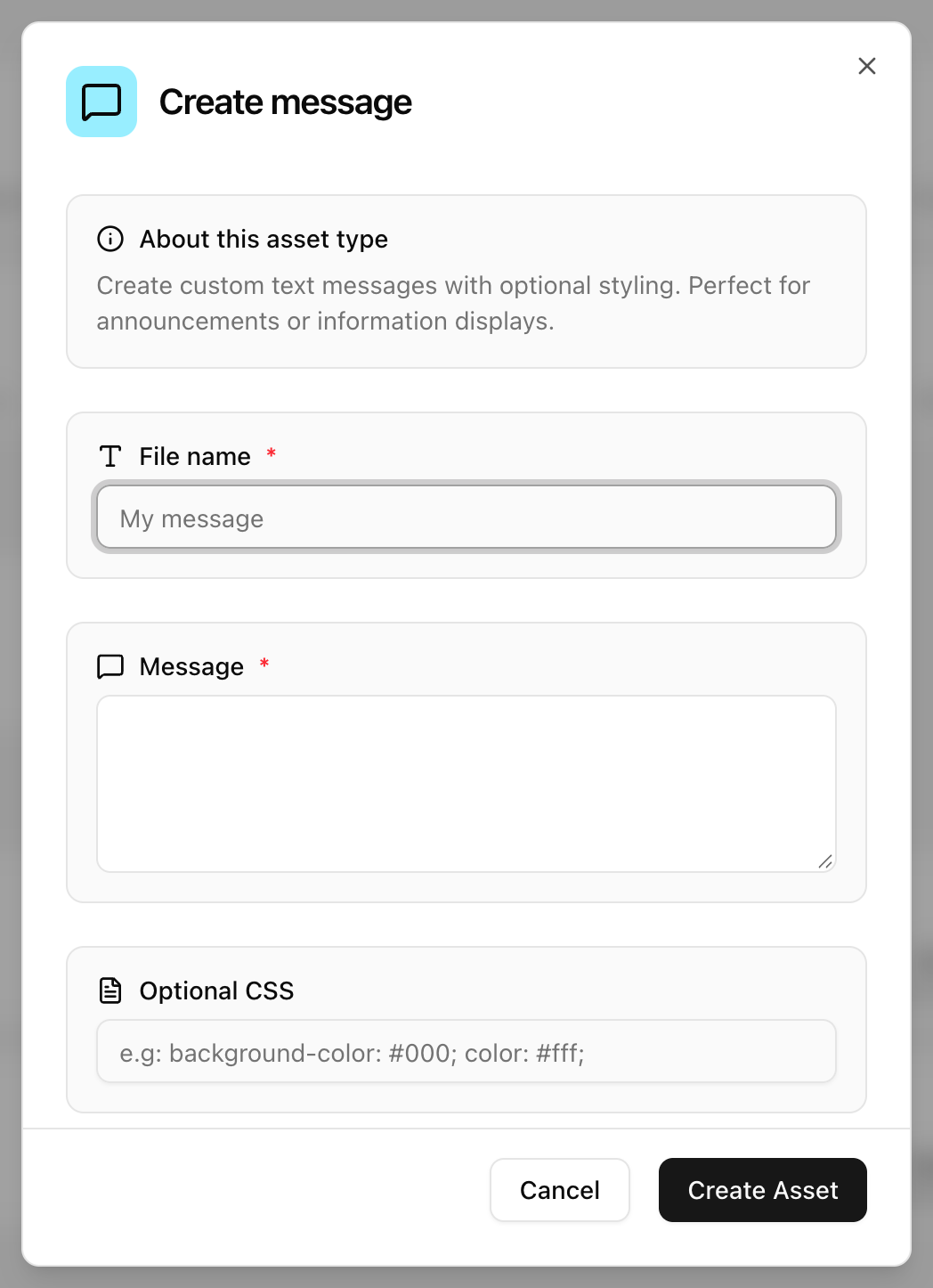
- Add the message to a playlist like any other asset.
In the legacy UI this is the Add Message dialog under the add assets button. More in How to add files, links, messages and special files.
2. Emergency message
Press Emergency Broadcast on the group page and choose the message position. The message appears on top of all signage content, including video. In the legacy UI it is a button on the Group Details screen.
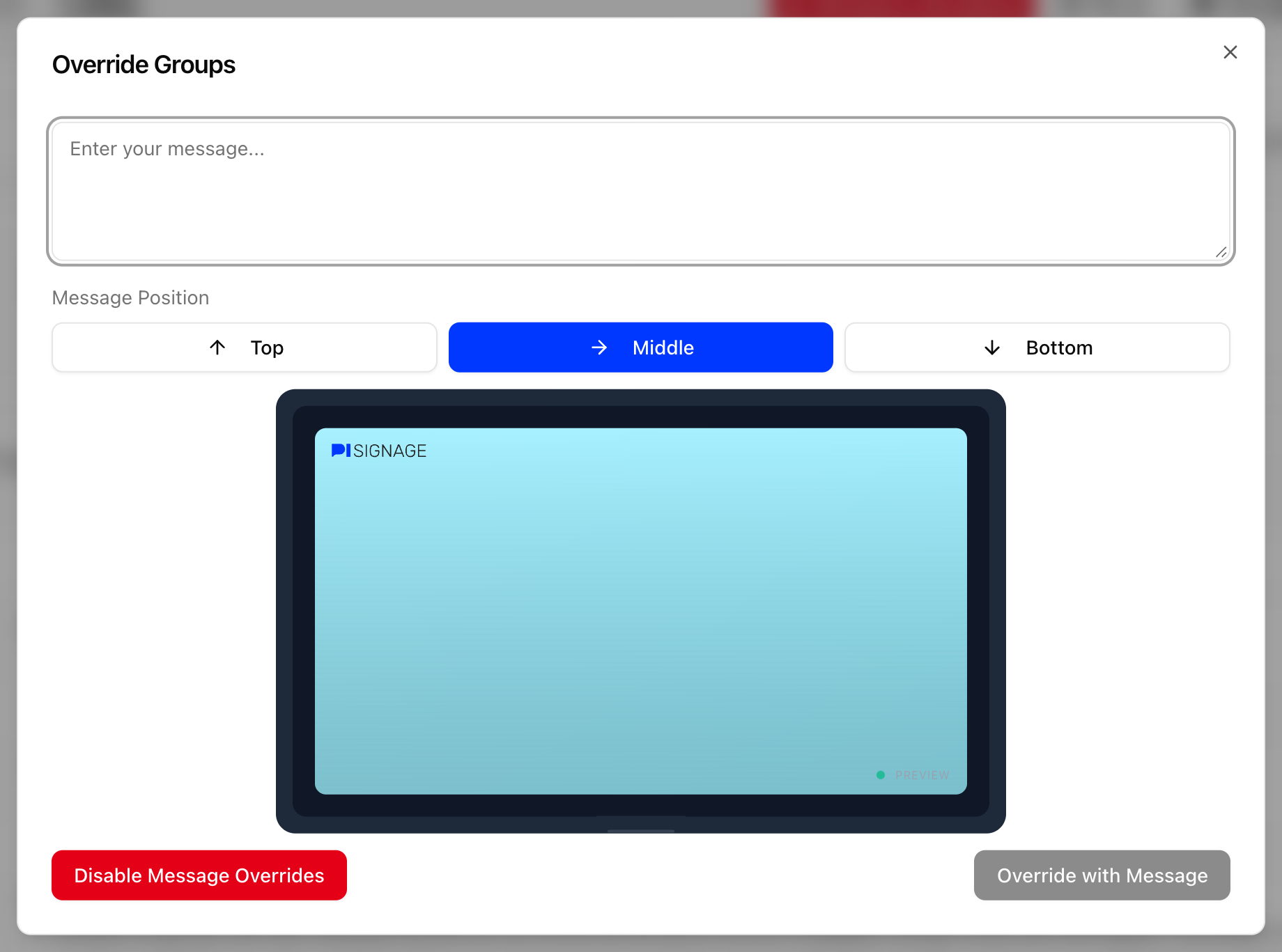
The emergency override takes effect on players as they come online, or instantly if they are already online. Groups covers emergency broadcast and override all.
3. Ticker message
Ticker messages can be added per playlist or at group level. See Ticker messages and styles.