Documentschange-your-username-password-or-email
Change your Username, Password or Email
Change the username, password or email linked to your pisignage.com account from your profile
In the new UI
- Log in to your pisignage.com account.
- Click your name at the top right of the page and choose Change profile from the menu.
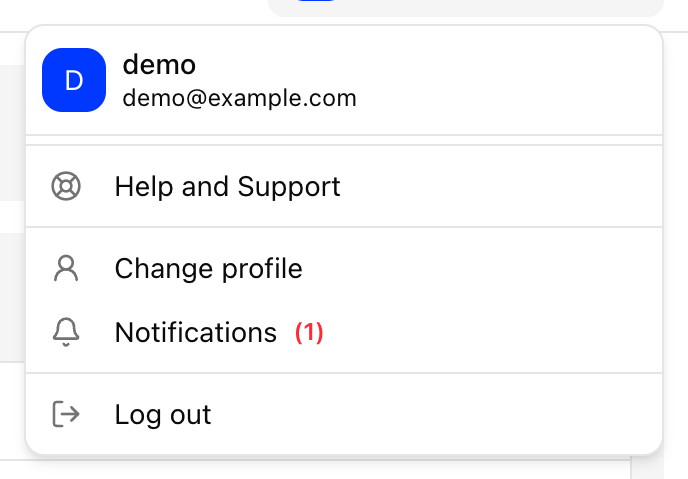
- In the Verify Your Password dialog, enter your current password and click Continue.
- The Update Profile dialog lists Username, Email, Password and Two-Factor Authentication, each with a pen icon. Click the pen icon of the item you want to change.
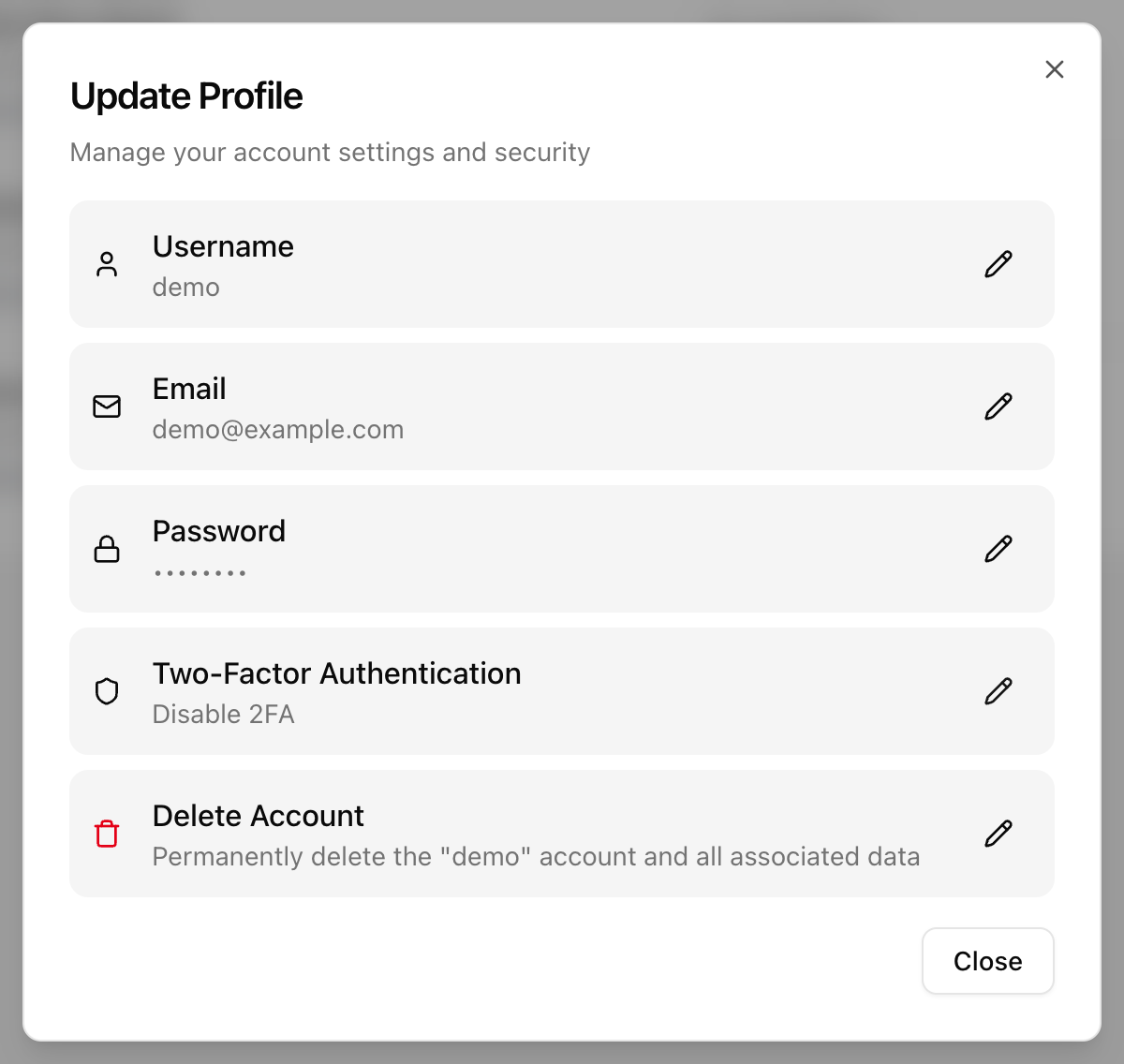
- Enter the new value (for a password, confirm it as well) and click Save Changes.
Under Two-Factor Authentication you can turn on Email OTP or an Authenticator App for sign-in, or turn 2FA off. Signup and Login covers 2FA in more detail.
You must log in again after changing your username or password. After a username change, re-register your players from the Screens page.
In the legacy UI
- Log in to your pisignage.com account.
- Click the dropdown next to your username and select Profile Settings.
- Enter your current password and click Unlock to modify your username, password or email.
- Click the pen icon of the field you want to edit.
- Click Save to save your changes.
You must log in again after changing your username or password. If you change your username, you must also re-register your players. Click the License icon on the Players tab.
Related