Playlists and Layout Settings
A playlist is a collection of assets, and layouts let you show several of them at once
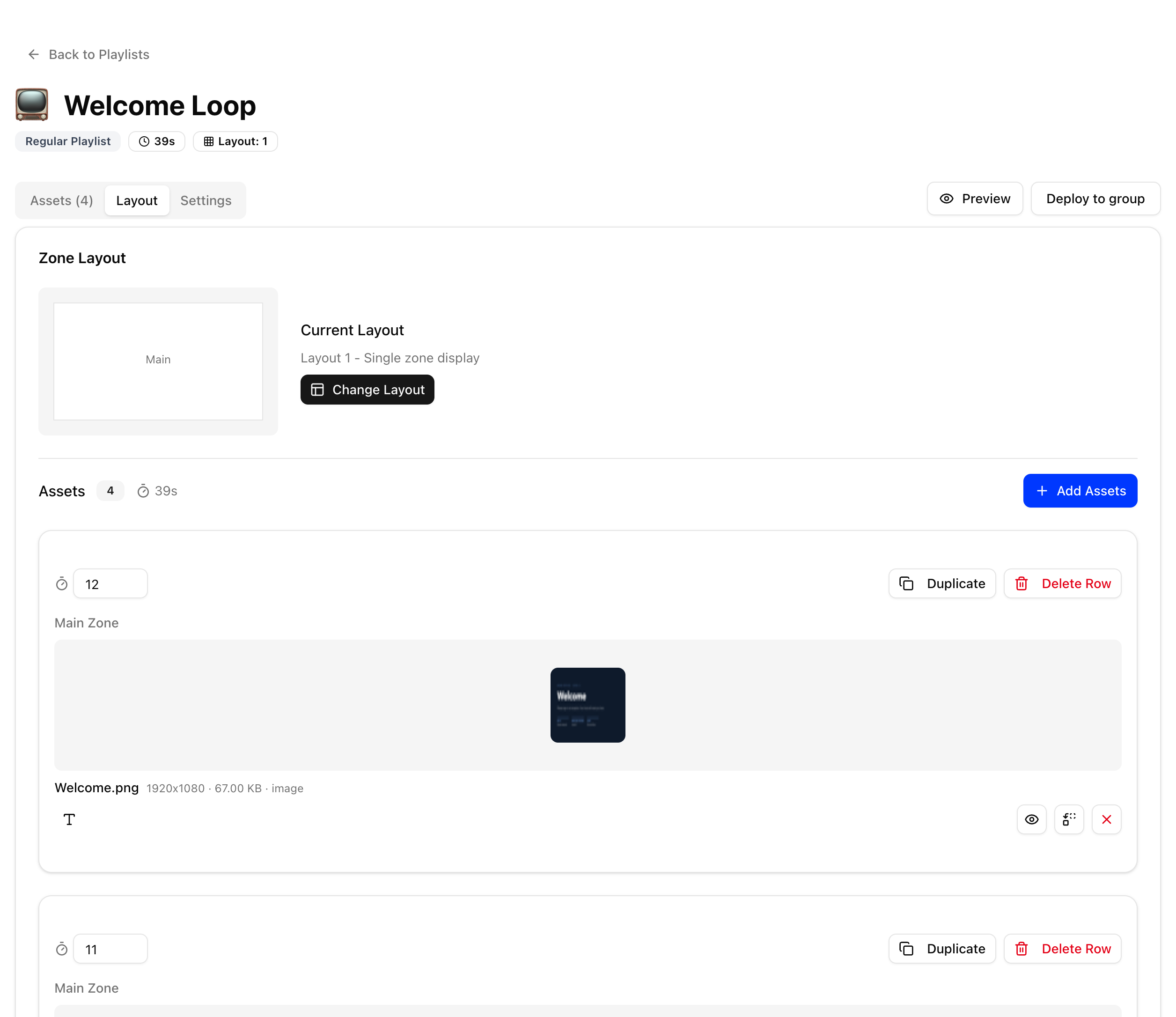
Each asset in a playlist plays for a set duration. A playlist can use a layout that shows several assets at once, and can have a ticker at the bottom of the screen (Ticker messages and styles). Playlists can also be special types such as advert, domination, event or audio, see Playlist types. Playlists is the main page for playlists.
Pre-defined and custom layouts
Pre-defined layouts support up to 3 zones, each with different assets. Custom layouts support up to 6 zones. Layouts fall into three groups:
- Landscape: 1, 2a, 2b, 2c, 2d, 3a, 3b, 3c, 3d, 4a, 4b, 4c, 4d
- Portrait: 2ap, 2bp, 2ap270, 2bp270
- Custom: custom, customp, customp270 (the last two are portrait). More details are in Special assets.
Custom video window sizes
Custom video sizes are defined in the layout selection popup, under the video window tabs. The image and video stretch option in the group settings sets playback to full screen or to the zone. Otherwise media plays at its actual size. See Group Settings.
Main, side, bottom and other zones
- Selecting an asset places it in the main zone. The main zone can be set to full screen for any asset through that asset's option.
- Depending on the layout, you can select assets for side, bottom, zone4, zone5 and zone6.
- Set the side and bottom files only when you need to change them. Otherwise the previous content keeps playing without reloading.
For zone sizes see Image and Video sizes for the pi player.
Building a playlist
- The asset window lists all available assets. Select assets for the playlist with the checkbox on the far right.
- To repeat an asset, duplicate it with the copy icon on the far right, below the checkbox.
- Video duration is set automatically. Other assets use the default duration from Installation Settings and you can adjust it.
- Reorder assets by dragging them with the hand icon.
- To show the main asset full screen, select the checkbox on the second row, left side.
- Mute a video with the mute option.
- Play audio files or streams in the background with the background option.
Webpage links and YouTube links can only be shown in the main zone.
Audio precedence
When audio is available and unmuted, it plays in this order: Main, Side, Bottom, Background Audio.