Group Settings
Group settings control how every player in a group behaves, and they win over the player WebUI settings
Settings made at group level take precedence over the settings in the player WebUI. Groups covers the rest of the group page.
Group settings in the new UI
Open Groups, click the group, choose the Settings tab and pick a section from the row of buttons. Click Save Changes after editing, then Deploy to send the settings to the players.
Group Details
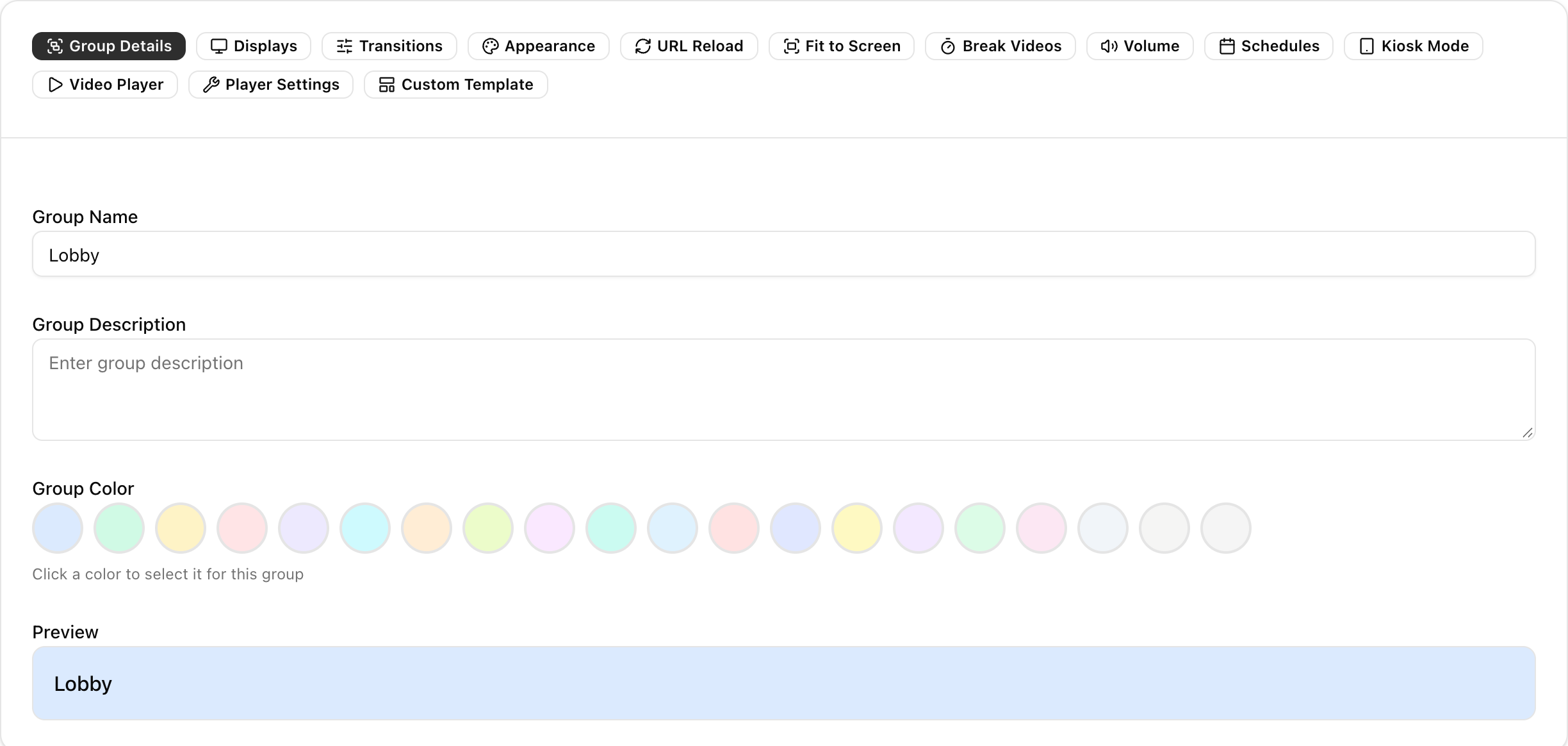
The group name, an optional description and a group colour that marks the group's screens in the Screens list.
Displays
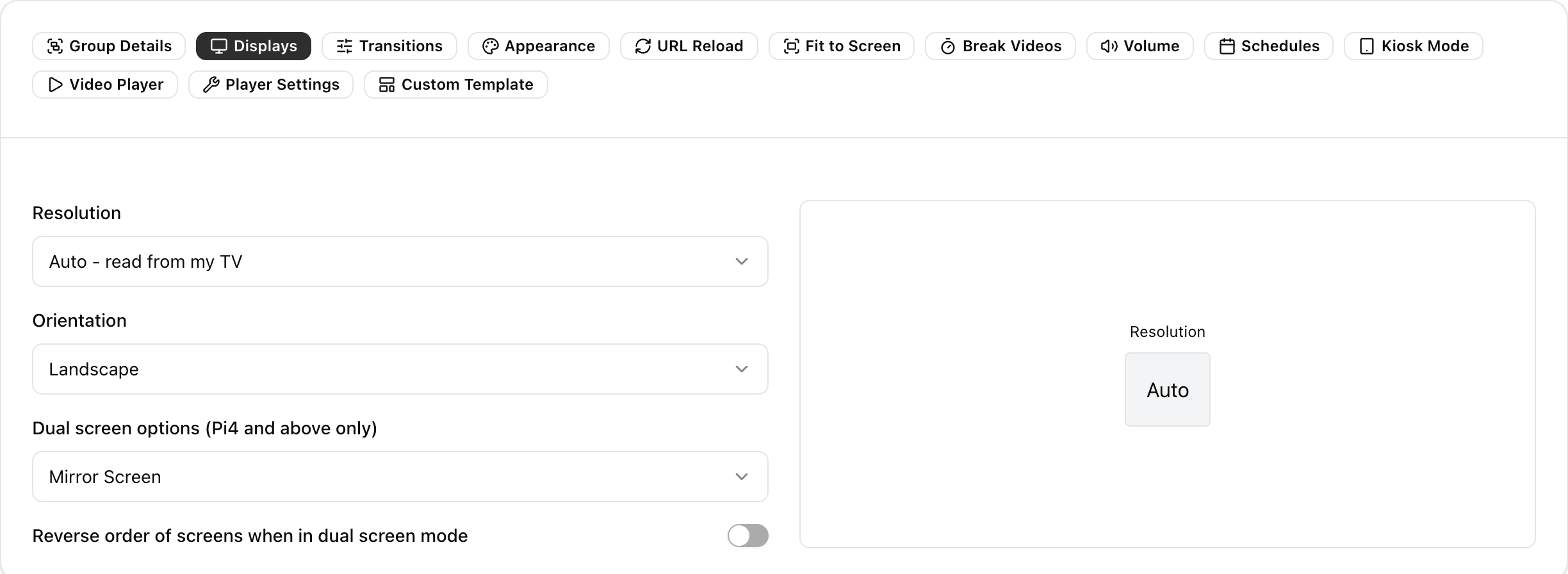
- Resolution: Auto, 1080p or 720p. The player reboots to apply it.
- Orientation: Landscape, Portrait Right, Portrait Left, Vertical Flip or Horizontal Flip. This is set at the hardware level. Orientation set at the playlist layout level uses CSS and does not affect webpage links, logos, emergency messages or clock widgets. Portrait mode may show a black border, adjust the overscan values in the player WebUI to remove it.
- Dual Screen: The arrangement when two displays are connected. Available only on Raspberry Pi 4 running player version 4.7.2 or later.
- Mirror screens: Mirrors the Primary display onto the Secondary display.
- Enable 4K: Runs the display on HDMI-1 in 4K mode.
- Tile Horizontal: Displays sit side by side.
- Tile Vertical: Displays sit one above the other.
- Reverse Order: Swaps the content on the Primary and Secondary displays.
Transitions
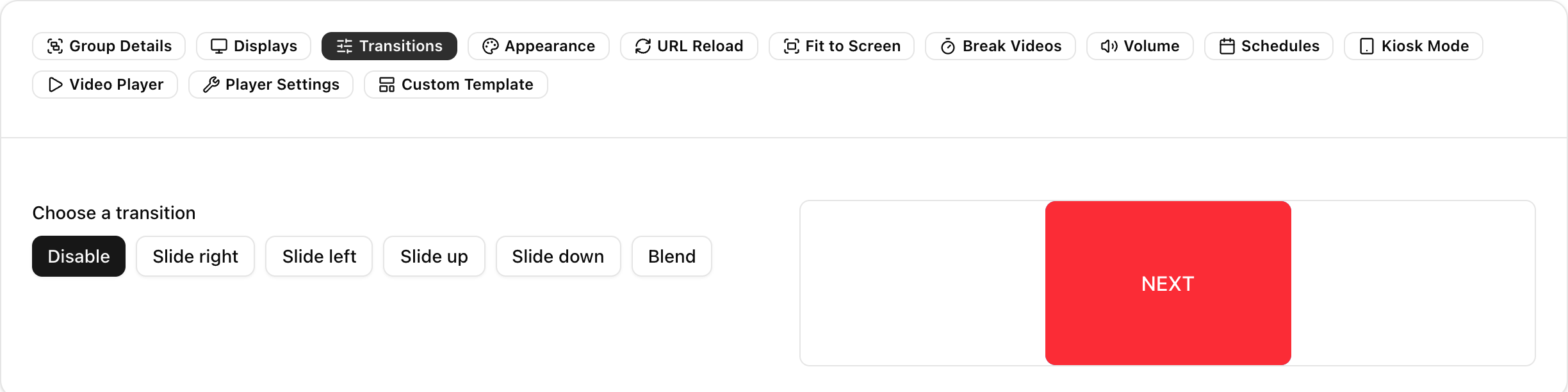
Disable, Slide right, Slide left, Slide up, Slide down or Blend. A preview appears on the right. Pi processing limits may reduce the quality of animations.
Appearance
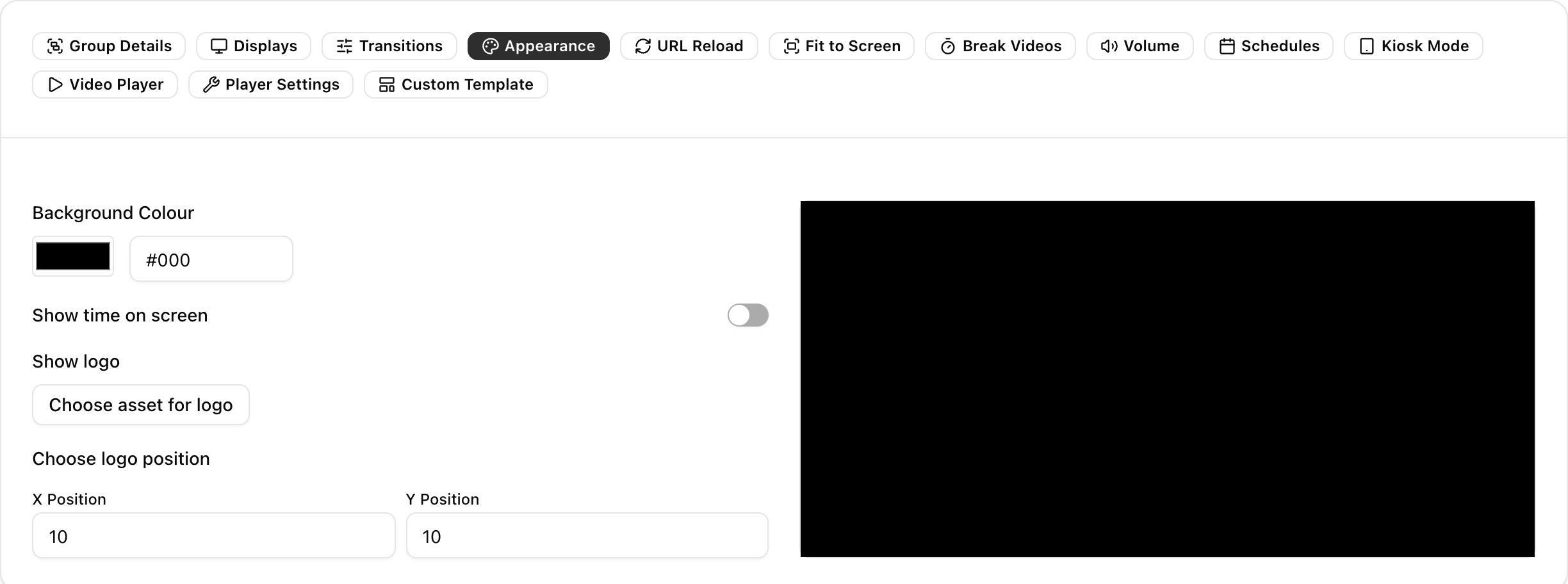
- Screen background: A CSS colour code. The default is black.
- Logo: A PNG logo shown over your content. Its position is set with X and Y values.
- Clock: A clock in 24-hour or 12-hour format, which can show the date and sit at the top or bottom of the screen.
URL Reload

Choose Keep webpages in memory to cache webpages, or Reload link URLs each time to reload them.
Fit to Screen
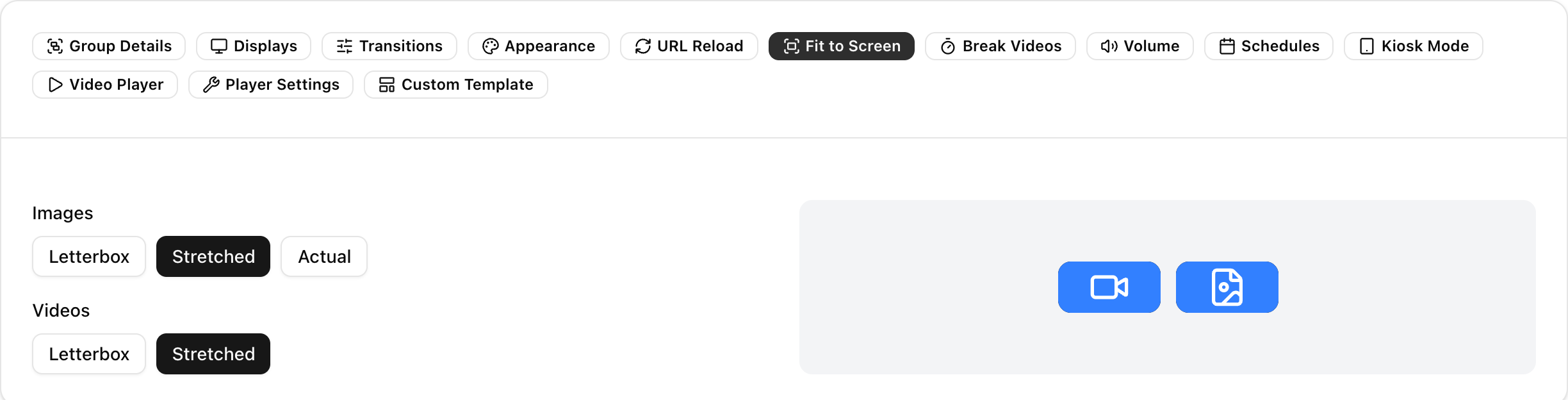
- Images: Letterbox, Stretched or Actual size.
- Videos: Letterbox or Stretched.
Break Videos
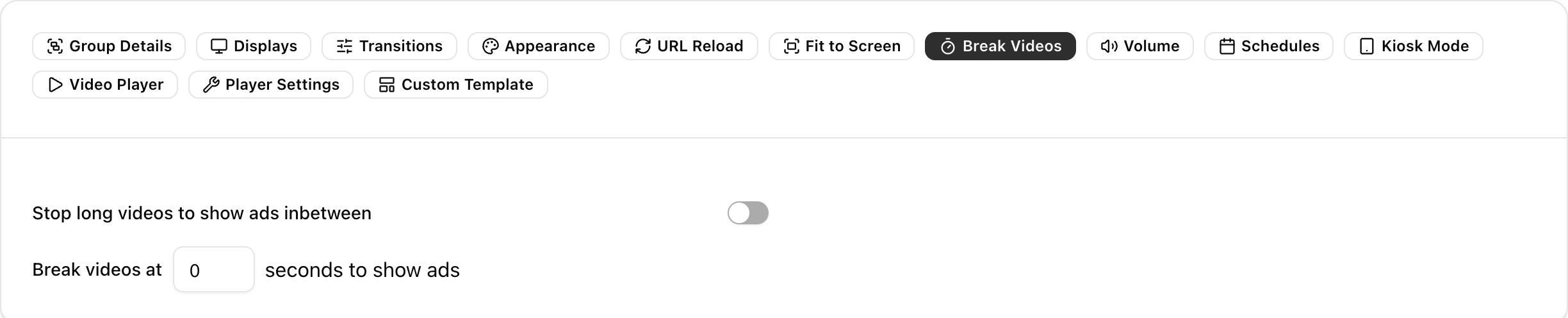
Stops a video after a set number of seconds to show adverts, then resumes it.
Volume

Video and audio volume as a percentage. The default is 100%.
Schedules
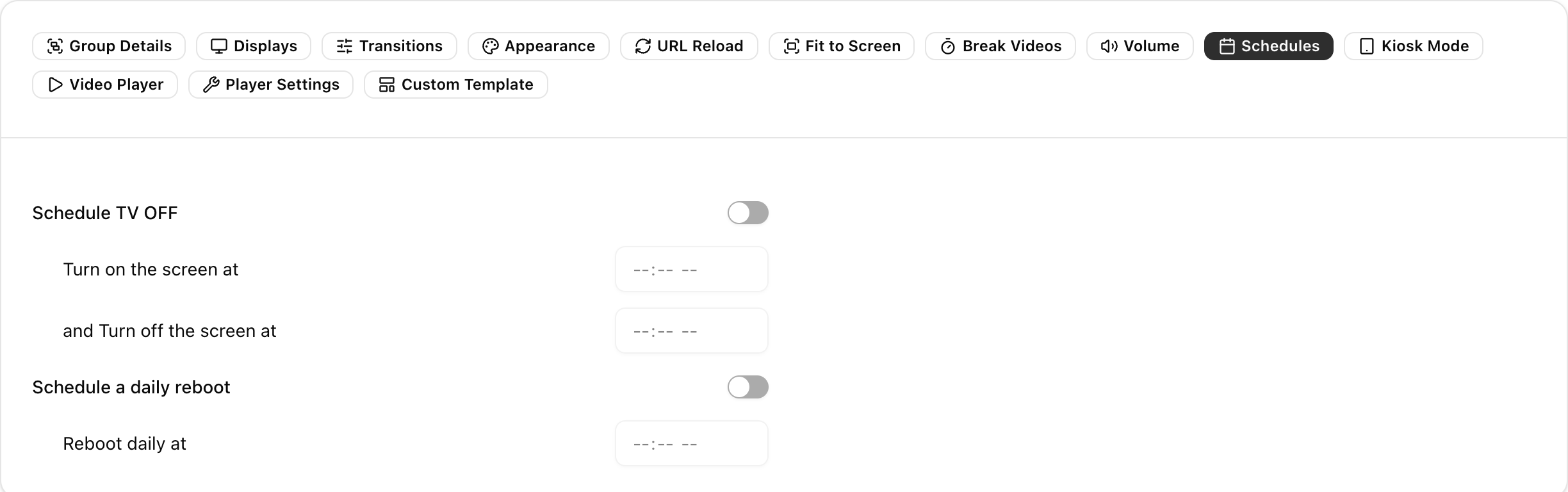
- Schedule TV ON and OFF: Switches the TV on and off daily. The timing may be up to 5 minutes late. For minute-level accuracy and more options, schedule a TV_OFF playlist in the group instead.
- Reboot players daily: Optional and not needed. Sets a daily reboot time.
Deploy Daily, where the server sends the Deploy message at a set time every day, is the Schedule Daily Deploy button at the top of the group page.
Kiosk Mode
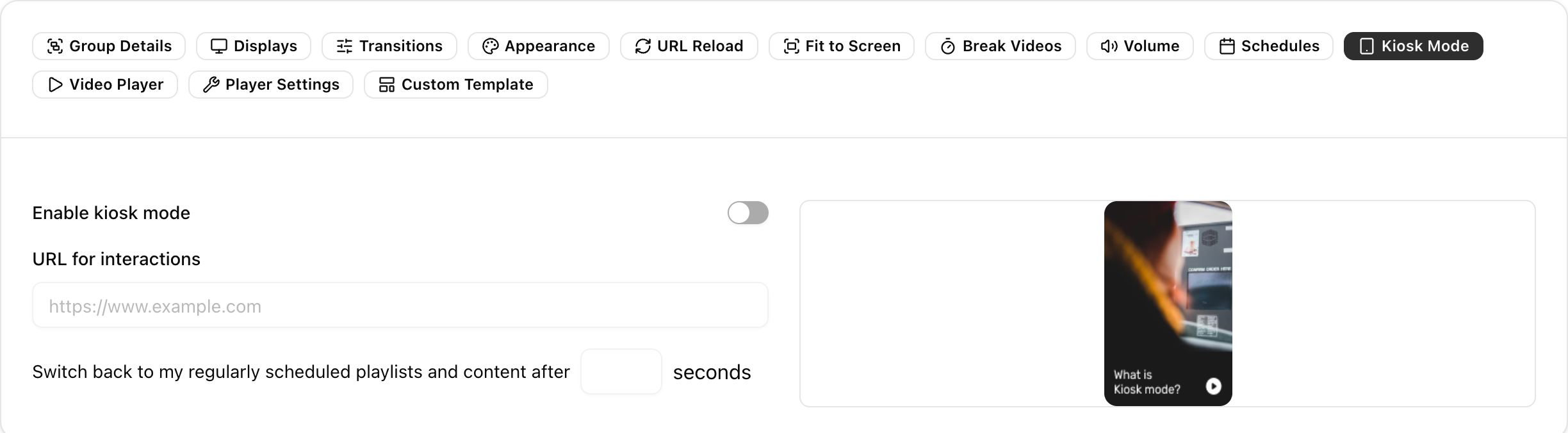
Kiosk mode lets visitors use a web page on the screen. Signage plays the rest of the time. Typical uses are a menu or product catalogue, a wayfinding map, a visitor sign-in form or a survey.
- Turn on Enable kiosk mode.
- Enter the URL for interactions: the full https address of the page. The player must be able to reach it over its network.
- Set Switch back to my regularly scheduled playlists and content after to the inactivity period in seconds. 30 to 120 seconds suits most installations.
- Click Save Changes, then Deploy.
On the player:
- Scheduled playlists play normally.
- A mouse click or touch stops playback and brings the kiosk page to the front in a full-screen browser.
- Each click or tap restarts the inactivity timer.
- After the inactivity period, the browser hides, the playlist resumes and the kiosk page reloads from the start.
Notes:
- USB mice and touch screens (DSI and USB HDMI panels) both work.
- On Raspberry Pi OS with the labwc desktop, an on-screen keyboard appears when a text field is focused.
- Pi 4 and Pi 5 keep the kiosk browser ready in the background, so the page appears immediately.
- Pi Zero 2 and Pi 3 start the browser on the first click to save memory, so the first appearance takes a few seconds.
- While the kiosk page shows, playback in all zones stops, and the ticker, logo and clock widgets are hidden. They return when the playlist resumes.
Video Player
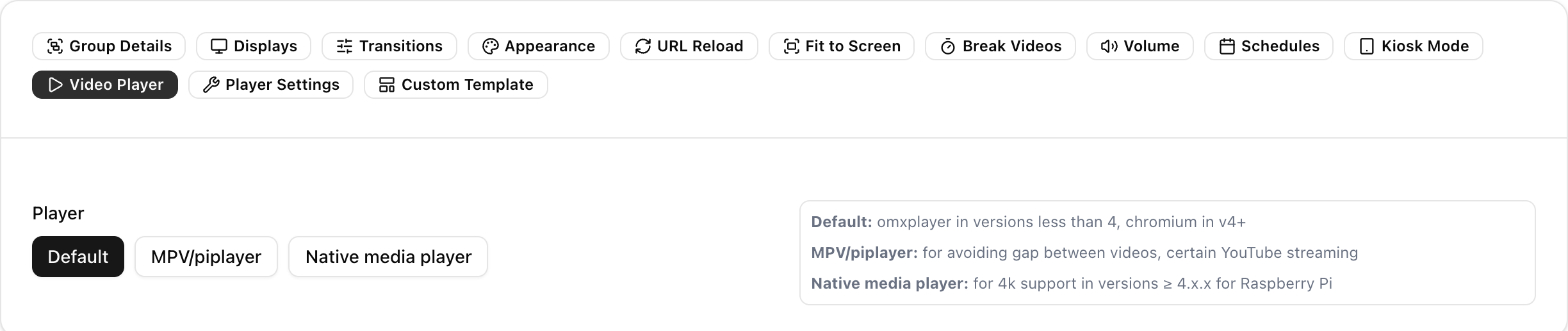
Chooses the engine that plays videos for the group's players. The engine used also depends on the player version and board.
- Default: The Chromium browser. It plays videos with images, web pages and widgets, with smooth transitions and the best web-content support. It is used on Raspberry Pi 4, Pi 5 and other boards with more than 1 GB of memory, and plays 1080p H.264 video.
- MPV / piplayer: On older players this is MPV, which plays videos back to back without a gap and handles YouTube streams. On players 5.5 and later it is pi-player, a GStreamer-based engine built for Raspberry Pi that renders videos and images directly on the display.
- Native media player (VLC): Choose it for 4K video on Raspberry Pi 4 and Pi 5 (H.264 and H.265), for .mkv files and for RTSP camera streams.
For 4K, also select Enable 4K under Displays, upload your videos as mp4 or m4v with H.264 or H.265 encoding, and turn on Bypass video conversion in Settings so the server does not re-encode them to 1080p. See New UI Settings Guide - Display, Branding, Collaborators, SAML, Audit Logs and Integrations.
The player switches to VLC by itself for .mkv files and for RTSP and YouTube streams. It switches to the browser on boards where the chosen engine is not available. After changing the player, click Save Changes, then Deploy.
Player Settings
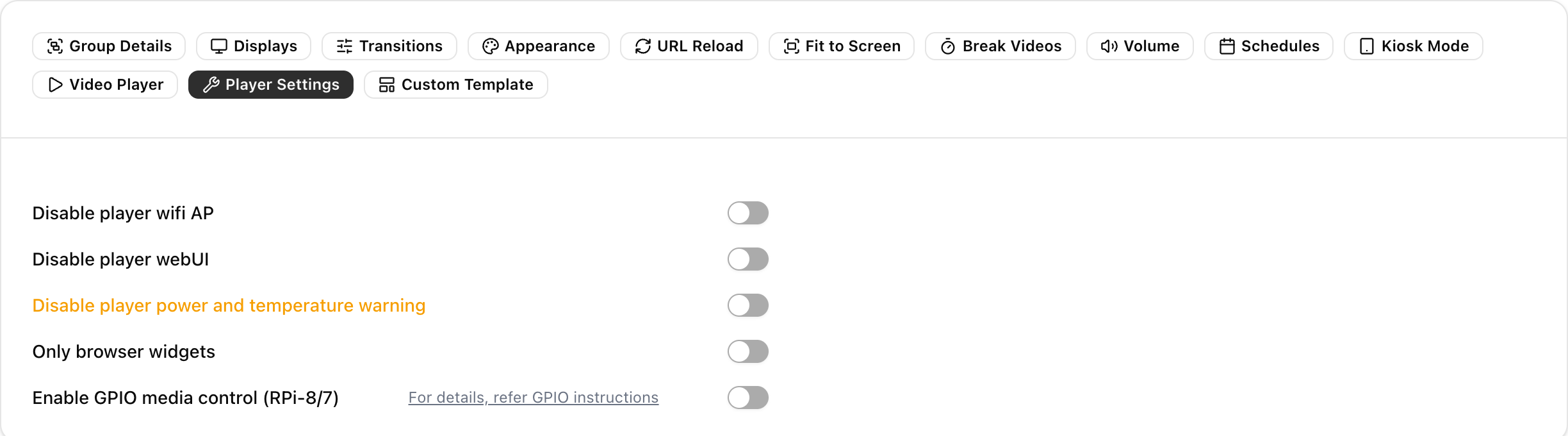
- Disable the player's Wi-Fi access point.
- Disable the player WebUI.
- Hide power and temperature warnings.
- Draw widgets (logo, clock, QR code, emergency message) in the browser only.
- Enable GPIO media control.
Custom Template

Sets the default custom template from Template Designer for the group's players.
Group settings in the legacy UI
The legacy UI shows these as one list.
- Resolution: The resolution for the group's players. The player reboots to apply it.
- Orientation: Screen orientation at the hardware level (see the note under Displays above).
- Dual Screen: Mirror screens, Enable 4K, Tile Horizontal, Tile Vertical and Reverse Order, as described under Displays. Raspberry Pi 4 on player version 4.7.2 or later only.
- Animation: An SVG-based animation for image transitions.
- Screen Background: A CSS colour code. The default is black.
- Display Logo: A PNG logo at a chosen position over your content.
- Clock widget: 24-hour or 12-hour format, in the top-right or bottom-right corner.
- URL caching and reloading: Keep webpages in memory or Reload link URLs each time.
- Stretch Image to full screen: When enabled, images fill the screen. Otherwise they keep their aspect ratio and size.
- Stretch Video to full screen: The same for videos.
- Volume: Video and audio volume as a percentage. The default is 100%.
- Stop video to show adverts: Stops a video after a set number of seconds to show adverts, then resumes it.
- Schedule TV ON and OFF: Switches the TV on and off daily. The timing may be up to 5 minutes late.
- Deploy Daily: The server sends the Deploy message daily at a set time.
- Reboot Players Daily: Optional and not needed.
- Kiosk Menu: A webpage shows when a connected mouse is clicked. Set the URL and an Inactivity timeout. After that period without a mouse click, the Default or Scheduled playlist resumes. For example, if there is no interaction for 5 minutes, the playlist resumes.
- Video Player: On player 4.x.x the default is Chromium Browser. On other versions it is Omxplayer. MPV plays YouTube streams and overrides the default player. VLC [experimental] plays 4K videos on players running 4.x.x.
See also Reasons for player reboot, Playlist types and Support for PAL and NTSC analog RCA Video.